
Viz Mosart User Guide
Version 3.9 | Published November 04, 2019 ©
Main Menu
The main menu is located at the top of the Viz Mosart user interface which provides access to different functions and windows.

The different options in the main menu are shortly described below. For some menu items, more detailed explanations are provided later in the chapter.
Rundowns
Viz Mosart's primary source for rundowns (also called manuses) is the NCS. However, it will also save them as XML files on the Viz Mosart server. (By default, the location is C:\manus, but this may be overrridden by the Manus Directory setting in the Settings Editor for either iNews or MOS.) Viz Mosart will do this automatically, however the user may also save manually. To distinguish later versions of a rundown from the original one, Viz Mosart will append a timestamp to the file name of any subsequent version. The user may also open a rundown from one of these files.
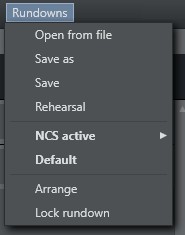
The Rundowns item contains the following options:
-
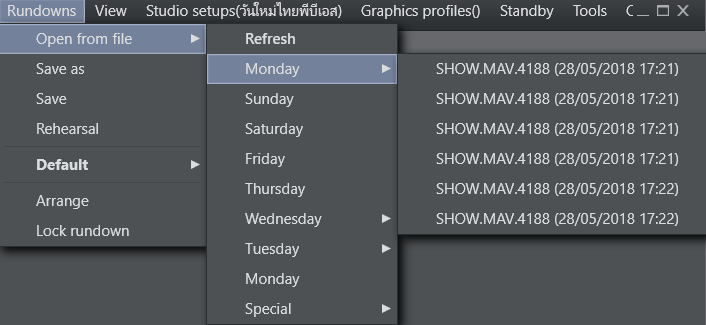
Open from file: Lists rundowns found in the folder mentioned above.
-
Refresh: Refreshes the list of available rundowns.
-
Between Refresh and Special there will be eight menu options for 'today' (this and similar words not referring to the day of writing nor the day of reading, but to the day of using Viz Mosart), yesterday, the day before yesterday, up to the day a week ago. The option names will be the names of the days in the language of the user's computer. For each of these eight days, there will be a sub-menu containing the timestamped rundown files saved on that day. (If none, there will be no sub-menu.)
-
Special: Lists the non-timestamped rundown files.
-
-
Save as: Save the current rundown with a new name in the window that opens. Do not include an underscore ('_') in the name.
-
Save: Save the current rundown.
-
Rehearsal: Click to enable rehearsal mode. Click Rehearsal again to switch back to On Air mode. See Rehearsal and On Air Mode.
Info:
Between Rehearsal and Arrange there may be additional options depending on the connected NCS and on what has been configured in Tools > Edit rundown shortcuts. For more information see Managing NCS Rundowns.
-
Arrange: Opens the Arrange rundowns window.
-
Lock rundown: Click to lock the rundown. See Lock Rundown or Story.
View
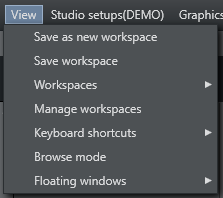
The View item contains the following options and sub-options:
-
Save as new workspace: Save the current view/workspace with a new name in the window that opens.
-
Save workspace: Save the current view/workspace.
-
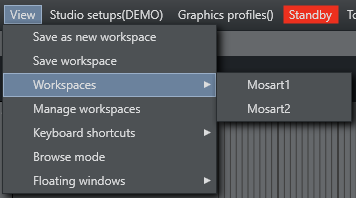
Workspaces: Choose between the available workspaces.
-
Manage workspaces: Opens the Manage workspaces window.
-
Keyboard shortcuts: Choose between different keyboard shortcuts setups.
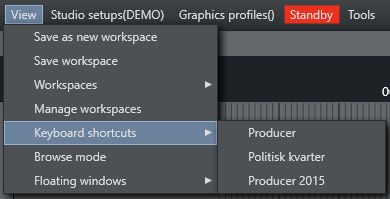
-
Browse mode: Click this option to active/deactivate Browse mode. For more information see Running Viz Mosart in browse mode. The appearance of this option is controlled in General Settings accessed from the Tools menu.
-
Floating windows: Lists both the different parts of the main window that can be released as separate windows, as well as windows that can be opened that are not part of the main window:
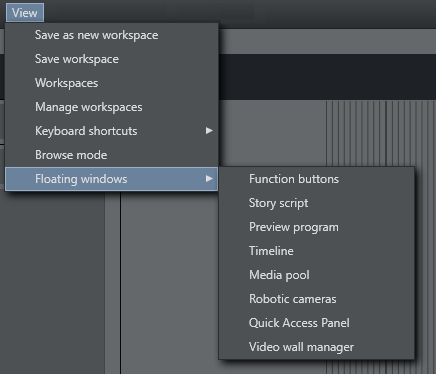
Releasing Windows:
-
Function buttons: Releases the Keyboard buttons panel. See Keyboard Shortcuts.
-
Story script: Releases the Script panel. See Script Window.
-
Preview program: Releases the Program, Transition and Preview panels. See Program Window, Preview Window, Video Transition Area and Audio Function Area.
-
Timeline: Releases the Rundown panel. See Rundown Window.
-
Media pool: Releases the Media pool panel. See Media Pool.
Opening Windows:
-
Robotic cameras: Opens the Individual Camera Controller window. See Robotic Cameras. See also Camera Robotics in AV Automation in the Viz Mosart Administrator Guide.
-
Quick Access Panel: Opens the Quick Access Panel. See Quick Access Panel.
-
Video wall manager: Opens the Video wall manager. See Wall Manager
-
Studio setups
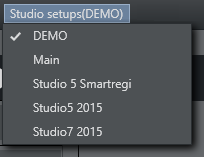
Provides a drop down list of the studio setups. See Building Viz Mosart Templates for more information.
Graphics profiles

Provides a drop down list of the graphics profiles. See the Using Overlay Graphics Interface section under Main Menu for more information.
Standby
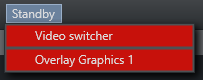
The drop-down list combines the standby options in Overlay Graphics and AV Automation.
Note: The names in the Overlay Graphics Interface and the GUI are not the same.
Tools
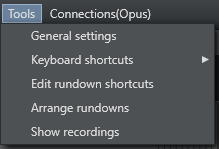
The Tools item contains the following options:
-
General settings: Opens the Settings dialog. See General Settings.
-
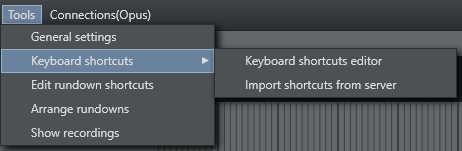
Keyboard shortcuts:
-
Keyboard shortcuts editor: Opens the Keyboard shortcuts window. See Keyboard Shortcuts.
-
Import shortcuts from server: See Exporting and Importing Keyboard Shortcuts
-
-
Edit rundown shortcuts: Opens the Edit rundown shortcuts window. See Managing NCS Rundowns.
-
Arrange rundowns: Opens the Arrange rundowns window. See Arrange Rundowns.
-
Show recordings: The recording panel is used to create a new video recording. See Recording.
Connections
Lists the main and backup server pairs configured in General Settings. The Status Bar will update when changing the connection.