
Viz Mosart User Guide
Version 3.9 | Published November 04, 2019 ©
Audio Panel
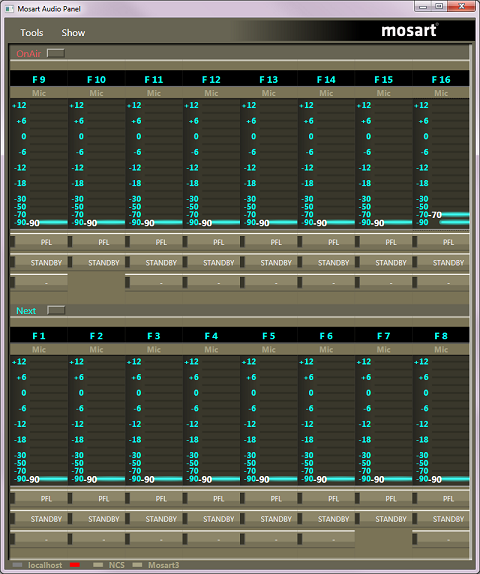
Audio Panel (Client)
The Audio Panel (Client) is a software representation of the audio mixer connected to the Viz Mosart Server. It is a replication of current faders, on air faders, and faders in ‘preview’.
The Audio Panel is a separate application and can be accessed in the Viz Mosart folder via: C:\Program Files (x86)\Mosart Medialab\Mosart Audio Panel\AudioPanel.exe
Setting up the Connections
The connection setup to the Viz Mosart Server is done in Tools - Settings - General - Global - Server settings, and should be the same as for a GUI connected to that server.
The Audio Panel requires Manus Administrator and AV Automation to run, and to then have a green connection to that Viz Mosart server in the bottom left corner.
Configuration file is located in C{{:\ProgramData\Mosart Medialab\ConfigurationFiles or C:\channeltemplates}}.
The configuration file will be created on startup of Audio Panel if it does not exist.
Using the Audio Panel
Setup
An initial setup is required to access the audio mixer via the Audio Panel interface. This is done by going into Tools -> Settings -> General Settings.
Here you will be faced with a small selection of options to properly help you set up your audio fader panel.
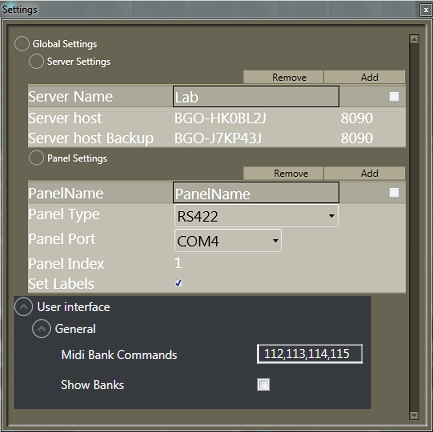
Server Settings: Server Name, Server Host and Server Host Backup should be changed/configured for use. You can also change the port that the Application uses to communicate with Viz Mosart servers, the default port is 8090.
Panel Settings: The Panel settings consists of the following sub-menus; Panel name, Panel type, Panel Port, Panel Index and Set Labels.
Server Settings
|
Item |
Description |
|
Server Name |
This is the name used by the Audio Panel GUI |
|
Server host |
This can either be the server name OR the IP address + port number |
|
Server host Backup |
Same as "Server host", for the backup server |
Panel Settings
|
Item |
Description |
|
PanelName |
A self-administered name for the panel |
|
Panel Type |
The type of connection used for the audio panel, E.g; MIDI, RS422, RS232 |
|
Panel Port |
The specific port used in the above connection (E.g. COM3) |
|
Panel Index |
You can utilize several panels which could have an individual number |
|
Set Labels |
Check if you wish to send label information back to the panel, only for panels with LCD label buttons. |
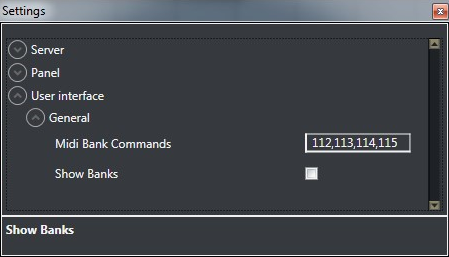
User interface: Use these settings to Bank faders on the JLCooper Panel.
-
Midi Bank Commands- specifies MIDI controls on the JL Cooper Panel. Default values corresponds to F1, F2, F3 and F4 keys.
-
Show Banks- if enabled, it will show the bank associated with each fader in Audio Panel GUI on the top side for each fader.
The bank for each fader can be changed by right clicking on the fader label and selecting the bank from the displayed pop-up list.
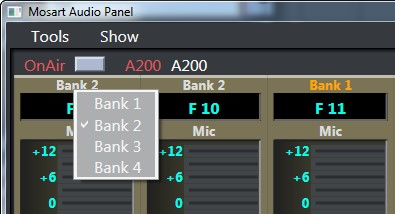
In the Show menu there are options to show MIDI commands and to highlight in orange the selected bank on the faders.
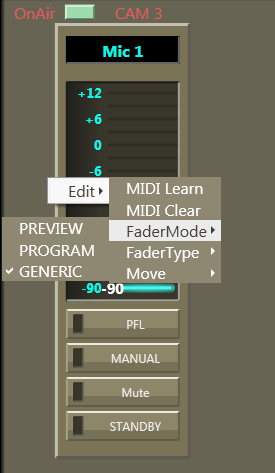
By right-clicking on any fader, and selecting Edit, you can configure properties of the fader’s operation.
Fader Configuration
Fader Edit Menu
|
MIDI Learn |
Assigns any physical fader on the Audio Remote Panel to the selected fader in the Audio Panel GUI. After selecting this function, move the fader on the physical mixer so Audio Panel will learn and memorize this function |
|
MIDI Clear |
Deletes the assigned physical fader from the Audio Panel. |
|
FaderMode |
Selects whether the logical fader should work in Preview, Program or as a Generic fader which is constantly in use.- Program: Retrieves the active faders from the template in the program. The virtual fader will become visible, and can be adjusted when On-Air.- Preview: Retrieves the active faders from the template in preview. It permits you to change the levels while it is in preview, before it is taken on air.- Generic: Simple remote operation of a physical fader on an audio mixer. Constantly connected from the same source. Locks the fader to the same source, e.g. (Mic 4) will always remain static in the Audio Panel GUI and not change based on current story in the Viz Mosart GUI.See Also Selecting a Source. |
|
FaderType |
Check if you wish to send label information back to the panel, only for panels with LCD label buttons. |
|
Move |
Moves the selected fader UP or DOWN in the Audio Panel GUI |
Selecting a Source
If you are using the Generic fader mode, a source from the source list can be selected by right-clicking in the area where labels are listed.
Check default number of faders.
Input selection can be configured by right-clicking the "fader header" and select fader names.
You can select a fader label by right clicking on the label (just below the fader header) and selecting the appropriate function in coordination with your audio mixer.
Note: Selecting "ANY" could remove the label. If no label is present, then the ANY function would be the selected label... if one wishes to change the label again, select another label the fader-edit menu (right click on the actual fader), and select a new label in the "fader-type" sub-menu
Assign Function Keys
In any of the function buttons below the GUI faders, you can assign to any of the function keys on a physical audio panel. This setup also utilizes MIDI Learn and MIDI Clear. In addition you can select the preferred function, e.g. Mute, Standby, PFL.
Update After Viz Mosart Server Switching
The server that the Audio Panel GUI is connected to follows the Viz Mosart GUI, switching between a main and backup server in the Viz Mosart GUI will automatically configure the selected server in the Audio Panel GUI accordingly.
Audio Panel (Server)
The Audio Panel (AudioPanel) enables the use of a Behringer BCF2000 or JL Cooper MXL with Viz Mosart Server. This application controls data transmission between the physical hardware panel and AV Automation on the Viz Mosart Server.