Viz Mosart User Guide
Version 3.9 | Published November 04, 2019 ©
Program Window
The program window is situated in the top right hand corner of the Viz Mosart GUI. It shows information for the currently running story element.
Last Words
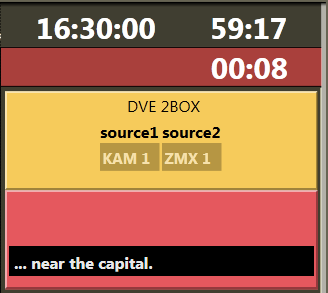
Last words will be shown across the bottom of the program window if the last words are available from the newsroom script.
On-air Overlay Graphics
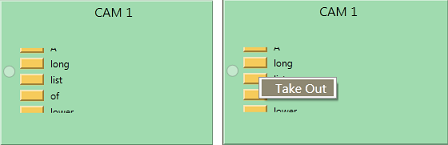
The overlay graphics currently on air are displayed in their corresponding layer. The Viz Mosart GUI has three layers. The lower level is always the lowerthird level. Level two and three may be configured individually for each graphic type; e.g. OTS (Over The Shoulder) graphics or wall graphics.
If more than 3 overlay graphics are on air at the same time, a small circle appears next to the list, and the operator can scroll up and down the list using the mouse wheel.
Overlays can also be taken off air by right clicking them in the Program window and selecting Take Out.
Template Continue Points
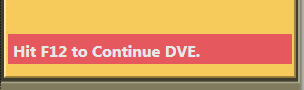
When a Viz Mosart template with built-in continue points goes on air, the descriptive text from template design is displayed. Use the keyboard shortcut for Take Next to take the continue point.
Timing Information
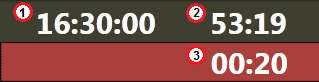
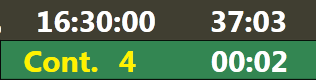
The timing information consists of three counters:
-
Counts down time to next break.
-
Counts how much the rundown is over/under.
-
Counts down remaining time for the current on-air template.
-
Once it reaches zero, the background color of the counter changes to red and the clock starts counting up.
-
Optional: By setting the Clip visual countdown (Tools > General Settings > User Interface > Preview/Program Window) to a value above 0, the countdown of PACKAGE and VOICEOVER will change to pink to alert the user if the countdown reaches this value.
Example: If this setting has a value of 10, the counter will change color as follows: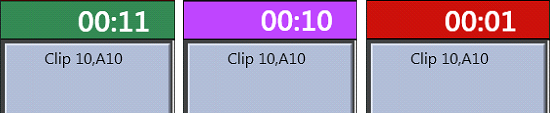
-
Auto Take Next
The auto take next label signals that the Viz Mosart rundown is currently in automatic mode.
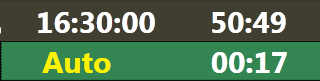
Continue Count
The number of remaining continue points in the full screen graphics are displayed in the Program window.