
Viz Mosart User Guide
Version 3.9 | Published November 04, 2019 ©
Managing your Workspace
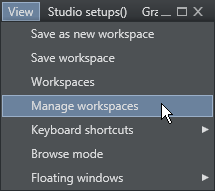
By accessing the View > Manage Workspaces menu, the Manage workspaces window opens where the layout of an instance of the Viz Mosart GUI can be customized.
Customizing the Layout
The Viz Mosart GUI is highly flexible and can be changed to suit the particular needs of the individual station/channel/show/operator. To modify the visual appearance and layout of the GUI, the Workspace Manager can be used.
Note:
To add or modify keyboard shortcuts, the Keyboard Shortcut Editor is used.
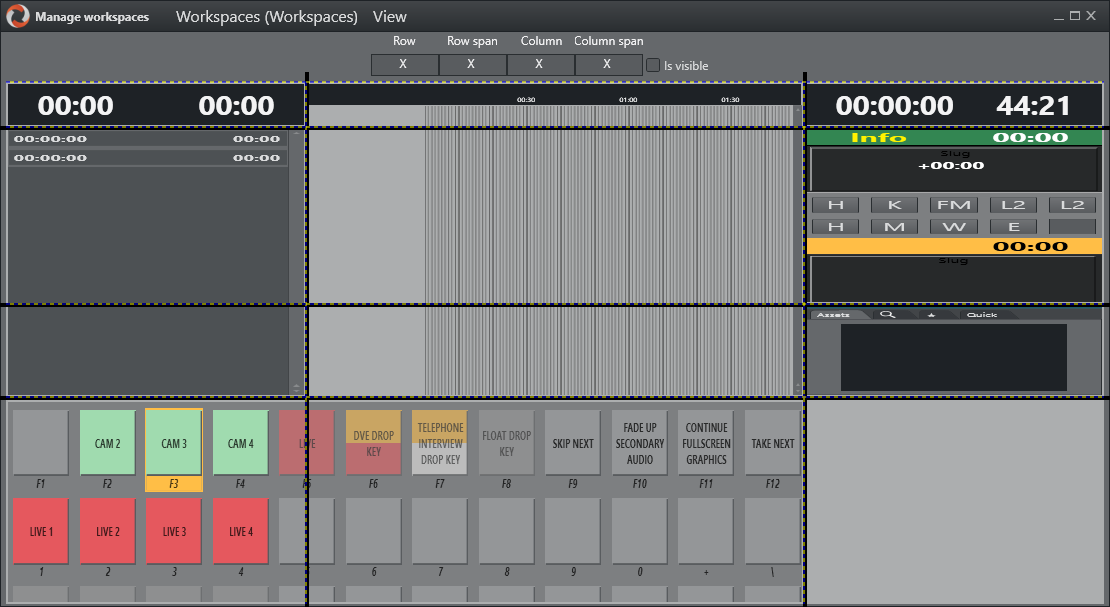
In the Workspace Manager, the various windows in the GUI can be removed or added by checking and unchecking selections in the Show menu. They can also be moved by changing the values in the Row/Row Span/Column/Column Span fields at the top of the window. This might be useful for an instance of the GUI which will only be used for monitoring purposes - items like the keyboard window and Assets/Search/Favorites Tabs can be removed to give more space to the rundown.
Resizing Elements
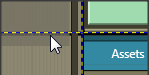
The various elements can also be resized by dragging their borders. Any given layout can be saved as a workspace, and can later be recalled through the Show menu or through a designated shortcut command.
Export/Import
To conveniently copy a given layout across several GUI installations, the Export/Import selections in the Workspaces menu can be used.