Viz Mosart User Guide
Version 3.9 | Published November 04, 2019 ©
Status Bar

The status and redundancy bar displays the connection information for Viz Mosart servers and NCS. It contains shortcuts to the redundancy features.
Left-Hand Area

The indicators display the connection statuses. From left to right:
-
The Main Viz Mosart server (indicated by IP addresses, machine name, or alias)
-
The Backup Viz Mosart server (indicated by IP addresses, machine name, or alias)
-
The Main NCS server (indicated by Main)
-
The Crossover server (indicated by Crossover)
Colour Indicators for the Left-Hand Area
-
Green: The server is currently in active mode.
-
Yellow: The server is currently in idle mode (standby). This server can be activated by clicking on it. When doing so, the other (active) server is set to idle mode.
-
Red: The server is currently not connected.
-
Grey: For the Mosart servers, the connection to the server is currently either not set up, or it has a connection error. The MosartRemoteControlService may not be running on the server.
For iNews, the grey status may also appear until the first rundown is loaded after a restart.
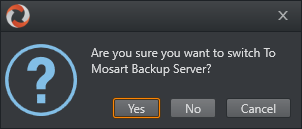
Clicking the Viz Mosart server currently in standby brings up a pop-up that makes it possible to switch Viz Mosart servers.
Crossover Server
The Crossover Server tool allows a stand-alone Viz Mosart or Viz Opus server to take over from another system, either according to a planned schedule or from an operator's command. The Crossover server will execute the rundown templates in auto-take mode. By letting the Crossover take over and play out, for example back to back clip sections, the producers are able to free up some valuable studio time during the live production to produce content such as live on-tape interviews or to do some testing in the control room/studio - even when the rundown is live on-air.
Right-Hand Area

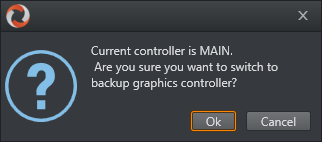
For graphics systems supporting graphics control switching, the graphics controller can be switched by clicking the Graphics Controller area.
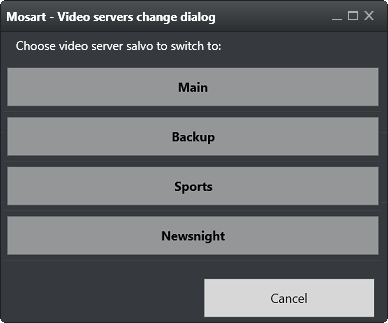
If multiple video server salvos are set up in AV Automation, the operator can switch between them by clicking the video server section on the menu bar. This dialog will appear and the user can select one of the video server salvoes.
The directtake last activated is indicated in the Directtake area.

In the far right hand corner of the GUI, the currently running Viz Mosart version number is shown. Clicking it also brings up a list of licenses for third-party components.