
Viz Mosart User Guide
Version 3.9 | Published November 04, 2019 ©
Script Window
The Script window can be used to edit elements already in the rundown.
This section contains more information on the following topics:
Script Window Display
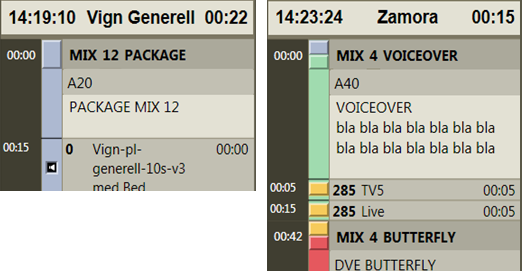
The Script window shows all the content in two stories: the top half shows the on-air story, or the first story that will go on air. By default, the bottom half shows the next story to go on air. Clicking another story in the rundown will display it instead of the next on-air story. On the next F12 which changes the on-air story, the view will revert to default.
The top line of each story in the script window shows the estimated on air time of the story, and the story name and editorial duration of the story as given in the NCS.
Below this, each template and secondary element is displayed chronologically, using the same color coding as in the rundown window. The complete contents of the script are also displayed, along with any written Viz Mosart commands in the script window.
Primary story templates are displayed with their in time only, while secondary elements show durations as well.
Timing Information


At the top of the script windows are two timing indicators. To the left is the total planned time for the story currently on air. To the right this time is counted down from the start of the story.
As soon as this timer reaches zero, the story timing information area turns red and the clock starts counting upwards, to indicate planned duration overrun.
Editing Primary Elements
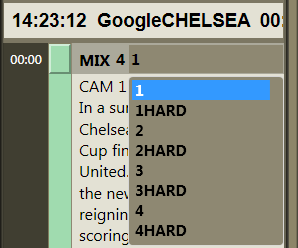
The variant of any template type can be changed by clicking it in the script window and selecting a new variant from the pull down menu.
In the same manner, the transition for that template can be changed by clicking the current transition type and selecting the desired transition type from the pull down menu.
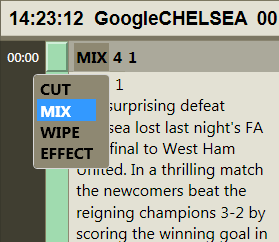
The transition duration or effect number can be typed into the field between the two menus.
Please note that any stories edited in this way must be locked using the Lock Story from NCS Update command, or they will be deleted on the next reload/resync of the rundown or when the story is changed in the NCS.
Editing the Script Displayed in Viz Mosart
Please note that any stories edited in this way must be locked using the Lock Story from NCS Update command, or they will be deleted on the next reload/resync of the rundown or when the story is changed in the NCS.