Viz Mosart User Guide
Version 3.9 | Published November 04, 2019 ©
User Interface
This section describes:
User Interface - General
-
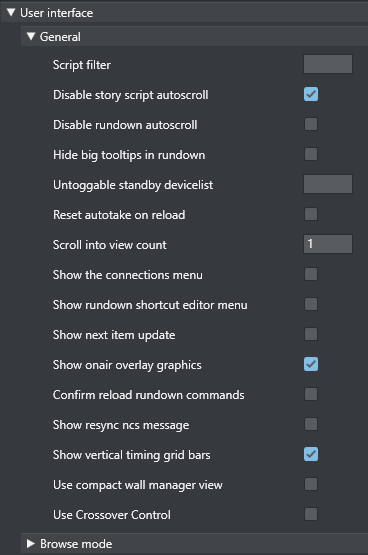
Script filter - Filters script text. Format 100,50 where first number is max.length at start and second number is max.length at end.
-
Disable story script autoscroll - Disable the autoscroll functionality in the story script. This functionality keeps the current item at the top of the script window.
-
Disable rundown autoscroll – Disable the autoscroll functionality in the rundown. This functionality keeps the view of the rundown in sync with the current story.
-
Hide big tooltips in rundown – If this is checked, the big tooltip when you hover over an item in the rundown will no longer appear.
-
Untoggable standby devicelist – A list of which devices should be locked from manually toggle standby status. Comma separated list, e.g. “Video server, audiomixer”.
-
Reset autotake on reload defines the behavior of the autotake mode on Reload (Default SHIFT+F12). When checked, Viz Mosart will revert to normal mode on reload.
-
Scroll into view count defines how many story lines are auto scrolled into the GUI rundown window when running a show.
-
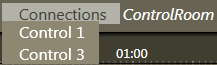
Show the connections menu toggles the appearance of the Connections menu. In this menu, the Viz Mosart GUI can be connected to various control room server pairs, making it possible to use the same GUI to display/control several control rooms/studios.
-
Show rundown shortcut editor menu toggles the appearance of the menu item Tools → Edit rundown shortcuts. See Select Rundowns from the NCS for details.
-
Show next item update - When this is checked, a warning is displayed in the Preview window if the story in preview is updated from the NCS.

-
Show onair overlay graphics - When this is checked, overlay graphics are displayed in the Program window when they go on air.
-
Confirm reload rundown commands - When this is checked, a popup window asks for confirmation whenever a Reload Rundown command is issued by the user.
-
Show resync NCS message - When this is checked, a popup window asks for confirmation whenever a rundown is locked and then unlocked again.
-
Show vertical timing grid bars - When this is checked, horizontal lines will show to indicate time.
-
Use compact wall manager view - When enabled the wall manager will only show the air canvas. The preview canvas and the salvo tools are hidden.
-
Use Crossover Control – When enabled, the GUI will display the status of the Viz Mosart which is configured on the server.
User Interface - Browse Mode
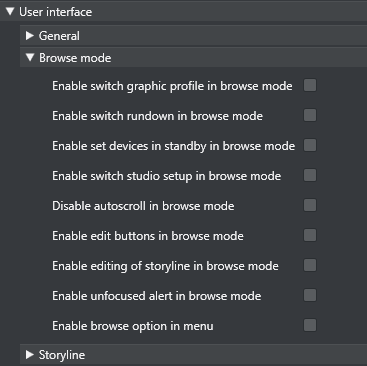
The check boxes under the Browse Mode header make it possible to allow or disallow various actions whenever a Viz Mosart GUI is set to Browse Mode. By default, all are unchecked, rendering the Browse Mode GUI completely “safe”.
-
Enable switch graphic profile in browse mode - Change graphics profile in browse mode.
-
Enable switch rundown in browse mode - Change rundown in browse mode.
-
Enable set devices in standby in browse mode - Change standby devices in browse mode.
-
Enable switch studio setup in browse mode - Change studio setup in browse mode.
-
Disable autoscroll in browse mode - Disable the autoscroll functionality in the rundown and in the script view in browse mode.
-
Enable edit buttons in browse mode - Use the edit buttons in browse mode.
-
Enable editing of storyline in browse mode - Edit storyline in browse mode.
-
Enable unfocused alert in browse mode - When disabled the unfocused alert will not be shown in browse mode and the application will not have focus.
-
Enable browse option in menu - Enables the appearance of the View → Browse Mode menu item.
User Interface - Storyline

-
Enable client move story - Enables moving a story by right-clicking it in the rundown.
-
Count down to live story elements - Enables countdown to stories containing either a Live, DVE or Telephone template.
-
Auto scroll long story elements - When checked long stories will automatically be scrolled horizontally while the story item is played.
-
Graphic layer based on template type - Enables the use of Layer 2 and Layer 3 identification. i.e. Layer 2 overlay graphics is identified by and Layer 3 overlay graphics is identified by.
-
Toggle group stories feature - Group stories within story groups with the same prefix in the GUI. All items within each group is also shown in the asset window.
-
Number of visible aired timeline elements – Number of elements already aired that should be visible in a story while it is playing. Use -1 to show all.
-
Hide empty stories - Stories without items will not be shown in the rundown.
-
Ignore overlay graphics with keywords - Overlay graphics connected with any Handler name input here are hidden in the GUI.
-
Layer 2 overlay graphics is identified by Overlay graphics connected with any Handler name input here is displayed in the secondary overlay graphics layer.

-
Layer 3 overlay graphics is identified by Overlay graphics connected with any Handler name input here is displayed in the tertiary overlay graphics layer.
-
Video clips should be presented with…- Select how you want video clips to be displayed to the user in the user interface from the drop-down list.
-
Show set as next break - When this is checked, Set As Next Break is available as an option in the rundown context menu. Selecting this option will cause Viz Mosart to regard that story line as a Break line for countdown and timing purposes.
-
Show Set As Next Story - When checked, Set As Next Story is available as an option in the rundown context menu. (Right click.) The user can jump to stories further up or further down in the rundown, independently of the NCS running order.
-
Show Set As Next Story And Skip - When checked, the storyline context menu option Set As Next Story And Skip will be available.
User Interface - Search Pool
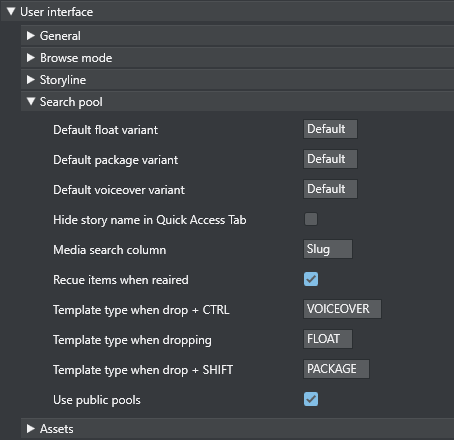
-
Default Float Variant - This indicates the Float variant Viz Mosart will add to any video file found in the search window when dragged to the rundown, a shortcut key or the Favorites Tab. See below for information on the drag and drop feature.
-
Default Package Variant - This indicates the Package variant Viz Mosart will add to any video file found in the search window when dragged to the rundown, a shortcut key or the Favorites Tab. See below for information on the drag and drop feature.
-
Default Voiceover Variant - This indicates the Voiceover variant Viz Mosart will add to any video file found in the search window when dragged to the rundown, a shortcut key or the Favorites Tab. See below for information on the drag and drop feature.
-
Hide story name in Quick Access Tab - The Quick Access Tab will show the filtered items as a list without any indication of the stories.
-
Media Search Column - Values entered here define the format of search results displayed when searching the video servers. Values can either be entered without name tags, in the format: "slug, durationtc"
Or with name tags, in the format: "Name=slug, Dur=durationtc"
This tells Viz Mosart to display results with Name:xxx (found in the slug column on the server database) and Dur:xxx (found in the durationtc column on the server database). The resulting search window could look like this: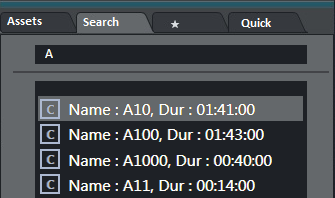
-
Recue Items When Reaired - When checked, previously played video items dragged from the Assets and Favorites Tabs into the rundown are recued.
-
Template type when drop + CTRL - Entering Float, Package or Voiceover here will define which of the three types is connected to material dragged from the Search window when holding down the CTRL key.
-
Template type when dropping - Typing Float, Package or Voiceover will define which of the three types is connected to material dragged from the Search window without holding down a key.
-
Template type when drop + SHIFT - Typing Float, Package or Voiceover will define which of the three types is connected to material dragged from the Search window when holding down the SHIFT key.
-
Use Public Pools - When checked, manually updated Favorites Tabs are shared between GUIs connected to the same server. A shared Favorites Tab is indicated by a small symbol in the top right hand corner of the tab.

User Interface - Assets
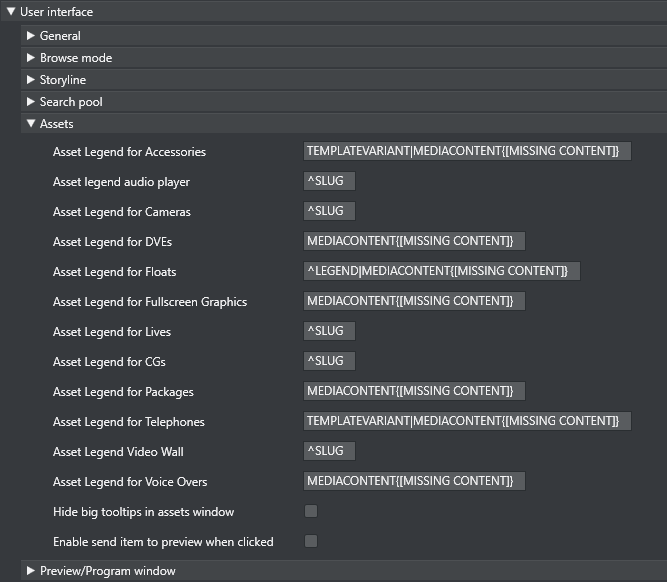
-
Asset Legend for XXX Entering a value in this field defines the format displayed for assets in the Assets Tab, in the same way as with Media Search Column above. The syntax for defining the legend is shown in the Asset Legend Syntax section below. Valid parameters are listed in the Assets Properties list further down. The legends used in Asset window are customizable for all Viz Mosart template types shown in the table above. Legends for other template types will be shown using the corresponding slug.
-
Hide big tooltips in assets window Normally when you hover over an item in the Asset window, a big tooltip appears with the full details of the item. If this is annoying, the tooltip can be disabled by checking this box.
-
Enable send item to preview when clicked If this is checked, clicking on a primary item in the Asset window will immediately send it to preview, i.e. it will be inserted as the next item in the story currently on air. (Note that if an item was unintentionally sent to preview in this way, this can as always be undone by pressing Skip Next (default F9).
Asset Legend Syntax
Legends for template types in the asset window are defined as a set of properties divided by the ‘|’ character where each property has the following syntax:
|
[separator][[Title]]Property[{DefaultValue} |
Where:
-
[separator] – Optional separator to separate the property from its predecessor.
Using a ‘^’ as the first character ensures that the first property this the following property. Otherwise all legends will start with the slug -
[[Title]] – Optional title. Need to be defined inside [] brackets
-
Property – Named property, see table below
-
[{DefaultValue}] - Optional default value. Need to be defined inside {} brackets
Note that in the syntax above [] is also used to denote optional content.
Examples:
-
MEDIACONTENT{[MISSING CONTENT]}|, [Duration=]DURATION
Will display Slug + Clip/Graphics description + clip duration. Description will be showing “[MISSING CONTENT]" if the template lacks content. Typically if no content is added in the NCS. -
^TEMPLATEVARIANT| MEDIACONTENT{[MISSING CONTENT]}
Will display template name + Clip/Graphics description. I.e. starts with template name
Assets properties
The list below shows the different template properties available for use in asset legends:
-
CLIPDESCRIPTION: Normally clip slug (slug)
-
CLIPHIRESPATH: Clip reference. Normally clip slug (clip_hirespath)
-
CLIPREFID: Clip reference id. Normally clip server identity number (metadata_lookuppath)
-
CONTINUECOUNT: Continue count for fullscreen graphics (continuecount)
-
DESCRIPTION: Item's description (clip_hirespath)
-
DURATION: Clip duration in mm:ss
-
GRAPHICSDESCRIPTION: Graphics description. Normally name of fullscreen graphics (graphics_description)
-
GRAPHICSID: Graphics id. Normally graphics id used by graphics system (graphics_id)
-
ITEMIN: In-time in hh:mm:ss for secondary objects (like accessories and CGs)
-
LEGEND: Equals SLUG if present. Otherwise set to DESCRIPTION
-
MEDIACONTENT: Equals CLIPDESCRIPTION for clips and GRAPHICSDESCRIPTION for fullscreen graphics
-
SLUG: Textual description of the element. Normally as entered in NCS (slug)
-
TEMPLATEVARIANT: Template variant name (templatetype)
-
TRANSITION: Transition given as [CUT|MIX|EFFECT](duration|effectno) (transitions(rate))
Default Value
The slug is implicitly used as the first value. This is the same as entering ^SLUG as the description. I.e. if the ‘^’ is not present as the first character then the slug will be used as the first value. To use other properties as the first value, the description should start with the ‘^’ character.
User Interface - Preview/Program Window
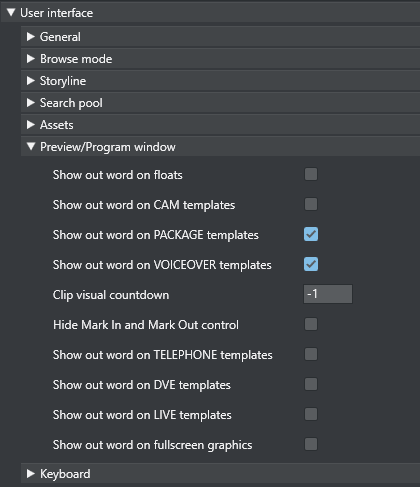
-
Show out word on floats - These allow the user to define which Viz Mosart types should have the Last Words functionality. When checked, the last words in the script (or the last words defined through a command in the script, depending on NCS and Viz Mosart type) will be displayed in a black box in the GUI Program Window.
-
Show out word on CAM templates - When checked, the last words in the script of CAMERA templates will be displayed in a black box in the GUI program window.
-
Show out word on PACKAGE templates - When checked, the last words in the script of PACKAGE templates will be displayed in a black box in the GUI program window.
-
Show out word on VOICEOVER templates - When checked, the last words in the script of VOICEOVER templates will be displayed in a black box in the GUI program window.
-
Clip visual countdown: If this has a value above 0, the countdown of PACKAGE and VOICEOVER will change color to alert the user if the countdown reaches this value. See also Timing Information and Countdown of Video Wall Elements.
-
Hide Mark In and Mark Out control - Hides the Mark In and Mark Out selector.
-
Show out word on TELEPHONE templates - When checked, the last words in the script of TELEPHONE templates will be displayed in a black box in the GUI program window.
-
Show out word on DVE templates - When checked, the last words in the script of DVE templates will be displayed in a black box in the GUI program window.
-
Show out word on LIVE templates - When checked, the last words in the script of LIVE templates will be displayed in a black box in the GUI program window.
-
Show out word on fullscreen graphics - When checked, the last words in the script of fullscreen graphics templates will be displayed in a black box in the GUI program window.
User Interface - Keyboard
-
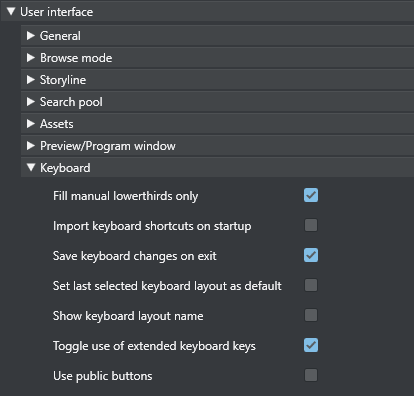
Fill manual lowerthirds only - When checked, only NCS bound lowerthirds will fill keyboard shortcuts with manual lowerthird. When unchecked, all lowerthirds will fill any keyboard lowerthird.
-
Import keyboard shortcuts on startup - When this setting is enabled the GUI will try to import keyboard settings from the server every time the GUI restarts. To export a keyboard settings file to the server select LAYOUT - EXPORT in the keyboard shortcuts window.
-
Save keyboard changes on exit - When checked, all the changes to the keyboard layout like dropped keys etc. will be saved on exit.
-
Set last selected keyboard layout as default - When this setting is enabled the last used keyboard layout will open the next time the GUI restarts
-
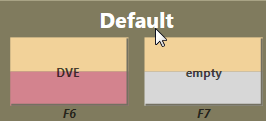
Show Keyboard Layout Name toggles the appearance of the currently selected keyboard layout at the top of the keyboard shortcut section of the GUI .
-
Toggle use of extended keyboard keys – When checked, some special keys like Enter/Return are treated differently. The extended variant is shown with an asterisk* in the keyboard editor.
-
Use Public Buttons When this is checked, manually updated shortcut buttons are shared between GUIs connected to the same server. A shared button is indicated by a small symbol in the top right-hand corner of the button.