
Viz Mosart User Guide
Version 3.9 | Published November 04, 2019 ©
Video Port Control Commands
The video port control commands can be used for manual override control of specific video ports from the Viz Mosart GUI. This section will explain how to set up the shortcuts.
Note: Not all of video server drivers supports all the command variants described here.
This section includes the following topics:
Video Port Keyboard Shortcuts
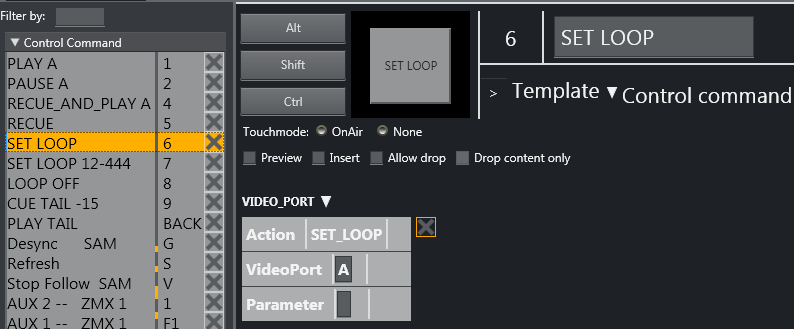
To be able to use the video port control commands you need to add a set of shortcuts for each video port. You have to create a new set for each video port A, B, C etc. Here port A will be used as an example.
For all examples VideoPort = A
-
PLAY_PAUSE: Viz Mosart will begin to play the cued content. If the content is already playing, it will pause the content
-
Empty Parameter: PAUSE if playing and PLAY if paused
-
Parameter: PLAY. Always try to PLAY channel
-
Parameter: PAUSE.Always try to PAUSE channel
-
-
STOP: Viz Mosart will stop the cued content.
-
Parameter: CUE. Cue the channel after the stop
-
-
RECUE: Viz Mosart will RECUE the port
-
Parameter: PLAY. Viz Mosart will play the clip after the recue
-
-
SET_LOOP: Viz Mosart will set the already cued clip to looping
-
Parameter: OFF, RESET. Viz Mosart will turn the looping off
-
Parameter: 12-444 (configurable). Viz Mosart will set the looping from frame 12 to frame 444
-
-
CUE_TAIL: Viz Mosart will recue the cued clip at a specific time (in seconds)
-
Parameter: -15 (negative value) - configurable. Viz Mosart will cue at the start of the last 15 seconds of the clip (the clip will have 15 seconds left to play plus Post roll)
-
Parameter: 15 (positive value) - configurable. Viz Mosart will cue 15 seconds into the clip
-
-
PLAY_TAIL: Viz Mosart will recue and play the cued clip at a specific time (in seconds)
-
Parameter: -15 (negative value) - configurable. Viz Mosart will cue at the start of the last 15 seconds of the clip
-
Parameter: 15 (positive value) - configurable. Viz Mosart will cue 15 seconds into the clip
-
Video Port Groups
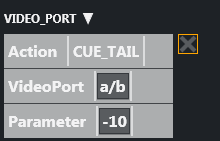
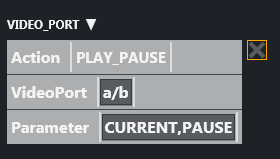
It is also possible to use the video port group names (A/B, C/D...). If a group is found it will by default get the next port. If you want the current port you have to add “CURRENT” to the Parameter field. If you want to have additional parameters for the Action you can add it after the CURRENT term separated by comma.
Examples
In this example the cued port in the group will be recued to be ready to play the last 10 seconds of the clip.
In this example the playing port will be paused.
Control On Air or Preview Video Port
It is also possible to make commands to control the video port that is currently on air or in preview. Just type ONAIR in the VideoPort field to direct the command to the on air port.
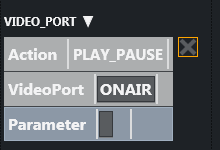
To control the port in preview use PREVIEW in the VideoPort field.
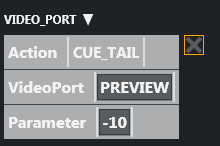
In this example the video port in preview will recue to be ready to play the last 10 seconds of the clip.
Video Port Error Messages
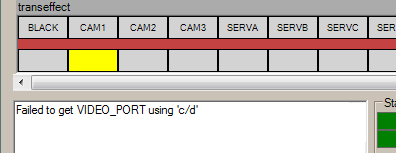
If AV Automation is unable to execute the command an error message should be displayed, e.g. Failed to get VIDEO_PORT using ‘c/d’
Configuring AV Automation Template Properties
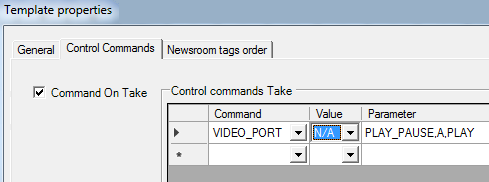
The VIDEO_PORT control commands can also be used in templates. The syntax order of the parameter is important.
Here are some valid examples using port A:
PLAY_PAUSE,A,PLAY PLAY_PAUSE,A,PAUSE PLAY_PAUSE,A STOP,A STOP,A,CUE RECUE,A,PLAY RECUA,A SET_LOOP,A SET_LOOP,A,OFF SET_LOOP,A,12-444 CUE_TAIL,A,-15 CUE_TAIL,A,15 PLAY_TAIL,A,-15 PLAY_TAIL,A,15