
Viz Mosart User Guide
Version 3.9 | Published November 04, 2019 ©
Preview Window
The preview window is situated at the right hand side of the Viz Mosart GUI. This window displays information for the next story element.
Lower Thirds
The next timed lower third graphic will appear in the preview window until it goes on air.

Adjust Video Clip in/out Points
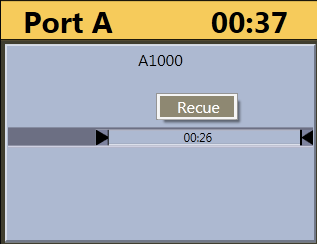
When the video server driver supports it, the operator can select a new in point and out point for video clips in the preview window. Drag the left and right markers to the desired points. Dragging the in point marker causes corresponding scrubbing to occur on the server, allowing the operator visual preview of the new in point.
Timing Information
The number in the top right hand corner of the preview window indicates the duration of the item currently in preview.
Cued Playout Port/Graphics Engine
The alias of the port which the next clip will be played out from is displayed in the top left hand corner of the preview window. This area is also used to display which fullscreen graphics engine will be used next.
Recue Server
By right clicking inside the preview window, the operator can select to recue a server clip. This is used, for example, to recue and play from the beginning an adlib/float element from its starting point rather than the point it had previously reached