
Viz Mosart User Guide
Version 3.9 | Published November 04, 2019 ©
Keyboard Shortcuts Editor
All keyboard shortcuts for the Viz Mosart GUI are fully customizable. To create or edit a keyboard setup, go to Tools > Keyboard Shortcuts > Keyboard shortcuts editor.
Several sets of keyboard shortcuts (referred to as Keyboard Layouts) can be stored and recalled through the Layout menu or a designated shortcut. However, to facilitate training and technical support, a default setup similar to the basic setup described in this manual is recommended.
The Keyboard Shortcut Editor is divided into four areas:
-
Keyboard Layout Preview
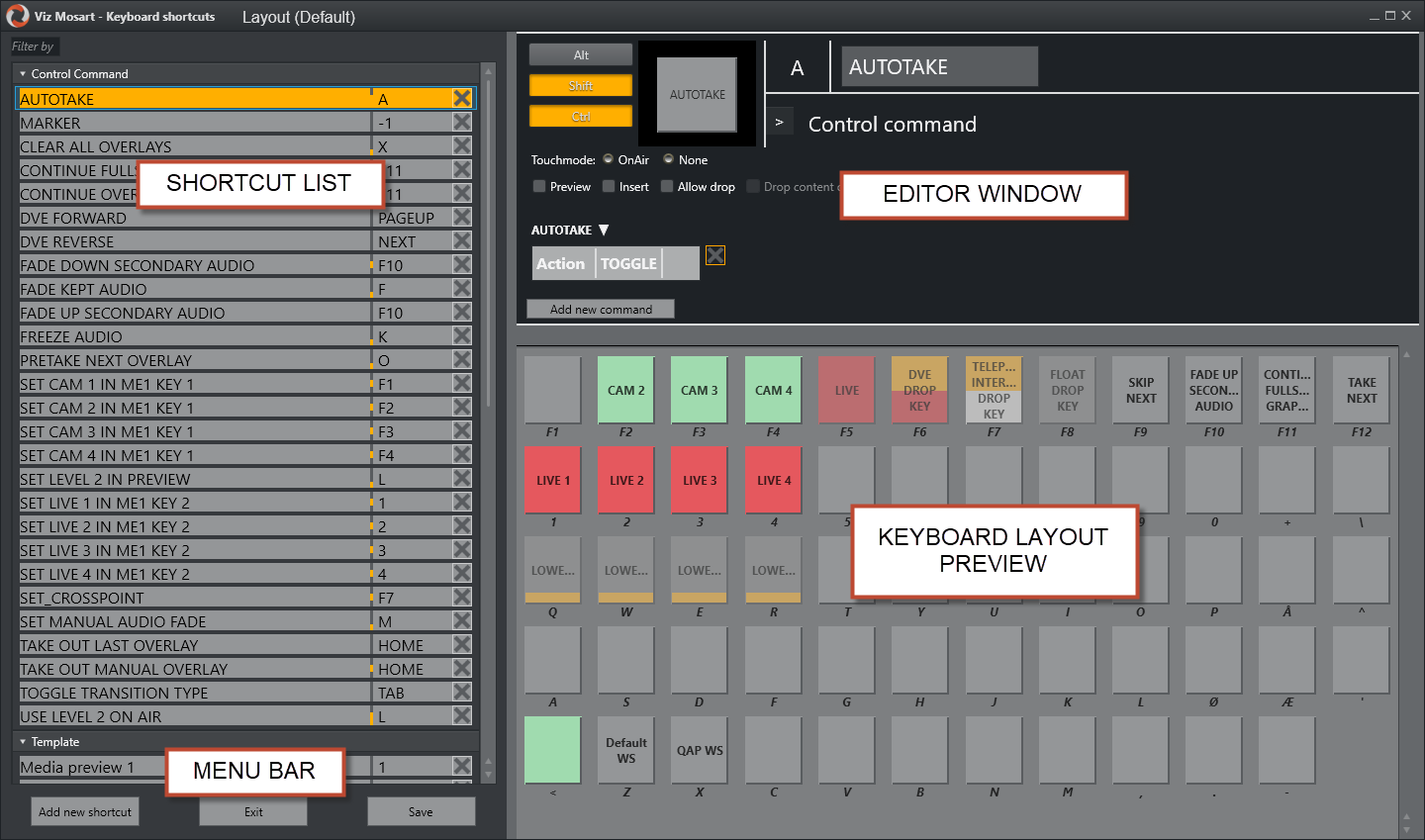
Shortcut List
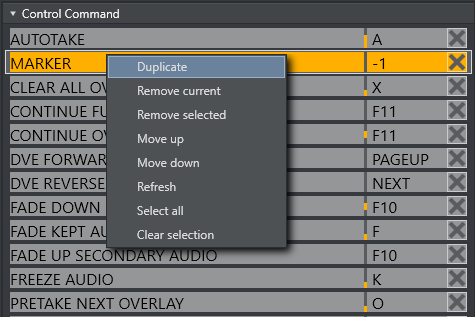
This window lists all the shortcut keys in the currently loaded keyboard layout, grouped by their functionality.
From the context menu, you can Move, Remove or Duplicate items. To edit an existing shortcut, select it in the shortcut list.
Editor Window
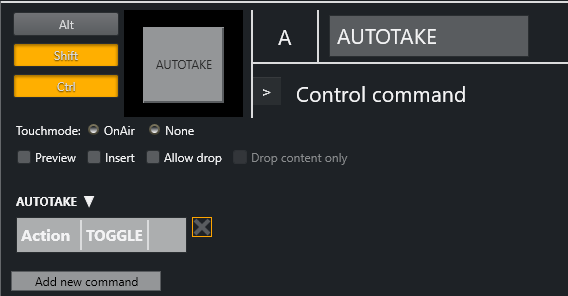
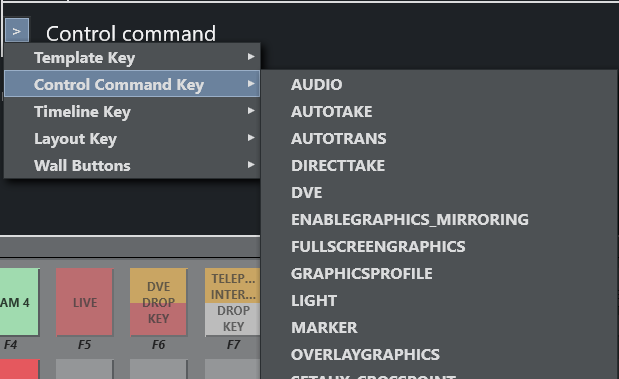
The options available for each shortcut in the editor window are mainly dependent upon the type of shortcut being created or edited. The four main types of shortcuts are Template keys, Control Command keys, Timeline keys and Layout keys.
If a shortcut if of type AUTO or CONTINUE it will show how many continue points there are left.
Menu Bar

To create a new keyboard shortcut, select Add new shortcut from the menu bar and choose a type of shortcut from the list in the Editor Window. To remove a shortcut, select it in the Shortcut List and click Remove. Whenever changes have been made to a keyboard layout, Save must be used to apply them.