This page contains information about the following topics:
The 3D Preview panel gives a preview of the tracked cameras, which should be as close to the real studio as possible. When the Studio Manager starts up, a Parameter Service is established, which sends the positions of all tracked rigs to the preview panel.
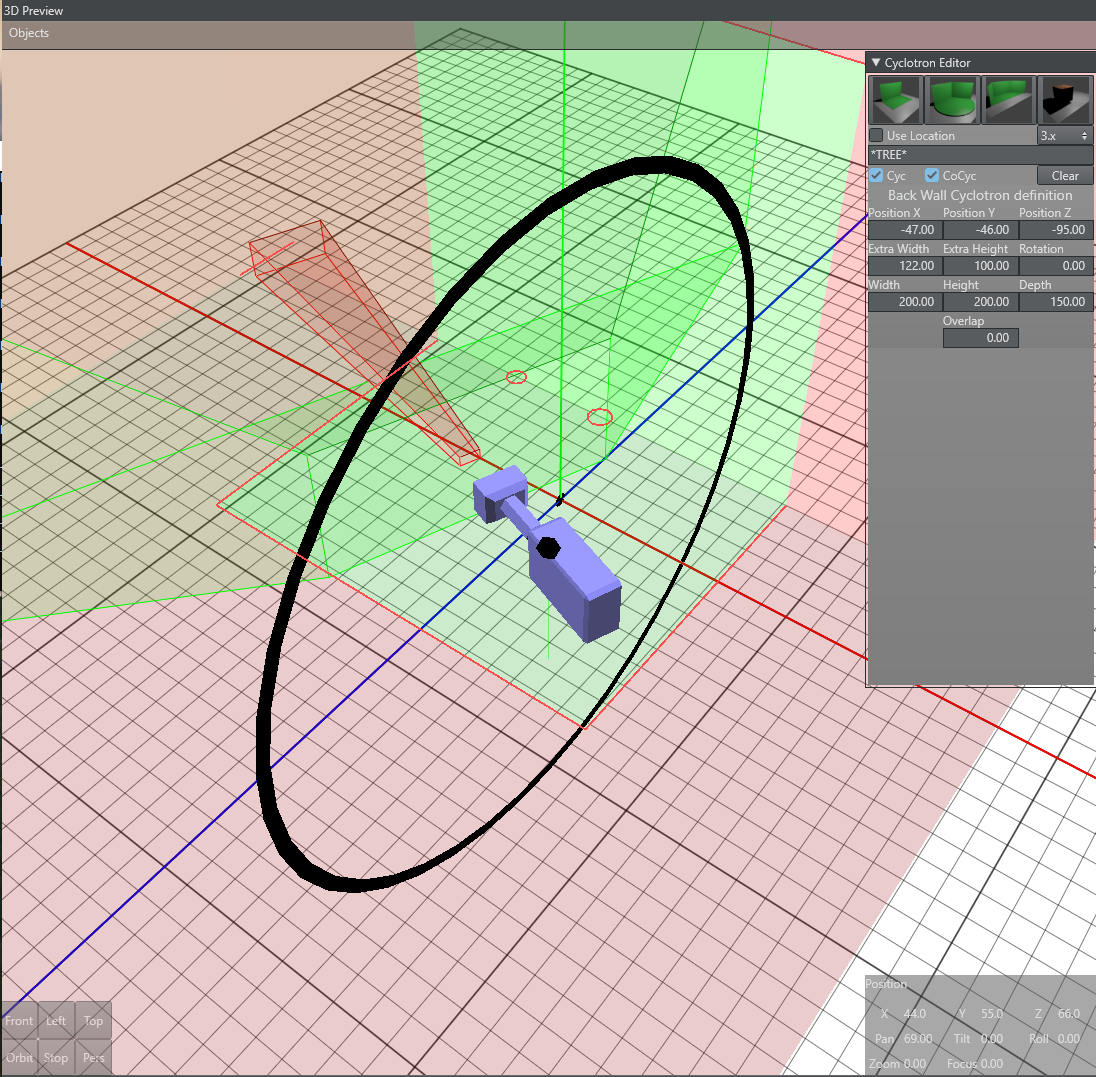
The preview panel consists of the following parts:
The main menu.
The navigation bar.
The HUD display.
Interface Configuration
To adjust the colors to a users need, open the Settings window in Tools. In this window, the user can adjust the render colors for the visible objects in the preview panel. Click in a drop-down list to open the color selection window. The RGB and Alpha values can be adjusted for all colors by clicking the Advanced button.
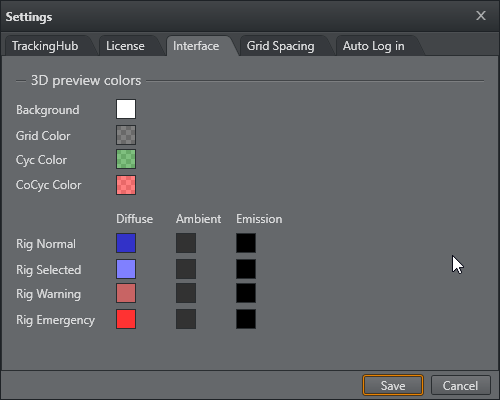
For the Background, Grid, Cyc and CoCyc colors, only diffuse color can be selected. These objects are rendered without lighting.
Rig Normal: Shows colors used when the Rig is not selected. The user can define Diffuse, Ambient and Shininess colors.
Rig Selected: Shows colors used when the Rig is selected in the Rig Editor.
Rig Warning: Shows when a connected Parameter service reports a problem which is handled by the system (interpolation of missing packages).
Rig Emergency: Shows when a Parameter service reports a problem which cannot be handled by the system, and immediate action from the operator is needed.
View Menu

Navigation
Activates or deactivates the navigation bar in the bottom left corner of the 3D Preview window:
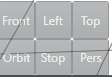
Front: Activates an orthographic camera, which looks in Z-Direction.
Right Mouse: Moves the camera in X and Y.
Mouse Wheel: Zooms in and out.
Middle Mouse: Moves the camera in X and Y.
Left: Activates an orthographic camera which looks in X-Direction.
Right Mouse: Moves the camera in Z and Y.
Mouse Wheel: Zooms in and out.
Middle Mouse: Moves the camera in Z and Y.
Top: Activates an orthographic camera which looks in Y-Direction
Right Mouse: Moves the camera in X and Z.
Mouse Wheel: Zooms in and out.
Middle Mouse: Moves the camera in X and Z.
Orbit: Activates a perspective camera which is fixed to the selected tracking system. This enables the user to modify handles even when the camera is moving.
Right Mouse: Rotates the camera around the rig.
Mouse Wheel: Zooms in and out.
Middle Mouse: Moves the camera in rig direction or away from the rig.
Stop: Disables the 3D View to improve performance on low level systems.
Pers: Activates a perspective camera which is not bound to a Rig.
Right Mouse: Pans or tilts the camera.
Mouse Wheel: Zooms in and out.
Middle Mouse: Moves the camera in X and Z direction.
HUD
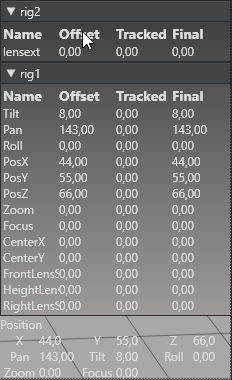
Activates the head up display, which displays the tracked raw coordinates of the selected rig.
Cyclorama Editor
The Cyc Editor is located in the top-right corner of the preview panel and can be expanded by clicking the arrow on its left side. It is used to create the Cyc and CoCyc masks which are needed to mask out the regions of the studio not covered by the green/blue screen. The CoCyc geometry is stored on the Tracking Hub and is distributed from there to all connected Engines.
For the full description of the editor, its Cyc types and masks, see Cyclorama Editor.
Videowall Editor
The Videowall Editor describes the LED walls of the studio: where each wall stands, how big it is, what shape it has, and which Viz Engine renders it. Walls are edited in the same 3D studio view as the cyclorama and the cameras.
For the full description, see Videowall Editor.
Cyc
Defines what parts of the Cyc the preview panel renders. The selectable elements are Wall and Floor. All these settings are stored for local use in the user settings folder.
CoCyc
Defines what parts of the CoCyc the preview panel renders.
Objects Menu
Every rig present in Tracking Hub has its own display menu. These options are handled in the Object menu item. The menu lists the rigs of the current configuration by name, and each entry offers the display modes available for that rig type.

Selectable Display Modes
Which display modes a rig offers depends on its type:
Rig type | Available modes |
|---|---|
Camera rigs | Simple, Pedestal, Crane |
Arm, CraneArm, CraneHead | Simple, Arm, Fork |
Pivot Rotation, Location Pivot Rotation, Location Pivot Triple Rotation, Object | Simple only |
Mode | Description | |
|---|---|---|
Simple | The tracked point is displayed as a selectable circle in the view. A rendered camera shows the offset settings. |  |
Pedestal | The rig is displayed as a tracked pedestal. The tracking point is always on top of the pan/tilt head. The rendered camera shows the offsets added to the rig. |  |
Crane | The rig is displayed as a small jib. The origin of the base is the X/Z offset of the rig. The tracked point is a result of offset and height. |  |
Arm | The rig is drawn as an arm. | 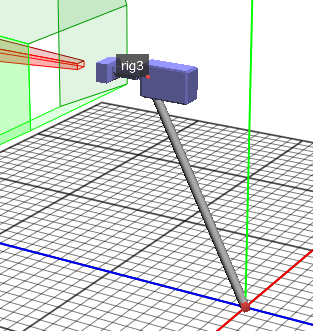 |
A rig of type Object is a tracked object which is not a camera, for example a Motion Analysis object. No camera is rendered and only the tracked point is displayed.
Camera Handles
Whenever the user clicks in the rig editor to adjust a specific value, the preview panel displays the values as a handle that can be dragged. Handles can be arrows (position) or disks (rotation). Whenever the user touches a Handle with the mouse, the handle goes from its base color to yellow. This indicates that only this handle is active at the moment. Clicking with the left mouse button and moving the mouse in handle or in the opposite direction modifies the handle's value.
The following list shows all available handles and the corresponding rig values.
Rig Value | Description | Example |
|---|---|---|
Position Offset | Every axis is color coded and only visible if modifiable.
|  |
Pan Offset | Green: Modifies the pan offset of the camera. |  |
Tilt Offset | Blue: Modifies the tilt offset of the camera. |  |
Roll Offset | Red: Modifies the roll of the rig. |  |
Front Lens Shift | Blue: Shows the distance from the CCD to the rotation axis of the tracking system. |  |
Height Lens Shift | Green: Displays the distance from the CCD to the tilt axis of the tracking system. |  |
Right Lens Shift | Red: Displays the distance from the CCD to the rotation axis in X direction. |  |
See Also