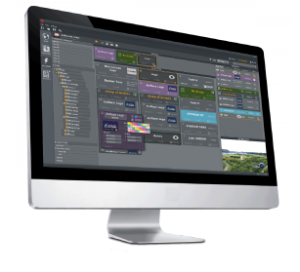
This section provides an overview of the general workflow in Viz Arc.
Viz Arc is based on Projects. A project defines the scene or scenes to be used in any given production as well as the different buttons called Actions that control the desired scene properties, such as transformations or triggering animations.
The interface has two main modes, Builder and On Air:
Builder mode: Users are able to configure and build all the needed actions for the operation.
On Air mode: Users can execute and manage existing actions, but have limited functionality on creating new ones.
Creating and working with projects is simple, just follow the steps below.
Add a scene to a project to start creating actions that control your scene.
Actions can be created by dragging and dropping the property you wish to control such as Transformation, Text, Alpha, etc. from the Control Channels, Tree or Directors sections to the Actions Panel. For more details, see create actions and supported action types.
Build Templates for graphics that operators fill and play out: a template combines the parameters, the graphics scene – Viz, Unreal or Flowics – and an optional script into a single, reusable control panel that is placed on the action canvas like any other action.
Drive templates and actions with live data through the Data Map – values arriving from external feeds, scripts or APIs update your graphics automatically.
Optionally configure the different tracked cameras, zero point and transformation properties of the different elements within your Virtual Studio or Augmented Reality elements by importing an AutoCAD drawing (.dxf or .dwg). For outdoor productions, configure directly over a map in the Set section of the interface. For virtual camera moves on a top-down map of the studio, use the Virtual Camera Flight (VCF) view.
Sequence actions, templates and camera moves in the Playlist and play the rundown manually, on timing or via Trio-style callup codes.
Go On Air and initialize your project to load all the imported scenes into the selected Channels and start executing your actions.