Viz Arc provides a Web API that allows you to set DataMap variables, trigger specific actions or control the Playlist.
The samples below assume that Arc is running on localhost and the In-App Web API is configured to run on port 5004. The In-App Web API port can be configured in the General Settings, under the Communication section. Please note that this In-App Web API is only accessible when the Viz Arc application is running.
A Swagger webapp that describes every API can be found at http://localhost:5004/swagger/.
This section contains the following examples:
Information: The samples below use curl command line tools to demonstrate usage and python to beautify the returned JSON output. Note that these tools are not required for the Web API to function correctly.
HTTPS
Both web APIs can be served over HTTPS. Under General Settings > Communication, configure the In-App Web API HTTPS Port and/or the REST Web API HTTPS Port together with a PFX Certificate and its password. The HTTPS endpoint is offered in addition to the regular HTTP port. HTTPS is recommended whenever the API is used from other machines – it also enables browser features that require a secure context, such as hardware-accelerated video playback in the web interface.
Status
The Status endpoint allows you to get basic information of the running Viz Arc instance, such as version and uptime.
GET api/v1/status
curl -s -X GET http://localhost:5004/api/v1/Status | python -m json.tool
{ "version": "Viz Arc 1.8.0.2116", "license": "CORE", "uptime": "00:59:14.8406020"}ActionCanvas
The ActionCanvas endpoint allows you to retrieve all actions of a project, including information about their position, color, id etc.. It also allows you to select an action specified by the id or name. An interactive demo page using this API can be found at http://localhost:5004/.
GET /api/v1/actioncanvas
This endpoints returns all actions of the currently loaded project. The property "actions" contains an array of all actions. The property tabs contains the information about the project tabs.
curl -s -X GET http://localhost:5004/api/v1/ActionCanvas | python -m json.tool
{ "tabs": [ { "name": "show", "isEditorOnly": false }, { "name": "Startlist", "isEditorOnly": false } ], "selectedTabIndex": 0, "actions": [ { "uuid": "a090e1c9-28ad-4c4f-976d-2727befe182d", "name": "Title Day 1", "type": "TEMPLATE", "actionType": null, "engineType": "VIZ", "xSector": 1, "ySector": 0, "widthSector": 1, "heightSector": 1, "tab": 0, "delay": 0, "actionColor": "#65686B", "textColor": "#DBDCDD" }, { "uuid": "95c0bc26-fb63-4ffe-becf-bd42db7ae5f8", "name": "Startlist", "type": "TEMPLATE", "actionType": null, "engineType": "VIZ", "xSector": 0, "ySector": 1, "widthSector": 1, "heightSector": 1, "tab": 1, "delay": 0, "actionColor": "#65686B", "textColor": "#DBDCDD" } ], "project": "Skating"}POST /api/v1/actioncanvas/select/{id | name}
Selects an action specified by the id or name.
curl -s -X POST http://localhost:5004/api/v1/ActionCanvas/select/13ddcaa8-e52a-4357-85d6-5731f3b45ebd
200 OKActionExecuter
The ActionExecuter endpoint allows you to execute a specific action either by using its name or its ID.
GET /api/v1/actionexecuter/{id | name}
Executes the action specified by the id or name.
curl -s -X GET http://localhost:5004/api/v1/ActionExecuter/27cc7a3b-6f90-4d88-9101-a356a1668d83
200 OKUsing the ID variant is preferable as it uniquely identifies an action. Although the name might appear multiple times in your action collection, only the first action with the specified name is triggered.
GET /api/v1/actionexecuter/{id | name}/continue
Executes a "Continue" on a template action specified by the name.
curl -s -X GET http://localhost:5004/api/v1/ActionExecuter/27cc7a3b-6f90-4d88-9101-a356a1668d83/continue
200 OKGET /api/v1/actionexecuter/{id | name}/out
Executes a "Out" on a template action specified by the name.
curl -s -X GET http://localhost:5004/api/v1/ActionExecuter/27cc7a3b-6f90-4d88-9101-a356a1668d83/out
200 OKGET /api/v1/actionexecuter/{id | name}/update
Executes a "Update" on a template action specified by the name.
curl -s -X GET http://localhost:5004/api/v1/ActionExecuter/27cc7a3b-6f90-4d88-9101-a356a1668d83/update
200 OKPOST /api/v1/ActionExecuter/{id}/start-script
Starts (or restarts) the script of the template action with the given UUID, as when pressing the script Start button: the script engine is set up, the code runs from the top and its callbacks are registered. This does not execute the template – use the execute endpoint above for playout.
curl -s -X POST http://localhost:5004/api/v1/ActionExecuter/3fa85f64-5717-4562-b3fc-2c963f66afa6/start-script
200 OK – returns 404 Not Found when the UUID does not refer to a template action.
POST /api/v1/ActionExecuter/start-global-script
Starts the project's global script, as when pressing the Start button in the Script view.
curl -s -X POST http://localhost:5004/api/v1/ActionExecuter/start-global-script
200 OK – returns 400 Bad Request when the global script could not be started, for example when no project is loaded.
Arena
The Arena APIs allow you to control the Viz Arena integration.
GET /api/v1/arena/detectArenaCalibration
Detects the calibration.
curl -s -X GET http://localhost:5004/api/v1/arena/detectArenaCalibration | python -m json.tool
200 OKGET /api/v1/arena/clearArenaCalibration
Clears the current calibration.
curl -s -X GET http://localhost:5004/api/v1/arena/clearArenaCalibration | python -m json.tool
200 OKGET /api/v1/arena/clearArenaKeyer
Clears the Viz Arena keyer.
curl -s -X GET http://localhost:5004/api/v1/arena/clearArenaKeyer | python -m json.tool
200 OKGET /api/v1/arena/setArenaCamera/{id}
Sets the active arena camera.
curl -s -X GET http://localhost:5004/api/v1/arena/setArenaCamera/1 | python -m json.tool
200 OKDataMap
You can set, read and delete DataMap variables through the Web API. An interactive web application can be found at http://localhost:5004/DataMap.
GET /api/v1/DataMap
Gets the list of all the key-value pairs.
curl -s -X GET http://localhost:5004/api/v1/DataMap | python -m json.tool
[ { "key": "Hello", "value": "World!" }, { "key": "WhiteListIPRanges", "value": "0.0.0.0/0" }]GET /api/v1/DataMap/{key}
Gets the key-value pair identified by the specified key.
curl -s -X GET http://localhost:5004/api/v1/DataMap/key | python -m json.tool
{ "key": "Hello", "value": "World!"}POST /api/v1/DataMap
Adds a new key-value pair or an array of them to the DataMap. The payload must be sent as JSON body. If the key already exists the value is updated.
curl -s -H 'Content-Type: application/json' -d "{ 'Key': 'Hello', 'Value': 'World!' }" -X POST http://localhost:5004/api/v1/DataMap
{ "Key": "key", "Value": "hello"}DELETE /api/v1/DataMap/{key}
Deletes a key/value pair by sending a DELETE message, for example to delete "key2" use:
curl -s -X DELETE http://localhost:5004/api/v1/DataMap/key2 | python -m json.tool
200 OKObject Tracker
The Object Tracker APIs allow you to control the Object Tracker integration.
GET /api/v1/objectTracker/takeTracker
Takes all active trackers On Air.
curl -s -X GET http://localhost:5004/api/v1/objectTracker/takeTracker | python -m json.tool
200 OKGET /api/v1/objectTracker/takeOutTracker
Takes all active trackers Off Air.
curl -s -X GET http://localhost:5004/api/v1/objectTracker/takeOutTracker | python -m json.tool
200 OKGET /api/v1/objectTracker/previewTracker
Previews all active trackers on the preview channel.
curl -s -X GET http://localhost:5004/api/v1/objectTracker/PreviewTracker | python -m json.tool
200 OKGET /api/v1/objectTracker/previewOutTracker
Previews out all active trackers on the preview channel.
curl -s -X GET http://localhost:5004/api/v1/objectTracker/PreviewOutTracker | python -m json.tool
200 OKGET /api/v1/objectTracker/stopTracker/{id}
Stops the tracker with index {id}, starting from index 1.
curl -s -X GET http://localhost:5004/api/v1/objectTracker/stopTracker/1 | python -m json.tool
200 OKGET /api/v1/objectTracker/setActiveTracker/{id}
Sets the active tracker with index {id}, starting from index 1.
curl -s -X GET http://localhost:5004/api/v1/objectTracker/setActiveTracker/1 | python -m json.tool
200 OKGET /api/v1/objectTracker/resetPointerOffset/{id}
Resets the pointer offset of the tracker with index {id}, starting from index 1.
curl -s -X GET http://localhost:5004/api/v1/objectTracker/resetPointerOffset/1 | python -m json.tool
200 OKPlaylist
You can read, trigger, preview and iterate through the playlist through the Web API. An interactive web application can be found at http://localhost:5004/PlayList.
GET /api/v1/playlist
Gets all the tabs.
curl -s -X GET http://localhost:5004/api/v1/PlayList | python -m json.tool
[ { "duration": 10.0, "index": 0, "name": "Morning", "rows": [ { "actionUUID": "b78801bd-c802-42dd-ae11-9955c53dbfe3", "duration": 5.0, "id": "aaf0b451-1bb6-4bae-b11d-3b0c5f552e36", "name": "AB" }, { "actionUUID": "6dd3107a-9487-4f32-92a0-b7eb83a1328f", "duration": 5.0, "id": "58b51c71-a904-4c95-b5d8-f42184af025e", "name": "CD" } ] }, { "duration": 15.0, "index": 1, "name": "Afternoon", "rows": [ { "actionUUID": "27cc7a3b-6f90-4d88-9101-a356a1668d83", "duration": 5.0, "id": "7f284bd1-a727-4e26-aea8-f417010c5386", "name": "Opener" }, { "actionUUID": "955a622a-862b-4206-9658-a48b0c9f9a7e", "duration": 5.0, "id": "f43b4470-d08c-4261-8fb2-58ef97c4db28", "name": "Closer" }, { "duration": 5.0, "id": "483231c0-5484-478c-9bbc-74530dafa7cd", "loop": false, "name": "old", "rows": [ { "actionUUID": "ae7d2e75-552f-40e7-8c3d-7a8ef716809a", "duration": 5.0, "id": "c542f3d4-53d3-4aa1-82d1-8e75ae86342b", "name": "Show Monitor" } ] } ] }]The GET method returns all Playlist tabs and their respective rows and folders.
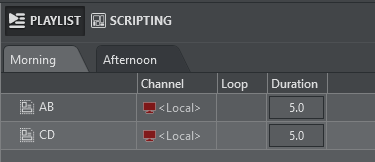
The screenshot above shows the query result for the "Morning" Playlist tab.
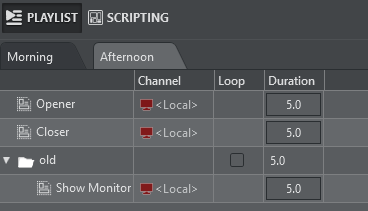
The screenshot above shows the query result for the "Afternoon" Playlist tab.
GET /api/v1/playlist/{index}
Gets the content of the playlist tab, by specifying its index.
curl -s -X GET http://localhost:5004/api/v1/PlayList/0 | python -m json.tool
{ "duration": 10.0, "index": 0, "name": "Morning", "rows": [ { "actionUUID": "b78801bd-c802-42dd-ae11-9955c53dbfe3", "duration": 5.0, "id": "17a6ee8d-8c82-4480-9bda-32e4b9447336", "name": "AB" }, { "actionUUID": "6dd3107a-9487-4f32-92a0-b7eb83a1328f", "duration": 5.0, "id": "4580c837-69a9-41b4-95dc-29b05f1ae0d4", "name": "CD" } ]}Starting from index 0 this call returns a single playlist tab only.
PlaylistExecuter
The PlaylistExecuter endpoint allow you to execute and preview individual playlist elements identified by their id.
GET api/v1/PlaylistExecuter/execute/{id}
Executes the playlist element identified by id.
curl -s -X GET http://localhost:5004/api/v1/PlaylistExecuter/execute/2628b63d-e947-4ee6-9dd2-5c90525e2cf5 | python -m json.tool
200 OKGET api/v1/PlaylistExecuter/continue/{id}
Continues the playlist element identified by id.
curl -s -X GET http://localhost:5004/api/v1/PlaylistExecuter/continue/2628b63d-e947-4ee6-9dd2-5c90525e2cf5 | python -m json.tool
200 OKGET api/v1/PlaylistExecuter/preview/{id}
Executes the playlist element identified by id on the preview channel.
curl -s -X GET http://localhost:5004/api/v1/PlaylistExecuter/preview/2628b63d-e947-4ee6-9dd2-5c90525e2cf5 | python -m json.tool
200 OKGET api/v1/PlaylistExecuter/previewContinue/{id}
Continues the playlist element identified by id on the preview channel.
curl -s -X GET http://localhost:5004/api/v1/PlaylistExecuter/previewContinue/2628b63d-e947-4ee6-9dd2-5c90525e2cf5 | python -m json.tool
200 OKGET api/v1/PlaylistExecuter/playPlaylistByName/{name}
Plays every item in the playlist identified by name.
curl -s -X GET http://localhost:5004/api/v1/PlaylistExecuter/playPlaylistByName/myPlaylist | python -m json.tool
200 OKGET api/v1/PlaylistExecuter/playPlaylistByIndex/{id}
Plays every item in the playlist identified by Id.
curl -s -X GET http://localhost:5004/api/v1/PlaylistExecuter/playPlaylistByIndex/1 | python -m json.tool
200 OKPlaylist Controls on the Currently Selected Playlist
The following commands are invoked against the Playlist that is currently selected in Viz Arc:
GET api/v1/playlistexecuter/executeCurrent
Executes the currently selected playlist element.
curl -s -X GET http://localhost:5004/api/v1/playlistexecuter/executeCurrent
200 OKGET api/v1/playlistexecuter/continueCurrent
Continues the currently selected playlist element.
curl -s -X GET http://localhost:5004/api/v1/playlistexecuter/continueCurrent | python -m json.tool
200 OKGET api/v1/playlistexecuter/outCurrent
Takes out the currently selected playlist element (only for template actions).
curl -s -X GET http://localhost:5004/api/v1/playlistexecuter/outCurrent | python -m json.tool
200 OKGET api/v1/playlistexecuter/previewCurrent
Executes the currently selected playlist element on the preview channel.
curl -s -X GET http://localhost:5004/api/v1/playlistexecuter/previewCurrent | python -m json.tool
200 OKGET api/v1/playlistexecuter/previewContinueCurrent
Continues the currently selected playlist element on the preview channel.
curl -s -X GET http://localhost:5004/api/v1/playlistexecuter/previewContinueCurrent | python -m json.tool
200 OKGET api/v1/playlistexecuter/previewOutCurrent
Takes out the currently selected playlist element on the preview channel (only for template actions).
curl -s -X GET http://localhost:5004/api/v1/playlistexecuter/previewOutCurrent | python -m json.tool
200 OKGET api/v1/playlistexecuter/executeAndNext
Executes the currently selected playlist element and moves to the next playlist item.
curl -s -X GET http://localhost:5004/api/v1/playlistexecuter/executeAndNext | python -m json.tool
200 OKGET api/v1/playlistexecuter/gotoFirst
Selects the first playlist item.
curl -s -X GET http://localhost:5004/api/v1/playlistexecuter/gotoFirst | python -m json.tool
200 OKGET api/v1/playlistexecuter/playCurrentPlaylist
Plays every item in the currently selected playlist.
curl -s -X GET http://localhost:5004/api/v1/playlistexecuter/playCurrentPlaylist | python -m json.tool
200 OKGET api/v1/playlistexecuter/stopCurrentPlaylist
Stops the execution of the currently selected playlist.
curl -s -X GET http://localhost:5004/api/v1/playlistexecuter/stopCurrentPlaylist | python -m json.tool
200 OKPlaylist Row creation and manipulation
POST /api/v1/playlist/{tabIndex}/actionRow
Adds an action row to the playlist tab at position tabIndex. The action is referenced by its UUID (see the ActionCanvas endpoints). targetFolderUuid and insertIndex are optional – when omitted, the row is appended at the end of the tab; with a folder UUID it is placed inside that group, and insertIndex selects the position within the parent.
curl -s -X POST http://localhost:5004/api/v1/playlist/0/actionRow -H "Content-Type: application/json" -d '{ "actionUUID": "3fa85f64-5717-4562-b3fc-2c963f66afa6" }'
200 OK – returns 404 Not Found when no action with the given UUID exists.
POST /api/v1/playlist/{tabIndex}/payloadRow
Adds a payload row: an action together with a stored set of parameter values that are applied when the row is executed. The payload string accepts both JSON and VDF; the format is detected automatically. payloadLabel is the display name of the row, targetFolderUuid and insertIndex work as for actionRow.
curl -s -X POST http://localhost:5004/api/v1/playlist/0/payloadRow -H "Content-Type: application/json" -d '{ "actionUUID": "3fa85f64-5717-4562-b3fc-2c963f66afa6", "payload": "{ \"f0\": \"Jane Doe\", \"f1\": \"Anchor\" }", "payloadLabel": "Lower Third Jane" }'
200 OK
POST /api/v1/playlist/{tabIndex}/itemRow
Adds an item row of a given type. Item rows reference project-level items instead of canvas actions; the available type is CAMERA_SHOT (Virtual Camera Flight shots, referenced by shot id). label, targetFolderUuid and insertIndex are optional.
curl -s -X POST http://localhost:5004/api/v1/playlist/0/itemRow -H "Content-Type: application/json" -d '{ "itemType": "CAMERA_SHOT", "itemId": "9b2f4c8e-0d31-4f7a-a1c2-5e6d7f8a9b0c", "label": "Fly to Desk" }'
200 OK
PUT /api/v1/playlist/itemRow/{id}
Updates an existing item row in place. Only the fields present in the body are changed: overrides (per-row value overrides), label and preferredChannel.
curl -s -X PUT http://localhost:5004/api/v1/playlist/itemRow/9b2f4c8e-0d31-4f7a-a1c2-5e6d7f8a9b0c -H "Content-Type: application/json" -d '{ "label": "Fly to Desk (wide)", "preferredChannel": "PVW" }'
200 OK
Playlist Channels
GET /api/v1/playlist/channels
Returns the channels available to item rows: the default program channel of the active profile and every Viz channel of the profile, each with its live status.
curl -s -X GET http://localhost:5004/api/v1/playlist/channels | python -m json.tool
{ "defaultLabel": "<PGM>", "defaultStatus": "ALL_ACTIVE", "channels": [ { "name": "PGM", "status": "ALL_ACTIVE" }, { "name": "PVW", "status": "ALL_INACTIVE" } ]}GET /api/v1/playlist/mseChannels
Returns the channel options for unmapped MSE rows: the channels of the default MSE profile. The default entry means "no override" and is labeled with the profile's program channel. MSE channels carry no Viz profile status, so status stays empty.
curl -s -X GET http://localhost:5004/api/v1/playlist/mseChannels | python -m json.tool
{ "defaultLabel": "<A>", "defaultStatus": "", "channels": [ { "name": "A", "status": "" }, { "name": "B", "status": "" } ]}PUT /api/v1/playlist/mseRow/{id}/channel
Sets the direct-playout channel override of an unmapped MSE row; an empty or null channel clears the override. Mapped rows play out through their template's own channel setting and are not affected.
curl -s -X PUT http://localhost:5004/api/v1/playlist/mseRow/9b2f4c8e-0d31-4f7a-a1c2-5e6d7f8a9b0c/channel -H "Content-Type: application/json" -d '{ "channel": "B" }'
200 OK – returns 404 Not Found when the row does not exist.
Playlist row selection, callup codes and per-row settings
GET /api/v1/PlaylistExecuter/executeByCallup/{code}
Executes the row carrying the given numeric callup code on the active playlist tab. Callup codes give every row a stable number – like page numbers in Viz Trio – that external panels and keypads can recall directly.
curl -s -X GET http://localhost:5004/api/v1/PlaylistExecuter/executeByCallup/1000
200 OK
GET /api/v1/PlaylistExecuter/select/{id}
Selects a row without executing it. The selection is mirrored to the Viz Arc application and all connected web clients, so executeCurrent and the other current-row endpoints operate on it afterwards.
curl -s -X GET http://localhost:5004/api/v1/PlaylistExecuter/select/3fa85f64-5717-4562-b3fc-2c963f66afa6
200 OK
GET /api/v1/PlaylistExecuter/setCallup/{id}/{code}
Assigns a callup code to a row; code 0 removes it.
curl -s -X GET http://localhost:5004/api/v1/PlaylistExecuter/setCallup/3fa85f64-5717-4562-b3fc-2c963f66afa6/1010
200 OK – returns 409 Conflict when the code is already in use by another row.
GET /api/v1/PlaylistExecuter/setDuration/{id}/{seconds}
Sets a row's duration in seconds and returns the recomputed durations of all affected rows – including the totals of the groups the row belongs to – as a map of row UUID to seconds.
curl -s -X GET http://localhost:5004/api/v1/PlaylistExecuter/setDuration/3fa85f64-5717-4562-b3fc-2c963f66afa6/5.0 | python -m json.tool
{ "3fa85f64-5717-4562-b3fc-2c963f66afa6": 5.0, "9b2f4c8e-0d31-4f7a-a1c2-5e6d7f8a9b0c": 12.5}GET /api/v1/PlaylistExecuter/setExecuteAsUnit/{id}/{executeAsUnit}
Toggles whether a group row executes as a single unit (true or false).
curl -s -X GET http://localhost:5004/api/v1/PlaylistExecuter/setExecuteAsUnit/3fa85f64-5717-4562-b3fc-2c963f66afa6/true
200 OK
GET /api/v1/PlaylistExecuter/setLoop/{id}/{loop}
Enables or disables looping for a row (true or false).
curl -s -X GET http://localhost:5004/api/v1/PlaylistExecuter/setLoop/3fa85f64-5717-4562-b3fc-2c963f66afa6/true
200 OK
GET /api/v1/PlaylistExecuter/changePlaylistTab/{name}
Switches the active playlist tab by name. The active tab is the one the current-row endpoints and callup recall operate on.
curl -s -X GET http://localhost:5004/api/v1/PlaylistExecuter/changePlaylistTab/Show%20Open
200 OK
Projects
The Projects endpoint allows you to get a list of all available projects and to load a project.
Information: Viz Arc can store and read projects from two different locations, Graphic Hub or the local file system. In order to distinguish the source of the project, the project's name is prefixed by the keywords "gh:" or "local:" (for example, "gh:sunday_elections" or "local:sunday_elections").
Also, the "location" property in the responses, indicates whether the project resides on Graphic Hub (value "1") or the file system (value "0").
GET api/v1/projects
Returns a list of all available Projects, first the projects located on the Graphic Hub, then the ones on the file system.
curl -s -X GET http://localhost:5004/api/v1/Projects | python -m json.tool
[ { "name": "gh:Animations", "lastModified": "2023-05-09T13:53:32.4633996+00:00", "location": 1, "profileIndex": 0, "tabs": [] }, { "name": "local:Skating", "lastModified": "2023-05-11T07:53:51.80198+00:00", "location": 0, "profileIndex": 0, "tabs": [] }]In the example above, two projects were found.
The name of the project is prefixed by the keywords "gh:" or "local:"; this prefix indicates whether the project is stored in the Graphic Hub or on the file system.
GET api/v1/projects/{id}
Returns the project with the specified id, if it exists. If two projects with the same name exist in Graphic Hub and the local disk, the one of the local disk is returned first.
curl -s -X GET http://localhost:5004/api/v1/Projects/Animations | python -m json.tool
{ "name": "gh:Animations", "lastModified": "2023-05-09T13:53:32.4633996+00:00", "location": 1, "profileIndex": 0, "tabs": []}GET api/v1/projects/load/{id}
Loads the project with the specified id in Viz Arc. If the id does not contain the location prefix, then Viz Arc tries to retrieve the project with a given name by looking in the Graphic Hub first, then the file system.
curl -s -X GET http://localhost:5004/api/v1/Projects/load/local:Skating | python -m json.tool
200 OKGET api/v1/projects/current
Gets the name and location (Local or GraphicHub) of the currently loaded project.
curl -s -X GET http://localhost:5004/api/v1/projects/current | python -m json.tool
{ "name": "local:Skating", "lastModified": "2023-05-11T07:53:51.80198+00:00", "location": 0, "profileIndex": 2, "tabs": [ { "name": "show", "index": 0, "isEditorOnly": false, "actions": [ { "uuid": "ff1ae771-4c69-42e4-ba8a-ad98747a5477", "name": "Logo", "type": "Template", "actionType": "TEMPLATE", "engineType": "VIZ", ...Profiles
The Profiles endpoint allows you to retrieve information about the available Profiles, Channels and Engines.
GET /api/v1/profiles
Returns the entire list of profiles available in Viz Arc.
curl -s -X GET http://localhost:5004/api/v1/profiles | python -m json.tool
[ { "name": "Local", "channels": [ { "name": "Local", "type": 1, "engines": [ { "name": "localhost" } ], "model": { "engineConfigTuple": [ { "item1": { "name": "localhost", "ipAddress": "127.0.0.1", "port": 6100, "launcherPort": 5644, "webInterfacePort": 30010, "webSocketPort": 30020, ...GET api/v1/profiles/{id | name}
Returns the profile specified by the id or name.
curl -s -X GET http://localhost:5004/api/v1/profiles/0 | python -m json.tool
{ "name": "Local", "channels": [ { "name": "Local", "type": 1, "engines": [ { "name": "localhost" } ], "model": { "engineConfigTuple": [ { "item1": { "name": "localhost", "ipAddress": "127.0.0.1", "port": 6100, "launcherPort": 5644, "webInterfacePort": 30010, "webSocketPort": 30020, ...GET api/v1/profiles/current
Returns the currently selected profile.
curl -s -X GET http://localhost:5004/api/v1/profiles/current | python -m json.tool
{ "name": "Local", "channels": [ { "name": "Local", "type": 1, "engines": [ { "name": "localhost" } ], "model": { "engineConfigTuple": [ { "item1": { "name": "localhost", "ipAddress": "127.0.0.1", "port": 6100, "launcherPort": 5644, "webInterfacePort": 30010, "webSocketPort": 30020, ...POST api/v1/profiles
Sets the currently active profile.
curl -s -H 'Content-Type: application/json' -d "{ 'name': 'production' }" -X POST http://localhost:5004/api/v1/profiles
{ "name": "productionA"}curl -s -H 'Content-Type: application/json' -d "{ 'index': 0 }" -X POST http://localhost:5004/api/v1/profiles
{ "index": 0 }Index starts at 0 for the first profile.
Unreal Status
Read-only monitoring of the Unreal Engines in the active profile, useful for dashboards and automation health checks.
GET /api/v1/UnrealStatus
Returns all Unreal Engines of the active profile with their connection parameters, channel, connection status and whether the engine is in play mode.
curl -s -X GET http://localhost:5004/api/v1/UnrealStatus | python -m json.tool
[ { "name": "Unreal Main", "host": "192.168.1.50", "port": 5644, "launcherPort": 5634, "webInterfacePort": 30010, "webSocketPort": 30020, "channel": "UE1", "connectionStatus": "Connected", "isInPlayMode": true }, { "name": "Unreal Backup", "host": "192.168.1.51", "port": 5644, "launcherPort": 5634, "webInterfacePort": 30010, "webSocketPort": 30020, "channel": "UE2", "connectionStatus": "Disconnected", "isInPlayMode": false }]GET /api/v1/UnrealStatus/{engineName}
Returns the connection status of a single engine by name (case-insensitive).
curl -s -X GET "http://localhost:5004/api/v1/UnrealStatus/Unreal%20Main" | python -m json.tool
{ "connectionStatus": "Connected"}Returns 404 Not Found for an unknown engine name.
GET /api/v1/UnrealStatus/scene
Returns the scene currently active in Viz Arc's Unreal scene view and whether its content has finished loading.
curl -s -X GET http://localhost:5004/api/v1/UnrealStatus/scene | python -m json.tool
{ "name": "StudioLevel", "isLoaded": true}Returns 404 Not Found when no Unreal scene is currently active.
GET /api/v1/UnrealStatus/streamingLevels
Returns the streaming levels of the currently loaded Unreal scene and their load state.
curl -s -X GET http://localhost:5004/api/v1/UnrealStatus/streamingLevels | python -m json.tool
[ { "name": "Studio_Base", "path": "/Game/Maps/Studio_Base", "isLoaded": true }, { "name": "Studio_AR_Extension", "path": "/Game/Maps/Studio_AR_Extension", "isLoaded": false }]Returns 404 Not Found when no Unreal scene is currently loaded.
VCF Camera Shots
The camera shot library of the Virtual Camera Flight tab is available through the API: shots can be listed, created, captured from the engine, edited, reordered and recalled. Shots are stored with the project; playlist CAMERA_SHOT rows reference them by id, so external panels can recall the same shots the operator uses.
GET /api/v1/vcf/shots
Returns all camera shots of the project, in rail order.
curl -s -X GET http://localhost:5004/api/v1/vcf/shots | python -m json.tool
[ { "id": "9b2f4c8e0d314f7aa1c25e6d7f8a9b0c", "name": "Wide Desk", "posX": 350.0, "posY": 180.0, "posZ": 420.0, "rotX": -12.0, "rotY": 45.0, "rotZ": 0.0, "fov": 34.0, "thumbnailData": "/9j/4AAQSkZJRg...", "defaultAnimationSpeed": 1.0, "ndiVelocity": 1.0 }]thumbnailData is the shot's thumbnail as a Base64-encoded image (shortened here).
POST /api/v1/vcf/shots
Creates a shot from explicit values. The server assigns the id; a client-supplied id is ignored. Returns the created shot.
curl -s -X POST http://localhost:5004/api/v1/vcf/shots -H "Content-Type: application/json" -d '{ "name": "Wide Desk", "posX": 350, "posY": 180, "posZ": 420, "rotY": 45, "fov": 34 }'
200 OK with the created shot, including its new id.
POST /api/v1/vcf/shots/capture
Captures the engine's current VCF camera into a new shot, including a thumbnail of the rendered frame. Returns the created shot.
curl -s -X POST http://localhost:5004/api/v1/vcf/shots/capture -H "Content-Type: application/json" -d '{ "name": "Presenter Close" }'
200 OK with the captured shot – returns 400 Bad Request when no Viz Engine is connected.
PUT /api/v1/vcf/shots/{id}
Full update of a shot (rename, re-position, change FOV or animation speed). The id in the route identifies the shot; the body carries the complete new state.
curl -s -X PUT http://localhost:5004/api/v1/vcf/shots/9b2f4c8e0d314f7aa1c25e6d7f8a9b0c -H "Content-Type: application/json" -d '{ "name": "Wide Desk (high)", "posX": 350, "posY": 260, "posZ": 420, "rotY": 45, "fov": 34 }'
200 OK with the updated shot – returns 404 Not Found for an unknown id.
DELETE /api/v1/vcf/shots/{id}
Deletes a shot from the library.
curl -s -X DELETE http://localhost:5004/api/v1/vcf/shots/9b2f4c8e0d314f7aa1c25e6d7f8a9b0c
200 OK – returns 404 Not Found for an unknown id.
POST /api/v1/vcf/shots/reorder
Moves a shot to a new position in the shot rail.
curl -s -X POST http://localhost:5004/api/v1/vcf/shots/reorder -H "Content-Type: application/json" -d '{ "id": "9b2f4c8e0d314f7aa1c25e6d7f8a9b0c", "newIndex": 0 }'
200 OK
POST /api/v1/vcf/shots/{id}/snapshot
Refreshes the shot's thumbnail from the engine's currently rendered frame; the camera pose is kept. Returns the updated shot.
curl -s -X POST http://localhost:5004/api/v1/vcf/shots/9b2f4c8e0d314f7aa1c25e6d7f8a9b0c/snapshot
200 OK with the updated shot
POST /api/v1/vcf/shots/{id}/recall
Recalls a shot on the engine: with animate (default true) the camera flies to the shot, with animate: false it hard-cuts.
curl -s -X POST http://localhost:5004/api/v1/vcf/shots/9b2f4c8e0d314f7aa1c25e6d7f8a9b0c/recall -H "Content-Type: application/json" -d '{ "animate": true }'
200 OK – returns 404 Not Found for an unknown id.
VideoStream
The live preview of the local Viz Engine output that powers the web interface (see Web Preview) is also available as a plain MJPEG stream. It renders directly in an <img> tag, which makes it easy to embed the program output into dashboards and control pages. Streaming is available while the web video preview is enabled in the configuration.
GET /api/v1/videostream/sources
Lists the available video sources.
curl -s -X GET http://localhost:5004/api/v1/videostream/sources | python -m json.tool
[ { "name": "VizOutput", "type": "VIZ", "url": null }]type is one of VIZ, VIZPREVIEW, UNREAL, NDI, DIRECT_SHOW or FLOWICS. For Flowics sources, url carries the overlay's page URL – a Flowics output is an HTML page meant to be embedded directly instead of streamed as video.
GET /api/v1/videostream/{sourceName}
Opens an MJPEG stream (multipart/x-mixed-replace) for the given source. Omitting the source name streams the Viz Engine output. The connection stays open and delivers frames until the client disconnects.
<img src="http://localhost:5004/api/v1/videostream/VizOutput">
200 OK (continuous stream) – returns 404 Not Found for an unknown source name and 503 Service Unavailable while web video streaming is disabled.
Web API Access Control
It is possible to inhibit calls to the PlayListExecuter and the ActionExecuter APIs with the IP whitelisting.
IP Whitelist
You can configure the IP addresses/ranges that are allowed to use the APIs. These have to be specified using a semi-colon (;) separated list of IP ranges (in CIDR notation). By default, the range is 0.0.0.0/0 which means all hosts can access the API.
The IP Whitelist can be configured in three different ways:
Manually in the General Settings(under the Communication section)
Scripting
Web Application Whitelist Configuration
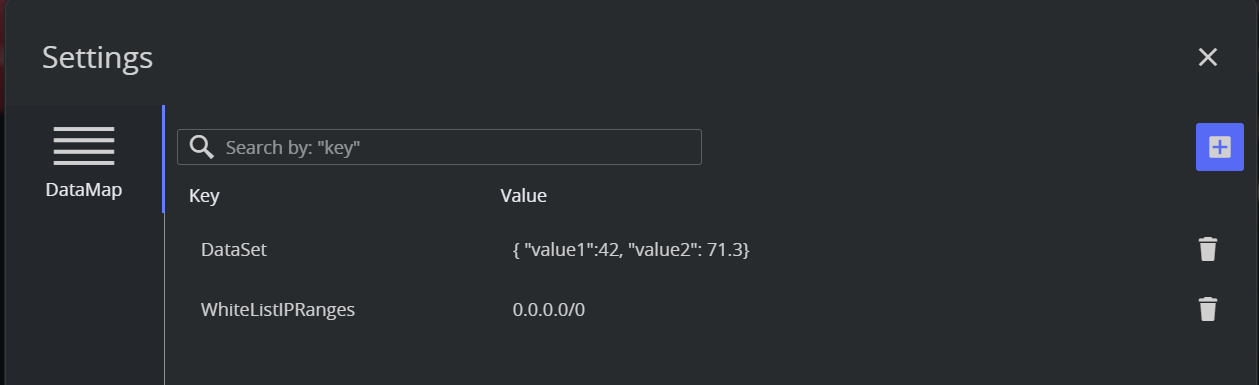
If you want to allow only two machines with IP addresses (for example, 192.168.1.100 and 192.168.1.142) you can specify them by reaching the page http://localhost:5004/home/settings#datamap and set the value of the WhiteListIPRanges key, as in the snapshot below.
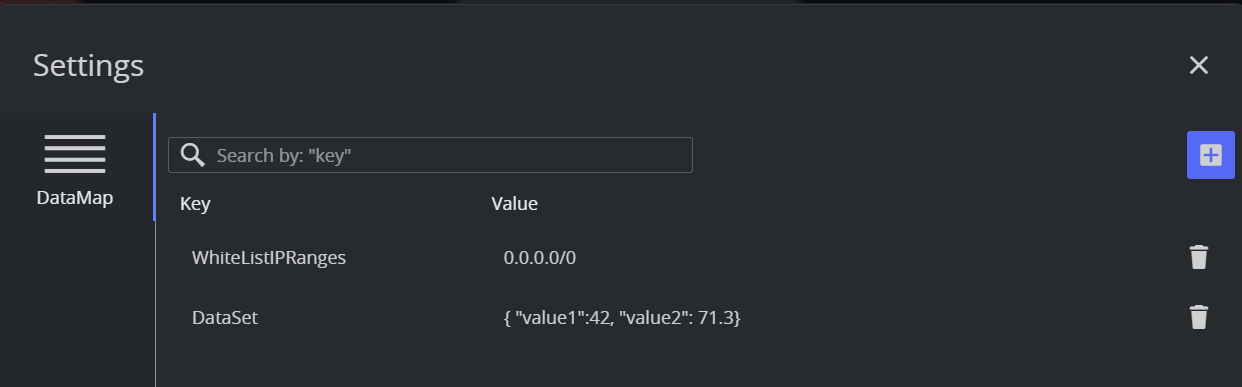
Scripting Whitelist Configuration
Set Whitelist IPs through Scripting
SetData("WhiteListIPRanges", "192.168.1.100;192.168.1.142")Web Application Sample Usage
When Viz Arc starts up, it also launches an internal In-App Web Server which host a Web Application that makes use of some of the APIs described above.
Navigate to http://localhost:5004/ (the port can be configured in the General Settings, under the Communication section) to see the currently loaded project in Viz Arc. For example:
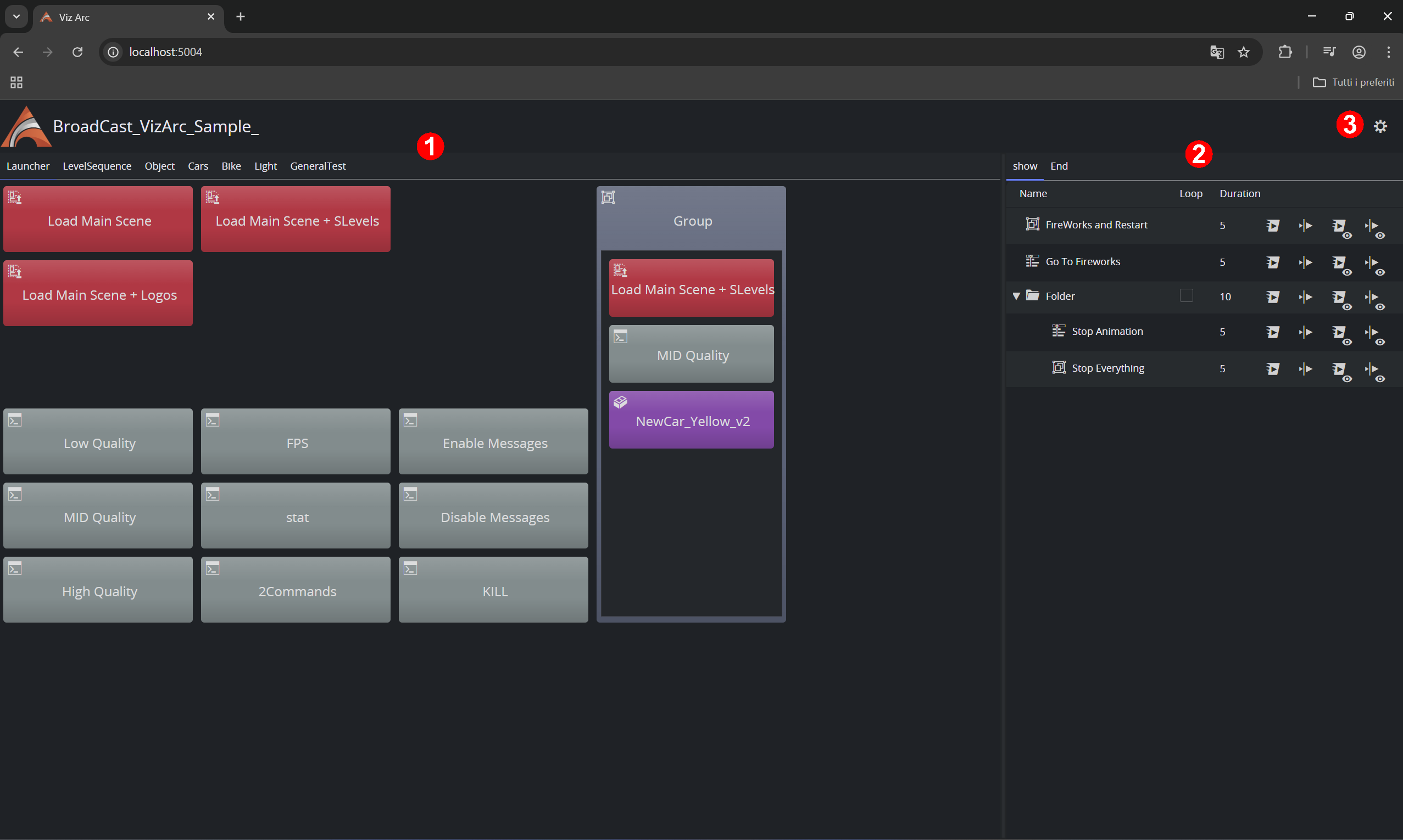
Actions: The project loaded in Viz Arc. Click any action to execute it.
PlayList: Triggers all available playlists.
Datamap: Opens a new dialog. From here you can add, delete or modify any DataMap variable.
Triggering a Viz Arc Action from the Web Browser
You can easily trigger a Viz Arc action for the currently loaded project using its GUID or just its name. First, get the GUID and name from the action:
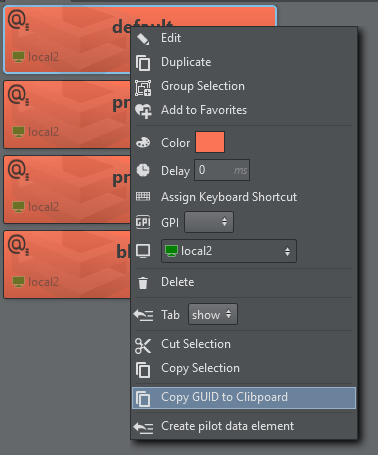
The GUID is now copied to the clipboard from where you can easily paste it anywhere else (for example, to notepad):
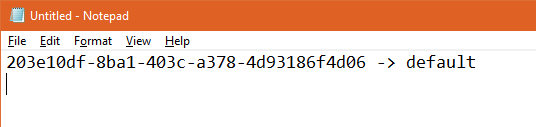
Typing http://localhost:5004/api/v1/ActionExecuter/203e10df-8ba1-403c-a378-4d93186f4d06 or http://localhost:5004/api/v1/ActionExecuter/default triggers the action.
Information: Be aware that triggering only works when Viz Arc is running and when the project that contains the requested Action is open.