- Adding Actions to the Playlist
- Working with the Playlist
- Using the Playlist
- Duration and Loops
- Callup Codes
- Recalling an Element by Callup Code
- Showing and Hiding Columns
- Execute as Unit (Groups)
- Editing a Payload Element in Place
- Searching the Playlist
- MSE Playlists (Viz Trio Shows)
- The Web Playlist
- Additional Keyboard Shortcuts
- External Control
You can add individual actions in a rundown and play the rundown either manually or automatically by defining timing on single playlist elements.
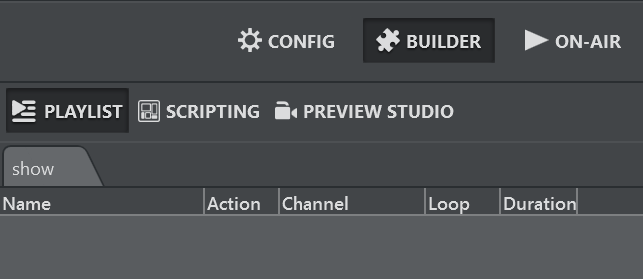
The Playlist is at the top right of the UI in both Builder and On-Air mode.
Adding Actions to the Playlist
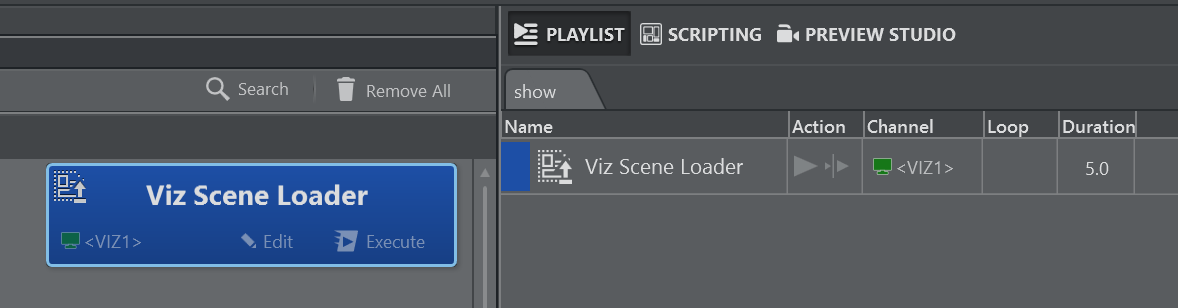
To add actions to the playlist, drag and drop an action from the action canvas into the playlist while holding in the SHIFT key.
Working with the Playlist
Right-click on the playlist to make the context menu appear.
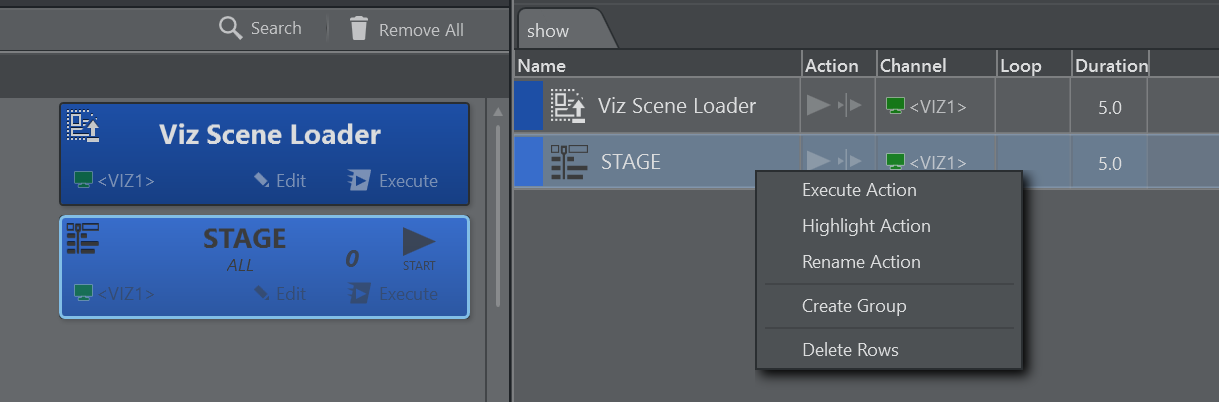
Execute Action: Executes the currently selected action.
Highlight Action: Highlights and brings into view the action on the action canvas.
Rename Action: Renames the selected action.
Create Group: Creates a logical group above the selected row.
Delete Rows: Deletes the selected rows.
When opening the context menu on a group and selecting Execute, all child items are executed in order.
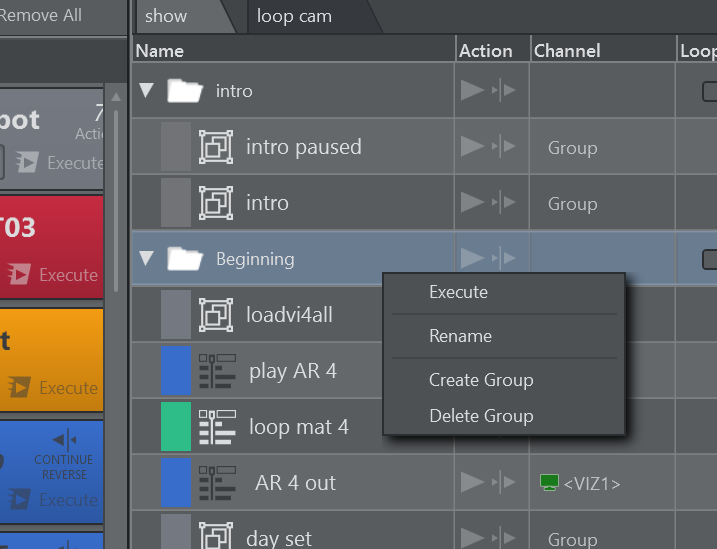
Use drag and drop to move actions around the playlist. The indicator shows if the action will be inserted before, after or into a group.
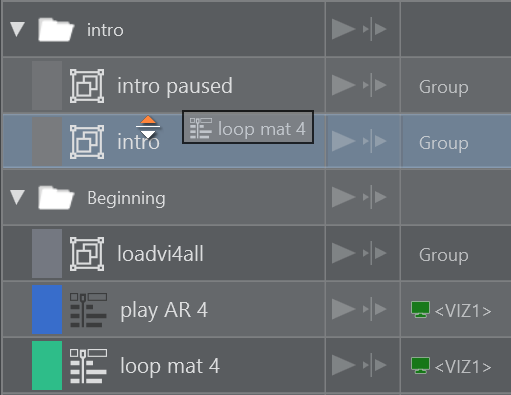
The orange triangle shows where the dragged item is dropped when released.
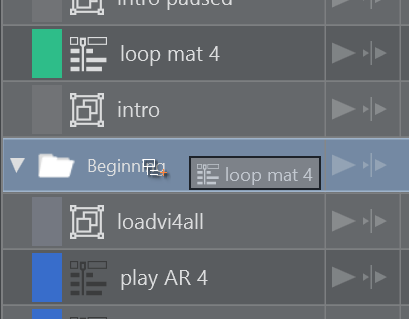
Drop inside a group: When dragging over a group item, the cursor icon shows whether the item is going to be dropped inside the group.
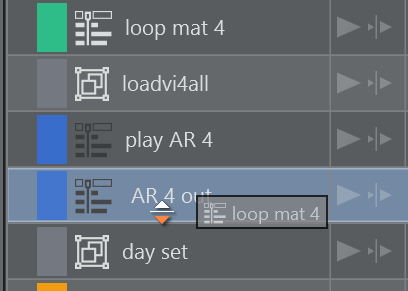
Drop under or above the group: Moving the cursor further to the left allows you to drop under or above the group.
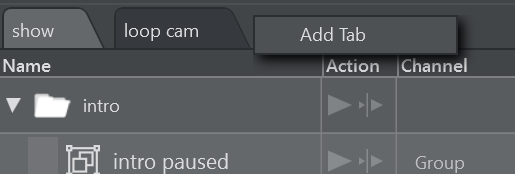
Add a new playlist: Right click on an empty space in the playlist tab area.
Rename or delete a tab: Right-click on an existing tab.
Using the Playlist
A selected playlist element can be executed using the Execute Action shortcut (default F5) or by double clicking the element. A separate system shortcut (default ENTER key) may be used to execute the current element and advance to the next element in the playlist. A green triangle shows the element that was executed most recently.

For template action items, the shortcuts for continue, update, out and preview work as well.

The buttons play and continue can be used directly on template items to trigger Execute and Continue respectively.
Duration and Loops
The very last column on a playlist element contains a duration (default 5.0) representing the time in seconds that the playlist waits before executing the next element. The default duration can be changed under Playlist in General Settings.

Use the panel at the bottom to play the playlist:

Play: Starts the playlist from the top and stop interrupts playout.
Loop: Loops the playlist indefinitely when checked.
Duration: Indicates the duration of one single run.
Auto Preview: Executes any selected playlist item on the preview channel, when checked.
Callup: Executes a specific playlist element when a callup code is entered.
Information: When the playlist has been scheduled for automatic playout, all modifications made on the playlist are ignored for the playout. The playlist must be stopped and played again in order to reflect any changes.
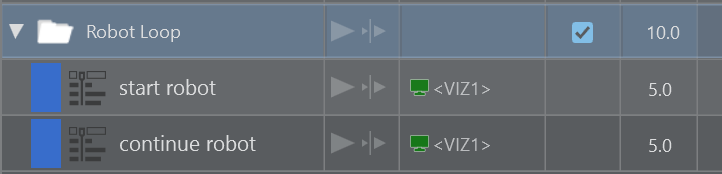
Groups can also be checked for looping. The elements within the group are then executed indefinitely until the stop button is pressed.
Callup Codes

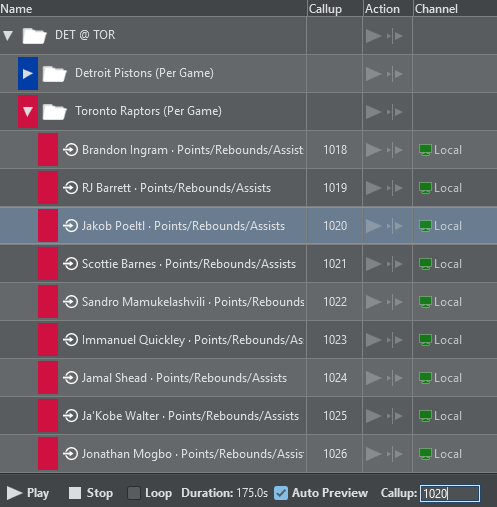
Every playlist element can carry a numeric callup code, shown in the Callup column. Callup codes work like page numbers in Viz Trio: An operator types the number and recalls the element instantly, without searching or scrolling.
New elements are numbered automatically, starting at 1000 and counting up. Groups are not auto-numbered.
Codes are managed per playlist tab. Two elements on the same tab can never share a code, but the same code may appear on different tabs.
The code can be edited directly in the Callup column (Builder mode only). Entering a code that is already in use on the tab is rejected.
Clearing the code leaves the element without a callup number; it is not re-numbered automatically.
In an MSE playlist tab, the element's Viz Trio page number is used as its callup code.
Recalling an Element by Callup Code
There are two ways to recall an element by its code:
Recall box: The playlist's bottom toolbar contains a callup entry field. Type a code and press ENTER to jump to and select the matching element.
Numpad recall: With the playlist focused, you can type the code on the numeric keypad. The digits are collected into the recall box automatically. Press ENTER to select the element, or numpad ENTER to select and execute it in one step. BACKSPACE corrects the entry and ESC clears it.
Note: Callup codes can also be triggered from external controllers, the REST endpoint executeByCallup/{code} is available to Stream Deck, Companion and any other automation client.
Showing and Hiding Columns
The columns of the playlist grid can be shown or hidden individually via the columns button in the playlist toolbar (or by right-clicking the column header area). The following columns are available:
Name: Element name with type icon and play indicator. Always visible; the name can be edited inline.
Action Name: The name of the source action the element refers to. For payload rows, the action the payload was created from. Useful when elements have been renamed. Read-only, hidden by default.
Callup: The element's callup code (see above).
Type: The action type, or the template name for MSE elements. Hidden by default.
Channel: The output channel the element plays on. For camera shot rows the channel can be picked per row; on MSE tabs, unmapped elements offer a per-row channel override (see MSE Playlists below).
Action: Per-row Execute and Continue buttons.
Loop: Loop checkbox (groups only).
Unit: Execute as Unit checkbox (groups only, see below).
Duration: Time before the next element is executed during playout. Editable per element; groups show the total duration of their children.
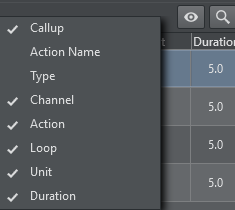
The column configuration is stored in the project's global settings and is shared with the browser-based playlist. Hiding a column in the desktop application also hides it in the web view, and vice versa.
Execute as Unit (Groups)
By default, playing a playlist steps into a group and executes its children one after the other, each waiting for its own duration.
When Unit is checked on a group, the group is treated as a single playlist step instead. When playout (or the execute and advance shortcut) reaches the group, all of its children are fired together (exactly like using Execute on the group) and the playlist then continues with the element after the group.
Editing a Payload Element in Place
Payload elements: Playlist rows created by dragging a saved template payload into the playlist (snapshots of a filled template). Their values can be edited directly from the playlist, without re-dragging a new payload and deleting the old row:
Double-click the payload row. Viz Arc jumps to the source template on the action canvas and loads the row's values into the embedded template editor Off Air (nothing is executed or taken On Air). For payload rows, double-click opens the editor. Use the Execute shortcut, the per-row Execute button or the context menu to play the row out.

Edit the values in the template editor as usual (for example, fixing typos like Tony->Toni and Raceing → Racing).
Click the Save button that appears in the template's header (both in the embedded view on the canvas and in the detached template window). The button stays dimmed until a value has actually been changed, and its tooltip shows which element it writes to (Save changes to …).

Saving writes the edited values back to the same playlist element (it keeps its position, name, callup code and color). The editor stays bound to the element afterwards, so several edit-and-save rounds are possible.
Info: The binding is released automatically whenever it could no longer be applied safely (for example, when the element has been deleted or a different payload or project has been loaded) in which case the Save button disappears from the template header.
Searching the Playlist
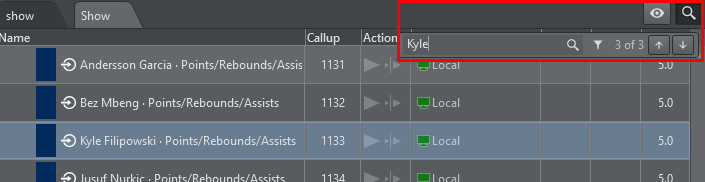
The search box in the playlist toolbar finds elements by name without changing the rundown:
Typing jumps to the first match and shows a match counter.
F3 jumps to the next match, SHIFT + F3 to the previous one, ESC closes the search.
On MSE playlist tabs a filter mode is available that hides all non-matching elements instead of jumping between them.
MSE Playlists (Viz Trio Shows)
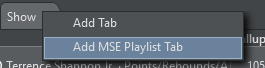
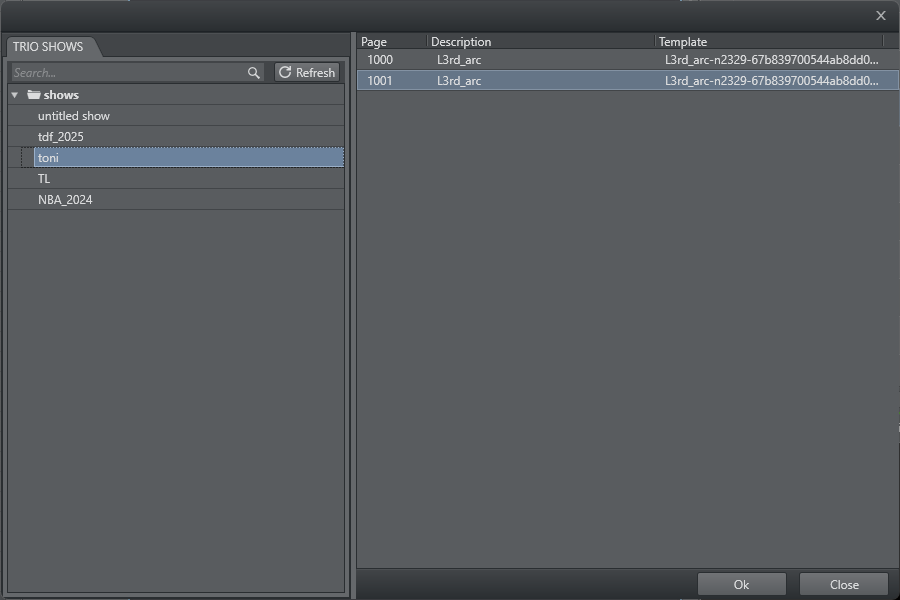
In addition to regular playlist tabs, Viz Arc can attach a whole Media Sequencer (MSE) show as a playlist tab. Right-click the tab bar and choose Add MSE Playlist Tab, then select the show. The tab's elements are read live from the Media Sequencer.
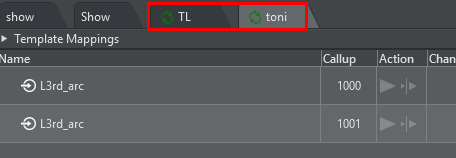
The MSE Playlists can be distinguished from regular shows by the MSE Icon on the playlist tab.
Template Mappings: A mapping grid above the playlist links each MSE template (master) to a Viz Arc template action. Elements whose template has no mapping yet are shown dimmed.
Executing an element pushes the element's content into the mapped template action and takes it On Air. The MSE rundown is effectively played out through Viz Arc's templates and channels.
The tab's context menu offers Change MSE Show, Assign Template and Refresh Elements (re-reads the show from the Media Sequencer).
The element's Viz Trio page number doubles as its callup code, so pages can be recalled on the numpad exactly as in Viz Trio.
Template Mappings
An MSE element does not carry a scene of its own – it stores content (the filled-in field values) and a reference to the model (the master template) it was created from. To play such an element out, Viz Arc needs to know which of its template actions should receive that content. This is what the Template Mappings table (the expandable panel docked above the MSE playlist) is for.
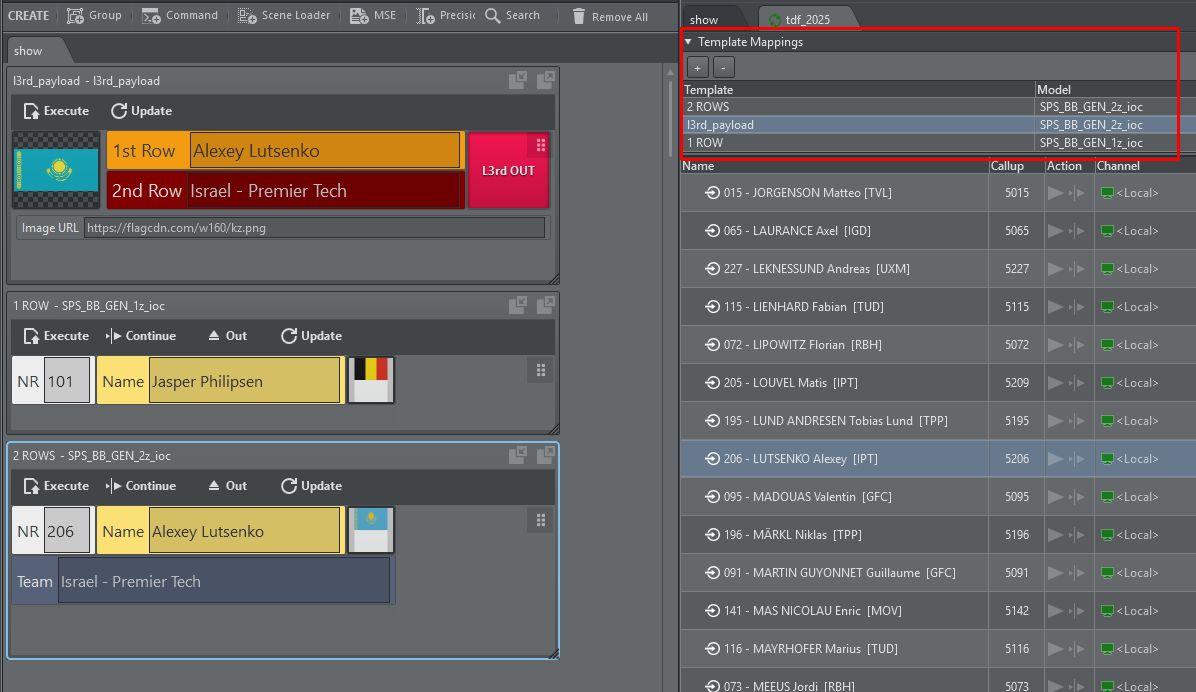
Each mapping row links one model of the show to one template action of the current Viz Arc project:
Click + to add a mapping (or use Assign Template in the tab's context menu), then pick the template action in the Template column and the model in the Model column. The Model list offers exactly the models actually used by the show's elements; the Template list offers the project's template actions.
Click − to remove the selected mapping.
The mapped template action should be built for the same scene and fields as the MSE model – the element's field values are matched to the template's control fields by their IDs, so a template made for a different scene will receive no or wrong content.
One model may be mapped to several template actions. All matching mappings fire together – useful when one element should drive more than one destination (for example a Viz template and a Flowics overlay at the same time).
Elements whose model has no mapping yet are shown dimmed in the list. (As long as no mappings are defined at all, nothing is dimmed.) Unmapped elements can still be played out directly through the Media Sequencer. See Playing Out an MSE Element below.
The Template column always shows the mapped action's current name; if the template action has been deleted from the project, the cell appears blank and the mapping must be reassigned.
Playing Out an MSE Element
When an MSE element is executed (double-click, Execute button, callup recall or external trigger), Viz Arc:
Loads the element's content from the Media Sequencer (fetched on first use and cached),
Pushes the field values into every template action mapped to the element's model, and
Executes those template actions on their configured output channels – the MSE rundown is effectively played out through Viz Arc's own templates, channels and profiles. Continue works the same way and sends a continue to the mapped templates.
With Auto Preview enabled, simply selecting an element pushes its content into the mapped templates as a preview (nothing is taken On Air), so the page can be checked before playout.
Unmapped elements play out directly through the Media Sequencer: take, continue and out are sent straight to the default MSE profile (configured under Settings > Media Sequencer), without involving a Viz Arc template. A mapping is only needed when the content should be edited or previewed in a Viz Arc template before take. For unmapped elements the Channel column offers a per-row channel override; when left empty, the element follows its channel assignment in the show or the profile default. Auto Preview does nothing for unmapped elements, since there is no template to preview the content in.
Driving a Flowics or Unreal Template from a Viz Trio Payload (the Payload Field)
When an element's content is pushed into a mapped template, Viz Arc by default matches the payload's field IDs against the scene control objects the template's parameters are linked to. For a Viz template built on the same scene as the MSE model this works automatically (the field IDs are the same).
Flowics template, however, has no Viz scene behind it: its parameters are linked to Flowics overlay controls, whose IDs have nothing in common with Viz Trio page's field IDs. The default matching therefore finds nothing, and the template would receive no content. This is exactly what the per-parameter Payload Field property is for.
To feed a Viz Trio page into a Flowics overlay:
Create the Flowics template as usual, with its parameters linked to the overlay's controls.
In the template editor, select a parameter and set its Payload Field property to the ID of the Viz Trio payload field it should receive (for example
01for the first text field of a typical Viz Trio page).Repeat for each parameter that should be filled from the page, then save the template.
In the MSE playlist tab, map the Viz Trio model to this Flowics template in the Template Mappings table, like any other mapping.
On take, Viz Arc writes each declared payload field's value into the corresponding parameter – independent of what the parameter is linked to – and then executes the template normally, which pushes the values to the Flowics overlay. In other words, Payload Field defines where a parameter's value comes from (the incoming Viz Trio/MSE payload), while the parameter's linked control object defines where it goes to (the Flowics control, or a Viz scene field).
Note: Instead of typing field IDs by hand, pick the show's model in the template's MSE Model setting first. The Payload Field property then offers a dropdown of that model's fields (with their labels). Free-text entry remains possible when no model is selected.
Two details worth knowing:
An explicit Payload Field takes precedence over the default same-scene field matching, so it can also be used on Viz templates to redirect a payload field to a differently named parameter.
Since one model may be mapped to several templates, the same Viz Trio page can drive a Viz scene and a Flowics overlay simultaneously (the Viz template picks its values up via the regular field matching, the Flowics template via its Payload Field declarations).
Creating New Elements from Viz Arc
The connection also works in the other direction: Dragging a saved template payload onto the MSE playlist creates a new element in the show on the Media Sequencer itself. The new element is created under the model mapped to the payload's source template and takes the payload's label as its description, so it also appears in Viz Trio and any other MSE client. The source template must have a mapping in this tab (if it does not, Viz Arc refuses the drop with a message rather than creating a broken element).
The Web Playlist
The playlist is also available in Viz Arc's browser-based interface, allowing operators to monitor and drive the rundown from any machine on the network.
The web playlist shows the same columns as the desktop application, with the same show/hide configuration (shared between both).
Editing: callup codes, durations, element names, group loop/unit flags and the channel of camera shot rows can be edited directly in the browser. Elements can be re-ordered and moved into groups via drag and drop, and multiple rows can be selected and deleted together.
Playout: per-row Execute/Continue (and preview) buttons, Start/Stop, Loop and Auto Preview in the bottom toolbar, plus the same callup recall box with numpad support.
All changes and the currently playing element are synchronized live in both directions between the desktop application and every connected browser.
Additional Keyboard Shortcuts
Shortcut | Function |
|---|---|
ENTER | Executes the selected element. |
DELETE | Deletes the selected rows (disabled while ON AIR). |
F3 / SHIFT + F3 | Finds previous/next search match. |
Numpad digits | Enters a callup code for recall. |
Numpad ENTER | Recalls the entered callup code and execute it. |
ESC | Clears the callup entry/close the search box. |
External Control
The playlist can be driven by external controllers through Viz Arc's REST interface. Ready-made actions are available for Elgato Stream Deck and Bitfocus Companion, covering among others:
Execute the current element / execute and advance to the next one.
Go to the first element, play or stop the whole playlist.
Switch the active playlist tab, or start a playlist by name or index.
Execute an element by its callup code.