Smart Panel is a web-based tool for building and operating custom panels that drive Viz Mosart. It is aimed at operators, technical directors, producers and presenters who want a tailored control surface for their show: the buttons, faders, timers and previews they need, arranged the way they want, on any device with a browser.
Why Smart Panel
Live control rooms have always relied on hardware panels: dedicated boxes of buttons and faders wired to the automation system. They work, but every change to the show means a hardware change, every new operator means a new physical workstation, and every studio ends up with a different layout that lives only in someone's head.
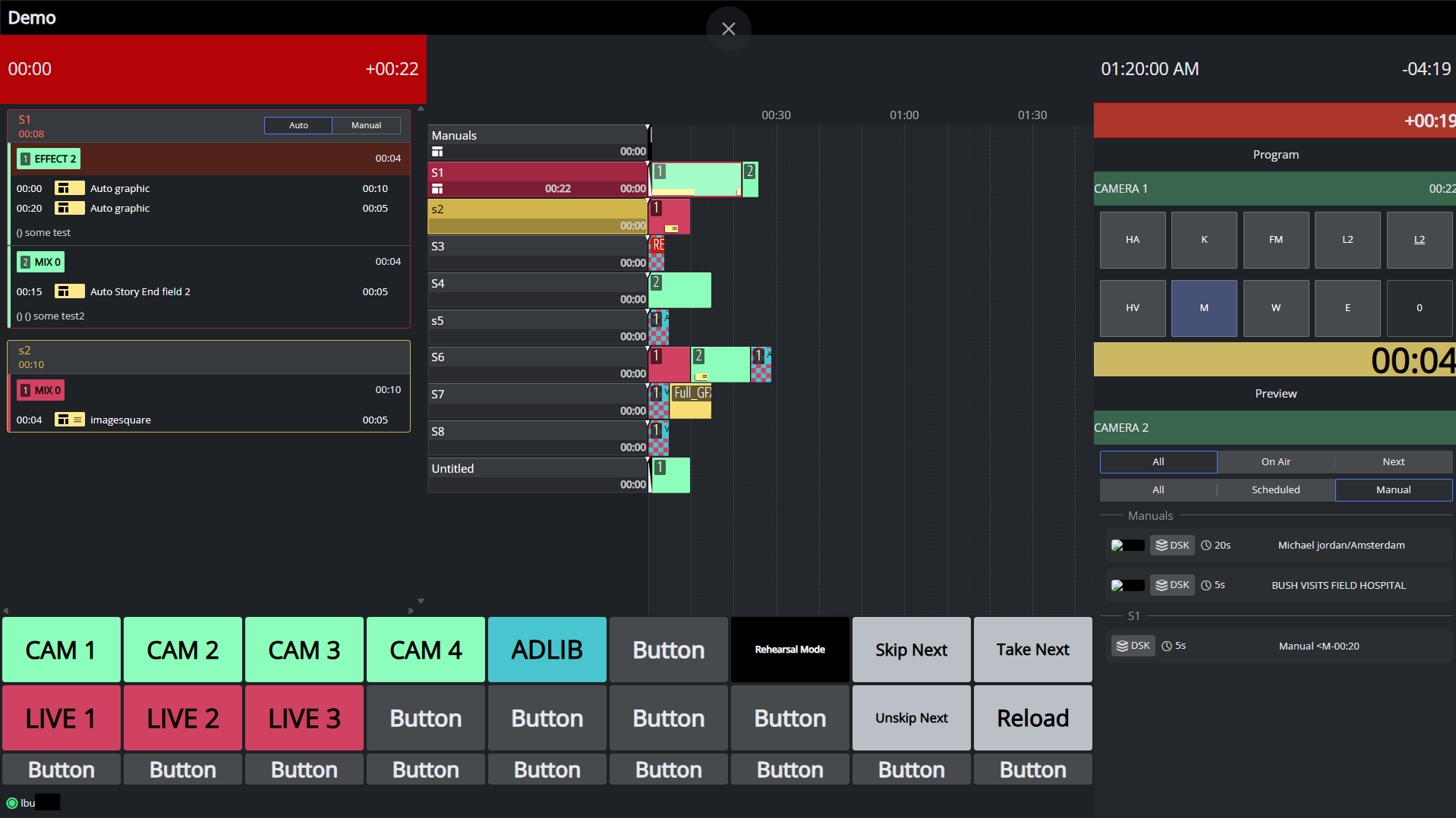
Smart Panel takes the opposite approach. Layouts are designed in the browser and opened on any screen- a touch monitor in the gallery, a tablet at the presenter's desk, a laptop in a remote control room. An operator can drop in a take button, a story countdown, a live preview and an audio fader, arrange them, and have a working panel in minutes.
Smart Panel is also designed to feel like the operator's own surface. Each layout has its own name, aspect ratio and visual identifiers, so the same Mosart system can host a presenter panel, a director panel and an audio panel side by side without confusion. The aim is a control surface that is quick to build, easy to share, and pleasant to use on air.
Info: Smart Panel does not replace Viz Mosart itself. It is a configurable front-end for Mosart's automation, timing and audio commands.
Where Smart Panel Fits
Smart Panel is one of the Viz Mosart Web Apps, a suite of browser tools served by a single backend that ships with every Mosart installation. Other apps in the suite include the Rundown Viewer, Showmaker, NRCS Plugin, Template Editor, and the Mosart Web Config Tool. They share a host and a single sign-in, so once you reach one of them you can switch between the others without logging in again.
Within the suite, Smart Panel plays the role a hardware control panel would play in a traditional setup: it sends automation commands to Viz Mosart and shows live state and information back to the operator/presenter.
Component | Role for Smart Panel | Required? |
|---|---|---|
Viz Mosart Server | Receives Smart Panel's commands (take, cue, transition, audio, etc.) and streams back live timing, rundown and device state. | Yes |
Mosart Web Apps Configuration Tool | One-off setup that points Smart Panel at the Mosart server(s) and other optional services (Coder service, TriCaster). See Setup and Administration of Smart Panel. | Yes (once) |
Mosart Web Apps server | Hosts all the web apps (sign-in, navigation, shared help) and stores Smart Panel layouts and uploaded images. | Yes (bundled) |
Mosart Web Proxy | Reverse proxy that routes browser traffic to the right backend (web apps, Mosart server, Coder). | Yes (bundled or external) |
Smart Panel uses the Mosart Web Apps server for storage (layouts, images, settings); live data and command execution go directly to the Mosart server. If Mosart is offline the panel still opens (with placeholder data) so layouts can be designed without a live show on air.
Two optional services extend what Smart Panel can show in a panel. Both are registered in the Mosart Web Config Tool and become available to all layouts on the system.
Coder: A media encoder service. It converts NDI feeds (cameras, program, preview, multiviewer outputs) into browser-friendly streams that the Live widget can display. Without Coder, the Live widget falls back to a placeholder.
TriCaster: The studio's TriCaster switcher controlled by the Mosart server(s). When configured, its outputs become available as additional live preview sources inside Smart Panel.
Key Features
Drag-and-drop layout editor: Design panels on a configurable grid with a items palette, property panel and per-layout aspect ratio.
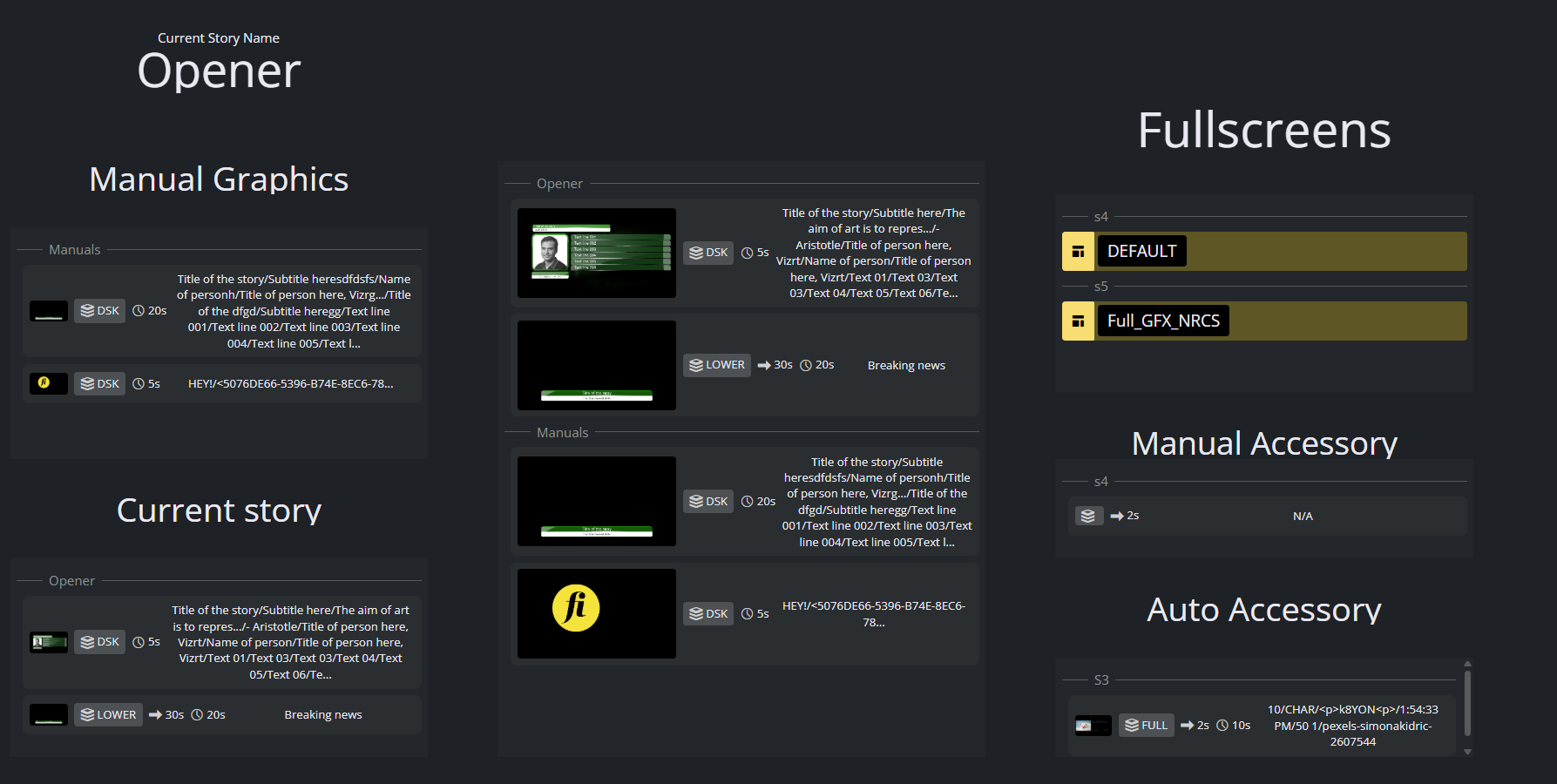
Wide layout items library: Buttons, timers, labels, images, live video, audio faders, audio toggles, asset lists, device statuses, transition selectors, embedded story script and timeline, and custom iframes (embedded web pages).
Live integration with Viz Mosart: Buttons trigger Mosart automation commands (template takes, timeline control, audio, overlays, transitions, etc.); timers, labels and indicators update in real time.
Multiple layouts: Build separate panels for different roles (director, audio, presenter) and switch between them per device.
Browser-based, device-agnostic: Runs in any modern browser on touch and standard monitors, tablets and laptops.
Edit and display modes: Design a panel in the editor, then open it full-screen on the operator's screen to run it on air.
Typical Workflow
Open Smart Panel and create a new layout (name, aspect ratio, background).
Drag widgets from the palette onto the grid and configure each one (text, command, source, colors).
Save the layout.
Open the layout in display mode on the operator's screen and use it to drive Viz Mosart on air.