Smart Panel installs together with Mosart Web Apps. There is no dedicated Smart Panel section in the Mosart Web Apps Configuration Tool today. The panel reuses the shared Mosart server, authentication and HTTPS settings, plus optional configuration to the Coder service and TriCaster for live video sources. Configure those once and Smart Panel is ready.
Setting up Smart Panel
Follow these steps in order. Each one builds on the previous, so do not skip ahead.
Step 1: Install a recent Viz Mosart (5.1.0 or later recommended).
Smart Panel is part of the Mosart Web Apps suite that ships with Viz Mosart. Make sure your Mosart server is on a recent version. 5.1.0 or newer is the safe baseline. Without a recent enough version, Smart Panel is either missing or missing features it needs.
Step 2: Make sure Viz Mosart is running.
Smart Panel talks to a live Mosart server for automation commands, timing and rundown data. Before you continue, check that:
Manus Administrator is running.
The Viz Mosart UI is running and displaying a rundown.
If either is down, start it now. You only need to do this once after a server reboot.
Step 3: Open the Mosart Web Apps Configuration Tool.
This is where every Mosart Web App, including Smart Panel, is set up. You should already have it from the Mosart installation.
Step 4: Point the Web Apps suite at your Mosart server.
In the Configuration Tool, open Server Configuration and fill in the main (and optional backup) Viz Mosart server addresses.
Smart Panel does not have a separate connection screen, it uses these shared settings to talk to the Mosart server.
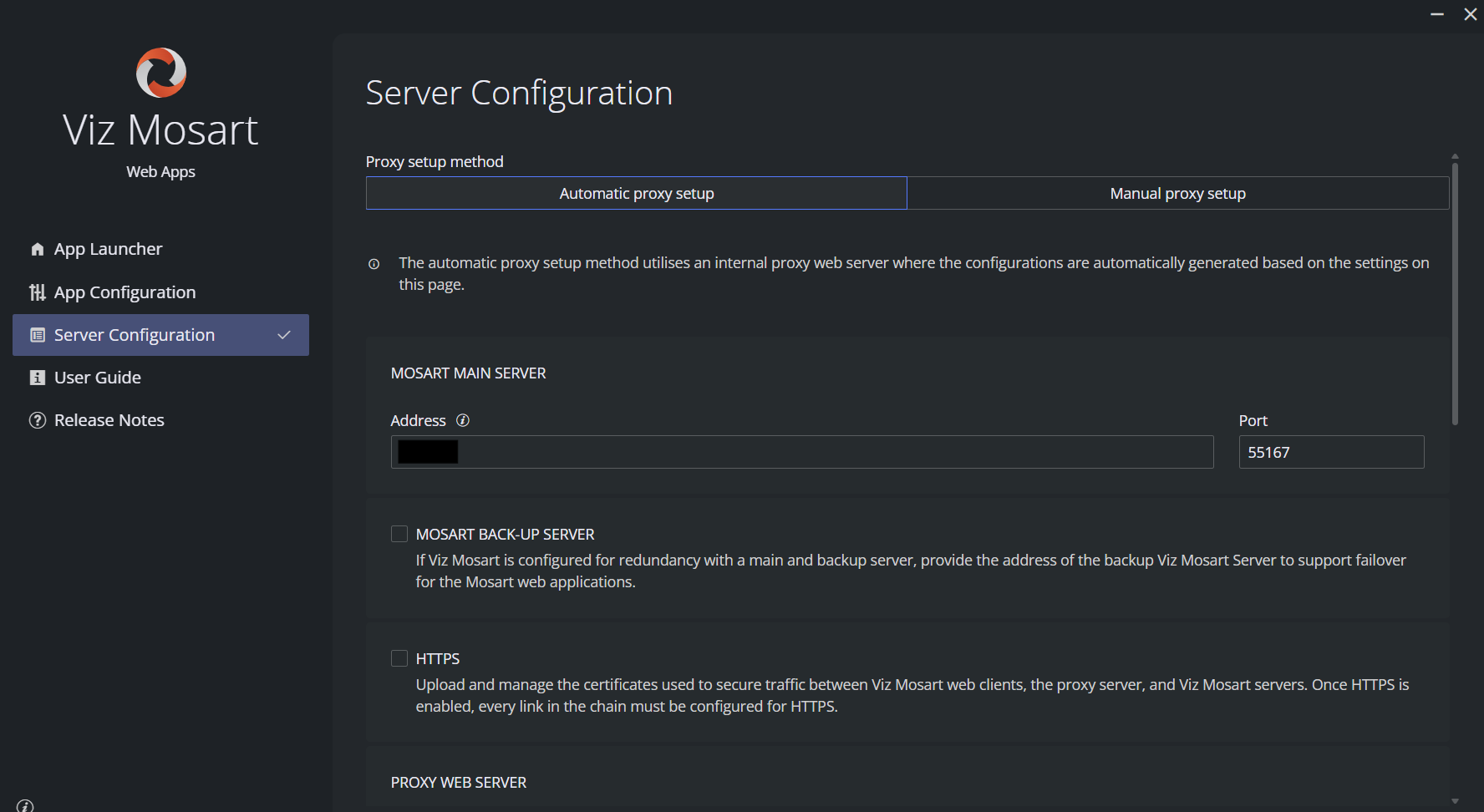
Step 5: (Optional) Enable live video previews.
If you plan to show NDI or TriCaster sources in the Live widget, set them up now. See Enable Live Video Previews below.
Step 6: (Optional) Turn on HTTPS and authentication.
By default Mosart Web Apps runs without HTTPS or sign-in. If your site needs them, configure both in the Configuration Tool.
See section Open Smart Panel step below and Using HTTPS for the user-side effect (sign-in and the OIDC redirect).
Note: If Live Preview via Coder is used in Smart Panel, then Mosart Web Apps can not be configured with HTTPS. Coder is not reachable over HTTPS, even if Mosart Web Apps itself is configured with HTTPS.
Step 7: Open Smart Panel and verify.
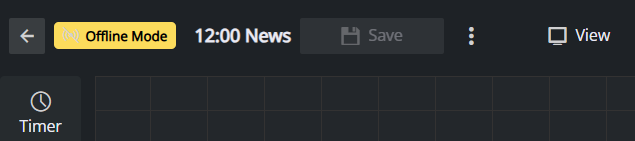
Browse to http(s)://<your-mosart-web-apps-host>:port/smartpanel (the default port for http is 55142 and 5513 for https). You should see the landing page (empty on a fresh install, ready for a New Panel). Open or create any panel and check that the Offline Mode badge in the app bar is not visible. If it is, the connection to Mosart did not come up. See Troubleshooting section.
Enable Live Video Previews
The Live widget supports three source types. Some of them need configuration in the Configuration Tool:
NDI: preview an NDI source through the Vizrt Coder service. Install Coder and make sure it is reachable from the operator's browser through the Mosart Web Apps host. See topic Coder for Live Previews.
TriCaster: preview an input from a TriCaster on the same network. Configure the TriCaster host once in the Configuration Tool; Smart Panel pulls the stream directly, no Coder needed. See TriCaster Live Previews.
HTML video: point the widget at an
.mp4,.webm,.ogg, or.ogvURL the browser can fetch directly. Useful for pre-recorded clips or any source already exposed as a plain video file. No server-side setup.
Using HTTPS
If Mosart Web Apps is served over HTTPS, define the environment using the Server Configuration menu in the Mosart Web Apps Configuration Tool. Smart Panel inherits the same HTTPS setup as the other Web Apps. There are no Smart Panel-specific certificates to manage.
Troubleshooting
The "Offline Mode" badge stays on in the app bar
The Offline Mode badge means Smart Panel has lost contact with Viz Mosart. The panel keeps working, but timers, labels, and faders display fixed sample values instead of live data. As soon as the connection comes back, the badge disappears and live values resume automatically.
If the badge does not clear after a few seconds, work through the checks below in order.
Check, in order:
Is Mosart Server configured? Open the Mosart Web Apps Configuration Tool, go to Server Configuration and confirm the main Mosart Server host is set. Save and reopen Smart Panel.
Is Mosart Server running and reachable? On the Mosart Server machine, confirm Manus Administrator is running and a rundown is loaded. If it is, but Smart Panel still shows Offline Mode, the Mosart Web Apps host can not reach the server, check the network connection between the two machines.
Using a custom reverse proxy? Smart Panel always calls
/mosart/...on the Mosart Web Apps host (SignalR hub, REST API, status endpoints). The bundled Caddy proxy forwards/mosart/*to Mosart Server automatically. If you replaced Caddy with your own proxy (nginx etc.), make sure it forwards/mosart/*to the Mosart Server.Is authentication misconfigured? If OIDC is on, an expired or rejected JWT causes the page to reload. Persistent reload loops mean the identity provider is rejecting the token. Re-check the OIDC settings.
Check the browser console. Open the browser developer tools (F12), reload Smart Panel, and look at the Console tab for red error messages. They usually point directly at one of the causes above (server unreachable, authentication rejected, network blocked).
The Live widget shows an Error icon
Coder is unreachable or has no sources. Review the section Coder for Live Previews in the Configuration Tool.
Note: Coder is not available over HTTPS.
Buttons do not execute
If timers and labels work (no Offline Mode badge) but a Button click does nothing, check:
The button's Command type is filled in and, for Template buttons, a template is selected.
Authentication mismatch between Mosart Server and Mosart Web Apps. Smart Panel needs the same authentication mode on both sides:
If Mosart Server is configured with OIDC, Mosart Web Apps must also have HTTPS and OIDC enabled (Server Configuration in the Configuration Tool — see Step 6).
If you want to run over HTTP (not recommended), Mosart Server must have a REST API key configured (RestApiKey), and Smart Panel must be opened with that key as a URL parameter (?apikey=<key>). Note that this exposes the key in browser history and logs.
To confirm the underlying REST endpoint is responding, open the Mosart Server Swagger page in a browser:
HTTP:
http://<mosart-server-host>:55167/swagger/index.htmlHTTPS:
https://<mosart-server-host>:55168/swagger/index.html
If the Mosart Server is configured with a REST API key (RestApiKey), click Authorize in Swagger and supply the same key (header X-API-Key) before invoking any endpoint. If neither an API key nor OIDC is configured on the Mosart Server, the REST API is not usable, the Swagger page may load, but every call returns 401.
Layout not saved between sessions
Layouts are stored in a single file, smartPanelLayouts.json, under C:\ProgramData\Mosart Medialab\Mosart Web Apps. The built-in default layouts are part of the Mosart Web Apps installation and cannot be lost. If user-created layouts disappear after a server restart, check that this folder is included in your normal backup routine and has not been wiped by a reinstall.