This section presents advanced, mostly one-off configurations and references for the Mosart Web Apps system administrator.
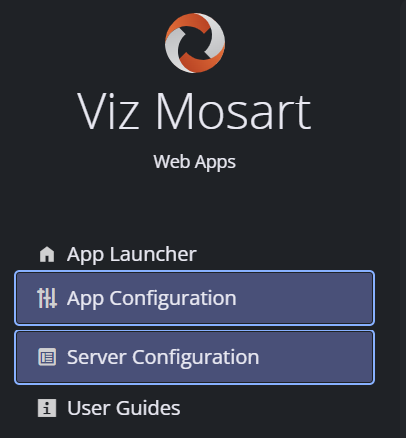
The Configuration Tool enables rapid setup and management of all your the Mosart Web Applications.
If your setup is already configured, use App Launcher for NRCS Plug, Timing Display, Rundown Viewer and Showmaker.
However, on first run, you must perform all necessary one-time setups for all the Mosart Web Apps from the two menus:
App Configuration
Settings here are needed when you:
Use the NRCS Plugin or Showmaker for the first time.
Have installed the Mosart Web Apps bundle on a separate server to the Viz Mosart server.
Note: Showmaker always requires the NRCS Plugin to be correctly configured.
NRCS Plugin
To configure the NRCS Plugin
First perform the Getting Started (Installation) procedure.
Select App Configuration and click NRCS Plugin.
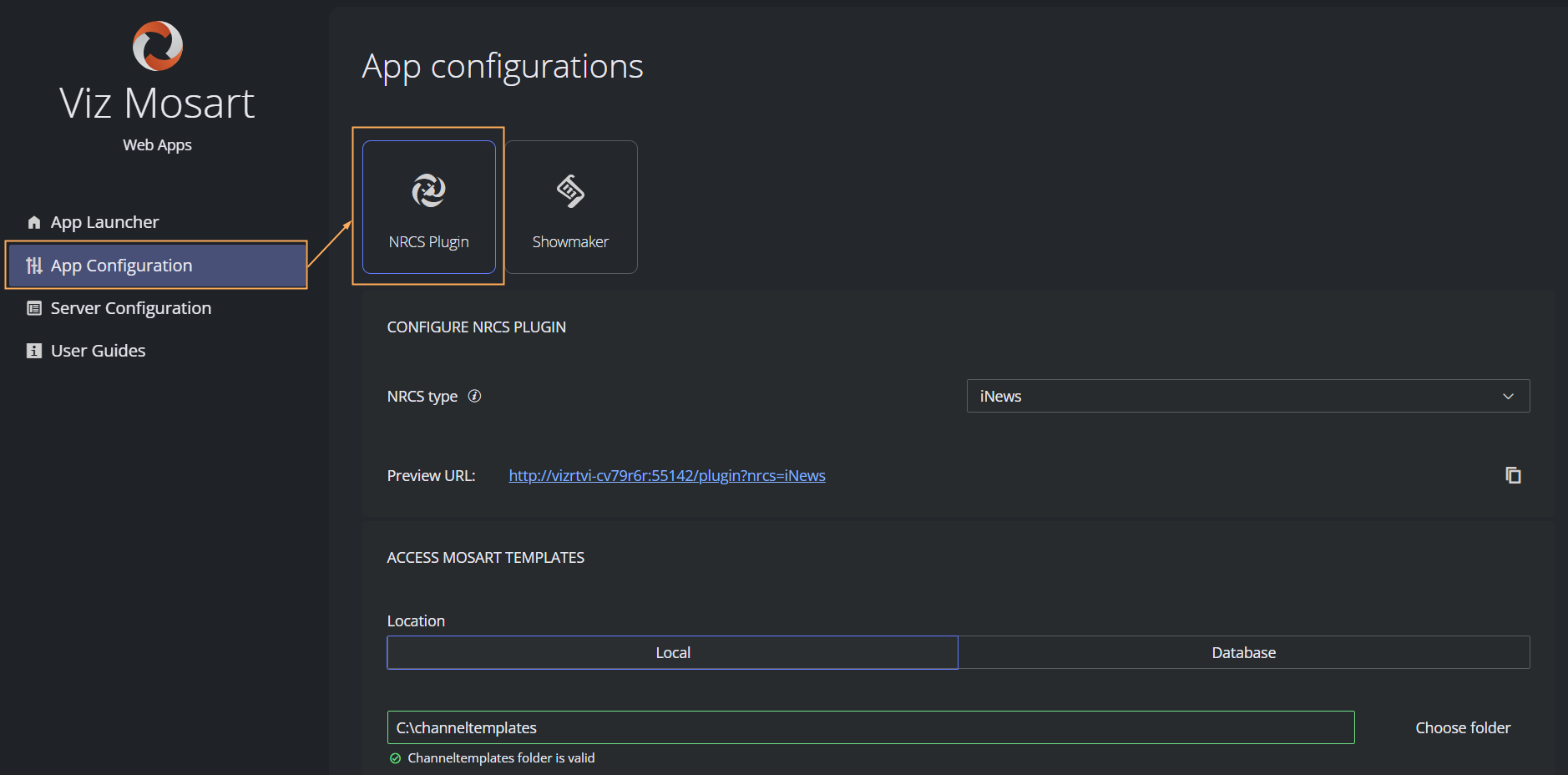
From the NRCS type drop-down menu, select your newsroom system type.
(If iNEWS is selected NRCS type, ignore this step)
Enter Mos ID.
This is a mandatory field if you select NRCS type ENPS, Octopus or Other.To find your Mos ID
In the Manus Administrator console, type settings.
For more details, see the Viz Mosart Administrator Guide, section Manus Administrator > Settings Editor MOS > NRCS Configuration.
Back in the Web Apps Configuration Tool App Configuration page for the NRCS Plugin, in section ACCESS MOSART TEMPLATES, specify the location of your Viz Mosart templates.
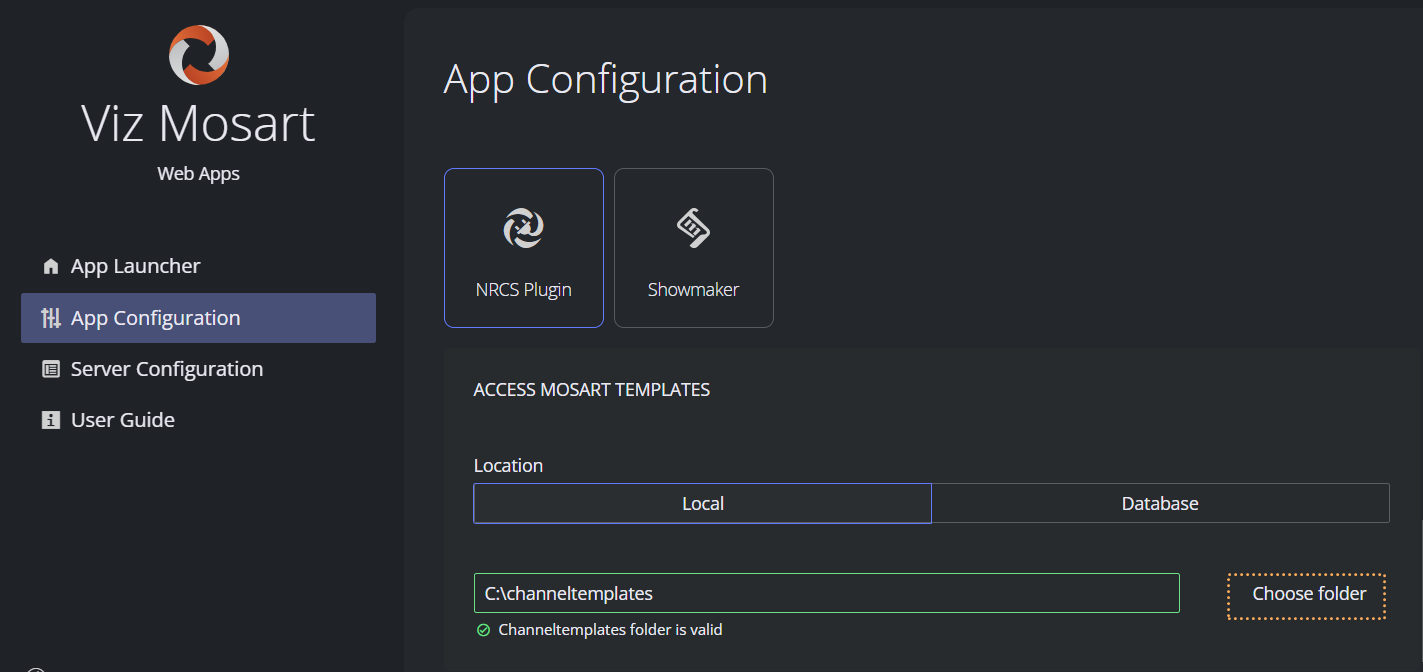
This can be either
Local: By default, this is a local folder C:\channeltemplates. The tool will automatically scan for three files:
channeltemplates.xml
avconfig.xml
newsroomsettings.xml
If successfully identified, a green validation message is displayed.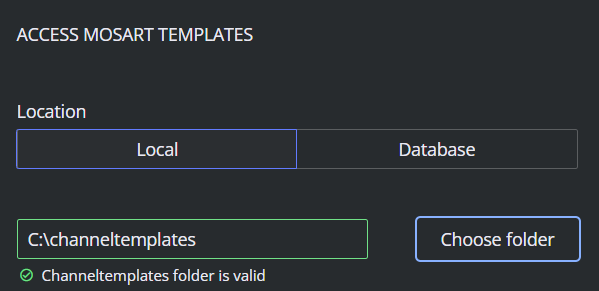
A network folder: When your template folder is on a network drive
Click Choose folder and navigate to the target folder.
Ensure the network folder has adequate permissions.
Database: If template details are stored in a database, enter host access and authentication details.
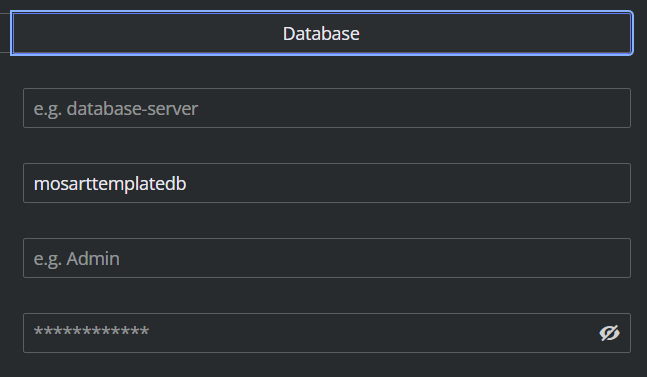
Click Save.
Info: To complete the NRCS Plugin one-time setup, you will also need to visit the Server Configuration page, presented below.
Showmaker
Prerequisites
A running Viz Mosart 5.14.3 or later.
Manus Administrator is running.
The Viz Mosart client UI is running and can display a rundown.
Note: Currently one Mosart Web Apps instance (and therefore one Showmaker) connect to a single a single gallery Mosart server setup.
Controlling several galleries from one Showmaker (multi-gallery control) is on the roadmap, for this Showmaker version, multi-gallery sites require one Mosart Web Apps instance per gallery.
If either Manus Administrator or Viz Mosart is down, start them now. You only need to do this once after a server reboot.
Setup
To use Showmaker with Viz Mosart, follow these instructions, that depend on whether Showmaker is installed on either the Viz Mosart server or another server.
Info: Users can run Showmaker standalone without a connected Viz Mosart. This user scenario would be for their early versions of a rundown (running order) where structure is being drafted, rather than operations verified.
MOS COMMUNICATION SETTINGS
Showmaker uses standard MOS protocol. These configurable properties define the communication.
A fresh installation has one MOS device pointing to your Mosart server. In MOS COMMUNICATION SETTINGS you see a single row in the MOS DEVICES table, plus a Push Settings to Manus Administrator button on that row. Use that button (with Manus Administrator closed) to write the matching MOS configuration into Mosart.
To establish communication between a single MOS device and Showmaker
Info: This will establish contact with a single MOS device. The procedure to then set up additional MOS devices is similar, and presented below.
There are two alternative setups, depending on your network structure.
Showmaker is installed on the same server as Viz Mosart.
Showmaker is installed on separate server to Viz Mosart.
Showmaker is installed on the same server as Viz Mosart
If you are running Showmaker on the same server as the Viz Mosart server, the Configuration Tool provides a quick way to automatically configure Viz Mosart for establishing communication with Showmaker.
From the App Configuration page, select Showmaker.
Under Showmaker, tick View advanced options and review settings.
If necessary, adjust the default values by referring to the table MOS COMMUNICATION SETTINGS below.In the same App Configuration menu for Showmaker, click Push Settings to Manus Administrator (only available if no configuration has yet been made).
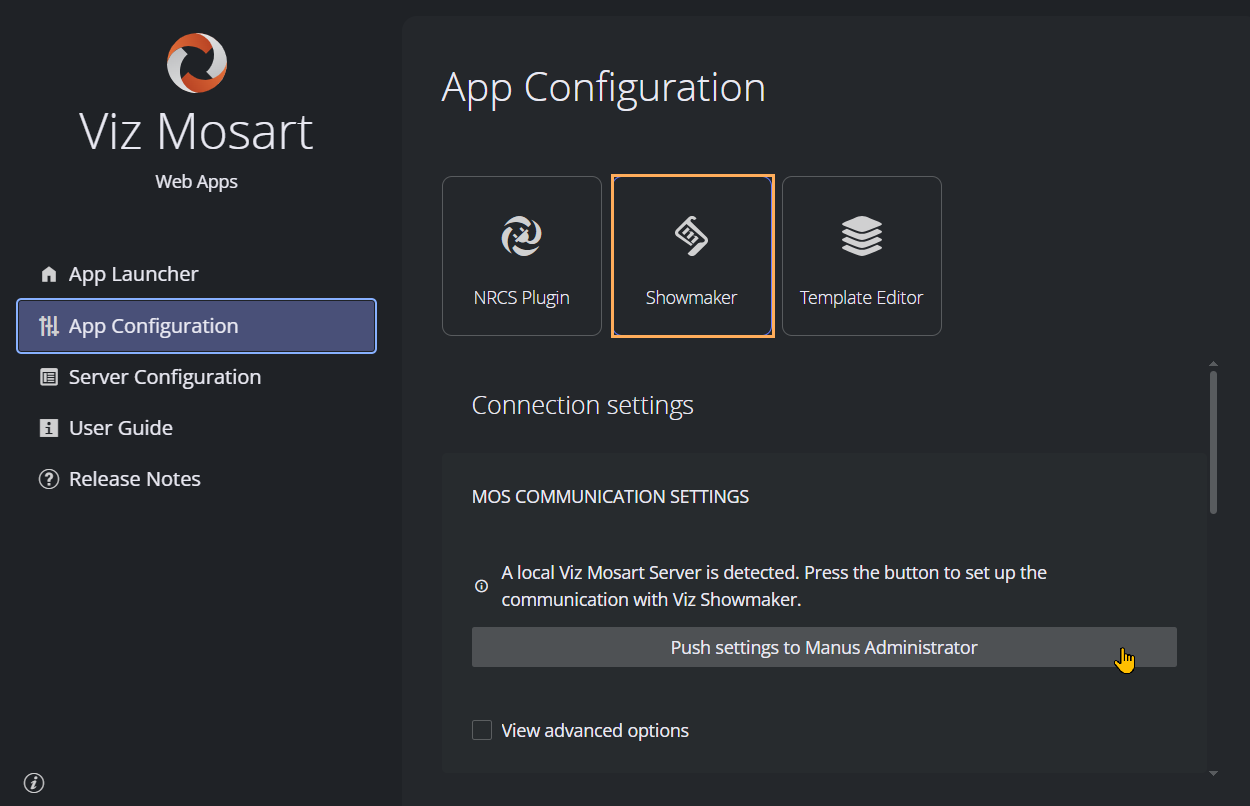
A warning message reminds that Manus Administrator shall not be running at this point.
Ensure Manus Admin is closed before continuing.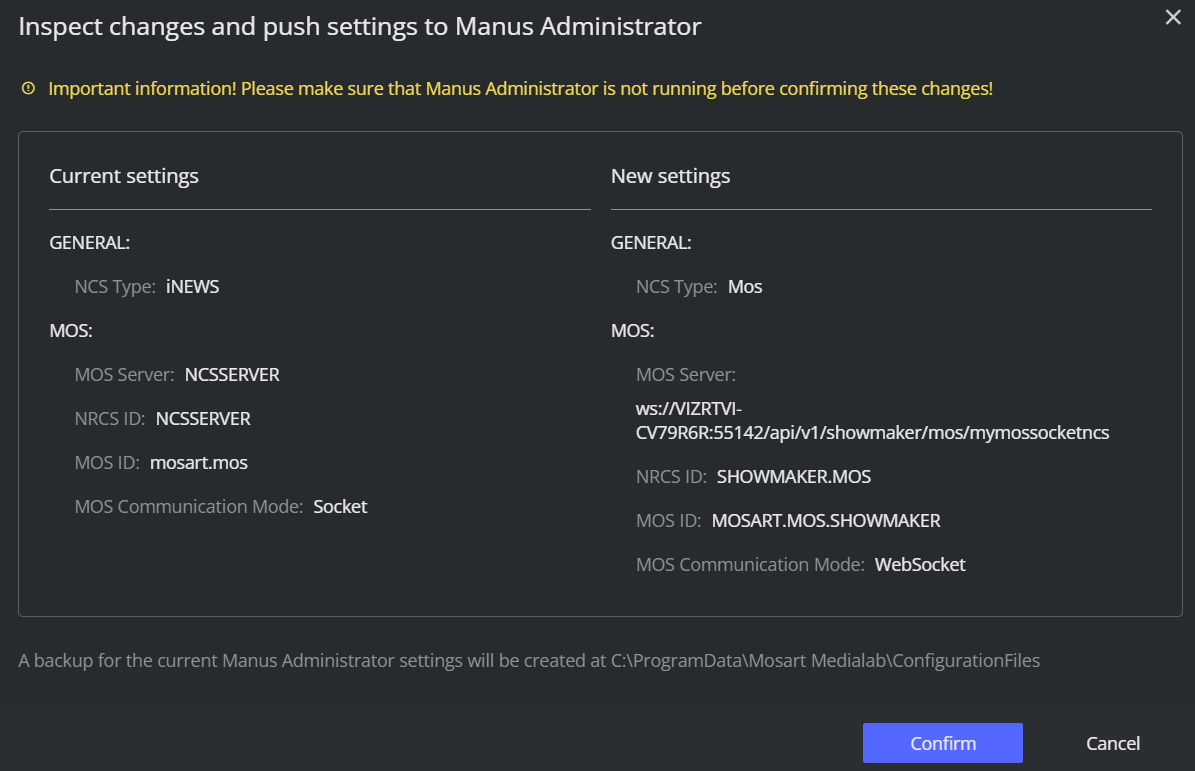
To complete the action, click Confirm.
Showmaker is installed on separate server than Viz Mosart
If you are running Showmaker on another server than the Viz Mosart server, Viz Mosart must be manually set up for connecting to Showmaker, following these instructions:
Review the Advanced options and, if necessary, adjust the default values as presented in the table below.
In the App Configuration menu (MOS COMMUNICATION SETTINGS) for Showmaker, click the Showmaker icon
View Settings for Manus Administrator.
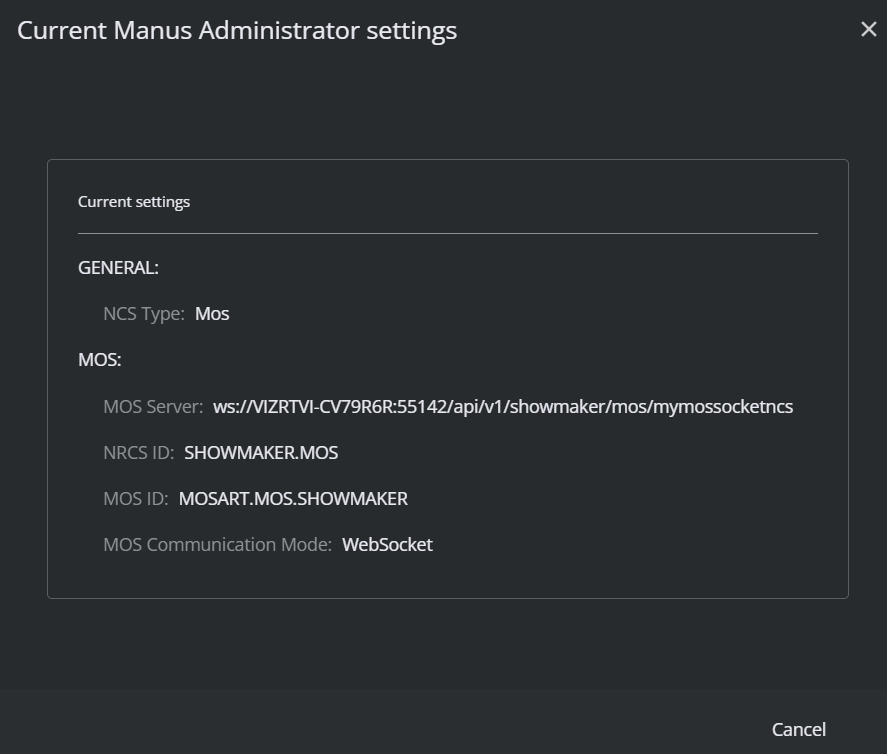
On the Viz Mosart server, in the Viz Mosart Manus Administrator console, type settings
From the Settings menu that appears, navigate to the section MOS.
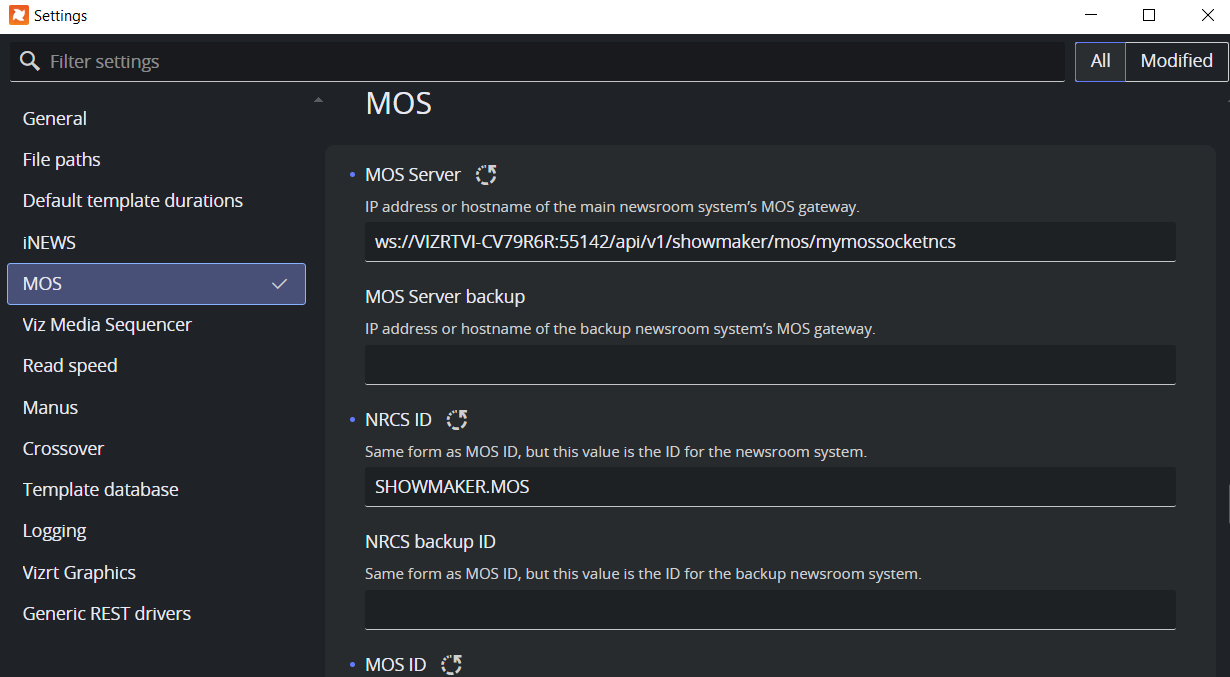
Configure the MOS settings as presented in the Web Apps pop-up menu Settings for Manus Administrator
(shown above) in the Web Apps Configuration Tool.Click Save.
(optional) If changes do not appear immediately, restart the Windows service Vizrt.Mosart.WebApps.Server.
Verify the live status of each device, by calling the status endpoint with:
GET /api/v1/showmaker/mos/status
Default Values and Multiple MOS devices (main/backup or multiple studios)
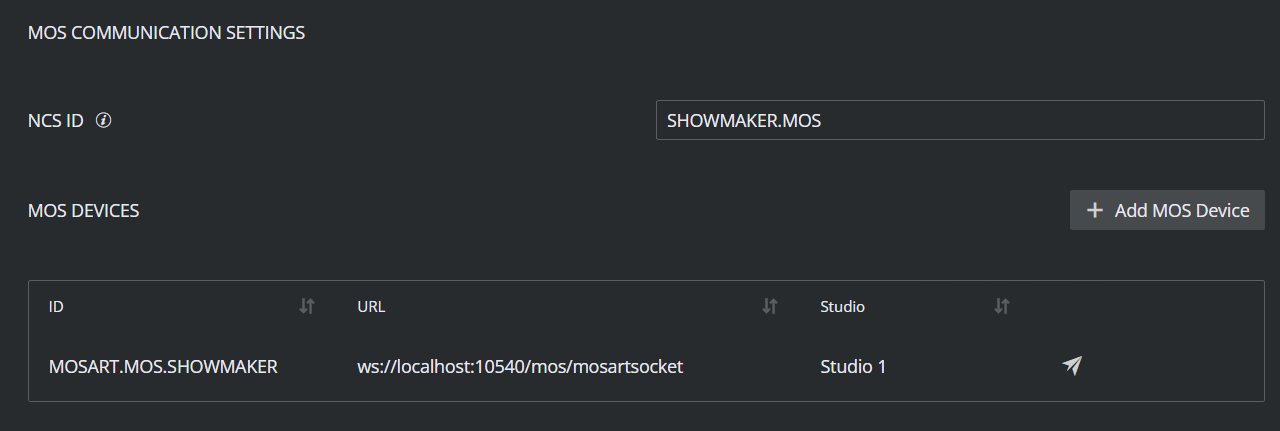
MOS COMMUNICATION SETTINGS
Table Property | Description |
|---|---|
NRCS ID | This is the Newsroom System ID for Showmaker. Set this ID on any MOS-enabled NRCS device to establish communication with Showmaker. For Viz Mosart, this value must be set in Viz Mosart Manus Admin. |
Add MOS Device | For defining multiple MOS devices Click Add MOS Device and follow the guidelines in this table. |
MOS Device ID | This is the ID of a MOS device configured to communicate with Showmaker. For Viz Mosart, copy this value from Manus Admin console> Type settings > MOS section. |
MOS Device URL | The URL for connecting to a MOS device. |
Studio | The Studio label that this device belongs to. Type a new name to create a Studio. Info: A Studio is a label that groups one or more MOS devices. A Studio represents one production environment, typically a main Viz Mosart server with an optional backup, or a single gallery in a multi-studio site:
The Studio model keeps a single Showmaker installation flexible inside one gallery:
|
Examples | Typical configurations:
Note: The same MOS device URL cannot be used twice across the table. Duplicates are rejected with an error message |
Feature settings
Story Recorder
Story Recorder lets operators mark stories for recording in Viz Mosart, optionally publish the resulting clips to online platforms (only available with TriCaster) or replace the original story script with the recorded version.
To make these controls available in Showmaker:
Configure Story Recorder in Viz Mosart first. See the Vizrt Documentation Center, under Viz Mosart Administrator Guide > Operational Examples > Story Recorder Setup.
In the Configuration Tool, under App Configuration, select Showmaker and scroll down to Feature settings and turn on Enable Story Recorder controls.
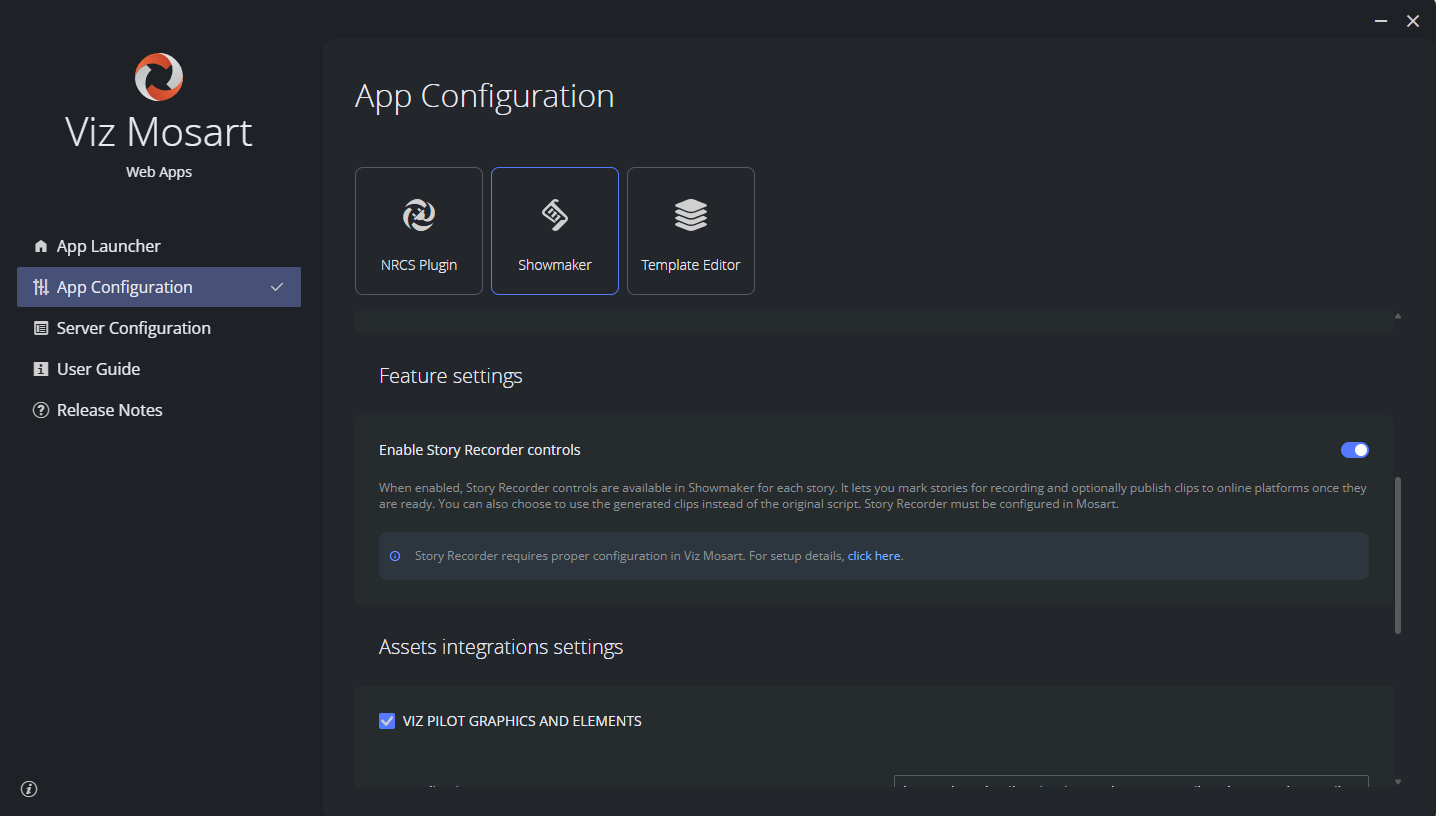
Once enabled, every story in Showmaker contains Record / Publish actions and a Use recording toggle .
For how operators use these controls, see Working with Showmaker - Story Recorder.
Info: Story Recorder details are in the Vizrt Documentation Center. Refer to
Viz Mosart User Guide > Operation > Story Recorder.
Viz Mosart Administrator Guide > Operational Examples > Story Recorder Setup.
Asset integrations settings
If you use either Viz Pilot or Viz Flowics to provide assets for your show, you need to configure some one-time settings. The integrations are displayed in the Showmaker integrations sidebar together with the Mosart web app, NRCS Plugin.
Info: These integrations appear in the Showmaker integrations sidebar as selectable, embedded MOS plugins (iFrames). They communicate directly with Showmaker in the browser using MOS messages, so no additional server-side configuration is required beyond specifying the URL and MOS Plugin ID.
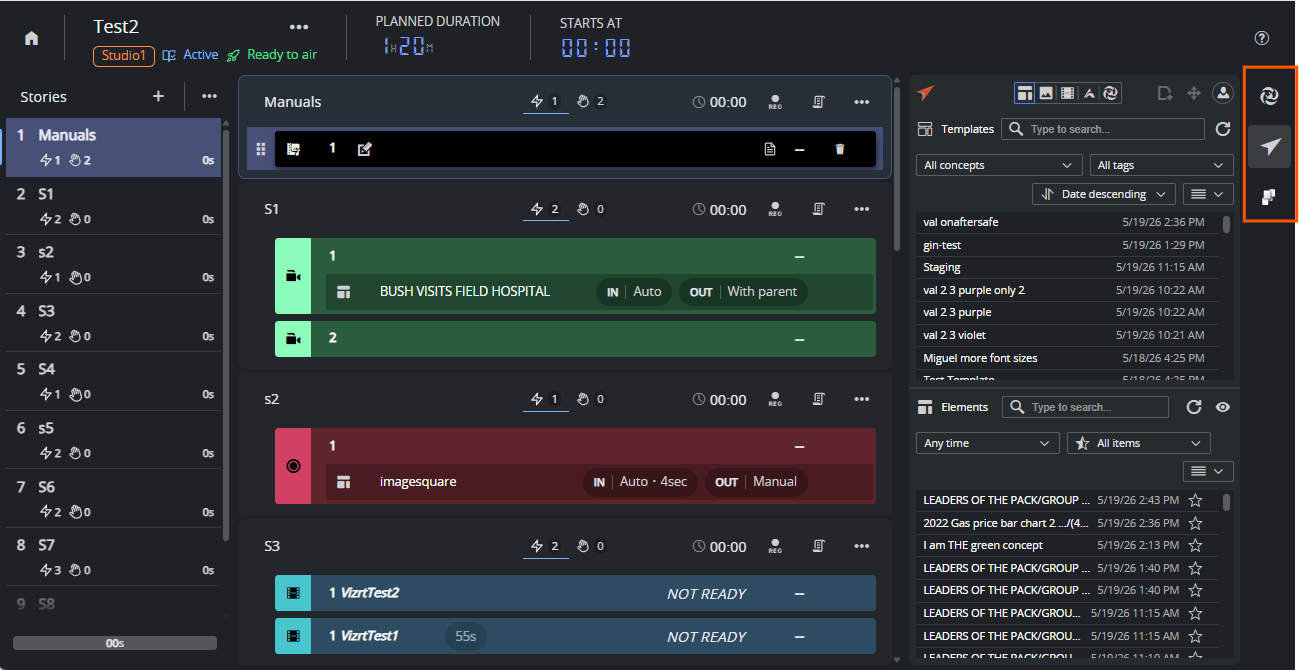
Viz Pilot
To enable Viz Pilot graphics in the Assets panel
If you will run Showmaker with assets from Viz Pilot, select the checkbox for VIZ PILOT GRAPHICS AND ELEMENTS.
By following the on-screen information (
 icon), provide values for
Application URL
Where Viz Pilot Edge is running. Default: http://localhost:8177/app/pilotedge/pilotedge.html?mosid=pilot&sendbutton
Enter the host of your Viz Pilot Edge installation, if not on the same machine.MOS Plugin ID
The MOS ID that Viz Pilot Edge announces. Default: PILOT.
This value must match what your NRCS / Mosart side anticipates.
Click Save.
Viz Flowics
To enable Viz Flowics graphics
If you will run Showmaker with live assets from Viz Flowics, select the checkbox for VIZ FLOWICS GRAPHICS.
Ensure you have your Viz Flowics (cloud application) credentials to hand.
By following the on-screen information (
icon), provide values forIntegration token
A token issued by Flowics support. It is stored encrypted and displays as************after saving.Application URL
Where Viz Flowics is running.MOS Plugin ID
Default: flowics.com.mos. Change only if your NRCS / Mosart side anticipates a different id.
Click Save.
Viz Flowics now appears as a tab in the Showmaker Assets panel.
Info: Nearly there! To complete this Showmaker one-time setup, you will also need to visit the Server Configuration menu, as described below.
Template Editor (Early Access)
Please refer to the section Setup and Administration of Template Editor.
Server Configuration
Most settings here are needed when you
Install the Mosart Web Apps bundle on a separate server to the Viz Mosart server.
Move the Web Apps to a different server.
Need to define the Viz Mosart backup server.
Need to set up HTTPS across the Mosart network.
Need to set up an authentication provider.
Proxy Setup Method
Mosart Web Apps communicates through a proxy server that must be configured.
You can choose to use the onboard proxy bundled with Viz Mosart or an external proxy.
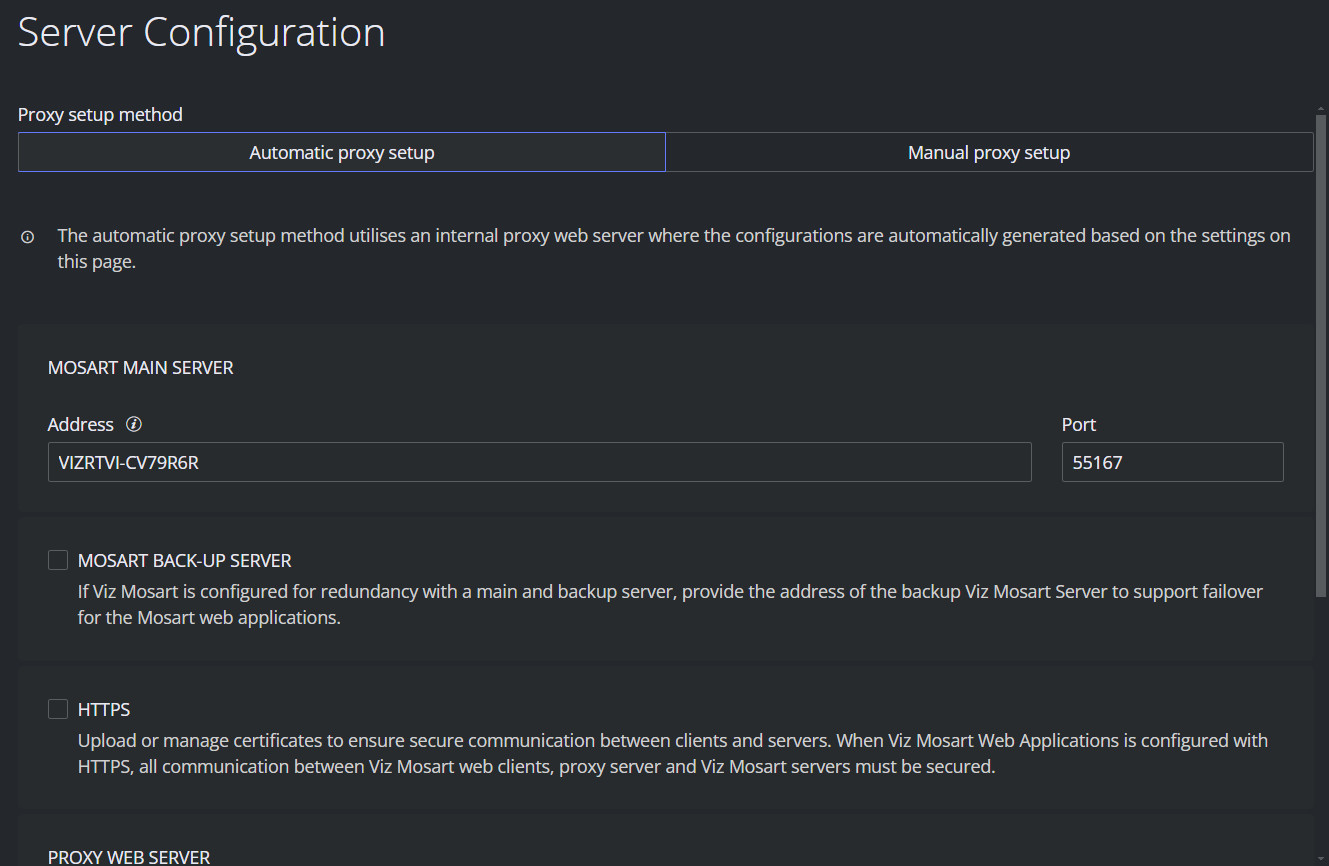
Click either
Automatic proxy setup - to use the onboard proxy server (Caddy v2).
orManual proxy setup - to use your own proxy server.
Automatic Proxy Setup
To set up the automatic proxy server
You can use the onboard proxy web server where configurations are automatically generated based on the settings displayed on the Server Configuration page.
All default settings are already pre-filled and no further action should be necessary.
However, if you need to change any values see the settings below:MOSART MAIN SERVER
Address: By default, this field will contain the address of the Mosart Web Applications.
Please enter the hostname, IP address, or FQDN of the main Viz Mosart server if located on another machine.
MOSART BACK-UP SERVER
When running Viz Mosart with a backup for redundancy, provide the backup server address.Select the MOSART BACK-UP SERVER checkbox.
Address: Enter the hostname, IP address, or FQDN of the backup Viz Mosart server.
PROXY WEB SERVER
Address: Hostname or IP address of the machine where the Mosart Web Applications are installed. The system attempts an auto-detect.
If the FQDN is required (for example, by a certificate), provide this instead.
Click Save.
HTTPS
In this Automatic proxy setup, selecting HTTPS automatically configures both the Mosart Web Applications and the Mosart Web Proxy (Caddy). The hosts included in the certificate are validated against the web proxy server defined in the field WEB PROXY SERVER > Address.
For the Mosart Web Proxy, the configured private key is used to automatically generate an unencrypted PEM-format required by Caddy,
which is saved in C:\ProgramData\Mosart Medialab\Mosart Web Apps.
Info: If the Mosart Web Proxy and the Mosart Web Applications are configured with HTTPS, you must also configure HTTPS for the Mosart servers (Main and Backup, if applicable).
See Enabling Updates from the Mosart Server over HTTPS.
Manual Proxy Setup
You can use an external proxy server, but it must be manually configured.
If the external proxy server is configured with HTTPS, you must also set up HTTPS for the Viz Mosart Web Applications and Mosart servers.
Tip: You can examine the Caddy file generated when Automatic proxy setup is selected to understand how to set up an external proxy.
This Caddy file resides at C:\ProgramData\Mosart Medialab\Mosart Web Apps.
To manually set up a proxy server
From the Server Configuration page, select Manual proxy setup.
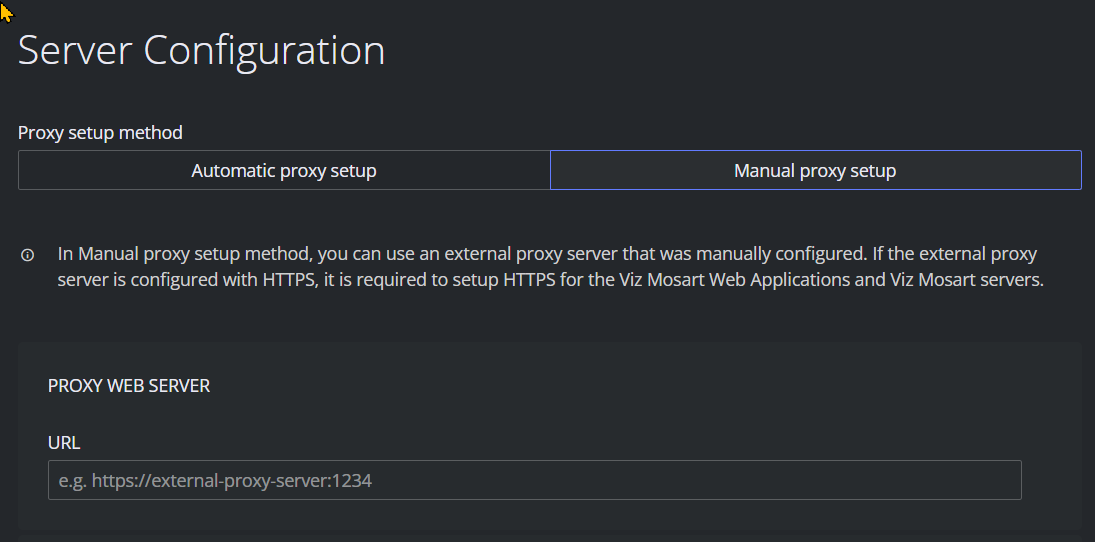
Under section PROXY WEB SERVER in field URL, enter the URL address to the external proxy server. This must be a valid web URL starting with http or https.
HTTPS
In Manual proxy setup, the certificate is only for the Mosart web server. The hosts included in the certificate are validated against the Mosart web server address field (under the HTTPS section).
If you are using HTTPS, continue with steps 3 to 5 below.Select the HTTPS check-box and follow the onscreen guidelines '
'.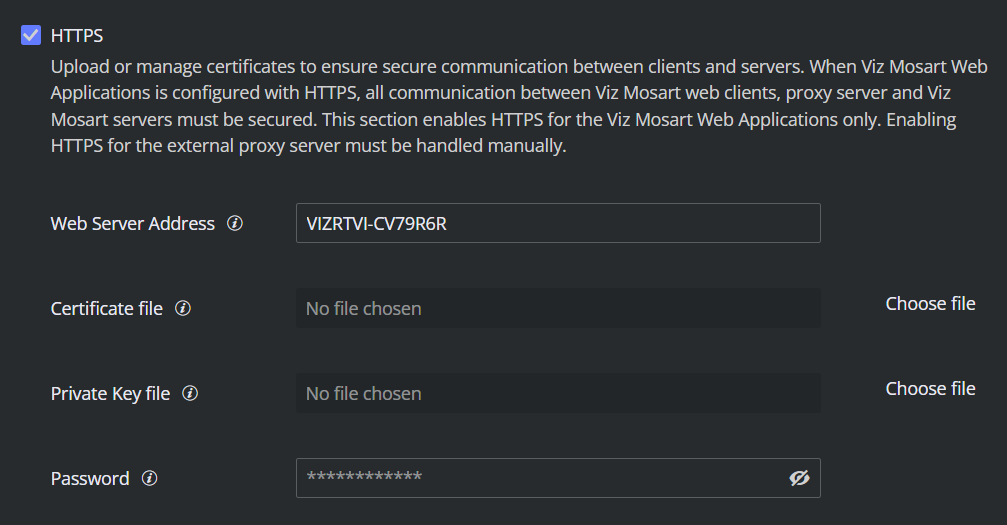
Web Server Address: The IP or the hostname of the Viz Mosart web server. The system attempts an auto-detect. If the FQDN is required (for example, by a certificate), provide this instead.
Certificate file: The certificate in encrypted PEM format. If FQDN is specified in the certificate file, the Mosart web server address must also be a FQDN.
Click Save.
Enabling Updates from the Mosart Server over HTTPS
If using HTTPS with the Mosart Web Apps (NRCS Plugin, Rundown Viewer or Smart Panel), you need to configure the Mosart Remote Dispatcher Service to allow continuous rundown updates between the Viz Mosart server and the web applications.
To turn HTTPS on in Mosart Remote Dispatcher Service
On the Viz Mosart server machine, copy the file C:\Program Files (x86)\Mosart Medialab\Mosart Server\ConfigurationFiles\RemoteDispatcherServiceConfig.xml
to C:\ProgramData\Mosart Medialab\ConfigurationFiles.Fill in the following fields:
SignalRUseHttps: true
SignalRCertificatePath: <Certificate File for Viz Mosart server>
SignalRCertificateKeyPath: <Private Key file for Viz Mosart server>
SignalRCertificatePassword: <Password as configured for the private key>

Restart the Remote Control Service.
Mosart API Access

The Authorization Key entered here is essential for accessing methods provided for special features. For example, clip search utilities in the NRCS Plugin request lists of clips from the Viz Mosart Media Administrator. This requires a special secure call to the Viz Mosart server through the Mosart Remote Control Service (RCS). RCS contains the special key-value item in its configuration file RemoteDispatcherServiceConfig.xml, where the RestApiKey entry is the value that must be entered here as Authorization Key.
See also: Authentication provider guidelines for Mosart REST API (below).
Video Clips
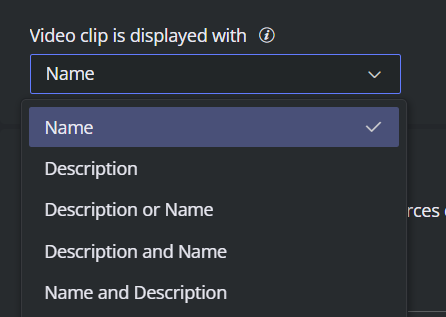
This Server Configuration setting affects only Timing Display. Video clips (PACKAGE templates) can be presented with various details.
Select what to display from the dropdown menu.
Coder for Live Previews
Coder is a Vizrt application which makes NDI sources on your network available to the web apps as live previews (for example, an NDI camera or program feed shown in Smart Panel). The Mosart web server reverse-proxies Coder to the browser, so only the Mosart web server needs network access to the Coder host, end users do not.
Install and run Coder on a machine that can see the NDI sources you want to preview. The latest version is recommended.
In the Configuration Tool, open Server Configuration and scroll down to CODER FOR LIVE PREVIEWS.
Enter the Address (host name or IP of the Coder machine) and Port (default
8081).
The Configuration Tool checks the URL as you type and shows whether Coder is reachable.After the Mosart Web Application restart, open
http://<your-mosart-web-apps-host>:5512/coder/web_preview/in a browser to verify Coder is reachable.
You should see an XML list of sources. If the page returns an error or nothing at all, Coder is not running, not reachable, or has no sources to publish.
Note: Mosart Web Apps connect to Coder over HTTP. Coder is not reachable over HTTPS in this setup, even if Mosart Web Apps itself is configured with HTTPS. The Coder host must be on a trusted internal network.
Troubleshooting Coder
If Smart Panel cannot find any NDI sources, or live previews fail to load, work through these checks in order:
Confirm Coder is installed and running on the configured host, and that the address and port match the Configuration Tool.
Open the Coder UI in a browser at
<http://<coder-host>>:8081/ui/war/index.html:Under Workers, at least one worker must be listed as Responsive.
If the worker status is Not benchmarked, run
run_benchmark.exefrom the Coder installation folder, then restart both the Coder master and the Coder worker. NDI sources only become available after a successful benchmark.
Verify a single source from the browser. In Smart Panel, copy the preview URL of an NDI item from the Layout Items list and open it in a new browser tab. If it does not play there, the problem is on the Coder side, not in Smart Panel.
Check the network. NDI sources only appear when they are on the same network segment as the Coder host. If sources are missing, confirm they are visible from the Coder machine itself.
TriCaster Live Previews
If your studio uses a TriCaster, Smart Panel can show its video inputs as Live previews. The Mosart web server proxies the streams on behalf of the browser, so it needs the TriCaster address and a user account.
In the Configuration Tool, open Server Configuration and scroll down to TRICASTER FOR LIVE PREVIEWS.
Enter the TriCaster Address and the Username / Password of an account with access to the TriCaster web browser URL.
After this, TriCaster inputs become selectable as preview sources in the relevant Web App.
Mosart REST API
Mosart Web Applications can be used as a proxy to call the Mosart REST API on the current active server.
API Documentation
With Web Apps running, you can browse the API documentation at
http://[web-apps-machine:port]/mosart/swagger.
HTTPS Usage Notes
When Mosart Web Applications are configured with HTTPS, all communication between clients, proxy servers, and content servers must be secured.
This includes the following components:
Mosart web clients (Rundown Viewer, NRCS Plugin, Timing Display etc.).
Mosart web server (Mosart Web Applications service).
Proxy server (either internal (Mosart Web Proxy service) or external).
Mosart server (Mosart Remote Control Service).
Coder: Mosart Web Apps connect to Coder over HTTP. Coder is not reachable over HTTPS, even when Mosart Web Apps are configured with HTTPS.
Certificate Requirements
Type: X.509 certificates.
Format: PEM-encoded certificates and private keys.
For the Mosart Web Proxy (Caddy), the key must be in unencrypted PEM format, which is automatically generated by Mosart from the provided encrypted key file.
Encryption: Private keys must be encrypted and provided with the corresponding password.
You can verify if the key is encrypted by opening it in an editor and checking that it starts with "-----BEGIN ENCRYPTED PRIVATE KEY-----" and ends with similar text.Host coverage: The certificate must include the host where the Mosart Web Applications are installed. The hosts provided in the Mosart Web Config tool will be validated against the certificate (case sensitive). If the hosts in the certificate are the Fully Qualified Domain Name (FQDN), then the hosts provided in the Mosart Web Config Tool must be the FQDN as well. If the same certificate and key files are used across all Mosart components (Mosart seb server, Mosart web proxy, Mosart server main, Mosart server backup), the certificate must specify all relevant hosts or their FQDNs.
Certificate Installation
Certificates must be trusted on any machine where Mosart Web Apps are used. Ensure the certificates are installed on:
Mosart Web Applications / Mosart Web Proxy.
Any Mosart server.
Any machine running Mosart web clients.
If the certificate is not installed on a machine using a Mosart Web App, the browser will warn of insecure connection, suggesting you proceed at your own risk. However, if the Mosart Web App is integrated as a plugin within other applications (for example, into ENPS), there may be no warning, and instead issues like pages displaying blank, may be experienced.
Authentication
Viz Mosart Web Applications supports authentication using OpenID Connect.
Info: For the corresponding mandatory authentication settings on the Viz Mosart server side, refer to the Viz Mosart Administration Guide, section Operational Examples > Mosart Remote Control REST API.
Prerequisites
HTTPS has to be configured to use authentication.
You need a third party OpenID Connect authentication service, such as Keycloak, Okta, or Microsoft Entra ID.
(If you are already using Vizrt’s asset management system, Viz One, you should already have a Vizrt SSO Keycloak authentication server).
Roles
Roles grant user permissions, what a user can do with the app. Roles are assigned either to a single use or to all members of one or more groups.
You can configure user roles in Mosart Web Applications to define user permissions. The granularity of permissions depends on the authentication provider being used.
Role names are predefined and fixed by Vizrt, but you are free to define or reuse groups as you like.
Showmaker
Role name | Permissions |
|---|---|
showmaker-viewer |
|
showmaker-admin |
|
 (view only)
Setup
Create a new Client/App registration according to your authentication provider guidelines:
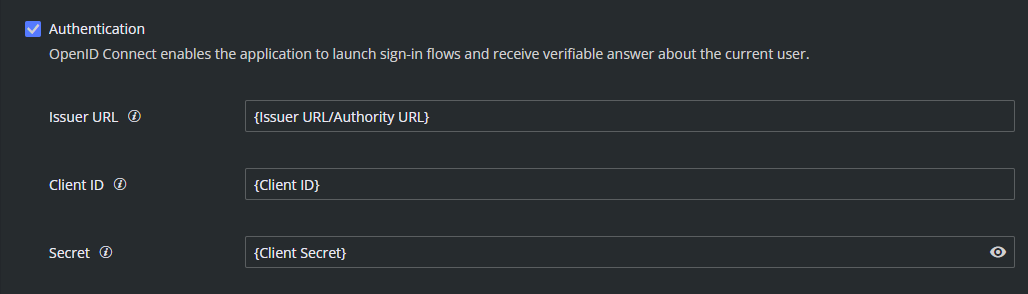
Your authentication provider must provide
- Issuer URL/Authority URL
- Client ID
- Client Secret.Open the Mosart Web Application Configuration Tool and select Server Configuration.
Under the HTTPS section, enable the Authentication check-box and enter the details obtained at step 2, above.
Click Save.
Authentication is now enabled.
Provider-specific Newsroom Authentication
iNEWS
Authentication will only work if you are using the NRCS plugin with the NRCS plugin iNEWS Client Addon.
Authentication will not work by hosting the Plugin as a regular HTML plugin.
ENPS
To use the NRCS plugin with ENPS, first add your ENPS server machine to the list of allowed frame-ancestors in the Content Security Policy on your Authentication Provider.
Typically this is a simple edit of the Content Security Policy:
From
frame-src 'self'; frame-ancestors 'self'; object-src 'none';to
frame-src 'self'; frame-ancestors 'self' {Your ENPS server}; object-src 'none';Keycloak: Go to Realm Settings > Security Defenses.
Okta: Follow this Okta guide.
Entra: Since you cannot edit the Content Security Policy for Microsoft Entra ID, authentication with Entra ID for the NRCS plugin in ENPS is not supported.
Octopus
NRCS plugin authentication is not currently supported with Octopus.
Troubleshooting
See section Troubleshooting.