This section describes how to set up and configure Story Recorder in Viz Mosart. All Story Recorder settings are managed through Viz Mosart Central Settings, which gives one place for every output workflow and its parameters.
Work through the Setup Checklist below. It is the spine of the setup: each step links to the section or page that describes it, and the notes call out the mistakes that have caused hard to diagnose problems in the field.
End user (Viz Mosart operator) documentation for Story Recorder is provided in Working with Story Recorder.
Overview
Story Recorder relies on several Viz Mosart server components working together:
Manus Administrator receives the rundown and story metadata needed for Story Recorder from the NRCS.
AV Automation controls the video server (clip playout and record start and stop), handles communication with external renderers and transcoders, and uses genlock synchronized timecodes to ensure frame accurate clip boundaries and EDL entries.
Mosart Logging Service (from the Mosart Server installation, not the UI) captures all on-air events with frame accurate timecodes. Story Recorder uses these events to build EDLs and determine clip in and out points.
Coder (optional) generates short snippet clips around retake cut points for review in the Mosart UI.
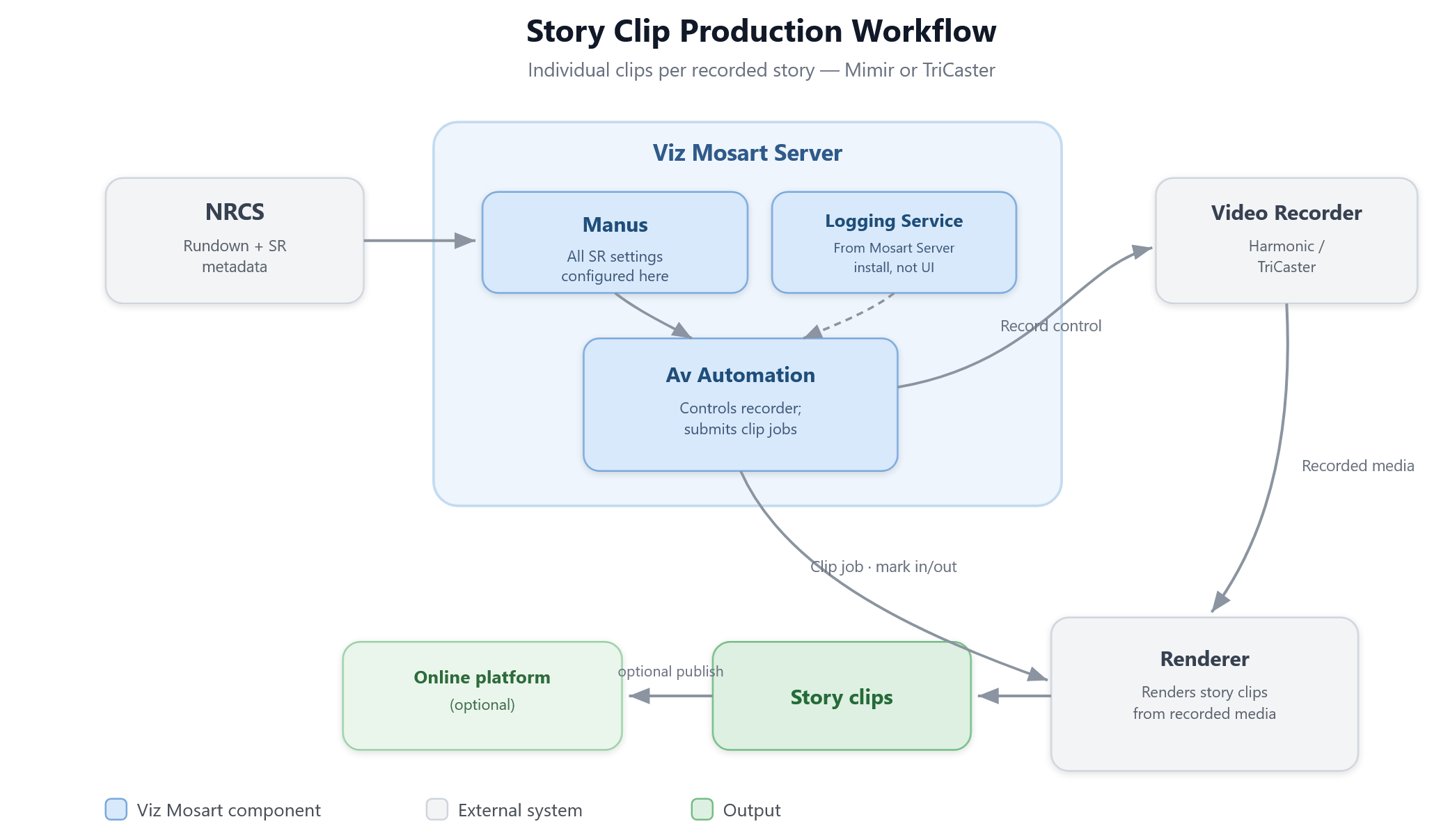
Story Recorder produces three kinds of output, each targeting a different production need. The diagrams below show the data flow for each. See Supported Configurations for the devices validated with each one.
Story clip production and publishing
Stories marked for recording in the NRCS are individually recorded and published as clips, either during a live broadcast or in an offline session. See Story Clip Production Setup.
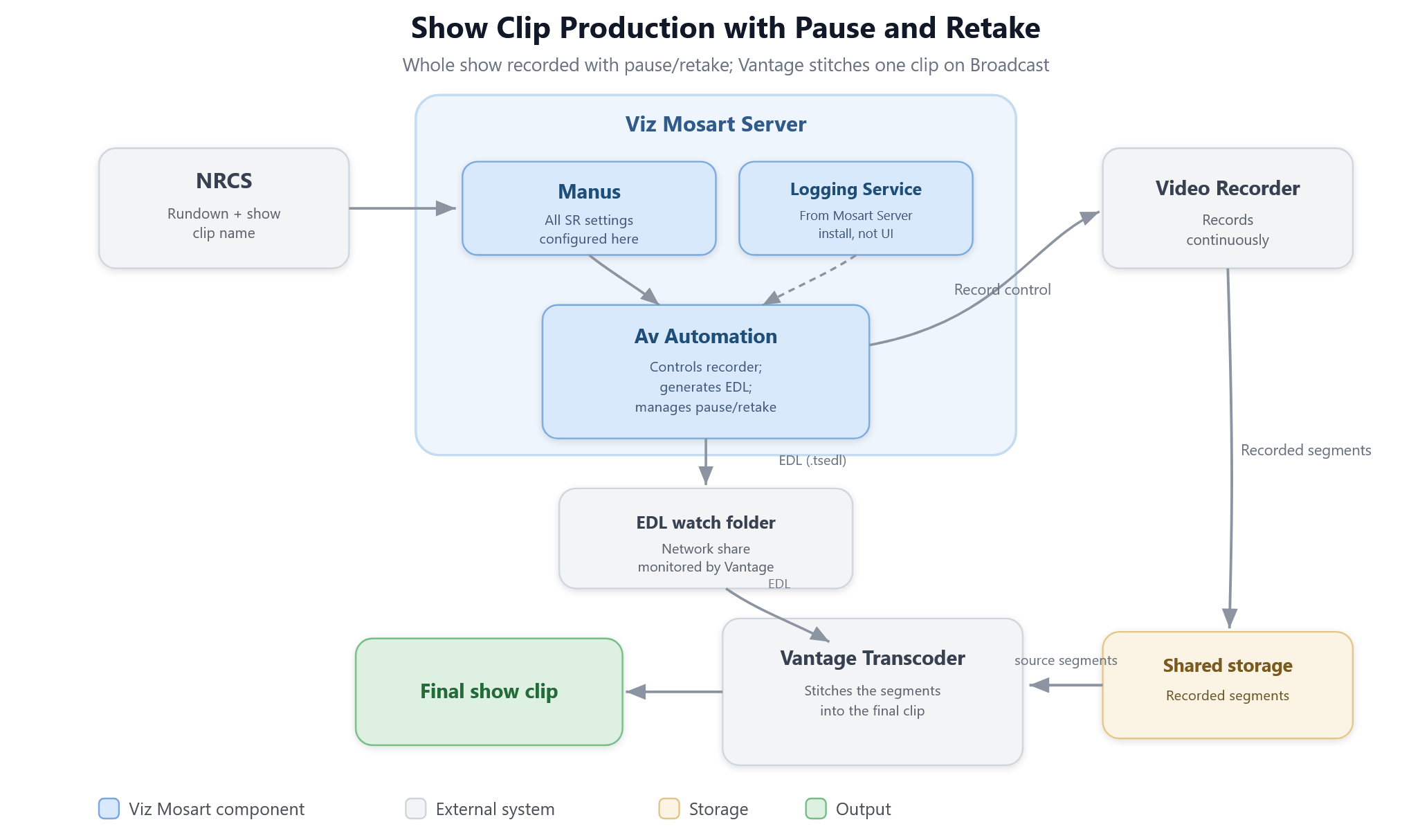
Show clip production with pause and retake
The entire show is recorded with the ability to pause, retake, and backtrack. At completion, an EDL is broadcast to a transcoder that stitches the recorded segments into a single final clip. See Show Clip Production Setup.
Mosart EDL generation
JSON format EDL files are generated locally, for post-processing, transcoding, or third-party integrations. Output level: Item, Story, or Show. See Mosart EDL Setup.
Supported Configurations
The table below lists the validated combinations of NRCS, recorder, and transcoder for each workflow. Story Recorder has been designed with a flexible output architecture, and new devices and integrations can be added as needs evolve.
Workflow | Output path | NRCS | Recorder | Transcoder/Renderer | Online publisher | Product versions |
|---|---|---|---|---|---|---|
Story clip production and publishing | TriCaster export | Any* | TriCaster | TriCaster | TriCaster | Viz Mosart 5.14+ |
Story clip production and publishing | Mimir | Any* | Harmonic Spectrum | Mimir | - | Viz Mosart 5.14+ |
Show clip production with pause and retake | Network share (Vantage watch folder) | Any | TriCaster | Vantage | - | Viz Mosart 5.14+ |
Mosart EDL | Local or network | Any | TriCaster | - | - | Viz Mosart 5.14+ |
*An NRCS that can provide the required story metadata fields via the MOS protocol.
Saga offers built-in integration.
Other NRCS systems (for example, iNEWS) can be configured using Newsroom Settings field mapping. See Viz Mosart User Guide sections Story Recorder Mode for the MOS integration details.
Setup Checklist
Story Recorder setup spans several pages and applications. Work through the steps below before the first production. The Applies to column tells you which steps your workflow needs.
1. Plan
# | Step | Applies to | Where | Notes |
|---|---|---|---|---|
1 | Order the Story Recorder operating license from Vizrt Support. | All workflows | - | |
2 | Choose the output workflow: story clip, show clip, or Mosart EDL. | All workflows | The choice decides the recorder and the transcoder, so make it before you order or wire anything. | |
3 | Check that your NRCS, recorder and transcoder are a validated combination, and that the product versions match. | All workflows | New devices and integrations can be added. Contact Vizrt if your combination is not listed. | |
4 | Plan the show design. Find out which templates and features work in frame accurate mode and with Story Recorder before you build the template set. | All workflows | Do this before you build anything. The design decides which features you can use, and reworking a finished template set is expensive. |
2. Install
# | Step | Applies to | Where | Notes |
|---|---|---|---|---|
5 | Install in the right order. When the Viz Mosart UI, Audio Player and Server share a machine, install the Server last, and point the Mosart Logging Service at the Server installation folder. | All workflows | The Story Recorder adapter runs inside the Logging Service, on the server side. | |
6 | Confirm that Viz Mosart runs the show correctly in live (non Story Recorder) mode. | All workflows | - | Story Recorder adds to a working system. Chasing a Story Recorder problem that turns out to be a plain playout problem wastes the most time of anything on this list. |
7 | Install Viz Coder on both the main and the backup server, if operators review the cut after a retake. Only the Coder Worker is needed. | Show clip | Optional. Without it, retakes still work, but no snippet is produced for review. |
3. Make the system frame accurate
Story Recorder can be switched on and tried out without genlock, but only for testing. In production it needs frame accuracy, and the steps below are what deliver it.
# | Step | Applies to | Where | Notes |
|---|---|---|---|---|
8 | Provide a clock source on the main and the backup server: a Plura timecode reader card, or PTP. | All workflows | Both sources give the same frame accurate behavior. A Plura card needs a free slot in each machine; PTP needs a grandmaster on the network. | |
9 | Switch on Genlock mode in Viz Mosart Central Settings > AV Automation > Genlock, and lock every device in the video chain. The Viz Mosart UI must show no genlock warning when Story Recorder is switched on. | All workflows | Without genlock, Viz Mosart falls back to its internal clock. That clock drifts, so clip boundaries degrade over the length of the show. | |
10 | Confirm that the timecode reader delivers timecodes, not only frame lock. Switch on Statistics on in Viz Mosart Central Settings > AV Automation > Genlock, and check the analysis report and that | All workflows | A system can be frame locked while the timecodes still come from the PC clock. Everything looks healthy, but every mark is offset by a constant amount. This is the most common field problem. | |
11 | Set one time convention across every device that stamps timecodes. Use local time (Manus Settings > General) must match the master clock that feeds the video server, and External clock is local time (Viz Mosart Central Settings > AV Automation > Genlock) must describe the incoming signal. | All workflows | A convention mix inside the timecode chain cannot be compensated. It is easy to recognize: every mark is wrong by the same amount, and that amount equals the difference between local time and UTC (5 hours when the local time zone is US Eastern, for example). Devices that do not stamp timecodes into recordings or EDLs can keep their own clocks. Local time also jumps with daylight saving, which is why many facilities run the house clock on UTC. | |
12 | Calibrate the controlled devices and enter the latencies in Viz Mosart Central Settings > AV Automation > Genlock > Calibration. Each latency accepts a value from 0 to 100. | All workflows | Clicking Apply in AV Automation sends genlock and latency changes to Story Recorder immediately, so both always work with the same values. | |
13 | Build the dedicated Story Recorder template set and test it in frame accurate mode. | All workflows | Templates behave differently in frame accurate mode, where primary events are latency compensated, and not every feature from Standard mode is available. Do not reuse the live template set unchecked. |
4. Configure the video server
# | Step | Applies to | Where | Notes |
|---|---|---|---|---|
14 | Configure the recording ports. Select IsEnabled in the Story Recorder section, set the file extension to match the server output ( | All workflows | Recordings are prepared on the record port of the current salvo. A running recording keeps the port it started on; a salvo change takes effect from the next recording. | |
15 | Set the playout and recording directories. Show clip production needs the recording directory to be the same as the playout directory, because the preroll template plays back from the recording. | All workflows | Story clips are usually needed for playout, so they belong in a folder that Viz Mosart discovers clips in. Snippet clips do not. | |
16 | Prepare TriCaster: match its session frame rate to Viz Mosart, set its reference clock and its timecode source, and enable LTC. | TriCaster as recorder | Without LTC, TriCaster stamps the recording from the NDI recorder in UTC, and the export job has no reliable reference for the cut. | |
17 | Verify the video server timecodes once during commissioning. Record about 30 seconds, then compare the first frame timecode of the recording file with the timecodes in the Mosart log. With Story Recorder enabled, no Time sync issue warning appears. | All workflows | Configuring the Video Server, Story Recorder Troubleshooting | Some video server models and firmware report a Start of Media that is offset from the actual recording. A constant offset here moves every produced clip by the same amount. The tolerance before the warning fires is 0.5 seconds on a synchronized external clock, and 1 second otherwise. |
5. Configure Story Recorder
# | Step | Applies to | Where | Notes |
|---|---|---|---|---|
18 | Set Enable Story Recorder in Manus Settings. | All workflows | The remaining Story Recorder settings sections become available only after this. | |
19 | Configure the output for your workflow, with its mandatory folders and presets. Enabling Story Recorder must raise no configuration warnings. | All workflows | Story Clip Production Setup, Show Clip Production Setup, Mosart EDL Setup | With no output configured, recordings are made and nothing is published. |
20 | Grant the Mosart Logging Service account read, write and delete permission on the recording folders, and read and write on every EDL and snippet folder. Verify with that account, not with an administrator login. | All workflows | Recordings Housekeeping and the workflow pages | An unreachable folder can block the whole enable action, and cleanup failures are reported only in the log. |
21 | Set the Recording clip name prefix and the Recording retention days. | All workflows | Recordings are large files. Retention is 0 by default, which disables cleanup, so the disk fills unless you set a value or clean up by other means. | |
22 | Configure the NRCS story metadata, so that stories marked for recording appear in the Story Recorder panel and the clip IDs sent by the NRCS resolve in the target system. | Story clip | A story without valid metadata is tracked but never published. A stale clip ID fails the publish on every retry. | |
23 | Set Disable Story Recorder on rundown reload deliberately, and brief the operators on what it does. | All workflows | With the default, a rundown reload ends the session and publishes the recording. | |
24 | Assign the Story Recorder keyboard shortcuts. | All workflows | Show clip production needs a Pause Timeline shortcut before retakes can be used at all. | |
25 | Save the settings while Story Recorder is off, and confirm that only one Mosart Logging Service instance is running. | All workflows | A second service instance started from the same folder refuses to start. |
6. Verify
# | Step | Applies to | Where | Notes |
|---|---|---|---|---|
26 | Configure Story Recorder identically on main and backup, set Backup host, Backup port and Listener port, and test one failover off air. | All workflows | Optional, and only for systems already set up with redundancy. An unreachable backup is reported only in the log; the session then runs unmirrored. | |
27 | Run a complete off-air session: enable Story Recorder, record several stories, pause and retake if the workflow uses them, publish, and verify the output. | All workflows | Verification on Story Clip, Show Clip, Mosart EDL | Acceptance on the Mosart side is not proof. Confirm that the produced clip or EDL exists and has the expected content and duration. |
Configure Story Recorder
Story Recorder output workflows and their parameters are configured through Viz Mosart Central Settings.
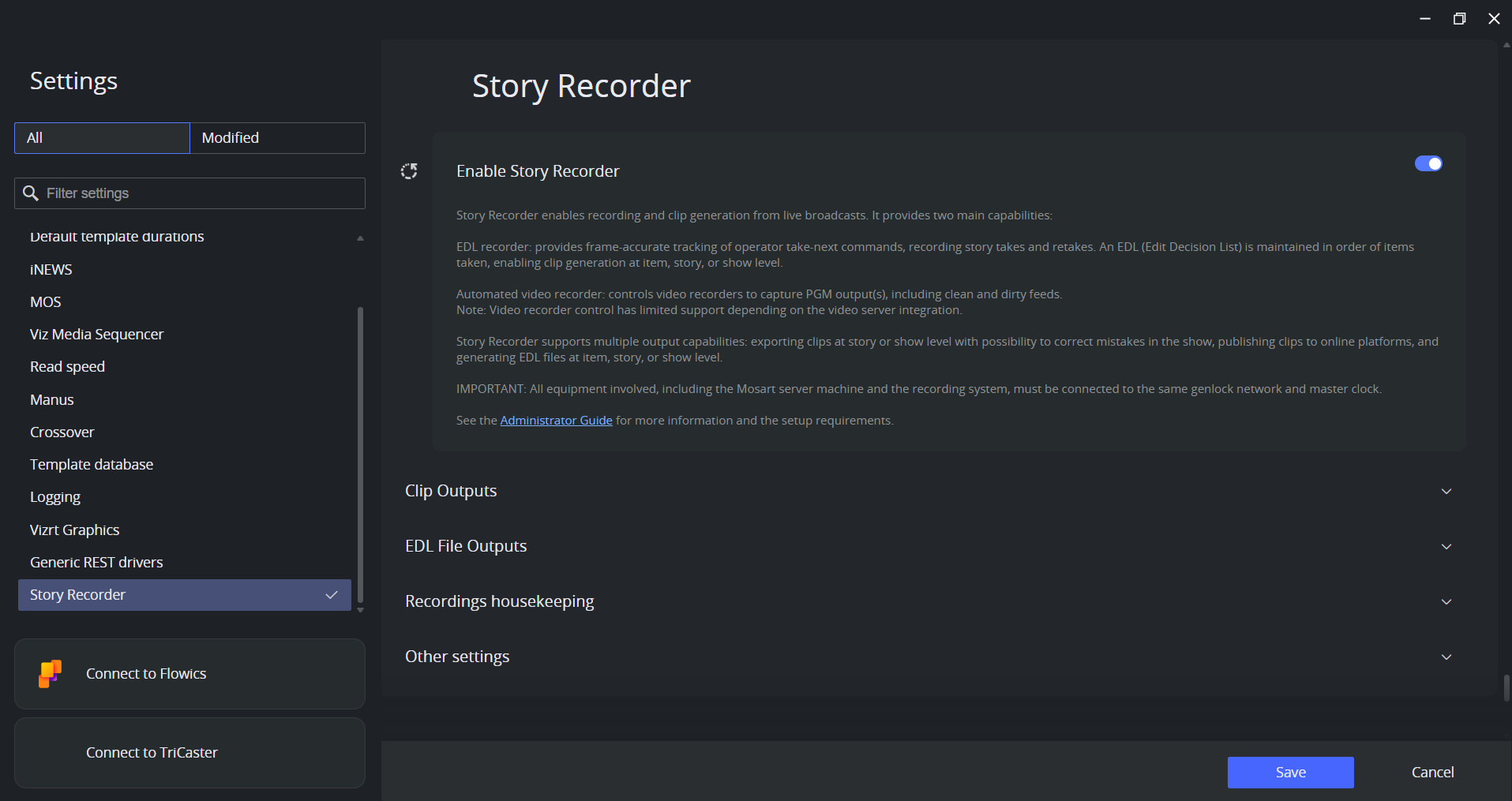
Save Story Recorder settings while Story Recorder is off. See What takes effect when for when a change is applied and what to restart.
What takes effect when
A small set of Story Recorder settings is read once, when the Mosart Logging Service starts. The rest are read when a session is enabled, so a save takes effect at the next enable and nothing needs restarting. Settings that live in AV Automation follow AV Automation's own rules.
You change | When it takes effect | What to restart |
|---|---|---|
Enable Story Recorder, Clip Outputs (TriCaster, Mimir), the Mosart EDL output, and the dispatcher, backup and listener host and port settings | When the service starts | Mosart Logging Service, on the Mosart Server machine |
Every other Story Recorder setting, including the whole Vantage EDL output, retakes, snippets, preroll, the clip name prefix and the retention days | At the next time Story Recorder is enabled | Nothing. Save while Story Recorder is off; a save during an active session is dropped and the service logs a warning. |
Recording clip name prefix, Recording retention days | The housekeeping job runs at each service start, then at intervals | Nothing, unless you want the cleanup to run now, which needs the Mosart Logging Service |
Use local time (Manus Settings > General) | Story Recorder picks it up at the next enable. AV Automation captures it once at startup. | AV Automation |
Frame rate (Manus Settings > General) | Manus Administrator and the Viz Mosart UI apply it live. AV Automation caches it at startup. | AV Automation |
Video server recorder ports, file extension, directories | On reconnect to the video server | Ctrl+Shift+V in AV Automation, or restart AV Automation |
Genlock mode, Clock Source, calibration latencies (Viz Mosart Central Settings > AV Automation > Genlock) | On Save, and the values reach Story Recorder immediately | Nothing |
Plura card properties (Viz Mosart Central Settings > AV Automation > Genlock) | On Save | Nothing |
| Read once at service start | Mosart Logging Service |
Newsroom Settings Story External Metadata mapping | After a restart | Viz Mosart Server |
In Windows Services the service is registered as MosartLogService and displayed as Mosart Logging Service.
Enable Story Recorder
Setting | Default | Description |
|---|---|---|
Enable Story Recorder |
| Enables the Story Recorder feature. When enabled, the remaining Story Recorder settings sections become available. |
Clip Outputs
Configure clip output device types. Story clips are produced by the listed devices as configured here. The settings are specific to the output, and are described on the workflow pages:
Recordings Housekeeping
Automatic cleanup of temporary Story Recorder recording files on the video server.
Setting | Default | Description |
|---|---|---|
Recording clip name prefix |
| Prefix added to each intermediate recording clip that Story Recorder creates on the video server. Serves two purposes: - Acts as a filter for the housekeeping cleanup job. The clean-up job accesses the recording folders (configured per recorder port in AV Automation) as network shares. The Mosart Logging Service account must have read, write, and delete permissions on these folders. |
Recording retention days |
| Retention period for the automatic housekeeping task. Recordings matching the clip name prefix are deleted after the specified number of days. Set to 0 to disable housekeeping (default). The recording folders are automatically collected from the recorder port configurations in AV Automation. Recorded clips can be very large files, easily filling the disk space. |
Other Settings
Setting | Default | Description |
|---|---|---|
Remote dispatcher host |
| Host address for connecting to the Mosart Remote Dispatcher Service (MosartRemoteControlService). This service dispatches commands between the Story Recorder Adapter and the Mosart server. |
Remote dispatcher port |
| Port for connecting to the Mosart Remote Dispatcher Service. |
Backup host | (empty) | Host address of the backup Story Recorder Adapter for failover. Leave empty for single-adapter mode (no failover). When configured, the primary adapter forwards its state to the backup, which can take over if the primary fails. |
Backup port |
| Port of any backup Story Recorder Adapter. |
Listener port |
| Port the Story Recorder Adapter listens on for incoming state from a primary adapter. Used in a primary/backup failover pair. |
Disable Story Recorder on rundown reload |
| Controls what happens when the NRCS rundown is reloaded during an active recording.
|
Related General Setting
The Use local time setting in the General section of Manus Settings applies to all Story Recorder timecodes:
Setting | Default | Description |
|---|---|---|
Use local time |
| Chooses the time convention Viz Mosart uses for its own timecodes: local time when enabled, UTC when disabled. Set it to match the time reference of the master clock that feeds the video server. Story Recorder computes each mark as the event timecode minus the Start of Media reported by the video server, and that Start of Media is used exactly as delivered, so both values have to be in the same convention. A mismatch offsets every mark by the difference between local time and UTC. Calibration cannot absorb it, and with Story Recorder enabled Viz Mosart logs a warning that the video server time differs from the Mosart time. The setting covers every Story Recorder output: the Vantage and Mosart EDL files, and the render and export commands sent to Mimir and TriCaster. It is independent of the AV Automation setting External Clock Is Local Time, which describes whether the incoming timecode signal carries local time or UTC. When the two differ, Viz Mosart converts the incoming timecode to its own convention, so its own clock works with any combination. Mosart logs, UI, and Timing Display are not affected. |
Configuring the Video Server
The video server is used for playout of clips both during the show, and when recording. The setup involves configuring playout ports, recorder ports, and ensuring the correct directory and file extension settings for the various types of media resources involved.
Media resource types
Story Recorder operations involve various types of media resources. Understanding these is important for correct directory and port configuration:
Playout clips: The rundown clips monitored by Media Administrator, cued and played out by AV Automation. They must reside in a directory that the video server accepts for playout.
Recordings: Clips produced when recording the video server output (typically the PGM output). In the story clip production workflow, these are the raw continuous recordings from which story clips are cut. These clips are not needed for playout unless the show clip production workflow is used, where the preroll template is played back from a recording clip. In this case, the recording directory must be the same as the playout directory.
Story clips: Segments cut from the growing recordings, using an export job. Story clips are typically needed for playout, so they should reside in a folder that Viz Mosart discovers clips in.
Snippet clips: Short review clips generated around retake cut points in the show clip production workflow. These are browsed in the Story Recorder floating window in the Viz Mosart UI, and used purely as visual verification of cut quality. They do not need to be available for playout.
To configure video server recorder ports
In AV Automation, navigate to Devices > Properties > Video Servers.
The Video server configuration and Mosart port configuration should already be working for your system. Otherwise, refer to the Video Servers documentation.
Configure the recording port(s) dedicated for Story Recorder.
For the recording port(s), select IsEnabled in the Story Recorder section. This reserves the port for Story Recorder.
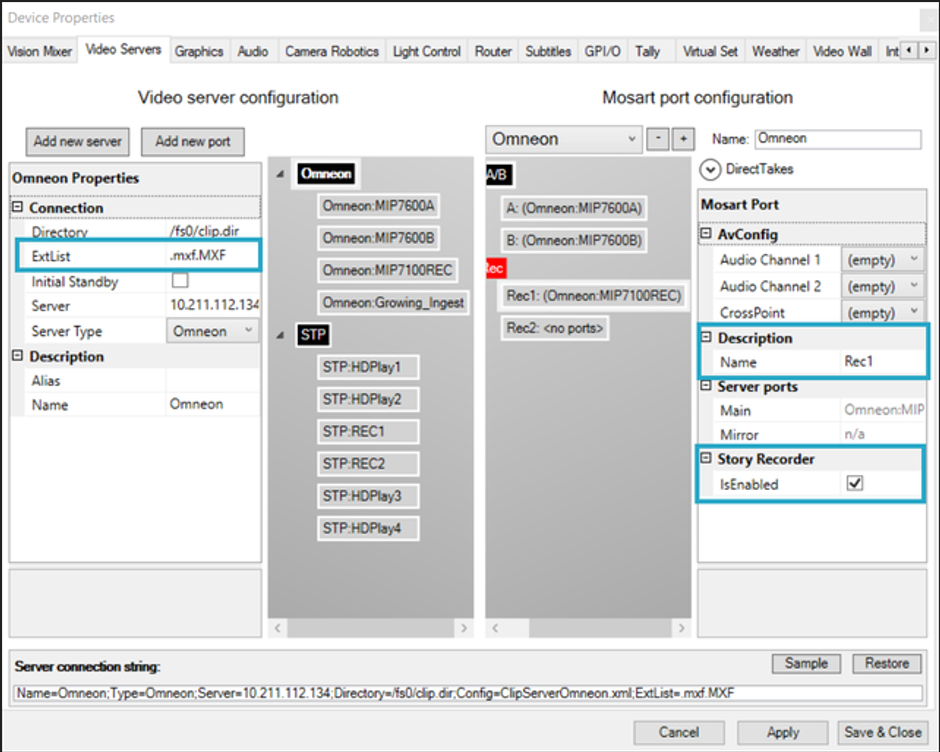
For TriCaster, the Quick Connect feature in Manus Settings can be used to automatically configure the video server setup and automatically enable the recorder for Story Recorder.
Set the recording file extension to match the format produced by the video server (for example,
movfor TriCaster,mxffor Harmonic Spectrum).
Story Recorder uses this extension to build the correct file path when referencing the recording clip in EDLs and render jobs. The extension is resolved with the following priority:Extension field on the recording port (per-port setting).
Extproperty in the Server connection string.ExtListproperty in the Server connection string (the first entry is used).If none of the above are set, the default is
mxf.
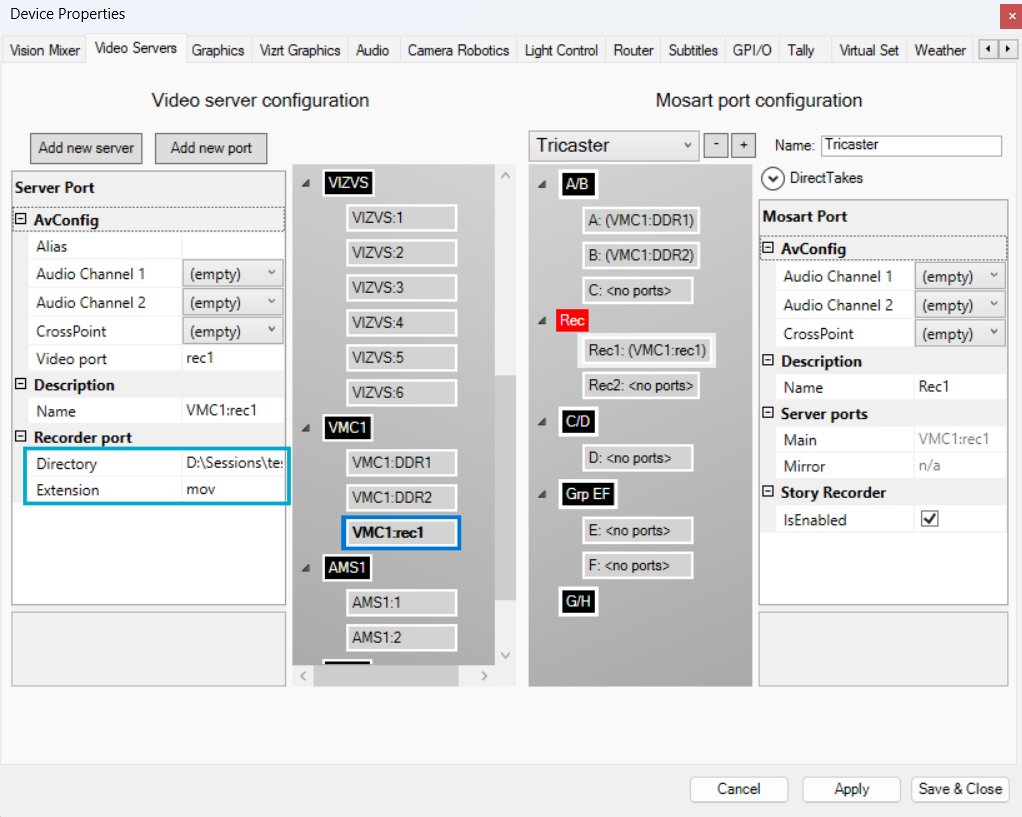
By default, Mosart supports separate directories for playout clips and recordings (see screenshot above). However, for the show clip production workflow, the recording directory must be the same as the playout directory, because the preroll template is played back from the recording clip.
Click Apply then Save & Close.
Force a reconnect to the video server with Ctrl+Shift+V (or restart AV Automation).
Preparing TriCaster
These steps apply whenever TriCaster acts as the recorder, in both the story clip and the show clip workflow. TriCaster stamps the recording with its own timecode, and Story Recorder cuts against that timecode, so TriCaster has to carry the same time as the rest of the system.
Two separate settings decide that, and they belong to different parts of TriCaster: the reference clock is what TriCaster locks its video to, and the timecode source is what it stamps the recording with. Set both. The menu paths below are from TriCaster Vizion; other TriCaster models arrange the same settings differently, so check the user guide for your model.
Set the TriCaster session to the same frame rate as Viz Mosart. The Story Recorder adapter calculates timecodes from the frame rate configured in Manus.
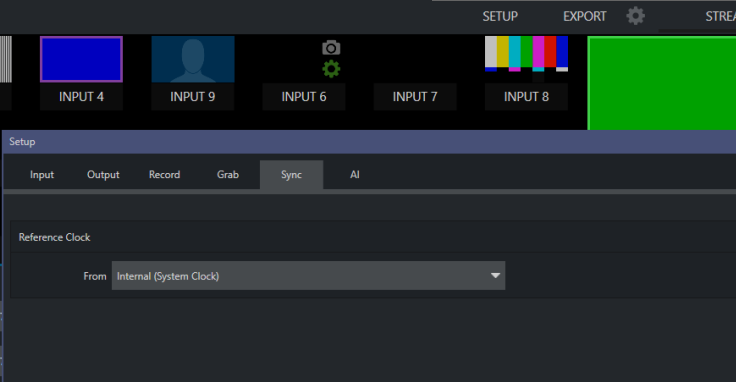
Set the reference clock. Open Setup > Sync and set Reference Clock > From to the house reference that the rest of the video chain is locked to. The default, Internal (System Clock), means TriCaster free-runs on its own clock. Leave it on Internal only on a system that does not run frame accurate.
Set the timecode. Open Timecode Configuration and select LTC. For Source, select the house LTC input when the facility feeds one, or Local (Silence) when it does not. Local (Silence) makes TriCaster generate timecode from its own system clock rather than from an incoming signal.
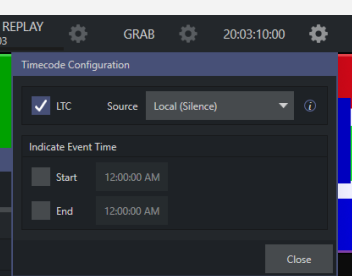
When you use Local (Silence), synchronize the TriCaster and the Viz Mosart server clocks over NTP, and keep them within 1 second of each other. Story Recorder then works from time of day, and the two machines have to agree.
Configure TriCaster to record the program output (Record Mix 1) to a folder that Viz Mosart can discover clips in, as described below.
The two settings move together:
The facility has | Reference Clock (Setup > Sync) | Timecode source |
|---|---|---|
House genlock and house LTC | The house reference | The LTC input |
Neither | Internal (System Clock) | Local (Silence), with both machines on NTP |
Enable LTC in both cases, including on a system that does not run frame accurate. Without it, the start timecode of a recording comes from the NDI recorder and is UTC by default, which puts a whole-hour offset on every mark when Viz Mosart is configured for local time.
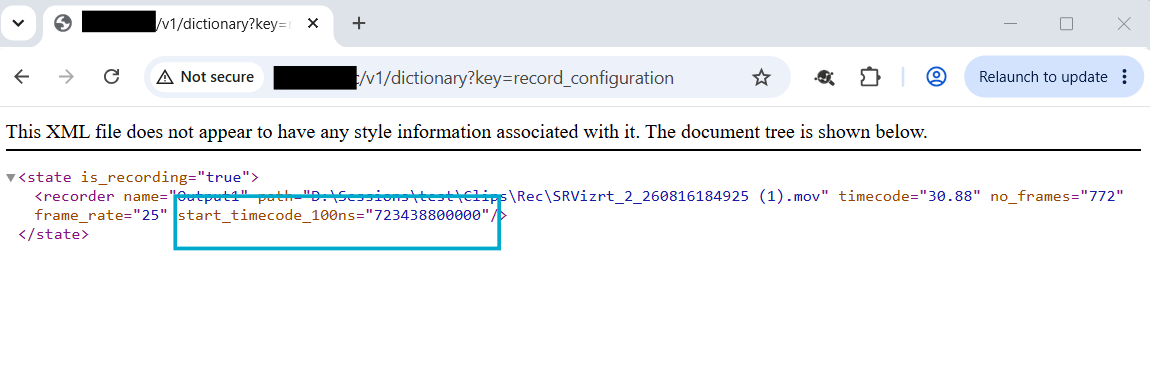
TriCaster can stop reporting Start of Media while it otherwise looks healthy: export jobs then fail or cut at the wrong point, and the Mosart log shows no Start of Media for the recording. Restart TriCaster, start the recording from TriCaster and verify this sends the start of media correctly http://tricaster-server/v1/dictionary?key=record_configuration.
For the reference and timecode connectors on your model, and the options in the Reference Clock list, see the TriCaster Vizion User Guide.
How Viz Mosart finds clips on TriCaster
Story clips are cut from the recording and are usually needed for playout, so the recording output folder has to suit the way Viz Mosart discovers clips. There are two routes, and only one of them is needed:
Route | Set up by | What the recording folder must be |
|---|---|---|
TriCaster API | TriCaster Quick Connect, which writes the Media Administrator server connection and its HTTP credentials. | A folder TriCaster lists in its own file browser. Media Administrator queries TriCaster directly and polls the file browser for changes. |
Media Service | Manual configuration of a Media Service publishing point in Media Administrator. | The folder that Media Service monitors. Using one folder for playout clips, recordings and story clips is the simplest arrangement. |
TriCaster server connection string properties
Set these in the Server connection string in AV Automation > Devices > Properties > Video Servers.
Property | Default | Description |
|---|---|---|
|
| HTTP username for the TriCaster REST API. Used by all workflows. Mosart needs it to request Start of Media (the timecode of the first frame) for the render job command. Can be added via the TriCaster Quick Connect editor. |
| (empty) | HTTP password for the TriCaster REST API, used together with |
|
| Delay in milliseconds before sending the export job request to TriCaster. Used by story clip production only. When a story ends, Mosart sends an export job to TriCaster to cut the story clip from the ongoing recording. If the export request is sent too soon (within 1 to 2 seconds of the cut point), TriCaster may not be ready to process it because the recording file is still growing. This delay gives TriCaster time to finalize the recording segment before the export is triggered. |
Example: ...;HttpUsername=admin;HttpPassword=admin;AddExportJobDelayMs=5000
Clip naming pattern of temporary recordings
The temporary recording files generated by Viz Mosart are automatically named.
Single recorder:<prefix>_<counter>_<timestamp>.<ext>
Multiple recorders:<prefix>_<recorder name>_<counter>_<timestamp>.<ext>
Where:
prefix: The Recording clip name prefix configured in Manus Settings (default:
SRVizrt). This prefix is also used by the housekeeping job to identify SR-generated recordings.counter: A sequence number, reset to 1 for each Story Recorder session.
timestamp: An automatically generated (format
YYMMDDHHmmss).ext: The file extension configured in AV Automation > Devices > Properties > Video Servers > ExtList (the first in the list is used).
recorder name: The Name setting on the virtual recorder port in AV Automation (for example,
Rec1). Only included when multiple recorders are configured.
Example: A single recorder, prefix SRVizrt
File |
|---|
|
|
|
Example: Two recorders (Rec1, Rec2), prefix SRVizrt
File |
|---|
|
|
|
|
|
|
Keyboard Shortcuts
Control commands
Several Story Recorder actions are available for keyboard assignment. They are configured as Control Command shortcuts with the command STORY_RECORDER and an Action parameter:
Action | Applies to | Description |
|---|---|---|
TOGGLE | All workflows | Toggles Story Recorder mode on or off. |
ENABLE | All workflows | Enables Story Recorder mode. |
DISABLE | All workflows | Disables Story Recorder mode and publishes the recorded clip(s). |
DISABLE_NO_PUBLISH | All workflows | Disables Story Recorder mode and discards the session. Recording stops and nothing is published. This is the counterpart of DISABLE, which publishes. |
PAUSE | Show clip | Pauses the timeline while in Story Recorder mode. |
RETAKE | Show clip | Sets a retake point at the selected position. |
BROADCAST_TIMELINE | Show clip | Delivers the show recorded so far to the configured outputs, the same as the Deliver button in the Story Recorder tool window (only available while paused). |
REDO | All workflows | Starts the show again from the story that is on air. Story Recorder is disabled without publishing, the rundown is reloaded, and the story that was on air is set as the first story after the reload. Mainly used in show clip production. |
Refer to the Viz Mosart User Guide, section Viz Mosart User Interface > Keyboard Shortcuts > Control Command Keys.
Pause Timeline shortcut
In addition to the control command actions, a dedicated Pause Timeline shortcut is available:
Shortcut name | Command | Applies to | Description |
|---|---|---|---|
Pause Timeline |
| Show clip | Pauses or resumes the Mosart timeline when in Story Recorder mode. |
Failover
This step is optional and requires that Viz Mosart is already set up with redundancy as described in section Redundancy.
This means that:
Both the Viz Mosart main and backup server have same configurations for at least Mosart Administrator, AV Automation, Media Administrator and Overlay Graphics Interface.
AV Automation is configured for mirroring on both main and backup servers (with main pointing to backup and backup pointing to main):
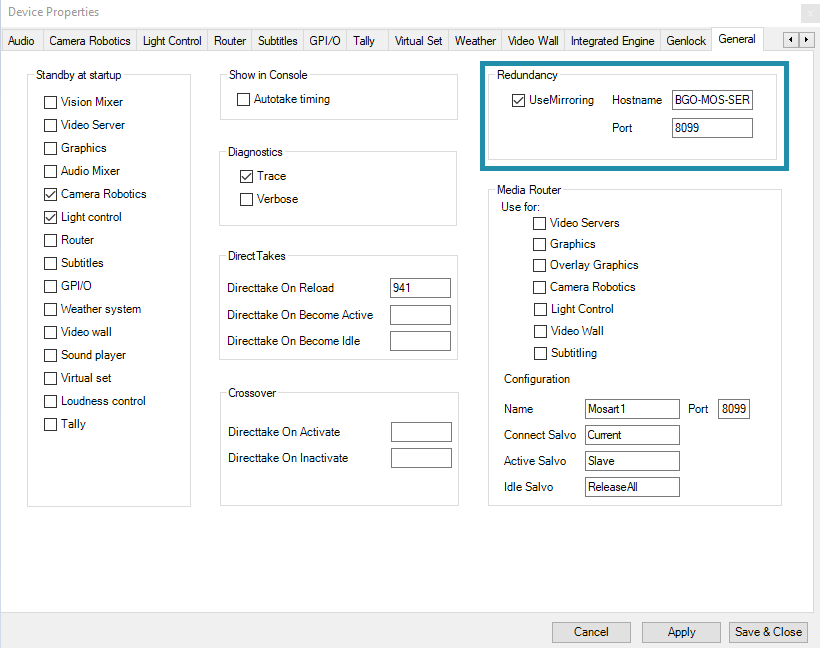
The Viz Mosart UI is configured to connect to the backup server:
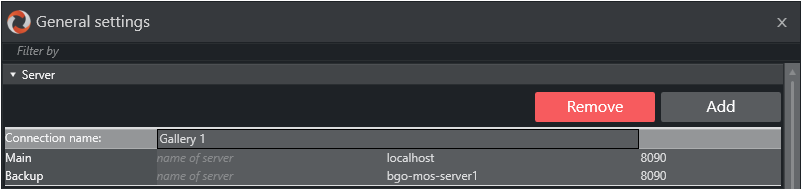
For Story Recorder, there are additional steps:
Story Recorder is configured on both main and backup in the same way in Manus Settings.
Backup host and port: Configure the Backup host and Backup port settings in Manus Settings (under Other Settings) on the primary adapter, and the Listener port on the backup adapter.
Snippet clips folder (optional): If snippet generation around the cut point has been set up for main, set it up in the same way for backup. Install Viz Coder on both main and backup server. The snippet folder configured in the Settings menu must point to the same shared location on both main and backup, so that the Viz Mosart UI has access to snippet files regardless of which system is active.
Genlock calibration: The same calibration settings from Viz Mosart Central Settings > AV Automation > Genlock must be configured on both main and backup to ensure frame-accurate timecodes are consistent across failover (see Frame Accurate System Operations).
Troubleshooting
If Story Recorder does not behave as described, see Story Recorder Troubleshooting.