You make and organize your shows in the Landing page and the Rundown page. For a guided first-time tour, see Getting Started.
Common Actions
Shows, rundowns, and rundown templates share the same set of management actions where they appear in Showmaker.
Action | What it does |
|---|---|
Open | Opens the entity for editing. Click the row, or press Enter on the highlighted row. |
Edit | Opens a properties dialog (title, start time, planned duration, banner image, default-on-create, Studio). |
Duplicate | Creates an independent copy of the entity. Rundowns and templates are duplicated within the same show. |
Set as default | (Shows only) Opens this show automatically the next time you launch Showmaker. |
Delete | Removes the entity. For shows, a confirmation dialog adds two safeguards - see Delete show. |
Create rundown template from rundown | (Rundowns only) Saves the rundown as a reusable Template in the same show. |
Landing Page
Showmaker opens on the landing page. From here you pick a show, browse its rundowns or rundown templates, and decide which rundown is sent to Viz Mosart.
Show
A show is a container for related rundowns and rundown templates, typically one program or production. Each show can hold any number of rundowns and templates.
The show banner at the top of the landing page is both a functional space and an identity space. Functionally it is the show selector, content counter, and action menu. As an identity surface, the banner image, title, and program window personalize the workspace, give operators a personal connection to the program they are producing, and signal authority over the rundowns and templates that sit beneath it.

Show actions
Open: Pick a show from the dropdown.
New show: Create a new show.
Show title: Required.
Starts at / Ends at: (optional) When both are set, every new rundown and rundown template in this show inherits these values: Starts at is the rundown start time, and the Planned duration (show length) is automatically displayed.
Both can be manually overridden per rundown.Banner image: (optional) Convenient identifier for the active show.
Studio: Selectable when a MOS device is configured. This is an Administrator configuration task.
Edit show: Modify any of the above on an existing show and the default option for a new rundown: Start blank or seed from a specific rundown template.
Set as default: See Common entity actions.
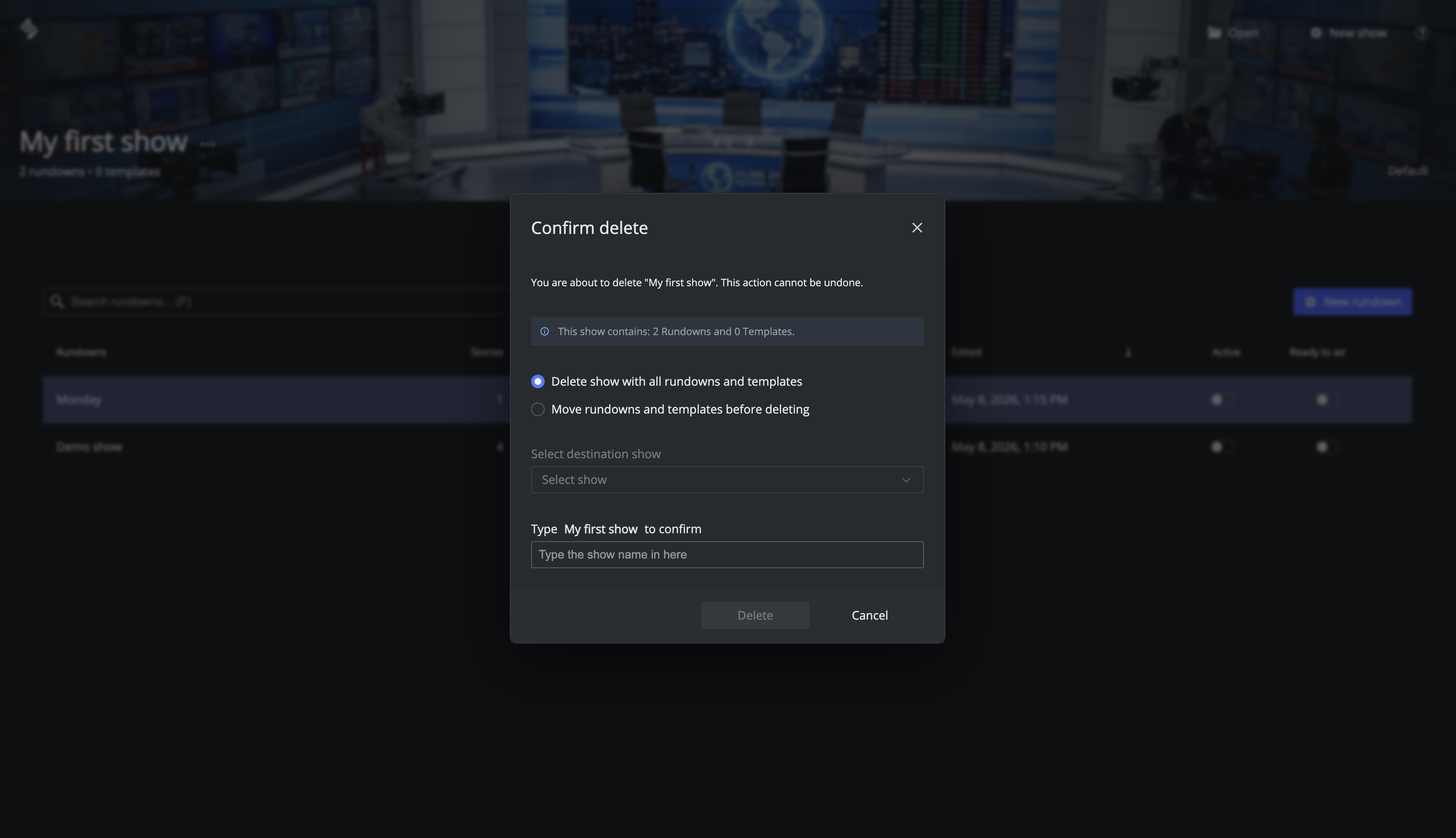
Delete show: Deleting a show can affect every rundown and rundown template inside it, so a Confirm delete dialog provides two safeguards:
Choose what happens to the contents:
Delete show with all rundowns and templates: Delete everything in one go.
Move rundowns and templates before deleting: Select a destination show - everything is moved to another show (original show is deleted, but nothing is lost).
Type the show name to confirm (The Delete button stays disabled until you type the exact show name).
Studio Assignment
Each show in Showmaker originates from a Studio, the physical production environment under the control of a Mosart server.
The common, and default situation is that a rundown is associated with the show’s original studio.
But Showmaker enables sharing of rundowns between studios. You can point a single rundown at a different Studio without changing the show.
The diagram below shows three practical setups.
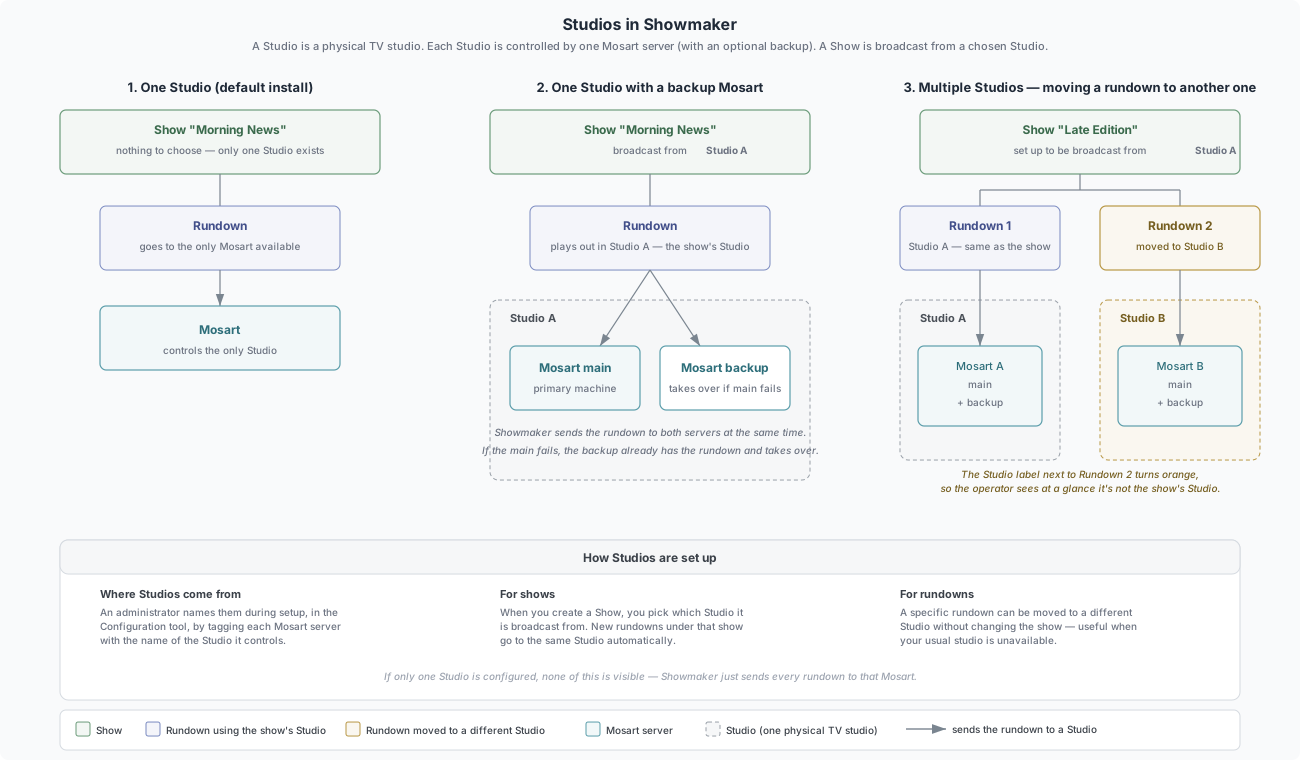
Info: Studios are defined once when Showmaker is installed. See the Setup section to understand how an administrator configures them.
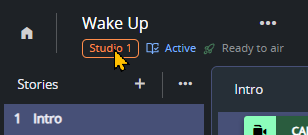
Above the list of rundowns, the Studio badge tells you more about the rundown’s origins.
What you see | Status | Meaning |
|---|---|---|
Grey-outlined studio badge | Default | All rundowns inherit this studio |
Orange badge | Overridden | This rundown overrides the show's default studio |
"Assign to studio" button | Unassigned | No studio is set. Click to pick one |
Rundowns View
Switch between Rundowns and Rundown templates to filter the list. The rundown view shows every rundown in the current show with a search field and a New rundown button. The search field filters the table by rundown title as you type.
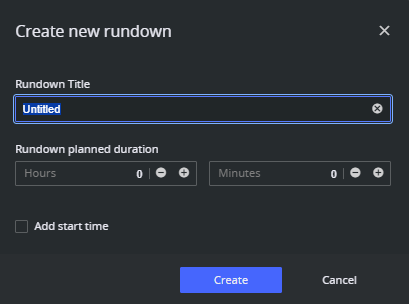
New Rundown
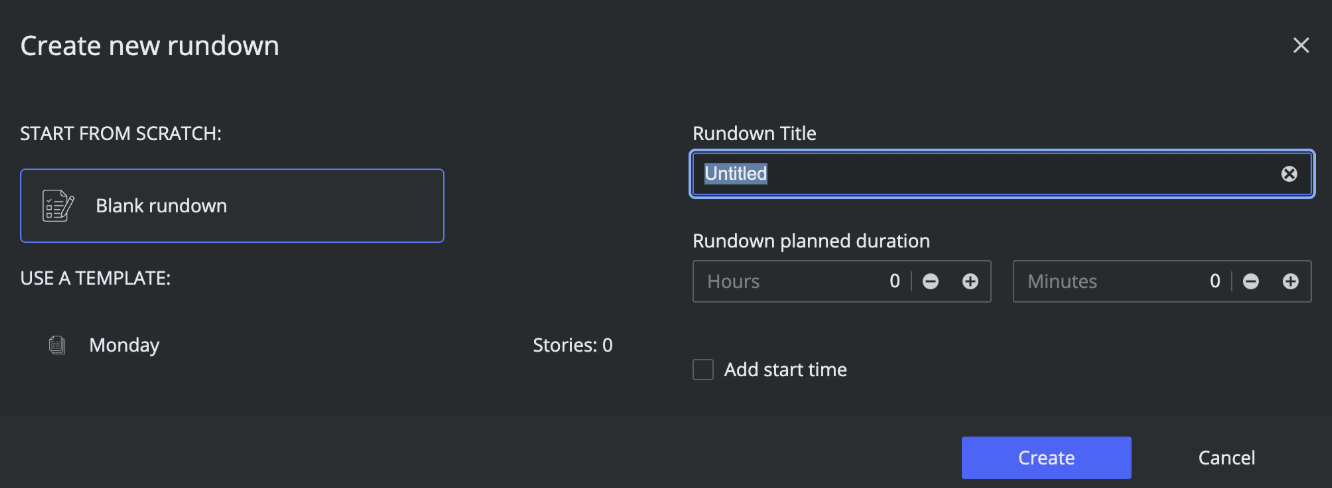
Opens a dialog with two creation paths. The default option follows the show's "default option for new rundowns" setting.
Start from scratch : creates an empty rundown.
Use a rundown template : creates an independent copy of the selected template.
Other fields, Starts at and Planned duration are pre-filled from the show's settings when. Change them here to override for this rundown only.
Rundown list details
Column | Description |
|---|---|
Rundowns | Rundown title. An ON AIR chip appears when Viz Mosart is currently running it |
Stories | Number of stories in the rundown |
Planned duration | Planned length of the rundown |
Start time | Rundown start time |
Created | Date the rundown was created |
Edited | Date the rundown was last edited |
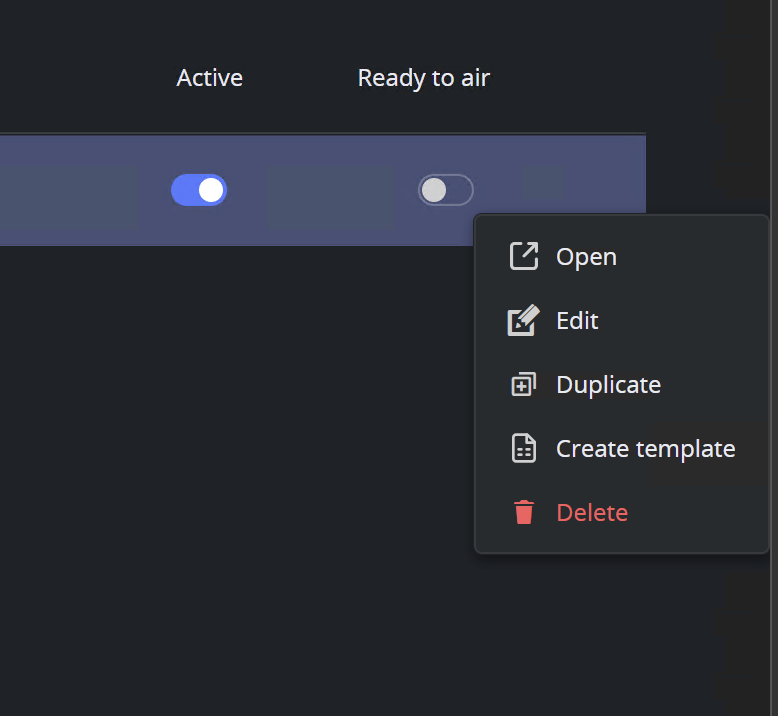
Active | Toggle for MOS active. See Putting a Rundown On-air |
Ready to air | Toggle for ready-to-air. See Putting a Rundown On-air |
Rundown options
Open, Edit, Duplicate, Create template and Delete. See Common Actions.
Putting a rundown on-air
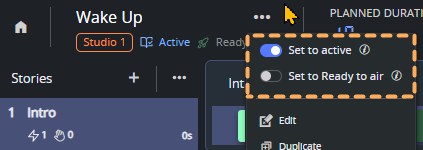
Two toggles control how a rundown reaches Viz Mosart. Use them in this order:
Active: Turn ON to live sync the rundown with Viz Mosart. Your rundown appears in the Mosart UI, any edits in Showmaker are reflected immediately.
Ready to air: Turn ON to add this rundown to the Viz Mosart Rundowns > NCS active > READYTOAIR rundown, where the operator can take it on air.
Rundown Operations
Double-clicking a rundown from the Rundowns View opens the Rundown page. This is where you build your rundown.
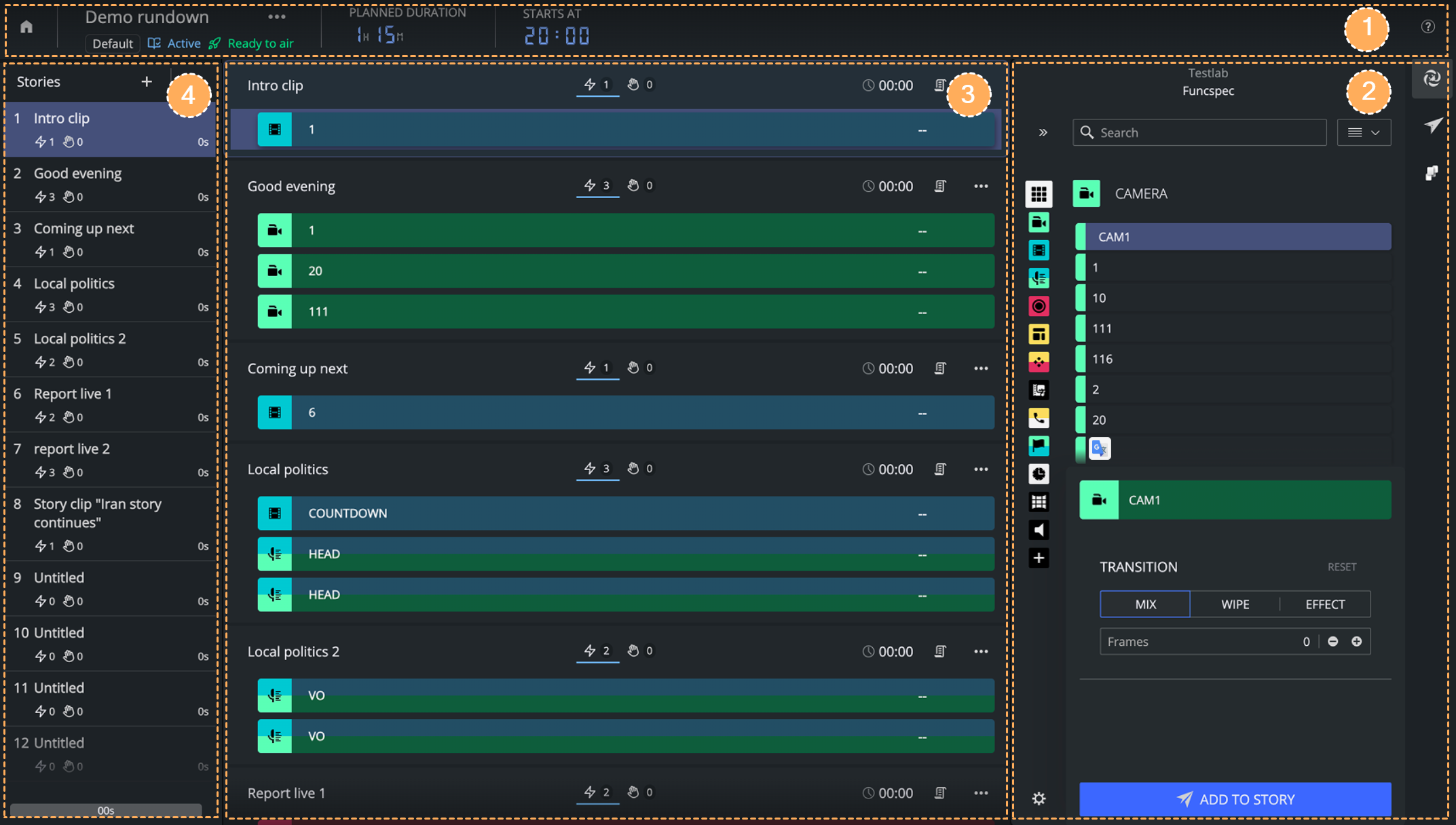
1 Rundown Information Bar
Top bar of the page, with everything that applies to the rundown as a whole.
Home: Back to Landing page.
Title and status badges: Rundown name with MOS active and Ready to air badges when ON.
Studio badge: Click the badge to override or reset. See Studio Assignment.
Starts at: Start time, inherited from the rundown or its template.
Planned duration: Automatically calculated from any Start time. Turns red when the total story duration exceeds it.
Options menu: Edit, Duplicate, Create template, Paste story (when one is on the clipboard), Delete.
Help menu : The top-right ? icon always accesses Help.
User avatar: (when set) Next to the ? Help icon. Click to see your account and to Sign out. This user identity is shared across all Mosart Web Apps.
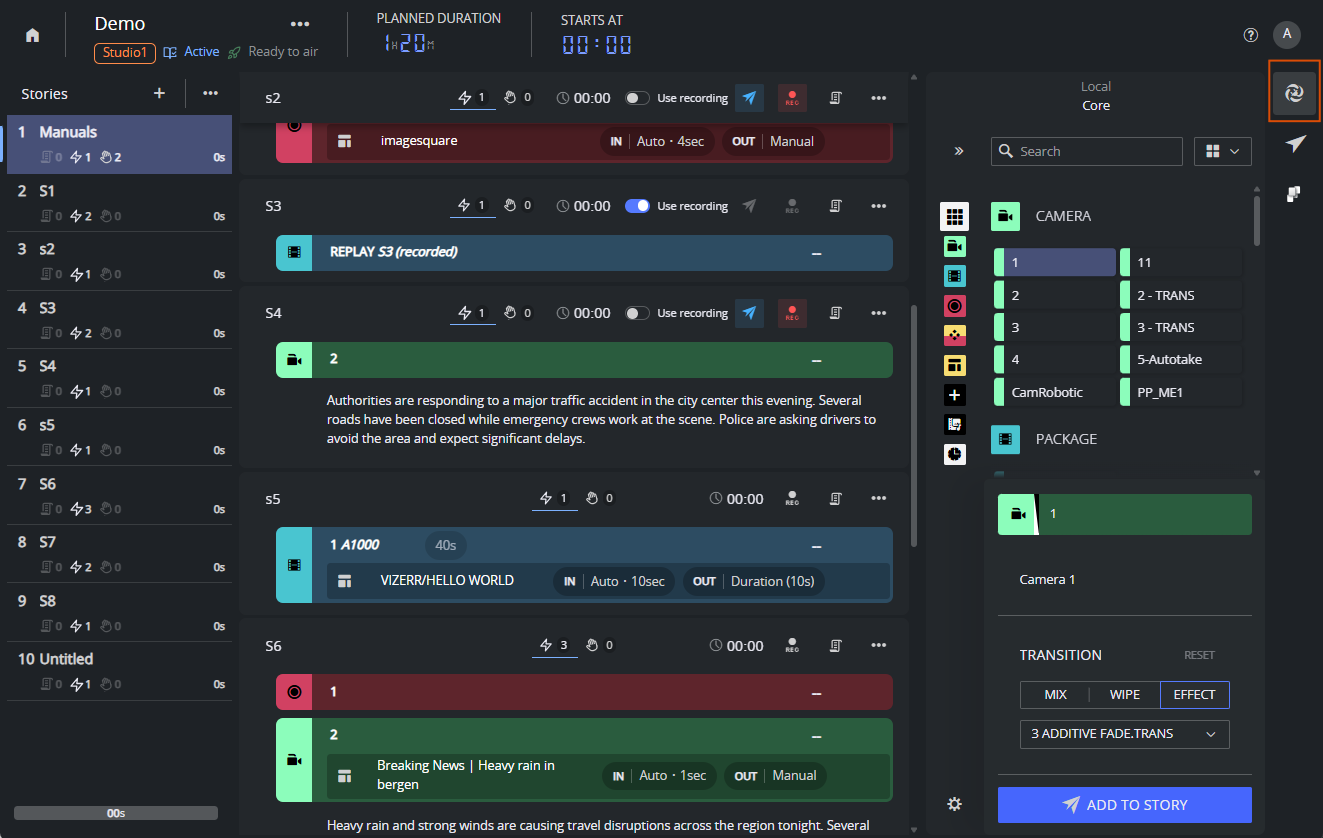
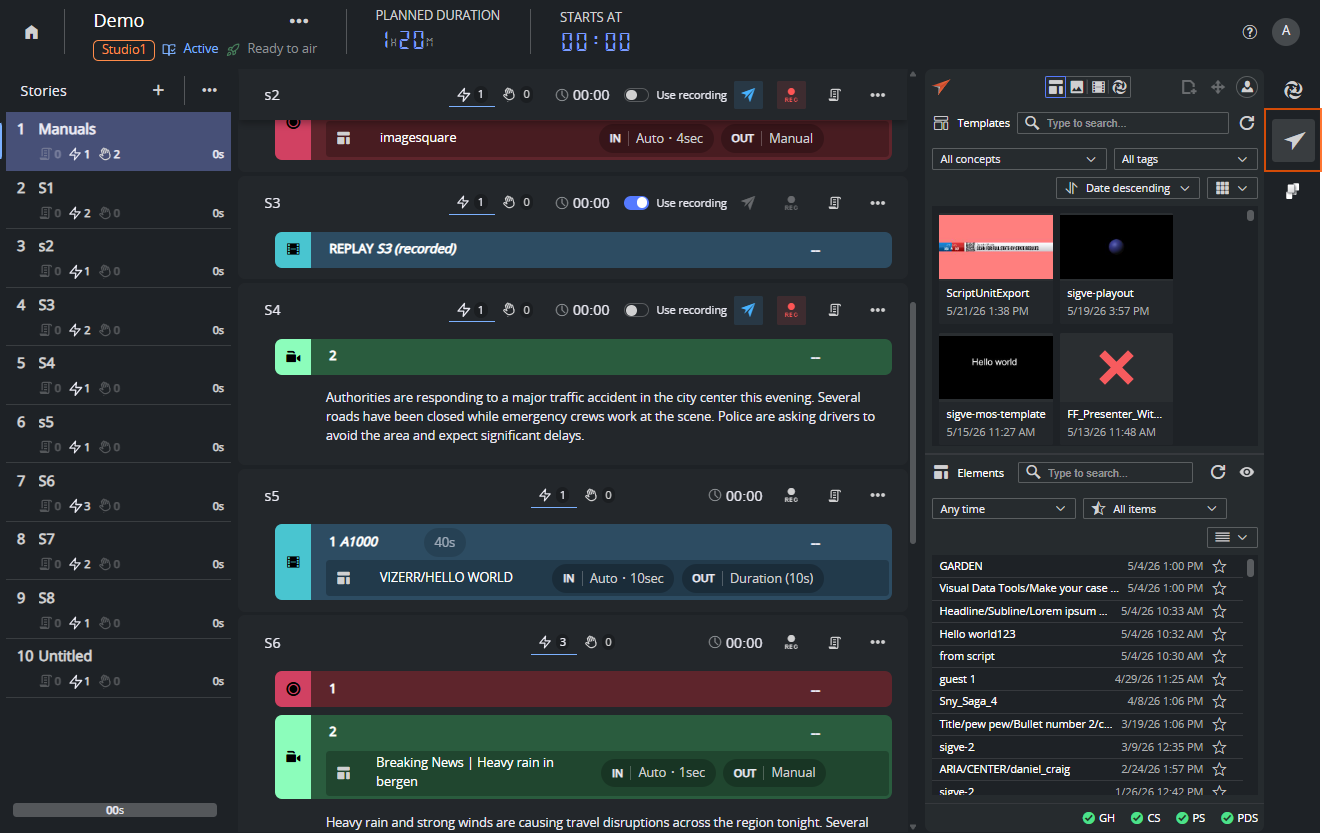
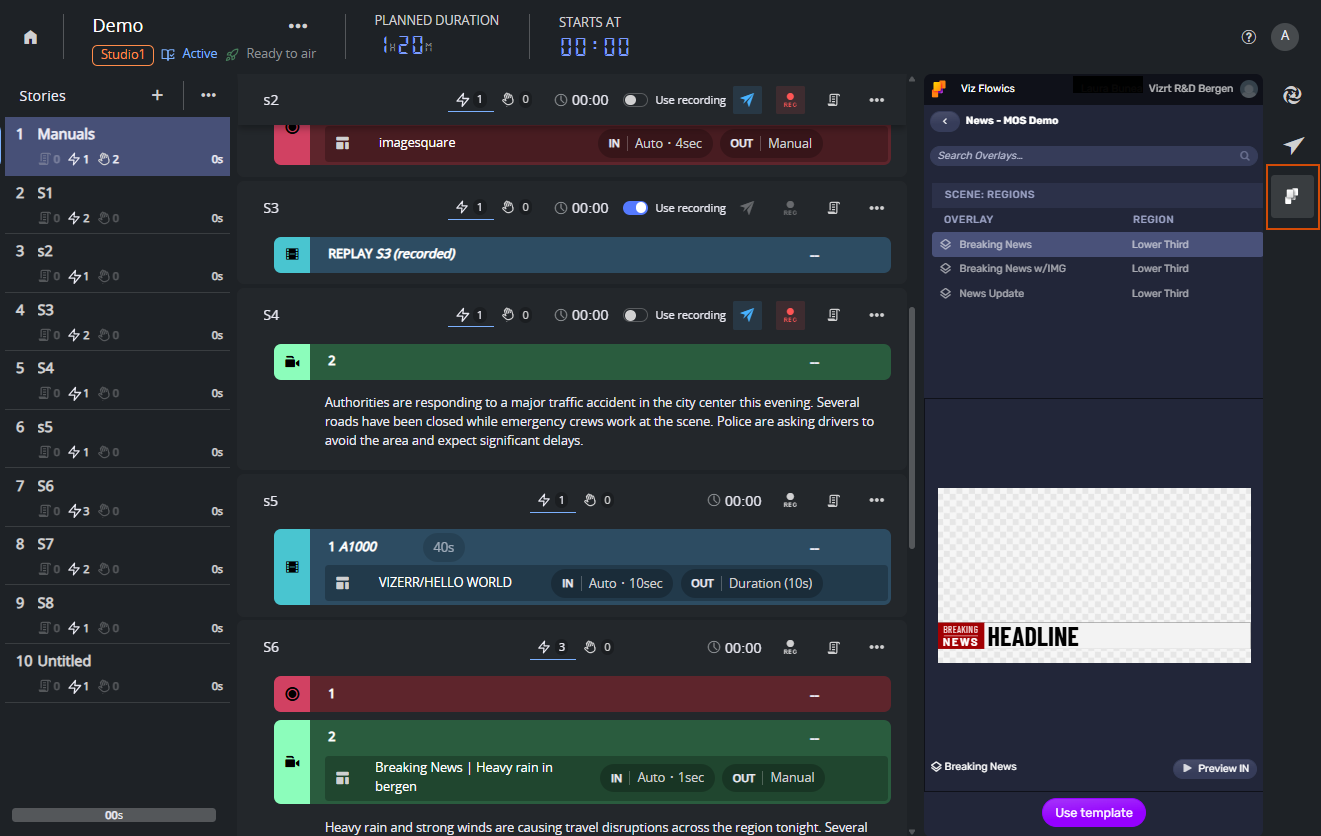
2 Assets Panel
Holds the building blocks that you drag into stories.
Viz Mosart automation templates: Always displayed. The available set of templates depends on the connected Mosart server's template set.
Viz Pilot Edge: Available when the graphics template manager Viz Pilot Edge is configured.
Viz Flowics : Available when cloud-based interactive HTML5 graphics creator Viz Flowics is configured.
3 Story Editor
The main center panel chronologically lists all stories and content. Selecting a story in the Story list scrolls the editor to it.
Saving and live sync. All edits are saved automatically as you make them - there is no Save button. While the rundown is Active (see Putting a Rundown On-air), changes are pushed to Viz Mosart over a live connection, so what you edit in Showmaker appears immediately in Viz Mosart.
Copy and paste a story. Use Copy story in the story list options menu to put a story on the clipboard. The story nav panel header bar's options menu then shows Paste story, which appends the copy at the end of the current rundown. The clipboard works across rundowns and templates within the same Showmaker session. You can also click on the options menu in the story header and Paste story as next .
Story header
Each story has a header with name, duration, and an options menu.
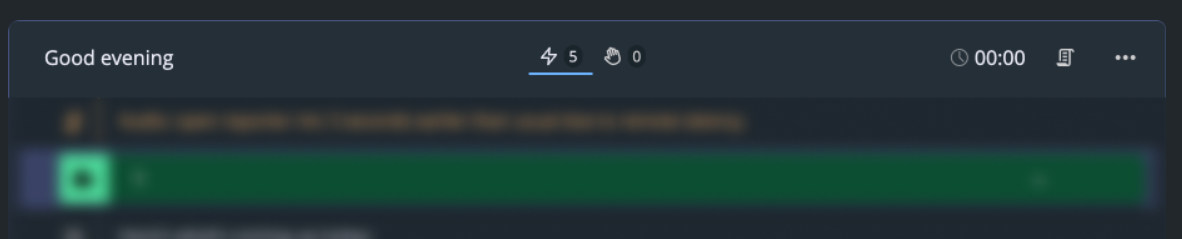
Story title: Editable inline.
Auto / Manual toggle: Per-story view filter. Auto hides manual items so you see only what runs automatically. Manual only displays manual items.
Each story has its own setting, and this setting does not affect what is sent to Viz Mosart.Planned Duration: User-defined duration.
Options menu (ellipses): Float, Copy, Duplicate, Paste item, Paste story as next, Delete.
Story body
The editing area inside a story. This is where you add and arrange automation elements that control Viz Mosart templates, graphics elements, timing and scripts.
A story can hold any combination of:
Automated item: Viz Mosart template that runs automatically.
Manual item: Items an operator can manually select during the show. Listed separately for clarity.
Story note: Pinned to the top of the story
 , this free-text field enables script-first authoring. For example, your draft or final editorial context, or production/editorial staff instructions.
Info:
Story notes remain visible while you build the automation underneath.
Can be dragged and dropped under any item (for example, a CAM template) to repurpose as on-air script for the item.
Anything left at the top of the story stays as editorial guidance for the team.
Script field: Presenter or editorial text attached to a specific item.
Graphic: Viz Pilot Edge or Viz Flowics elements attached to an item.
Clip: Video playback elements from Media Administrator, attached to an item.
4 Story List / Navigation Panel
Ordered list of every story in the rundown. Has controls to add, reorder, float, copy, and delete.
Header
Add story (+): Appends a new empty story at the end of the rundown. Hold Shift and press to add as next story, below the currently selected one.
More options (3 ellipsis button):
Import stories: Imports stories from a prepared CSV or Excel file.
Accepts CSV and Excel files, mapping each row to a new story at the end of the rundown.Paste: Paste-in any story on the Clipboard.
Tip: Adding a story is a frequent action, so Showmaker offers two methods:
The + icon in the story list header
ADD TO STORY button at the foot of the editor area.
Both append a new, empty story. The lower button automatically reveals the story. Use whichever is closer to where you are working.
Story list item
Story number: Story position in the rundown.
Story name: Title
Drag to reorder: Select the row by its drag handle and drag up or down to change story location in the rundown. Numbering updates automatically.
Story options: Clicking the handle (without dragging), opens a per-story menu:
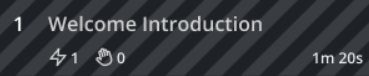
Float story: Marks the story to be skipped during playout. Floated stories are rendered with diagonal stripes and are not sent to air, but stay in the rundown as a reference.
Copy
Duplicate
Delete.
Items counter: Icon with a count
 showing number of scheduled and manual items that the story contains (information only).
Story planned duration:

(Click the Dash to initially add)
Quick Guide to Rundown Operations
To add a Mosart template
Open the Mosart Assets panel
 on the right side.
The colored templates represent automation commands that control devices such as cameras, video servers, graphics engines and audio mixers.Pick a template and adjust its properties, as needed.
Click ADD TO STORY, or drag the template onto a story.
To add a graphic
Click the icon for either
Viz Pilot Edge (Vizrt graphics assets and template creation tool)
Viz Flowics (Vizrt cloud-based interactive HTML5 graphics)
panel.
Pick a graphic and adjust its properties.
Click ADD TO STORY. The graphic is attached to the selected item in the story.
Info: The appearance of graphics icons depend on how your Showmaker is configured by your administrator.
To manage a story and story items
You can copy, duplicate, edit, add script to, change timing of or delete a story item.
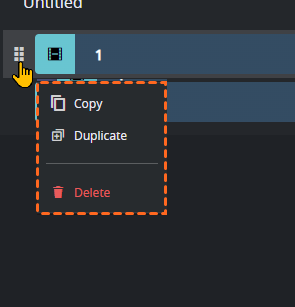
Click the handle to reveal user actions.
Click the script icon
to modify the script.
To reorder a story
Drag the handle and drop anywhere in the rundown to change execution order.
Info:
Items can have secondary items (for example, an Overlay Graphic attached to a CAM template).
These secondary items have their own actions menu that displays either from the handle or in a pop-up panel when double-clicked.
Rundown Templates View
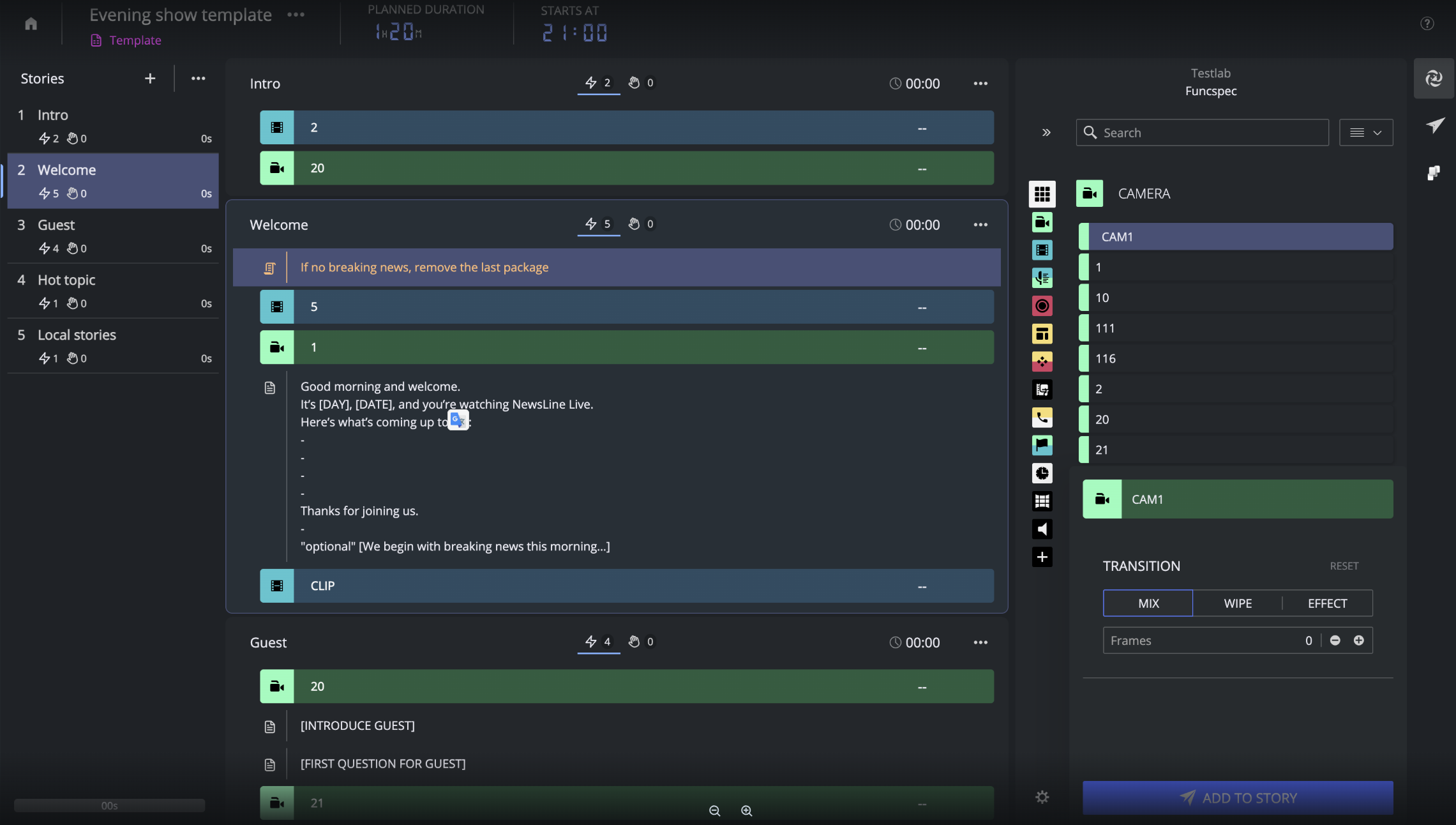
A rundown template defines the structure of a rundown without specific content. Use templates for recurring programs and standard show formats.
Template lists and how you work with them, are very similar to the Rundowns view. Refer to that section for how to manage templates.
The only difference is that since Templates are never synced to Viz Mosart, there are no Active or Ready to air toggles. And since they are not associated with a specific studio, no Studio badge.
Once a rundown is created from a template, it is fully independent. Editing the template later does not affect rundowns already created from it.
You open a rundown template for editing from the Rundown Templates view.
Rundown Template Operations
You work with Rundown Templates in nearly the same way as described above for Rundowns with the same
2 Assets Panel
3 Story Editor
4 Story List.
Info: The differences, reflecting what a Template is used for:
Template editing is local. Once a rundown has been created from a template, it is independent. Subsequent editing of the template will only affect new rundowns created from it.
No Active / Ready to air features. Templates are not synced to Viz Mosart and never go on air, so the rundown information bar has no MOS active + Ready to air badges or controls.
No Studio badge. Studio Assignment is a Rundown, not a Template property. A rundown created from the selected template inherits the show's Studio (or whatever override is set on the rundown).
Options adapted for templates. The Options menu offers Edit properties, Duplicate template, Create rundown from template, Paste story (when one is on the clipboard), and Delete.
Keyboard Shortcuts
Open this list inside Showmaker any time with K, or pick Keyboard Shortcuts from the Help menu (see section Getting Help).
Shortcuts here are presented for
Landing Page (initial view)
Landing Page
Action | Shortcut |
|---|---|
Open show |
|
New show |
|
Edit show |
|
Browse list of rundowns |
|
Create new rundown |
|
Create new template |
|
Focus search (Find) |
|
Switch Rundowns / Templates tab |
|
Make active |
|
Go - ready to air |
|
Delete rundown |
|
Rundown Editor and Rundown Template Editor
Action | Shortcut |
|---|---|
Home / return to library |
|
Make active |
|
Go - ready to air |
|
Edit rundown |
|
Browse stories |
|
Add story |
|
Edit story title |
|
Reorder story |
|
Copy / Paste story |
|
Delete story |
|
Navigate items |
|
Reorder item |
|
Copy / Paste item |
|
Delete item |
|
Add script to item |
|
Edit script section |
|
Toggle Manual Assets |
|
Import from CSV |
|
Global
Action | Shortcut |
|---|---|
Show keyboard shortcuts |
|
Examples, Videos, Further Guidance
Showmaker is evolving rapidly. Already many Viz Mosart template tasks and workflows are fully functional, or coming soon.
Below is a starting point for finding some useful descriptions online:
Making your Rundown
This short introductory video takes you through the basics, so you can get started.
Creating Rundowns for Breaking News, Sports, and Entertainment Shows
Making rundowns easy and intuitive to create, with drag-and-drop access to Viz Mosart templates.
Newsroom Tags for Pre-production Accuracy
This 3-minute clip uses Mosart web Apps to link smart Viz Mosart operations to the show’s rundown.
Viz University
Showmaker training is offered free of charge to registered customers at Viz University.
Documentation Updates
As development evolves, the documentation is continually updated. Between software updates, latest documentation is available at the Vizrt Documentation Center.