Here you learn to open Showmaker, recognize the main views, understand some important terminology, then create and execute your first rundown.
Opening Showmaker
First try this
Showmaker runs in a web browser. Enter the URL that your administrator provided . It will look something like this:
https://<your-mosart-web-apps-host>/showmakerOtherwise, launch the Mosart Web Apps Configuration Tool
Click your Desktop shortcut
or run C:\Program Files\Vizrt\MosartWebApplicationsConfiguration\MosartWebApplicationsConfiguration.exe.
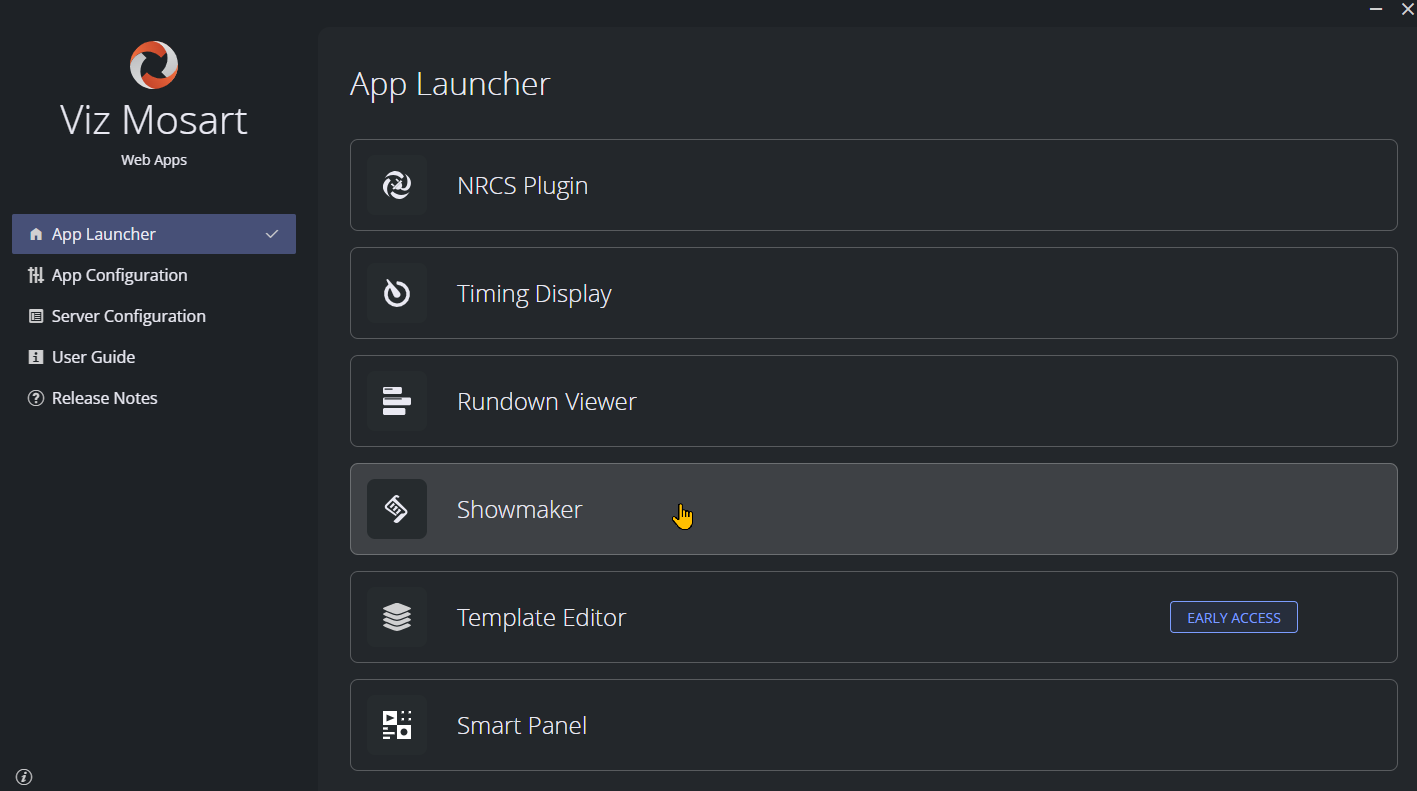
From App Launcher, select Showmaker.
Authentication
Whether you need to sign-in depends on how your administrator has configured Mosart Web Apps.
Authentication off: You reach Showmaker without signing in (default).
Authentication on: From the Showmaker welcome page, you are redirected to your organization's identity provider and sign in there.
Once in, your email appears in the user avatar in the top-right.
Info: Showmaker is one of several Mosart Web Apps, with the same host serving all apps in the suite. Switching between Web Apps does not require further signing-in.
Roles
Your role decides what you can do. When authentication is on, Showmaker reads your role from the identity provider:
showmaker-admin: Full access to create, edit, activate, and put rundowns on air.
showmaker-viewer: Read-only access to browse shows, rundowns and templates. Editing controls are hidden or disabled.
Troubleshooting
If Showmaker opens but you cannot see any shows, or the rundown table cannot reach a Mosart server, the one-off configuration is needed. Please refer to Setup and Administration of Showmaker.
Tour of the Interface
Showmaker has three views.
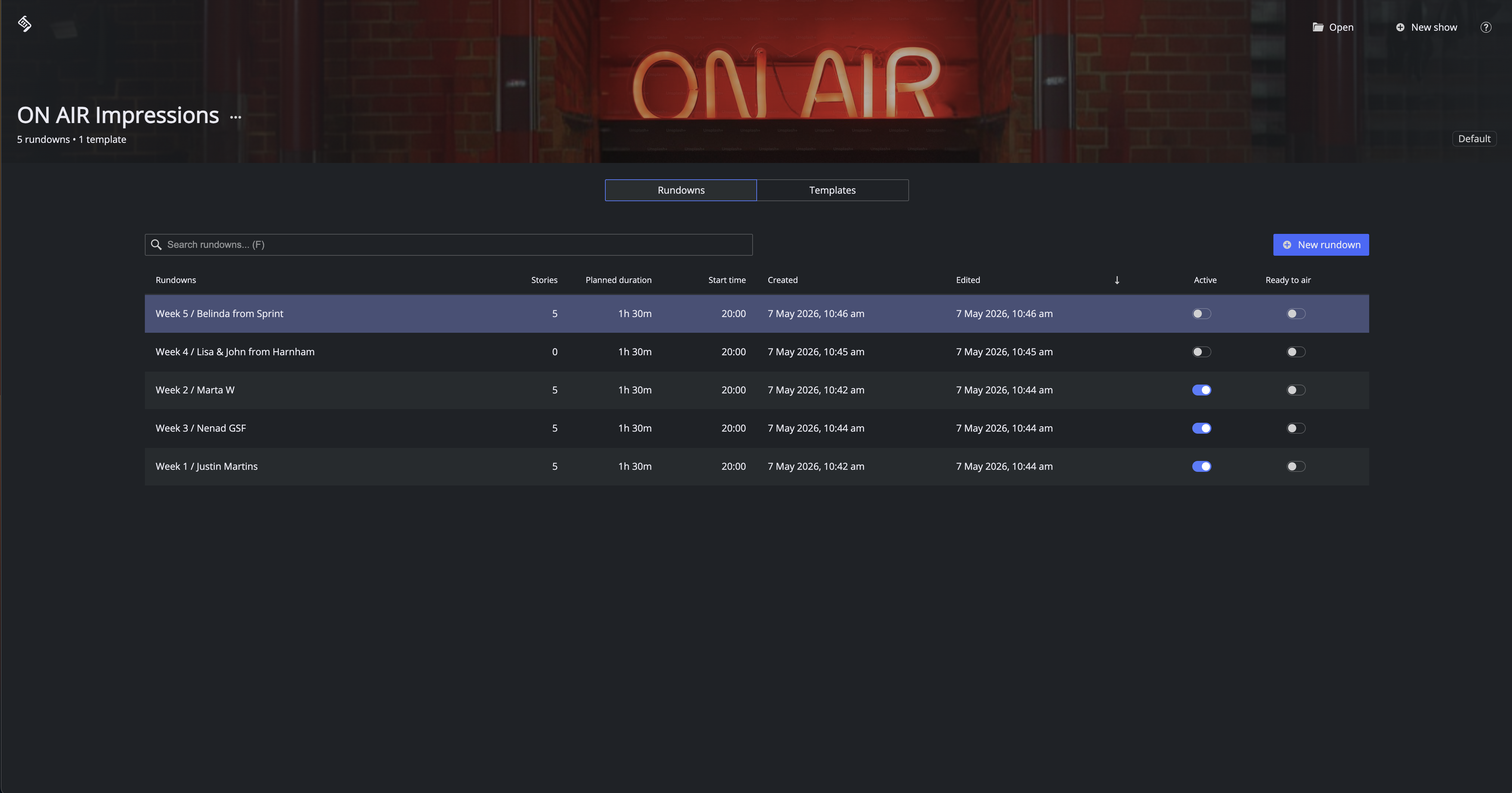
Landing Page
Select a show and browse its rundowns or rundown templates.
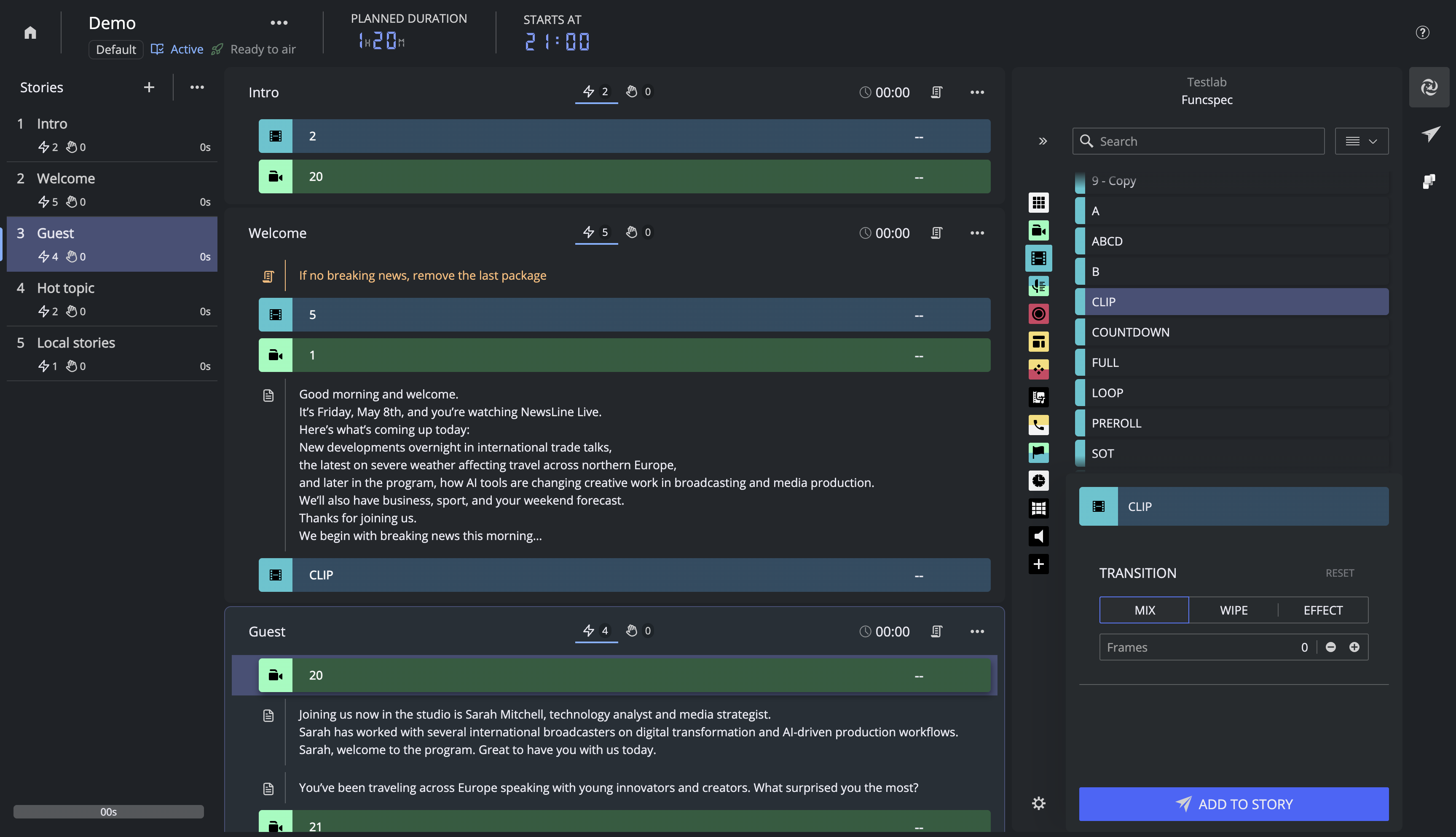
Rundown Page
Build and edit a single rundown.
Rundown Template Page
Build and edit a single rundown template.
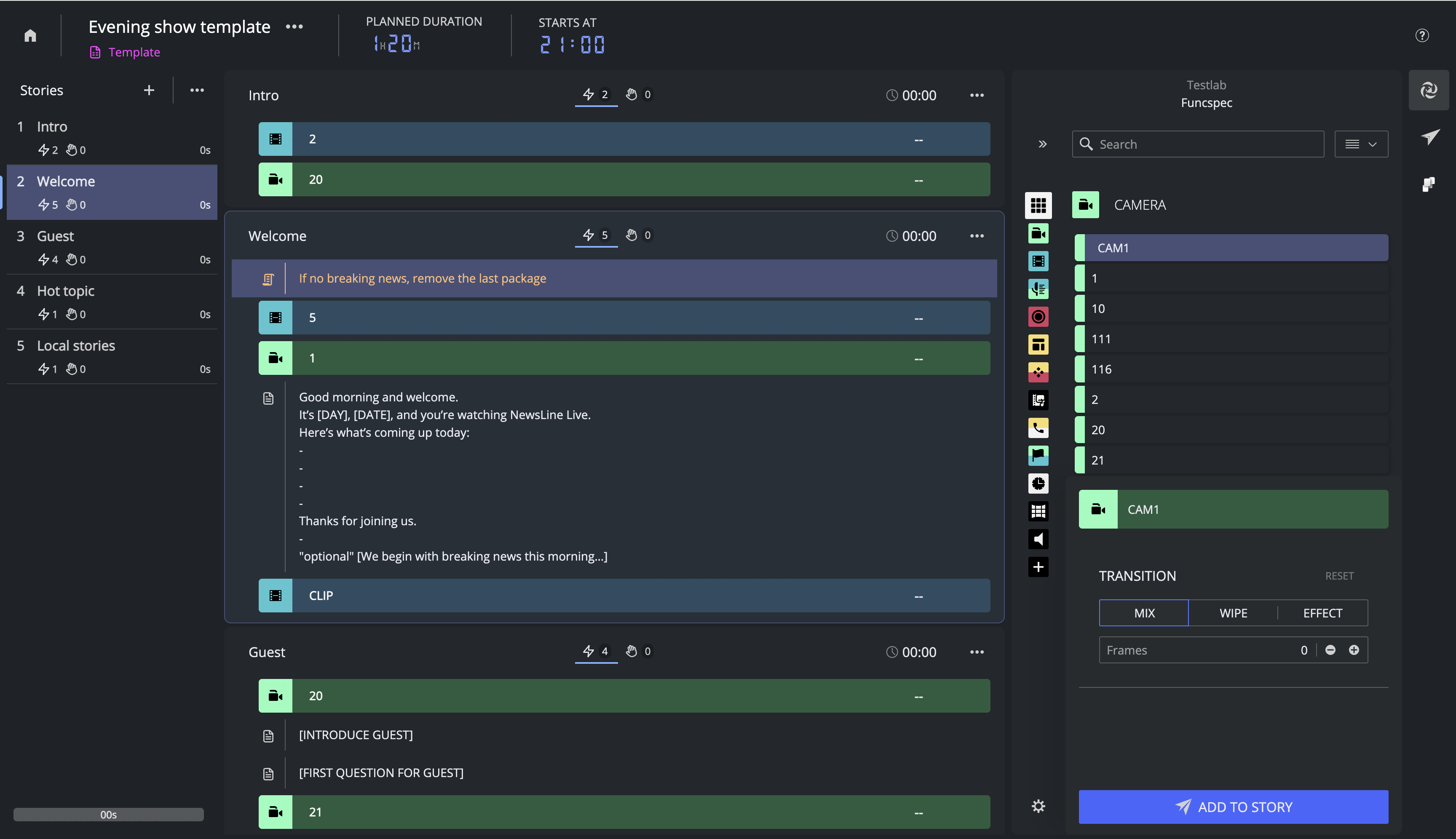
Info: All three pages are described in detail in section Working with Showmaker.
Key Terms
Showmaker organizes your content as a hierarchically. A show contains rundowns, each rundown is made of stories, and each story holds items, notes and content that go on air.
Term | Meaning |
|---|---|
Show | Top-level container. Holds rundowns and rundown templates for a single program or production. |
Rundown | An ordered sequence of stories that Viz Mosart can run on air. |
Rundown template | A reusable rundown structure. You can create a rundown based on a rundown template, for your own use. |
Story | A slice of a rundown. Holds automation items, manual items, graphics, clips and scripts that share a context. |
Story item | One automation step inside a story (a Mosart template instruction). |
Manual item | A story item taken to air by the operator during the show, not automatically executed. |
Story note | Free-text block, pinned to the top of a story. Not sent to Viz Mosart. Can be dragged under an item to convert it into a script. |
Script | Presenter or editorial text attached to a specific item. Sent to Viz Mosart with the rundown. |
Graphic overlay | A Viz Pilot Edge or Viz Flowics element, attached to an item. |
Clip | Video media attached to an item. Can only be added to compatible story item types, for example Package or Voice-overlay. |
Studio | A label (name) that groups one or more MOS devices. For example, the main and backup Viz Mosart servers of a single gallery, or several galleries on one site. |
MOS active | Toggle button on a rundown. When ON, the rundown is synced live with Viz Mosart. |
Ready to air | Toggle button on the active rundown. When ON, this rundown is added to Viz Mosart Rundowns > NCS active > READYTOAIR rundowns. |
On air | Badge on a rundown when Viz Mosart is currently running it. |
Floated story | A story marked to skip during playout. Displayed with diagonal stripes in the story list. |
Your First Rundown
This five minute walk-through introduces core concepts. It assumes your Showmaker is connected to a working Viz Mosart system (see Setup and Administration of Showmaker).
Create a show.
From the landing page, open the Show menu and top-right click New show. Give it Show title My first show, select Studio Default Studio and click Create.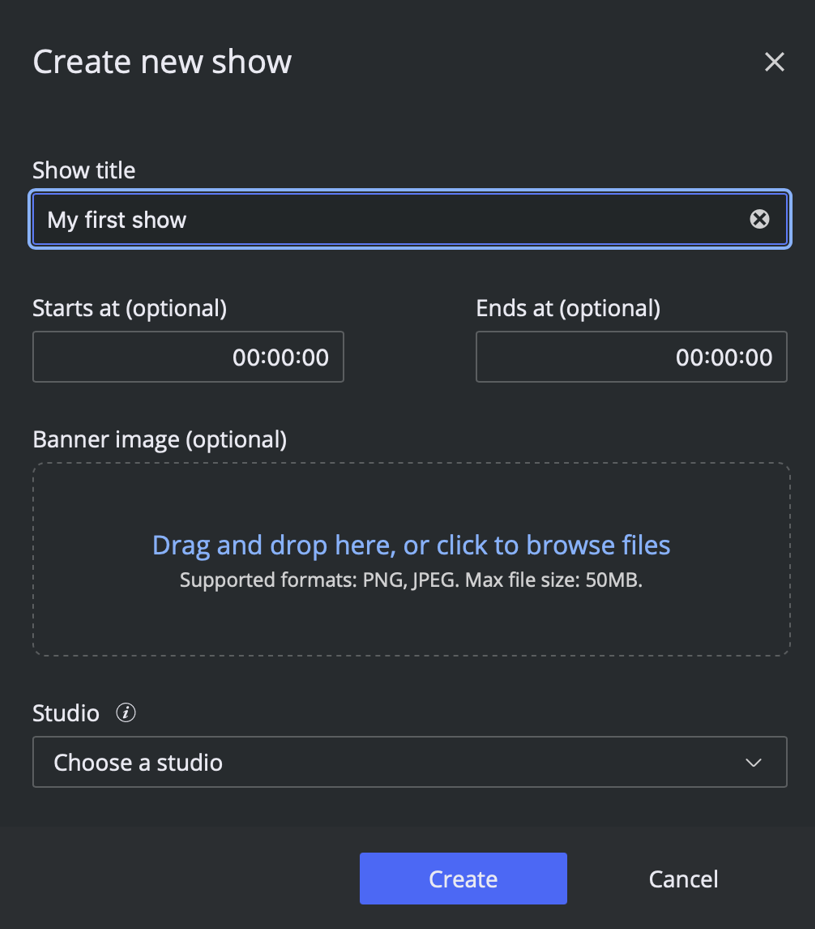
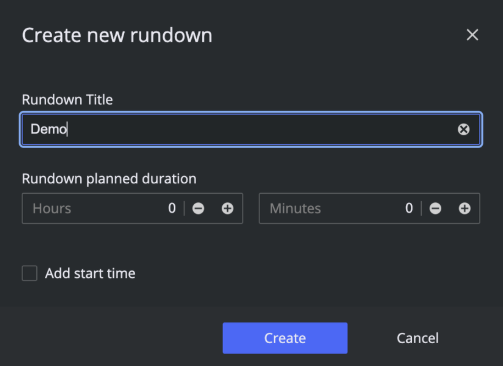
Create a rundown. With the show open, click CREATE NEW RUNDOWN, give it Rundown title Demo, and set a planned duration of 10 minutes. Clicking Create takes you to the Rundown page.
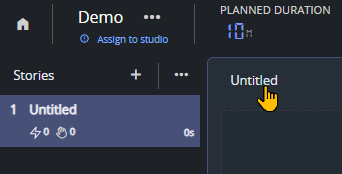
Your first story is already created. Click on Untitled and rename the first story to Intro.
Add an automation item. From the Assets Integration sidebar on the right, open the Mosart NRCS Plugin if it is not already open, then drag a Mosart template (in this example, a green CAM2 template) onto the story. Alternatively, select the template and click ADD TO STORY.
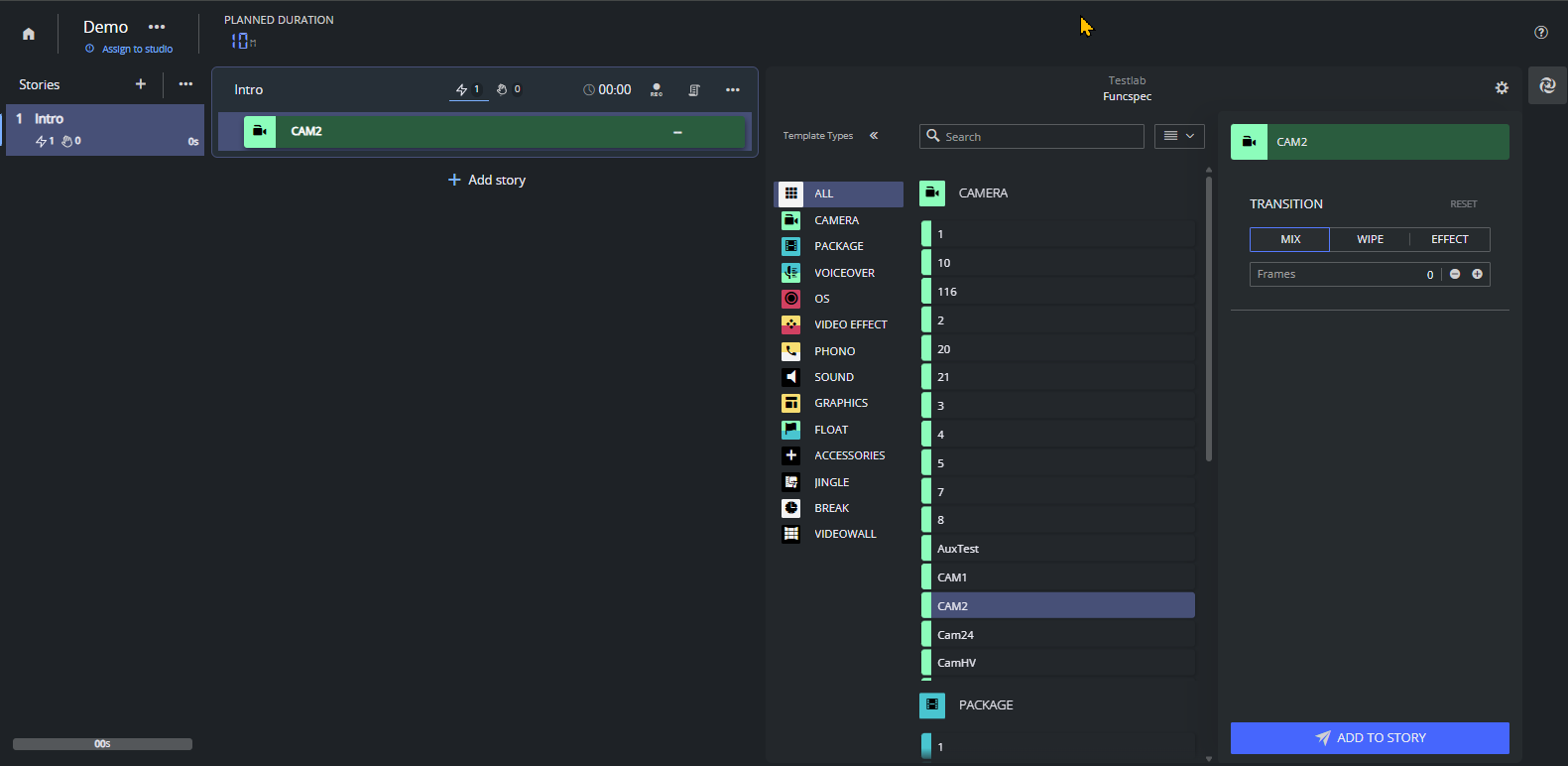
Make the rundown discoverable in Viz Mosart. In the rundown top bar, click the Rundown options button (three ellipses) and toggle Set to active.
The rundown Demo is now synced with Viz Mosart, visible under Rundowns > NCS active > READYTOAIR.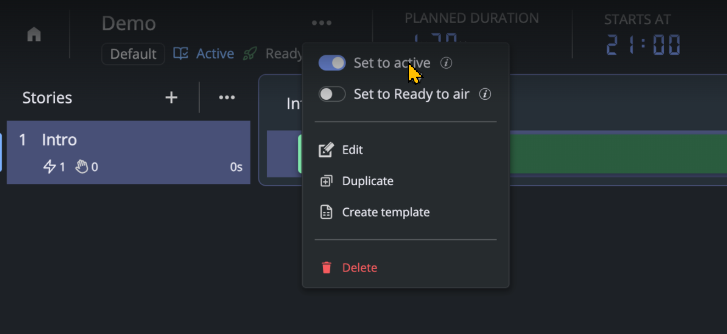
Send it on air. Toggle Set to Ready to air. The rundown is appended to the NCS active > READYTOAIR rundown in Viz Mosart, where the operator can run the added stories.
You have now built and aired your first Showmaker rundown. Dive deeper into any step, with Working with Showmaker.
Getting Help
Help menu: The ? icon in the top-right corner of every page opens a Help menu.
? Option | Opens |
|---|---|
Keyboard Shortcuts | List of available shortcuts. See section Keyboard Shortcuts. |
Documentation | Link to user documentation. |
What's new | Link to Showmaker Release Notes. |
Give feedback | Feedback mail form for the Showmaker team. |
About | Showmaker version and build information. Essential information to include on your Feedback mail form. |