The settings described in this section are specific to the local Viz Trio client and do not affect any other Viz Trio clients using the same Media Sequencer.
This section covers the following configuration topics:
General
To manage General settings
Navigate to General configurations in Trio Configuration by selecting User Interface > General.
Choose from options described below.
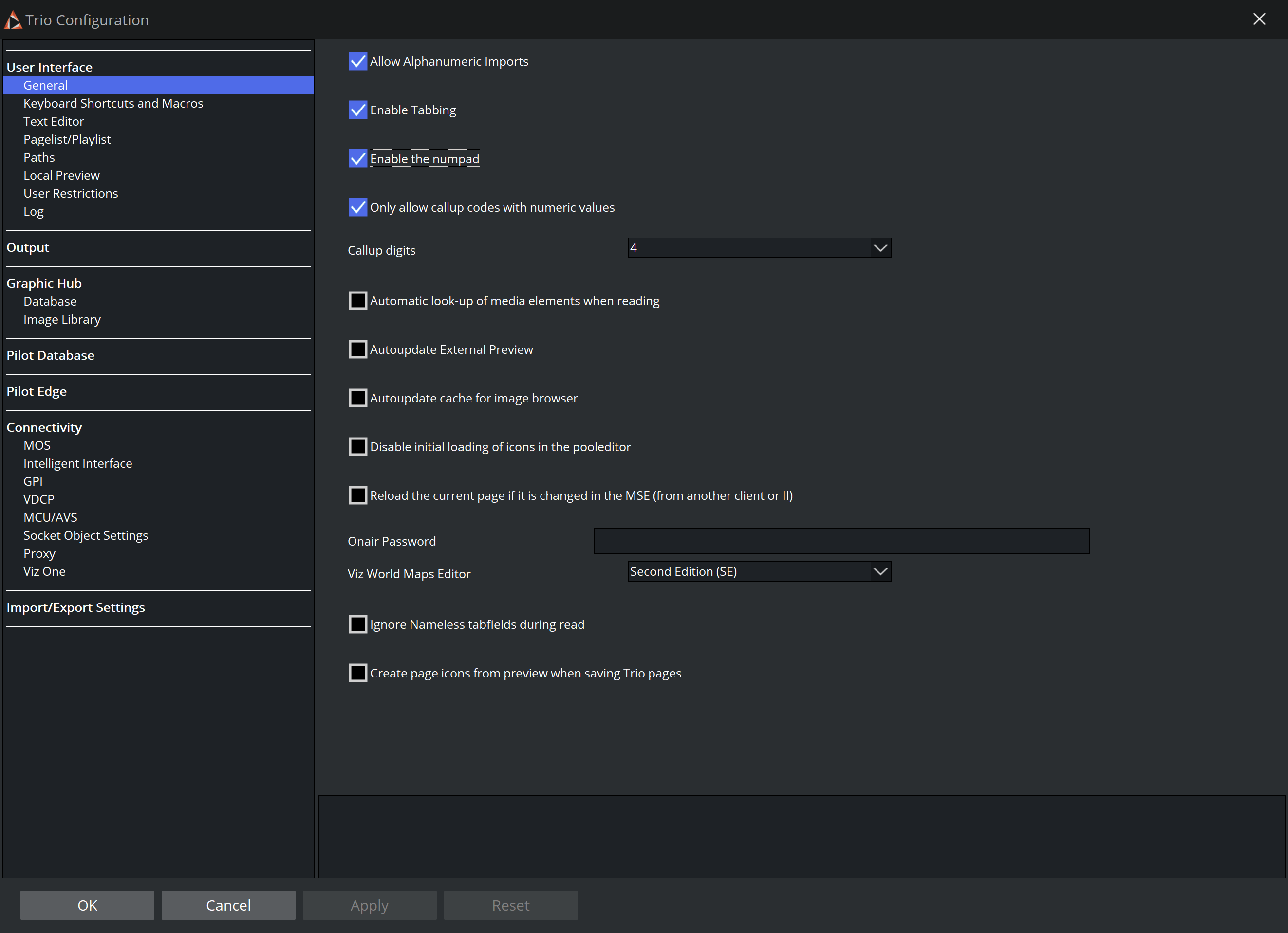
Allow Alphanumeric Imports: Enable or disable import of scenes with alphanumeric names. When disabled, only scenes with numeric names are allowed.
Enable Tabbing: When enabled, tabbing iterates through the tab-fields of the element currently read.
Enable the numpad: When enabled, the numpad types directly into the callup field. Holding down the CTRL button disables this function.
Only allow callup codes with numeric values: When checked, this setting only allows callup codes with numeric values when a page is read or saved. When unchecked, this setting allows all values.
Callup digits: Sets the width of the two callup code edit fields on top of the Viz Trio main window. Selecting 8, for example, produces a wider code field, while selecting 2 produces a narrow code field. This setting has no impact on page name length.
Automatic look-up of media elements when reading: When enabled, this option automatically displays the video in the video search area when a video element is read. Note that this slows down the reading of the element.
Autoupdate External Preview: When selected, the external preview channel is automatically updated when a page is edited in the Viz Trio client. When not selected, the external preview channel only updates its preview when the page is saved.
Autoupdate cache for image browser: When enabled (default), the Viz Trio client updates the local image browser cache automatically and adds any images that are new and updates those that have changed. With very large image trees this update process might slow down the system response. To achieve better system response when the image tree is very large, disable this option.
Disable initial loading of icons in the pooleditor: When enabled, this setting prevents the Viz pool browser from being loaded the first time a tab field, with for example Viz geometries or images, is selected. The icons are loaded when clicking in the browser or changing the path.
Reload the current page if it is changed on the MSE (from another client or II): If this setting is on, the currently read page is reloaded (read again) if it changes on the server.
Onair Password: VizTrio requests to type the password to allow to turn on the ON AIR mode.
Viz World Maps Editor: for a deprecated VizWorldMaps features.
Ignore Nameless tabfields during read: suppress error message about having nameless tabfields.
Create page icons from preview when saving Trio pages: Enables storing thumbnails directly withing the page data. Thus, each page has an icon that reflects the real content of the corresponding page.
Info: The page icons (thumbnail) are stored into an <image> tag inside the XML structure of the page element in the vdomconfig data.
The thumbnail is a Base64-encoded JPEG 160x90px, ~10kb each.
Keyboard Shortcuts and Macros
Navigate to Keyboard Shortcuts and Macro configurations in Trio Configuration by selecting User Interface > Keyboard Shortcuts and Macros.
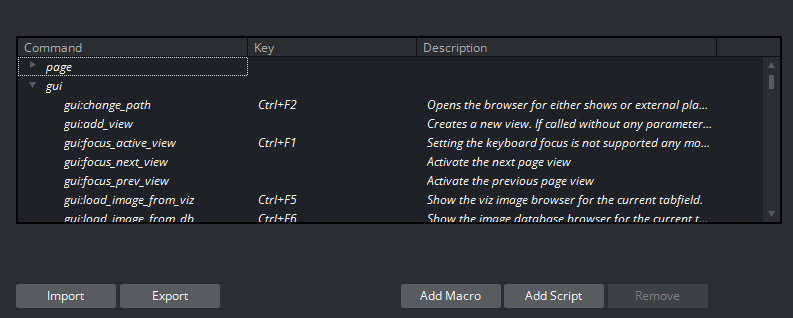
In this section, keyboard shortcuts are defined for various operations. These shortcuts are global, valid for all page folders.
Local keyboard shortcuts can be specified per show by adding keyboard shortcuts and macros under Show Properties.
Working with Keyboard Shortcuts and Macros
To manage keyboard shortcuts and macros
Several operations are available:
Import and Export: Import and export shortcut settings to and from an XML-file for backup, enabling reuse of common configurations.
Info: The keyboard file has a *.kbd file extension.
Add Macro: Allows an operator to write a Viz Trio macro command, and link it to a shortcut key.
Add Script: Allows an operator to write a Visual Basic script, and link it to a shortcut key.
If a key combination is already in use, you are given the option of overriding it. This leaves the other command without an assigned keyboard shortcut.Remove: Customised macros and scripts can be removed by selecting the custom-made shortcut and clicking Remove.
Info: No warning is issued when performing this operation.
IMPORTANT: Avoid using SHIFT in the commands. If you do, the key will no longer function for standard typing (for example, you won't be able to type in uppercase using that letter).
Instead, use Ctrl or Alt.
Tip: Usage hints for the default keyboard bindings:
CTRL + N and CTRL + P are default bound to
tabfield:next_propertyandtabfield:previous_property. They can be used to navigate between several tab-field properties under one tab-field, for example when working with text and kerning.CTRL + TAB and CTRL + SHIFT + TAB can be used to move keyboard focus around inside the tab-field editors.
TAB and SHIFT + TAB can be used to move keyboard focus around as if the page editor is not active or no page is read.
Text Editor
The text editor contains general settings related to text formats and how to replace key characters.
Managing the Text Editor
To configure general Text Editor settings
Navigate to Text Editor configurations in Trio Configuration by selecting User Interface > Text Editor.
Choose from options described below.
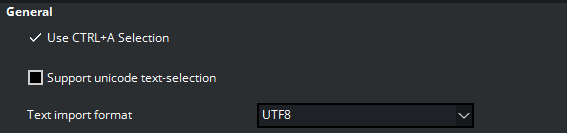
Use CTRL + A Selection: When deselected, the normal key combination for selecting all text, CTRL + A is disabled.
Support Unicode text-selection: Use this setting to enable or disable support for Unicode text-selection. This option is used if the default language for non-Unicode programs in Windows is set to a Unicode language. For example: If copying text from a text editor that by default does not support Unicode language into Viz Trio. The representation of text would not be correct.
Text import format: This option allows a character set to be specified for text imported and interpreted by Viz Trio. By default this is set to UTF-8.
To configure Word Replace settings
Word replace allows key characters to have replace words defined. The text editor matches the typed character with the list of key characters configured, and displays the corresponding replacement list. The word correction function is case sensitive, making it possible to define replacement options for both lower and upper case letters. The list of word correction options is local.
The list of replacement options becomes available in the text editor when running the
text:show_replace_listcommand.
See section Keyboard Shortcuts and Macros to define keyboard shortcuts.Choose from options described below.
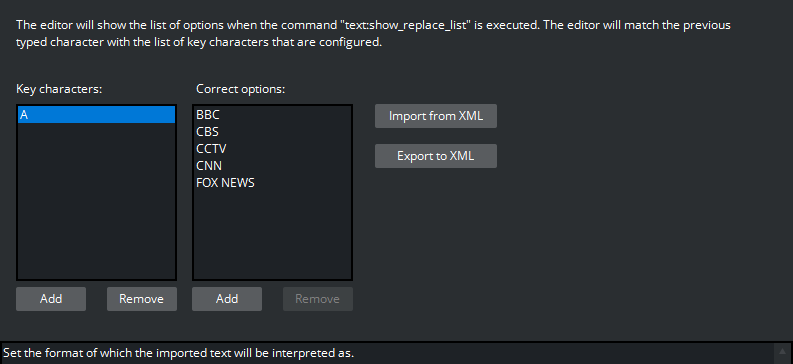
Key characters: List of defined replacement key characters.
Correct options: List of replacement options corresponding to selected Key character.
Add:
To add to Correct options, a key character must first be added, or an existing Key character selected.
Select an item in Correct options and click Add.
Remove: Select a list item and click Remove.
Folder: Imports a predefined list, as previously exported to an XML file.
Save: Exports the predefined list to an XML file.
XML Example
<entry name="customcharacters"> <entry name="A"> <entry name="CBS"></entry> <entry name="CNN"></entry> <entry name="BBC"></entry> <entry name="ITN"></entry> <entry name="NBC"></entry> <entry name="NRK"></entry> <entry name="YLE"></entry> <entry name="SVT"></entry> <entry name="CCTV"></entry> <entry name="TV2"></entry> <entry name="ZDF"></entry> <entry name="RTL"></entry> </entry></entry>Page List/Playlist
To configure Page List/Playlist settings
Navigate to Page List/Playlist configurations in Trio Configuration by selecting User Interface > Page List/Playlist.
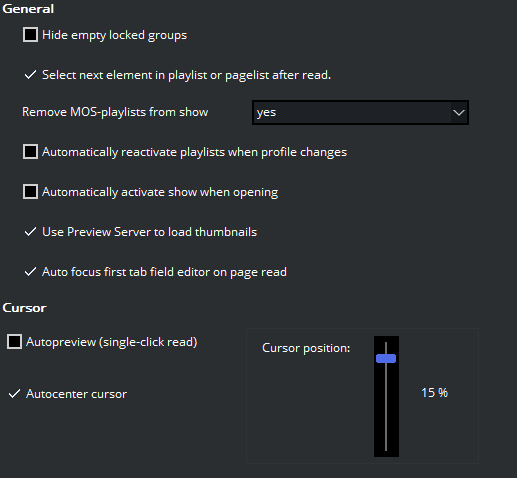
Hide empty locked groups: Prevent locked groups with no pages from being displayed in the page list.
Select next element in playlist after read: When enabled, the next element in the playlist is automatically selected after a read operation.
Remove MOS-playlist from show: Removes newsroom playlists that are monitored using the MOS protocol, when the show is closed. When set to Yes, this also affects other clients connected to the same Media Sequencer. Available options: Yes, No, Ask.
Automatically reactivate playlists when profile changes: When enabled, active playlists are reactivated when the current profile is changed.
Automatically activate show when opening: When enabled, automatically activate the show when opened.
Note: This option, if selected, can place a high load on Media Sequencer.
Use Preview Server to load thumbnails: When selected, use Preview Server to load thumbnails.
Auto focus first tab field editor on page read: When selected, automatically switch focus from the page list or playlist, to the page field of the selected page.
Autopreview (single-click read): When enabled, a page is read as soon as it is selected.
Autocenter cursor: When selected, the cursor has a static position when the page list is longer than the Page List window. In these situations the window displays a scrollbar on the right side and, as long as some pages are hidden in the direction the list is browsed, the cursor remains static and instead the list items move. When the last item is revealed, the cursor starts to move again.
Paths
This section describes directory settings for several functions. These settings are all local to the specific Viz Trio client.
To configure Path settings
Navigate to Paths configurations in Trio Configuration by selecting File > Configuration > User Interface > Paths.
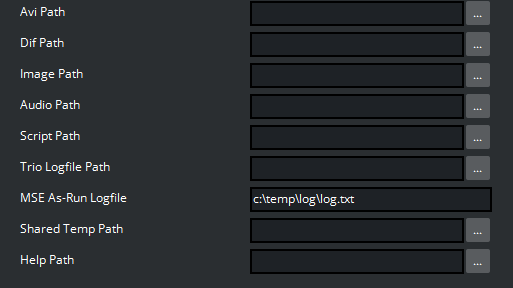
Avi Path: Default location when browsing for AVI files.
Dif Path: Default location when browsing for DIF files.
Image Path: Default location when browsing for Image files.
Audio Path: Default location when browsing for Audio files.
Script Path: Default directory to file-based scripts that assigned to a Viz Trio show and/or template.
Trio Logfile Path: Path to the directory where the Viz Trio client stores log files. For more information, see Changing the Log File Path.
MSE As-Run Logfile: Path to Media Sequencer as-run log file. This log file offers a Media Sequencer logging mechanism for all elements taken on air. The as-run log file is an additional debugging tool that a Viz Trio administrator can enable for verifying correct communication between Media Sequencer and the playout engine. The file name may be given with either relative or absolute path.
Info: MSE As-Run Logfile
This is a global setting, affecting all clients connecting to the specified Media Sequencer.
The as-run log file is on the Media Sequencer host, not the local Viz Trio machine.
Read more about the as-run log file in the Media Sequencer documentation at http://<mse-host>:8580/mse_manual.html#as-run-log.
Shared Temp Folder: Used for temporary files when importing or exporting Viz Trio shows on an external Viz Engine. This folder must be a network share accessible to both the client and the external Viz Engine.
Help Path: Sets the path for the main help file. Help opens when pressing F1 or when selecting Help > View Help in the main menu.
Local Preview
To configure Local Preview settings
Navigate to Local Preview configurations in Trio Configuration by selecting User Interface > Local Preview.
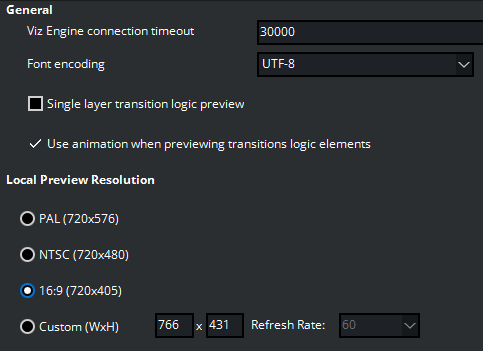
Viz Engine connection timeout: Number of milliseconds until the local Viz Engine renderer times out. Changes to this setting requires a restart of Viz Trio.
Font encoding: Font encoding format of text sent to the local preview. This setting overrides the local Viz Engine preview and requires a restart of Viz Trio to take effect.
Info:
This does not have an effect on remote Viz Engines, so font options for Viz Engine must be set accordingly.
The Viz Trio interface only supports the font encoding set for the operating system under the Regional and Language Options settings
(regarding support for complex script, right-to-left and East Asian languages).
Single layer transition logic preview: Enable previewing of single-layer pages in the background scene. If this setting is disabled, only Combo pages are previewed in the background scene.
Use animation when previewing transitions logic elements: If unselected, transition logic animation is skipped for the local preview. This requires that each foreground scene defines a pilot1 tag on a Director.
By default, this setting is selected.Local Preview Resolution: In this local preview section, you can specify aspect ratio and systems refresh rate (normally 50 for PAL and 60 for NTSC).
User Restrictions
In the User Restrictions section, an administrator can deny the operator performing certain Viz Trio actions.
To configure User Restriction settings
Navigate to User Restrictions configurations in Trio Configuration by selecting User Interface > User Restrictions.
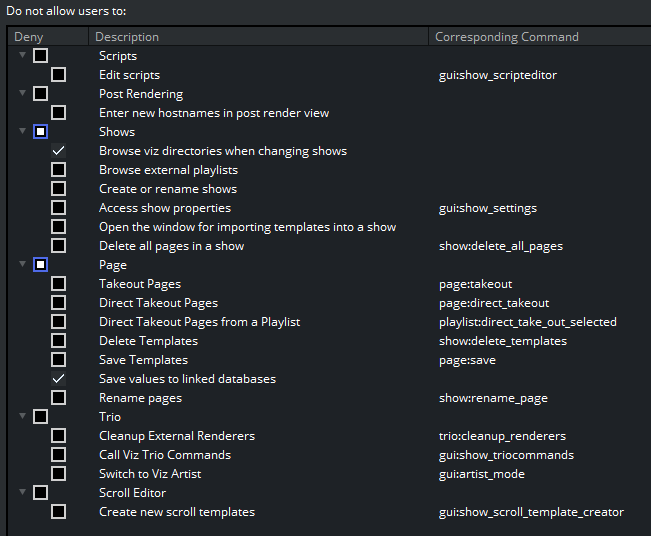
Page:
Delete Templates: When selected, prevents the operator from deleting templates from the show. Command:
show:delete_templates.Direct Takeout Pages: When selected, prevents the operator from issuing a direct take out command on pages in a show. This also disables the context menu option for the show. Command:
page:direct_takeout.Direct Takeout Pages from a Playlist: When selected, prevents the operator from issuing a direct take out command on pages in a playlist. Command:
playlist:direct_take_out_selected.Rename pages: When selected, it is not possible to rename saved pages in the page list.
Save values to linked databases: When selected (default), prevents the operator from saving values back to the database.
Takeout Pages: When selected, prevents the operator from using the Take Out command. This also disables the Take Out button in the Page editor. Command:
page:takeout.Save Templates: When selected, the user cannot save modifications to a template. Command:
page:save.
Post Rendering:
Enter new hostnames in post render view: When selected, prevents the operator from adding new hostnames to the Render Videoclip editor.
Scripts:
Edit scripts: When selected, prevents the operator from editing the script using the Edit Script button in the Page editor. Command:
gui:show_scripteditor.
Scroll Editor:
Create new scroll templates: When selected, prevents the operator from creating new scroll templates. Command:
gui_show_scroll_template_creator.
Shows:
Access Show Properties: When selected, prevents the operator from accessing the Show Properties. Command:
gui:show_settings.Browse external playlists: When selected, disables the Playlists tab under Toolbar, and consequently preventing the operator from browsing for playlists on Media Sequencer.
Browse viz directories when changing shows: When selected, disables the Viz Directories tab under Toolbar, and consequently preventing the operator from browsing the Viz directory to set a show path.
Create or rename shows: When selected, prevents the operator from creating new Shows or renaming existing shows.
Delete all pages in a show: When selected, prevents the operator from selecting and deleting all pages in the show in one operation. Normal page by page and page group deletion is still possible.
Open the window for importing templates into a show: When selected, prevents the operator from importing new scenes from Graphic Hub (Viz 3.x) or the data root (Viz 2.x).
Trio:
Call Viz Trio Commands: When selected, prevents the operator from manually calling Viz Trio Commands. This does not prevent scripts from doing the same. Command:
gui:show_triocommands. See Working with Macro Commands.Cleanup External Renderers: When selected, prevents the operator from issuing a cleanup renderer command. Command:
trio_cleanup_renderers.Switch to Viz Artist: When selected, prevents the operator from switching to Viz Artist mode. Command:
gui:artist_mode.
Log
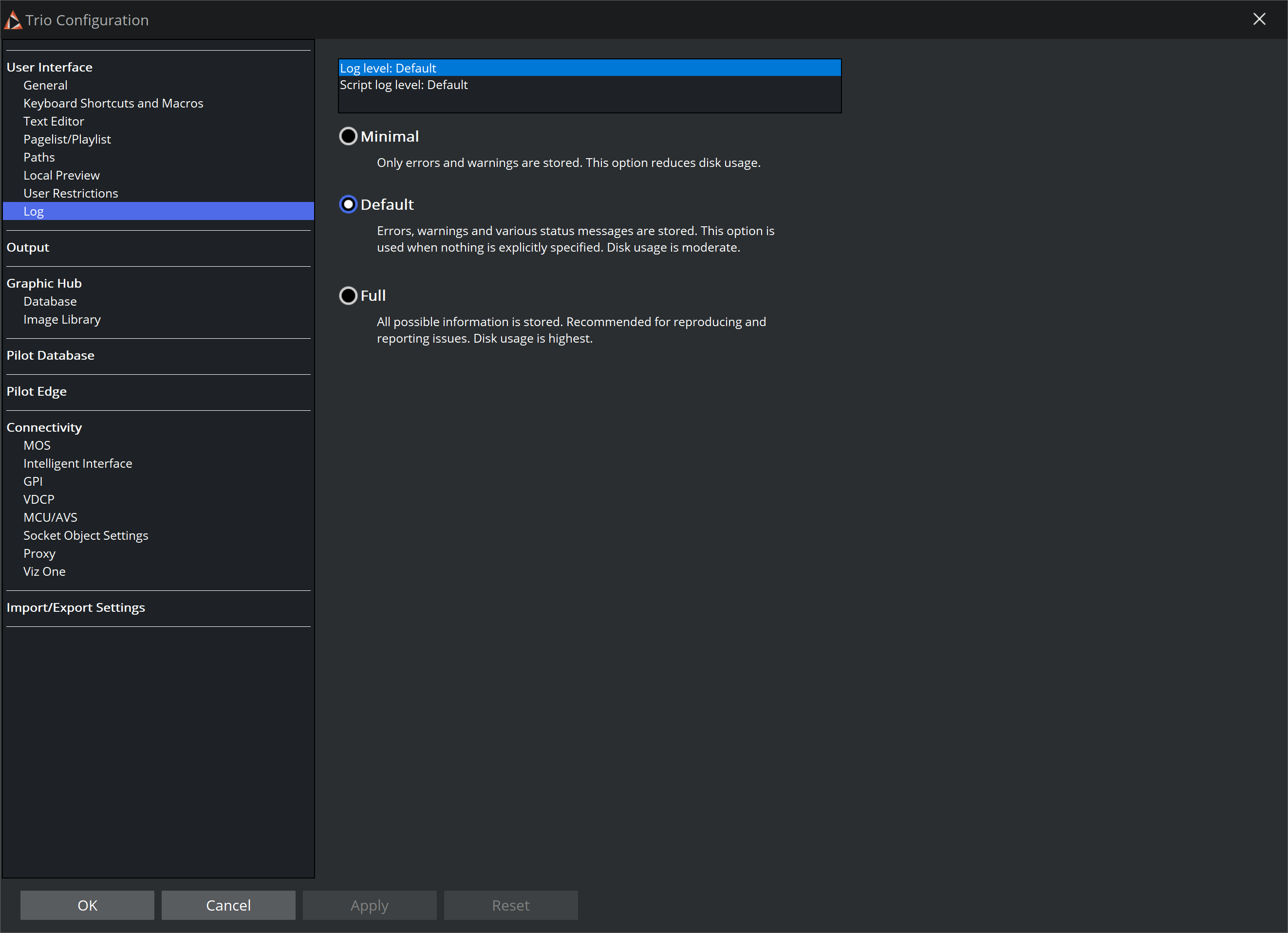
These settings define levels for regular logging and logging when a script is executing. Select corresponding item to edit its value. The values here are auto-applied.
To configure Log settings
Navigate to Log configurations in Trio Configuration by selecting User Interface > Log.
Select
Log level default or
Script log level Default.
Choose level.