Story Recorder enables recording and clip generation from a running Viz Mosart-driven show. It provides frame-accurate tracking of operator Take next commands, recording of story takes and retakes, and maintains an Edit Decision List (EDL) arranged in order of the taken items. Story Recorder also controls video recorders to capture PGM outputs, including clean and dirty feeds, enabling clip generation at item, story, or show level. A single story, or a collection of rundown stories can be individually published as a clip or he entire show can be combined into a single, show-level output. Story Recorder supports multiple output capabilities, from exporting clips to online platforms, to generating EDL files for post-production and third-party integrations.
Introduction to Story Recorder
Story Recorder mode expands Viz Mosart's traditional role as a tool for managing live productions, to also support prerecorded productions and story-level clip generation. The producer benefits from both the failsafe, timely execution of gallery equipment operations and an ability to pause and backtrack when an improvement to the ongoing recording of a show is identified.
Story Recorder supports two main production workflows and an additional EDL output. Each can be enabled independently using the Mosart central Settings menu.
Workflow | Level | Resulting Output |
|---|---|---|
Story clip production and publishing | Story | Stories marked for recording in the NRCS are individually recorded and published as clips, either during a live broadcast or in an offline session. |
Show clip production with pause and retake | Show | Full show recording with ability to pause, retake, and backtrack. An EDL is broadcast to a Vantage transcoder, which stitches all segments into a final clip. |
Mosart EDL generation | Item, Story, Show | Generates JSON-format EDL files locally, for post-processing, transcoding, or third-party integrations. |
Story Recorder has been designed with a flexible output architecture. For the full table of validated NRCS, recorder, and transcoder combinations for each workflow, see Currently supported configurations in the Administrator Guide.
Info: All equipment involved, including the Mosart server machine and the recording system, must be connected to the same genlock network and master clock.
In the Viz Mosart Administrator Guide see
section Frame Accurate System Operations under Operational Examples.
section Story Recorder Setup for all other setup and configuration requirements.
Info: Operating Viz Mosart in Story Recorder mode requires an additional license.
Please contact Vizrt support.
The following sections introduce Story Recorder with examples of common production scenarios:
Story Recorder Highlights
Frame accurate
Studio equipment operations are synchronized down to frame-level for a core set of devices (video switcher, video server, audio mixer). This enables precise cuts and transitions for the supported template features.Multiple output options
Clip generation using Mimir or TriCaster, and EDL output in Vantage or Mosart format. Multiple outputs can be active simultaneously.NRCS integration for story-level recording
Stories can be marked for recording in the NRCS or rundown editor (Saga, Vizrt’s Showmaker), and these are visualized directly in the Viz Mosart Rundown view, with a REC indicator.Records both clean and dirty feeds
As well as the current show with all graphics (dirty), Story Recorder retains a clean feed that can for example, be rebranded, or reused in another language.Pause, retake, and backtracking (Vantage EDL workflow only)
When producing a final show clip with Vantage, the recording can be paused at any point and resumed from a selected Retake point. Story Recorder tracks back along the timeline, restoring the state of graphics, audio, and other attributes. An automatic snippet generator provides a short review clip of the cut point after a retake, and video/audio devices plus graphics are reset to a known state before recording resumes.Inbuilt file housekeeping
Recorded video files are always large. Viz Mosart offers an active purging regime to optimize disk space.Timing information
Clear display of over/under countdown timers and accumulated record time of the show.Future-proof design
Story Recorder has been purposefully designed with a flexible interface to third party systems like editors, transcoders and asset management.Keyboard shortcuts and control commands
Several keyboard shortcut options and control commands are available for Story Recorder, to ease day-to-day operation. Story Recorder mode, for example, can be toggled on/off via the UI switch, a keyboard shortcut, or a template control command.
The Story Recorder Panel
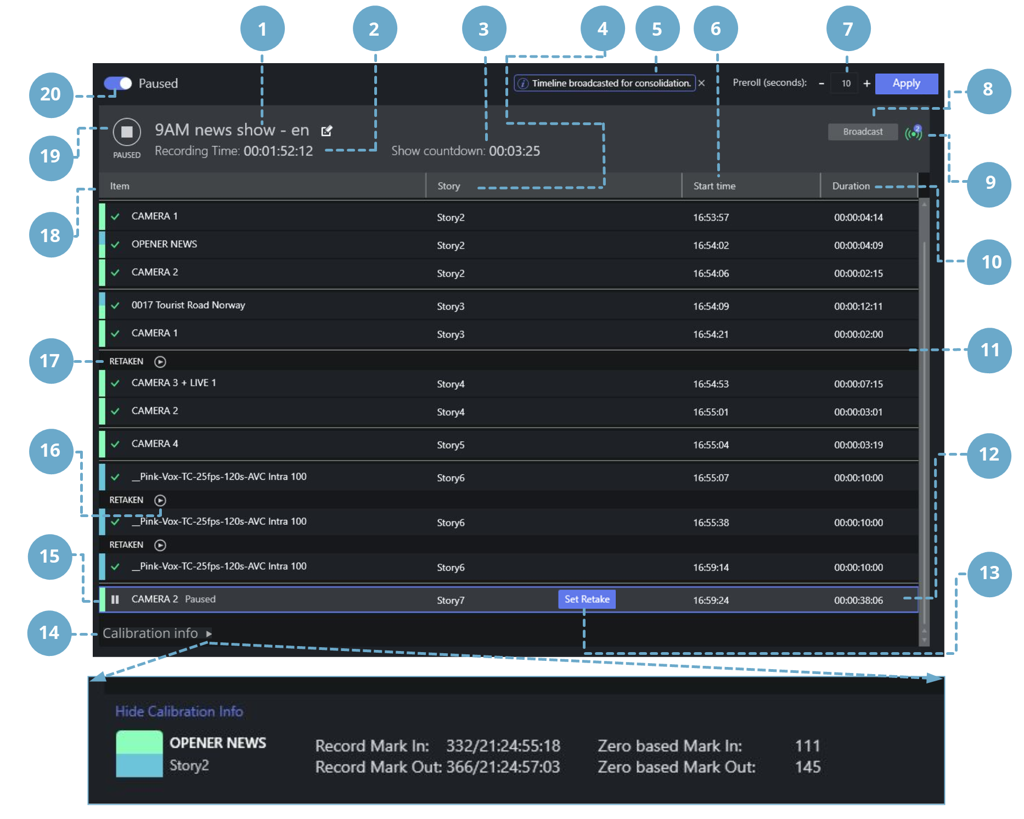
The Story Recorder panel provides a real-time view of the EDL as it is being built during a recording session. It displays each story item and story as they are recorded, together with start times, durations, and recording status. The panel is primarily used with workflows that produce an EDL output (Vantage or Mosart format), where the operator can pause the timeline, select retake points, and resume recording. At the end of the show, the completed EDL can be broadcast to the Vantage transcoder for stitching into a final clip, or exported as a Mosart EDL file.
Feature | Explanation |
|---|---|
1 | Editable reference name for the show's EDL files and final clip. |
2 | Recording time. Total duration of recorded show, so far. |
3 | Show countdown timer. Remaining time of show, based on planned show duration provided from the NRCS. |
4 | The story slug, as provided in the NRCS. This column can be resized and re-positioned. |
5 | Notifications area. |
6 | The local (wall) time when the item was taken to PGM in format HH:MM:SS. |
7 | Preroll duration adjustment (seconds). Press Apply to set a non-default (10 seconds) value. |
8 | Broadcast the show EDL to subscribers. For the time being, the EDL is only saved to a configured output folder where it can be picked up by a subscribing system — for example a Vantage transcoder ( |
9 | Number of successful broadcasts. |
10 | Duration of the story item in format HH:MM:SS:FF (frame count only shown after the item is paused/ recorded). |
11 | Story separator |
12 | Grey coloring: The selected item row |
13 | Selection of the Retake point. |
14 | Toggle switch for the appearance of calibration details which can help with the initial calibration setup of Story Recorder.
|
15 | Blue border: The first item that will be retaken (the Retake point). |
16 | Play a 10 second snippet to review the cut point. |
17 | Separator, indicating a cut (a retake) and marker for a retake point. |
18 | Name of the story item that is identified by a primary Viz Mosart template and template variant. |
19 | Record | Pause button and status indicator. |
20 | Story Recorder On | Off switch. |
Stories Marked for Recording in the Mosart UI
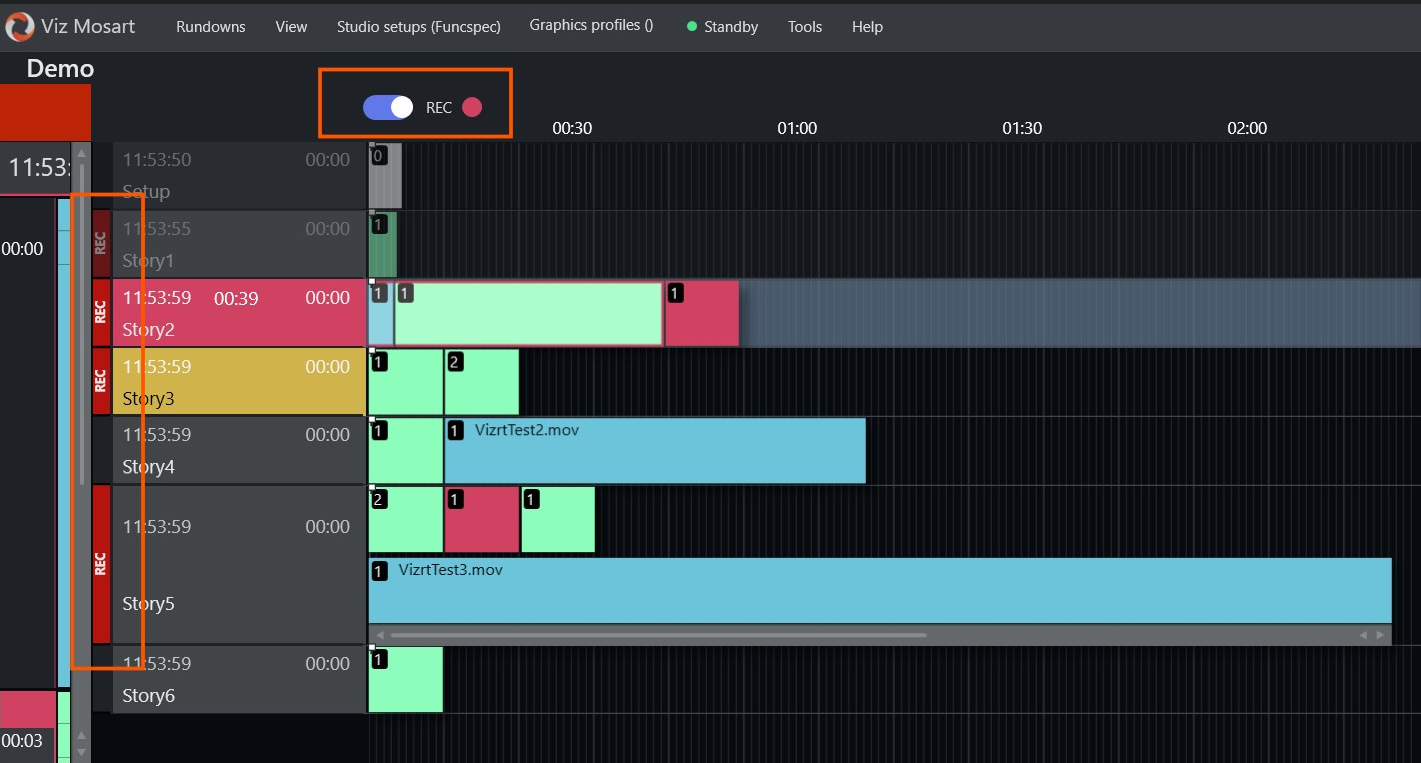
When using the story clip production and publishing workflow, stories can already be tagged for recording in the NRCS (for example Vizrt’s Showmaker, or Saga). When a rundown that contains tagged stories is loaded in Viz Mosart, these stories display with a REC indicator in the main timeline view.
A Story Recorder Mode toggle at the top of the Viz Mosart timeline also indicates whether the rundown includes stories to be recorded.
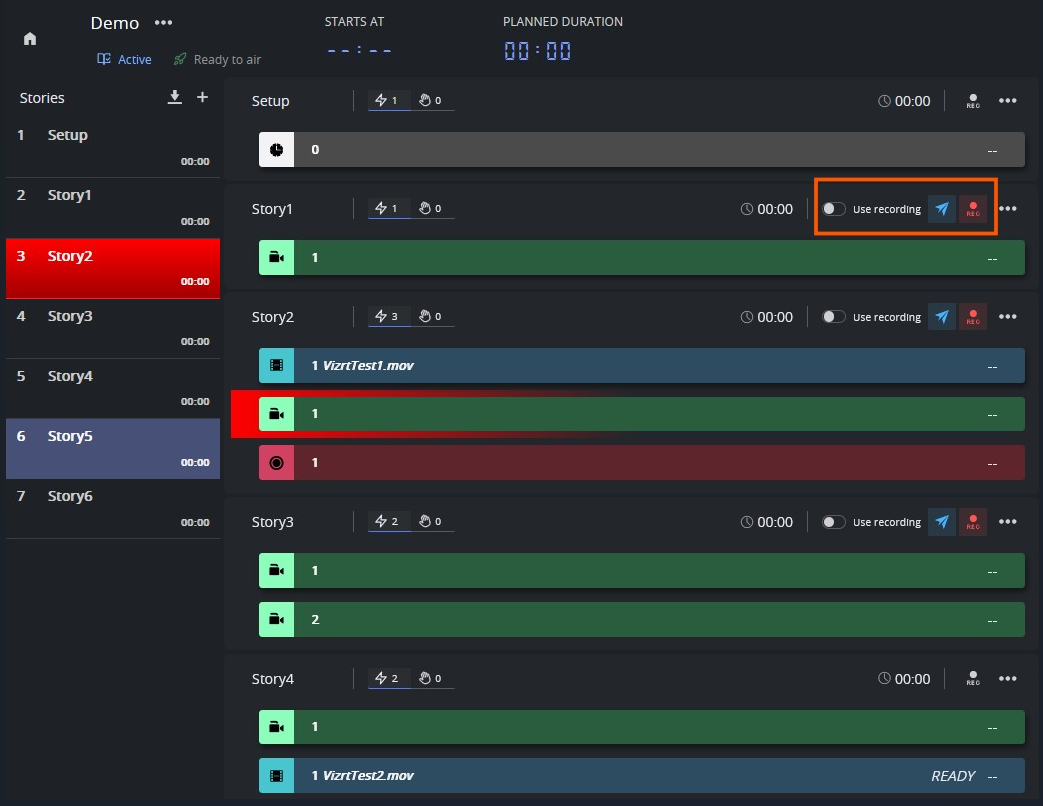
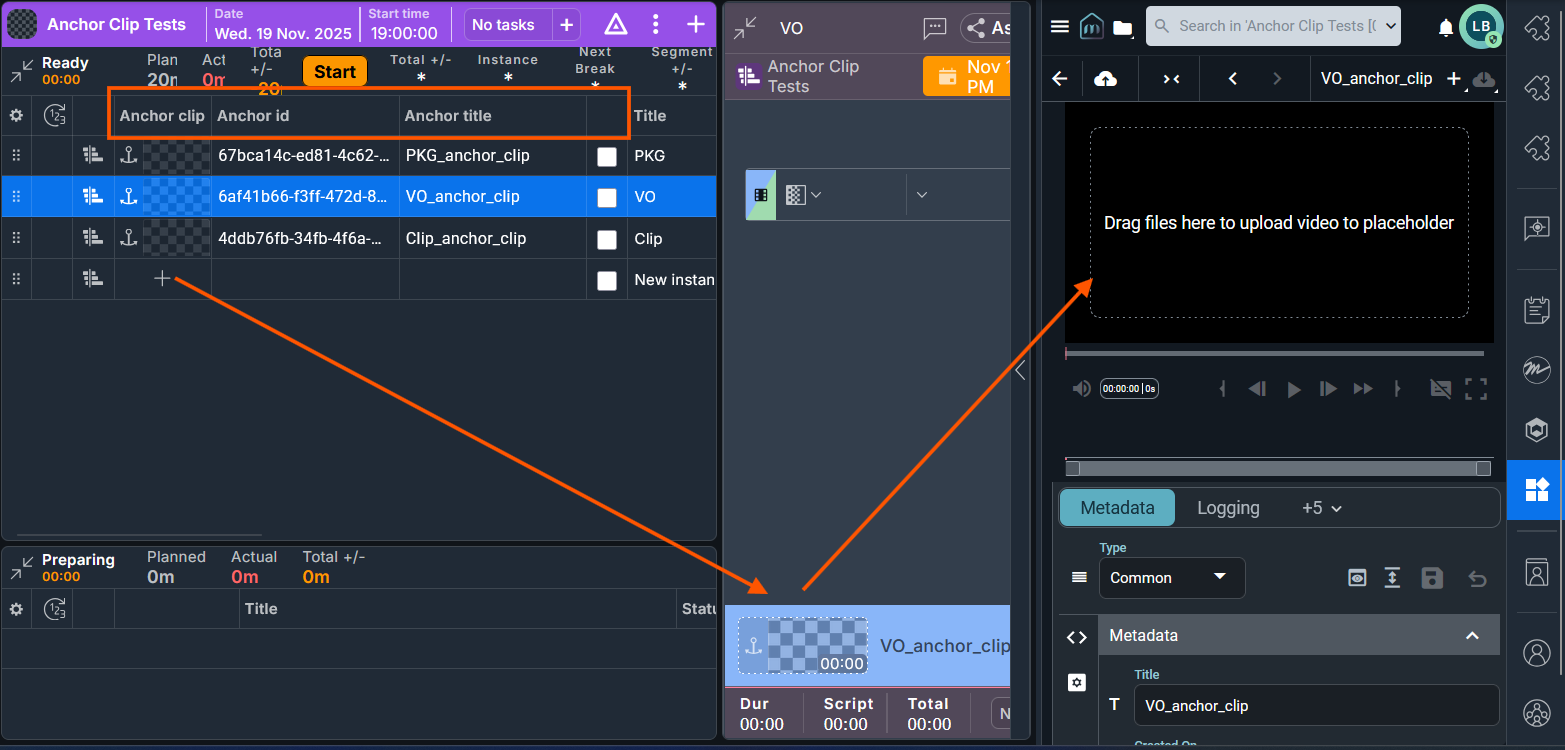
See Working with Story Recorder for an introduction to Story Recorder, with examples of common production scenarios.
Definitions
To help you around the following sections, here are some terms used specifically within context of Story Recorder.
AsRunLog: Viz Mosart’s internal log of show recording events, with timestamp.
Events are internal technical transactions, for example RUNDOWN_STARTED, RUNDOWN_ENDED, STORY_STARTED, STORY_ENDED.Clean feed: An SDI video signal that does not have any added (burned in) graphics or text.
Consolidation: Stitching. The process that begins in the background with ongoing generating of an EDL file that holds all the timecodes of the Mosart primary events that were sent to PGM.
The EDL assets (all recordings, including clips, cuts and graphics) are sent to a transcoder where they are rendered into a single clip.Dirty feed: The stream on PGM, program circuit or on-screen graphics (even when there is no commentary or atmospheric sounds).
EDL: Edit Decision List. Video editing involves listing timecodes of specific frames at the point where video edits are to be made. These edit points form an edit decision list, used in the post-production process of the show or video editing.
In the simplest case, these points are written on paper, but usually are stored as metadata in a file that can be used by an NLE or transcoder.Frame: The smallest measurement in a timecode, precisely specifying a single and complete video picture, comprising two interlaced fields.
Frame accuracy: Ability to edit media and control associated studio equipment with timecodes defined to frame level, that will always trigger at the start of the specified frame. This enables seamless cuts and transitions, whilst ensuring predictable, synchronized equipment behavior.
GUI: Graphical User Interface. In this context, usually the Viz Mosart client.
LTC: Linear (or Longitudinal) Time Code, a timing signal (for synchronization) embedded in audio recordings.
NLE: Non linear editor. An editing station, for example Adobe Premiere Pro.
NRCS: Newsroom control system. Planning utility for show design. Can also refer to Vizrt's Showmaker.
Pause: The operation of stalling recording of the current story row. For the Vantage workflow, this operation also initiates backtracking to the start of the interrupted story item (primary template), and insertion of a pre-roll event in front of this primary template.
Pre-roll: A ten second (by default, but may be different on your setup) period that a camera (anchor) is given to prepare in a video production, before the production is live. At pause, this period is also used behind the scenes for the technical setup (studio equipment, clip players, graphics players, recorders and transition continuity etc.) to be made ready for the new take.
Pre-roll item: A pseudo-template which, at pause, is inserted in front of the interrupted primary item of the executing story.
PRG: Program
PRV: Preview
Recorded segments: The usable parts that get stitched together to build the final clip from the recorded show.
Rendering/Stitching: A transcoding task where clips are joined to form a single file, based on cut points and metadata contained in the session's EDL.
Story: A Viz Mosart equivalent of an NRCS-created MOS story. It covers a single topic (for example, an interview) comprising several items (for example, multiple camera scenes).
Story item: A single element of a story (for example, a single camera scene) associated with a discrete Mosart template.
Timecode: Exact position of a frame in a recording, used to locate a recorded point. Can be relative (to the start of the clip) or absolute (time of day of the recording) or based on another reference, such as studio clock (wall) time. Used to synchronize when referencing all audiovisual media, for example, video, audio, captions, visual effects, and more.
Timeline: A chronological display of on-air events (for example, story items) showing their start time and duration. In the Story Recorder window, these are represented by rows.
Transcoding: Digital-to-digital file format conversion from one standard of encoding to another. For example, a movie file encoded for the PAL system can be converted to NTSC, or mxf to mp4 video. Also audio files and character encoding (for example, UTF-8 to ISO/IEC 8859).
VITC: Vertical Interval Time Code, (pronounced vit-see) is a timing signal embedded in a video recording.