This section describes how to set up and configure Story Recorder in Viz Mosart. Story Recorder settings have been consolidated into Manus Settings, providing a centralized UI for managing all output workflows and their parameters.
End user (Viz Mosart operator) documentation for Story Recorder is provided in the section Story Recorder of the Viz Mosart User Guide.
Prerequisites
Installation order
When Viz Mosart UI, Audio Player, and Server are installed on the same machine, install Viz Mosart Server last. The Mosart Logging Service must point to the Server installation folder, because the Story Recorder adapter runs on the Server side. See System Logging for details.
See Story Recorder Setup#Currently-supported-configurations for which product versions to use for different Story Recorder workflows.
The Viz Mosart system is already fully operative in live (non-Story Recorder) mode.
The system, including studio equipment, has been calibrated for frame-accurate operations, as described in section Frame Accurate System Operations.
A dedicated show design for Story Recorder has been prepared. Story Recorder operates in frame-accurate mode, which introduces latency compensation on primary events. Some templates and features available in Standard mode may not be supported in frame-accurate mode — the show design must account for these differences.
An operating license is obtained from Vizrt Support.
Currently supported configurations
Story Recorder supports three output workflows, each targeting a different production need:
Story clip production and publishing
Stories marked for recording in the NRCS are individually recorded and published as clips, either during a live broadcast or in an offline session.Show clip production with pause and retake
Full show recording with the ability to pause, retake, and backtrack. An EDL is broadcast to a transcoder that stitches all recorded segments into a single final clip.Mosart EDL generation
Generates JSON-format EDL files locally, for post-processing, transcoding, or third-party integrations. Output level: Item, Story, or Show.
The table below lists the validated combinations of NRCS, recorder, and transcoder for each workflow. Story Recorder has been designed with a flexible output architecture, and new devices and integrations can be added as needs evolve.
Workflow | Output path | NRCS | Recorder | Transcoder/Renderer | Online publisher | Product versions |
|---|---|---|---|---|---|---|
Story clip production and publishing | TriCaster export | Any* | TriCaster | TriCaster | Tricaster | Viz Mosart 5.14+ |
Story clip production and publishing | Mimir | Any* | Harmonic Spectrum | Mimir | - | Viz Mosart 5.14+ |
Show clip production with pause and retake | Network share (Vantage watch folder) | Any | TriCaster | Vantage | - | Viz Mosart 5.0 if Harmonic is used Viz Mosart 5.14+ if TriCaster is used TriCaster Vizion 8.4+ |
Mosart EDL | Local or network | Any | TriCaster | - | - | Viz Mosart 5.14+ |
*Any NRCS that can provide the required story metadata fields via the MOS protocol. Saga offers built-in integration; other NRCS systems (e.g. iNews) can be configured via Newsroom Settings field mapping. See Working with Story Recorder and Story Recorder Mode for the MOS integration details.
Overview
Story Recorder relies on several Viz Mosart server components working together:
All Story Recorder settings are managed through Manus Settings.
Manus receives the rundown and story metadata needed for Story Recorder from the NRCS.
Av Automation controls the video server (clip playout and record start/stop), handles communication with external renderers and transcoders, and uses genlock-synchronized timecodes to ensure frame-accurate clip boundaries and EDL entries.
Mosart Logging Service (from the Mosart Server installation, not the UI) plays a central role by capturing all on-air events with frame-accurate timecodes. Story Recorder uses these events to build EDLs and determine clip in/out points.
Viz Coder (optional) generates short snippet clips around retake cut points for review in the Mosart UI.
The diagrams below show the data flow for each Story Recorder output workflow. See the configurations table above for the specific devices validated with each workflow.
Story clip production workflow
Stories marked for recording in the NRCS are individually recorded and produced as clips.

Show clip production with pause and retake
The entire show is recorded with the ability to pause, retake, and backtrack. An EDL is sent to a transcoder that stitches the segments into a final clip.

Mosart EDL generation
JSON-format EDL files are generated locally for post-processing or third-party integrations.
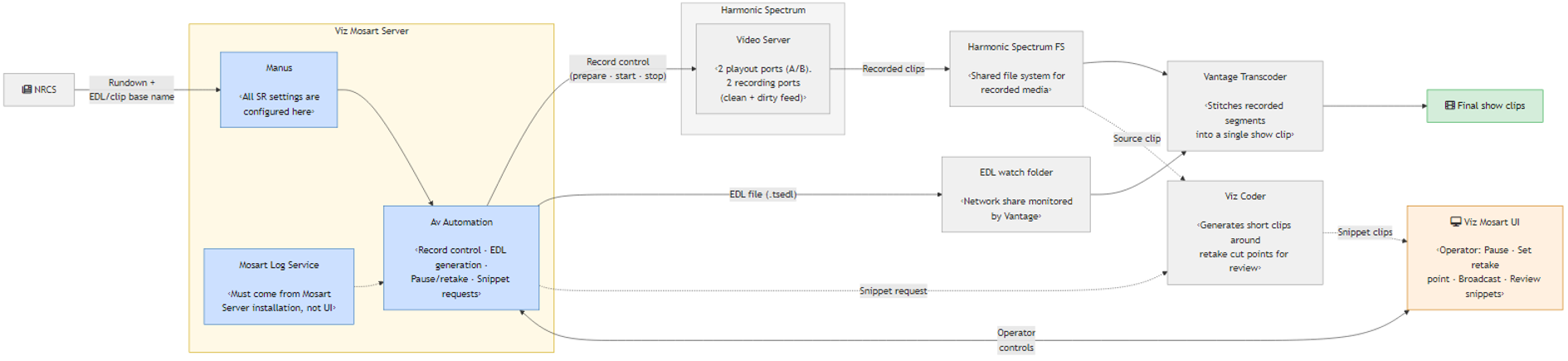
Detailed example: Vantage workflow with Harmonic Spectrum, clean/dirty recording, and snippet review
This diagram shows a specific deployment of the show clip production workflow using Harmonic Spectrum as video server, Vantage as transcoder, and Viz Coder for snippet generation around retake cut points. This configuration requires at least 2 playout ports (for A/B playout of show clips and preroll recordings) and 2 recording ports (for clean and dirty feeds).
Note: The folder where the final show clips reside is not controlled by Viz Mosart. This is set on the EDL transcoder side. In the above setup, the EDL transcoder is Vantage.
Manus Settings Configuration
Story Recorder output workflows and their parameters are configured through Manus Settings (manus_settings.json). This replaces the previous XML-based configuration in LogAdapterStoryRecorderConfig.xml.
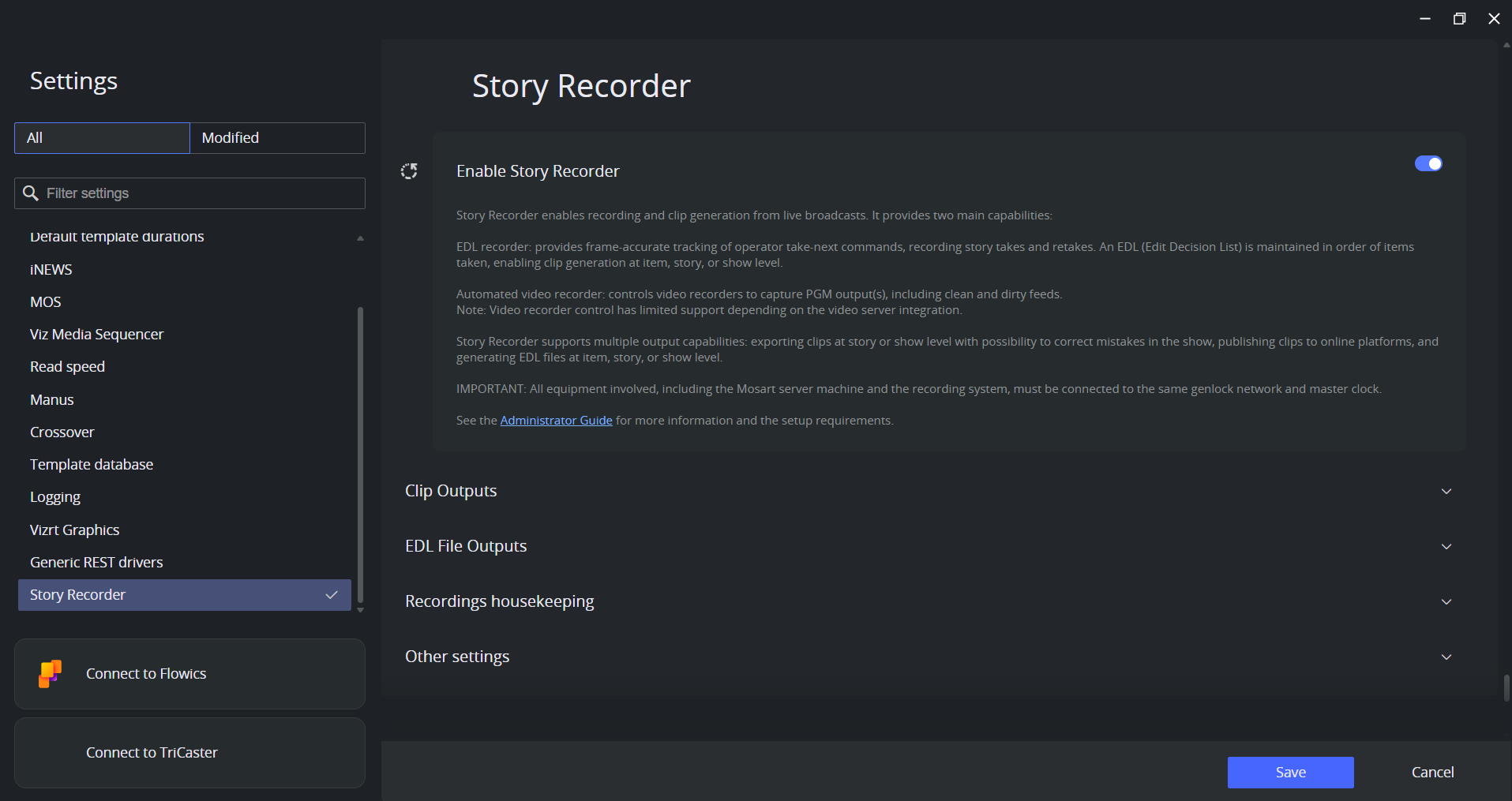
Note: After saving any Story Recorder settings changes, the Mosart Log Service on the Mosart Server machine must be restarted for the changes to take effect.
Enable Story Recorder
Setting | Default | Description |
|---|---|---|
Enable Story Recorder |
| Enables the Story Recorder feature. When enabled, the remaining Story Recorder settings sections become available. |
Clip Outputs
Configure clip output devices. Story clips are produced by the devices configured here.
TriCaster
Setting | Default | Description |
|---|---|---|
Output Level | Story | Read-only. Determines the granularity at which clips are produced. At Story level, one clip is generated per story in the rundown. Currently, only story-level output is supported for the workflow with TriCaster. |
Export preset | (empty) | TriCaster export preset name(s). Multiple presets can be separated by |
Publish online |
| When enabled, clips will also be published to online platforms using TriCaster's publish presets. |
Publish preset | (empty) | TriCaster publish preset name(s) for online publishing. Multiple presets can be separated by |
Mimir
Setting | Default | Description |
|---|---|---|
Output Level | Story | Read-only. Determines the granularity at which clips are produced. At Story level, one clip is generated per story in the rundown. Currently, only story-level output is supported for the workflow with Mimir. |
Generic REST device | (empty) | The Generic REST device configured for Mimir in the Generic REST drivers section of Manus Settings. This device handles the API communication with Mimir. |
Preset ID | (empty) | The render job preset ID configured in Mimir System Settings. Determines the render profile used when producing the story clip. |
Kelda config ID | (empty) | The Kelda configuration ID set up in Mimir System Settings. Kelda is Mimir's ingest orchestration component — this ID tells Mimir which ingest configuration to use when receiving the recorded media from the video server. |
Retry start delay |
| Delay before Story Recorder starts checking ingest status and retrying after the publish command is sent to Mimir. Allows time for the initial render/ingest to start. |
Retry total duration |
| Total time to spend on ingest checking and render retries before giving up. If all retries are exhausted, the publish is reported as failed. |
Retry interval |
| Time between consecutive ingest checks and render retries. |
EDL File Outputs
Configure EDL (Edit Decision List) outputs. EDL files are generated for post-processing by transcoders or for local storage.
Vantage
Produces .tsedl (Telestream EDL) files consumed by a Vantage transcoder for show-level clip stitching.
Setting | Default | Description |
|---|---|---|
Output Level | Show | Read-only. Determines the granularity at which EDL files are produced. At Show level, one EDL is generated per show. The transcoder stitches recorded segments into a single show clip. Currently, only show-level EDL output is supported. |
EDL local folder |
| Local backup folder for This folder must have read and write permissions for the Mosart Server Logging Service. |
EDL watch folder | (empty) | Shared network folder (UNC path, e.g. The folder must have read and write permissions for the Mosart Server Logging Service. |
Enable retakes |
| Enables pause and retake during recording. When enabled, the operator can pause the timeline and re-record segments. The EDL instructs the transcoder to stitch only the valid segments. If disabled, the Pause Timeline keyboard shortcut is ignored. |
The following settings are visible only when Enable retakes is on:
Setting | Default | Description |
|---|---|---|
Snippet clips folder | (empty) | When a retake of a story item is performed, a rendered snippet around the cut point will be placed in this folder shortly after the item was retaken. If this property is not configured or left empty, no snippet of the cut can be created. The location should be a network shared folder where the user running Mosart Server Logging Service has read and write access and the user running Mosart GUI has at least read access. To set up a snippet recorder see Enabling Snippet Generation at the Cut Point. Default: empty. This implies that a snippet recorder is optional. |
Snippet generation delay |
| How long in seconds after the retake process started, that generation of the snippet clip (from around the cut) shall begin. |
Snippet length |
| Duration from each recording segment to include in the snippet (format |
Preroll template |
| The variant name of the Mosart template used for the preroll countdown between retakes. This template must exist in the channel templates file. When a retake starts, this template is played to give the presenter time to reset before recording resumes. Note: If another package template with this same name exists on your system which was manually created, delete or rename it. |
Min preroll duration |
| Minimum fixed duration of the preroll template. |
Max preroll duration |
| Maximum duration of the preroll template. The actual preroll duration is determined by the system within this range. |
Mosart
Produces JSON-format EDL files for local use, post-processing, or third-party integrations.
Setting | Default | Description |
|---|---|---|
Output Level | Story | Mosart supports Item, Story, and Show level EDL output. Multiple levels can be selected simultaneously. Files are organized into corresponding subfolders. |
EDL local folder |
| Folder where JSON EDL files are written. Files are organized into |
Recordings Housekeeping
Automatic cleanup of intermediate recording files created by Story Recorder on the video server.
Setting | Default | Description |
|---|---|---|
Recording clip name prefix |
| Prefix prepended to every intermediate recording clip created by Story Recorder on the video server. Serves two purposes: identifies SR-generated recordings and acts as a filter for the housekeeping cleanup job. The cleanup job accesses the recording folders (configured per recorder port in AV Automation) as network shares. The Mosart Log Service account must have read, write, and delete permissions on these folders. |
Recording retention days |
| Retention period for the automatic housekeeping task. Recordings matching the clip name prefix are deleted after the specified number of days. Set to 0 to disable housekeeping (default). The recording folders are automatically collected from the recorder port configurations in AV Automation. If enabled, the housekeeping task is run every time Mosart Server Log Service is (re)started and keeps running at regular intervals defined by Recording retention days setting. |
Other Settings
Setting | Default | Description |
|---|---|---|
Remote dispatcher host |
| Host address for connecting to the Mosart Remote Dispatcher Service (MosartRemoteControlService). This service dispatches commands between the Story Recorder Adapter and the Mosart engine. |
Remote dispatcher port |
| Port for the Mosart Remote Dispatcher Service. |
Backup host | (empty) | Host address of the backup Story Recorder Adapter for failover. Leave empty for single-adapter mode (no failover). When configured, the primary adapter forwards its state to the backup, which can take over if the primary fails. |
Backup port |
| Port of the backup Story Recorder Adapter. |
Listener port |
| Port this Story Recorder Adapter listens on for incoming state from a primary adapter. Used in a primary/backup failover pair. |
Disable Story Recorder on rundown reload |
| Controls what happens when the NRCS rundown is reloaded during an active recording. |
Related general setting
The Use local time setting in the General section of Manus Settings affects Story Recorder EDL timecodes:
Setting | Default | Description |
|---|---|---|
Use local time |
| When enabled, Mosart uses the machine's local time (instead of UTC) for Story Recorder EDL timecodes. If genlock is enabled, this setting determines whether genlock-derived timecodes are treated as local time or UTC. Must match the External Clock Is Local Time setting in AV Automation when genlock is in use, otherwise EDL timecodes won't align with the actual recordings. Does not affect Mosart logs, UI, or Timing Display. |
Configuring Video Server Settings
The video server is used for both playout of clips during the show and recording. The setup involves configuring playout ports, recorder ports, and ensuring the correct directory and file extension settings for the various types of media resources involved.
Media resource types
To configure video server recorder ports
Clip naming pattern of temporary recordings
Media resource types
Story Recorder workflows involve several types of media resources. Understanding these is important for correct directory and port configuration:
Playout clips: the rundown clips. These are the clips monitored by Media Admin via Media Service, cued and played out by AV Automation. They must reside in a directory the video server accepts for playout.
Recordings: clips produced by recording video server outputs (typically the PGM output). In the story clip production workflow, these are the raw continuous recordings from which story clips are cut. These clips are not needed for playout unless the show clip production workflow is used, where the preroll template is played back from a recording clip — in that case, the recording directory must be the same as the playout directory.
Story clips: segments cut from the growing recordings using an export job. Story clips are typically needed for playout, so they should reside in the same folder monitored by Media Service.
Snippet clips: short review clips generated around retake cut points in the show clip production workflow. These are used for visual verification of the cut quality in the Viz Mosart UI and do not need to be available for playout.
To configure video server recorder ports
In AV Automation, navigate to Devices > Properties > Video Servers.
The Video server configuration and Mosart port configuration should already be working for your system. Otherwise, refer to the Video Servers documentation.
Configure the recording port(s) dedicated for Story Recorder.
For the recording port(s), select IsEnabled in the Story Recorder section. This reserves the port for Story Recorder.
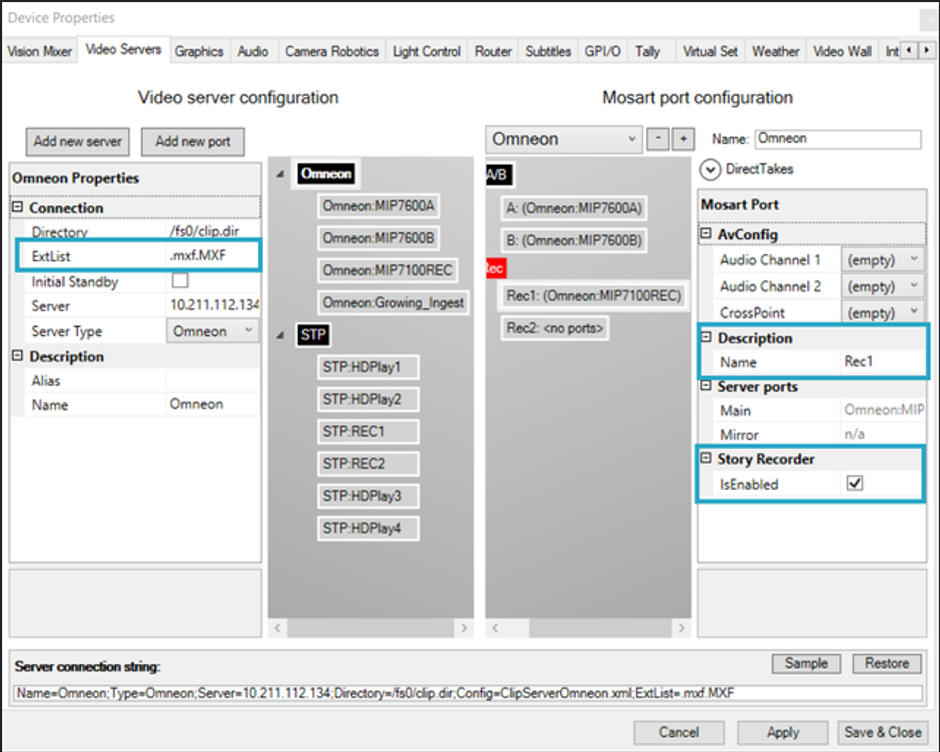
For TriCaster, the Quick Connect feature in Manus Settings can be used to automatically configure the video server setup and automatically enable the recorder for Story Recorder.
Set the recording file extension to match the format produced by the video server (for example,
movfor TriCaster,mxffor Harmonic Spectrum). Story Recorder uses this extension to build the correct file path when referencing the recording clip in EDLs and render jobs. The extension is resolved with the following priority:Extension field on the recording port (per-port setting).
Extproperty in the Server connection string.ExtListproperty in the Server connection string (the first entry is used).If none of the above are set, the default is
mxf.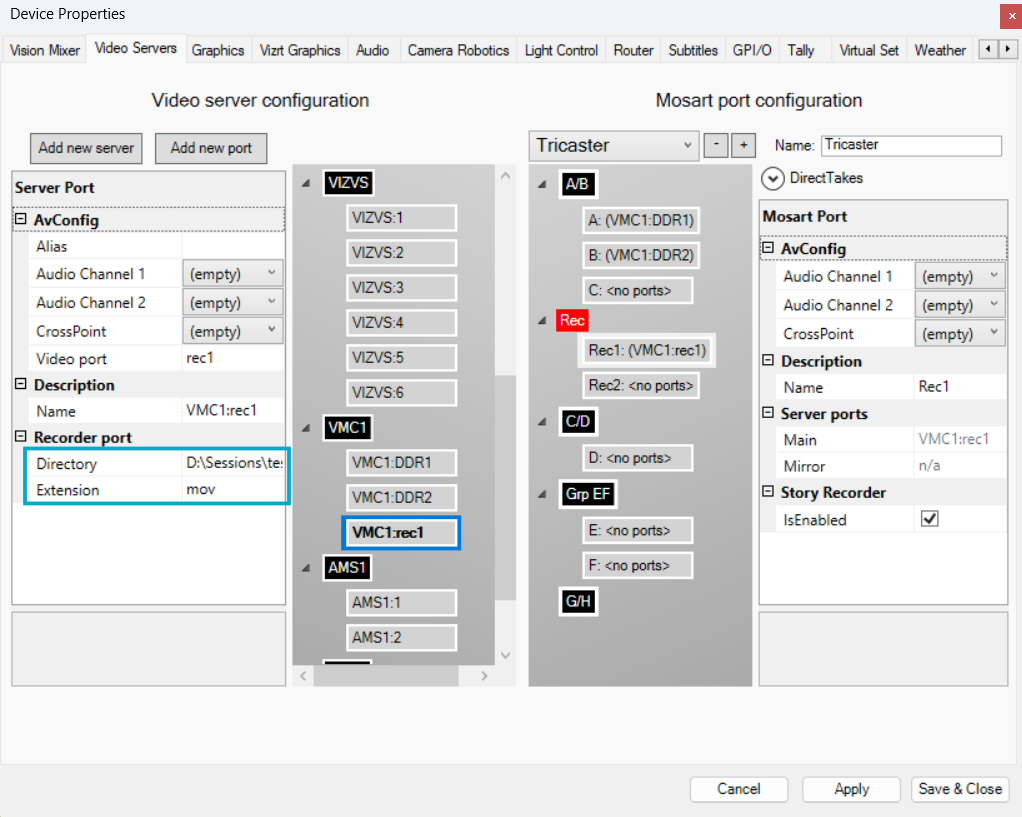
By default, Mosart supports separate directories for playout clips and recordings (see screenshot above). However, for the show clip production workflow, the recording directory must be the same as the playout directory, because the preroll template is played back from the recording clip.
For TriCaster, verify that the Server connection string includes the following properties:
HttpUsername: HTTP username for the TriCaster REST API (default:
admin). Used by all workflows. Mosart needs this to request Start of Media (the timecode of the first frame) used in the command for the render job. These credentials authenticate Mosart against the TriCaster HTTP interface. Can be added via TriCaster Quick Connect editor.HtpPassword: HTTP password for the TriCaster REST API . Used by all workflows, together with
HttpUsername. Can be added via TriCaster Quick Connect editor.AddExportJobDelayMs: delay in milliseconds before sending the export job request to TriCaster (default:
5000). Used by story clip production only. When a story ends, Mosart sends an export job to TriCaster to cut the story clip from the ongoing recording. If the export request is sent too soon (within 1–2 seconds of the cut point), TriCaster may not be ready to process it because the recording file is still growing. This delay ensures TriCaster has time to finalize the recording segment before the export is triggered.
Example:
...;HttpUsername=admin;HttpPassword=admin;AddExportJobDelayMs=5000Click Apply then Save & Close.
Force a reconnect to the video server with Ctrl+Shift+V (or restart AV Automation).
Clip naming pattern of temporary recordings
The temporary recording files generated by Viz Mosart are automatically named.
Single recorder:<prefix>_<counter>_<timestamp>.<ext>
Multiple recorders:<prefix>_<recorder name>_<counter>_<timestamp>.<ext>
Where:
prefix — the Recording clip name prefix configured in Manus Settings (default:
SRVizrt). This prefix is also used by the housekeeping job to identify SR-generated recordings.counter — sequence number, reset to 1 for each Story Recorder session.
timestamp — automatically generated (format
YYMMDDHHmmss).ext — the file extension configured in AV Automation > Devices > Properties > Video Servers > ExtList (the first in the list is used).
recorder name — the Name setting on the virtual recorder port in AV Automation (e.g.
Rec1). Only included when multiple recorders are configured.
Example — single recorder, prefix SRVizrt:
File |
|---|
|
|
|
Example — two recorders (Rec1, Rec2), prefix SRVizrt:
File |
|---|
|
|
|
|
|
|
Show Clip Production Setup
The following sections apply only to the Show clip production workflow, where the operator pauses and retakes story items while recording a complete show.
NRCS metadata for final clip name
Enabling Snippet Generation at the Cut Point
Pre Roll Duration
Automatic Pause at Show End
NRCS metadata for final clip name
This step is optional. By default, naming of the show (and EDL files) is derived from the rundown name.
As a convenient option, you can instead provide a flexible and predictable naming scheme through a mapping field defined in the NRCS story.
Viz Mosart will then pick up this value and use it as the base for file naming, including the final show clip name. This is explained in Configure the NRCS and Viz Mosart for automatic naming of the Final Clip Show below.
To prevent configuring the EDL/final clip base name every time the first story is changed, the rundown can be designed to, for example, start with a Break which will not be part of the show.
In addition, the user can also manually enter a name for the show's final clip, in the Story Recorder UI. This will overwrite the value given in NRCS.
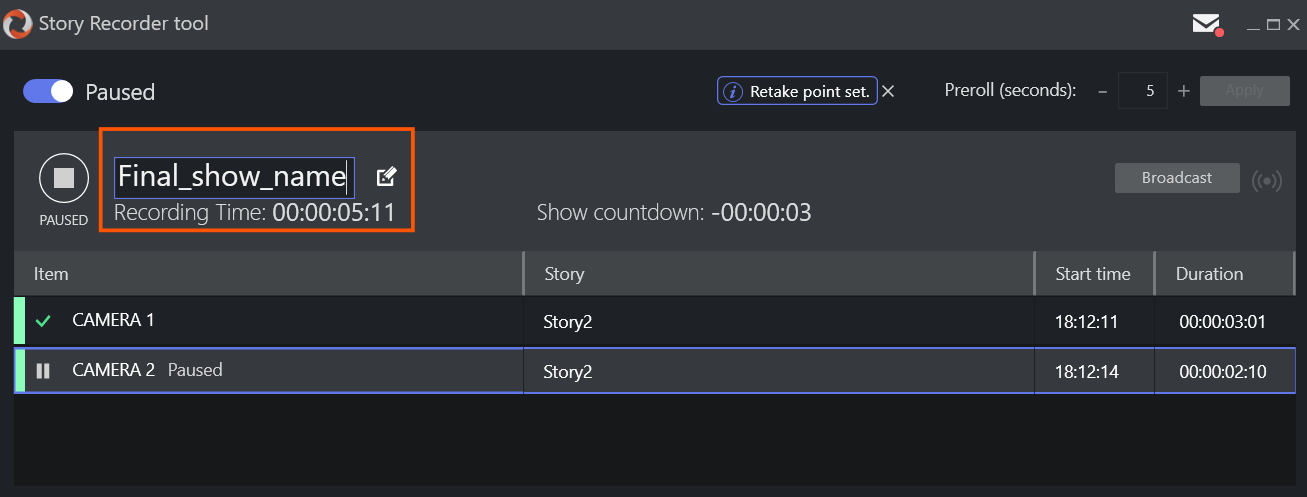
Configure the NRCS and Viz Mosart for automatic naming of the Final Clip Show
From the NRCS, you can add a name that becomes the base of the final clip name in Story Recorder.
In the NRCS, open the corresponding rundown for the show.
Add an NRCS column (here for example, SR Base Name).
The procedure is NRCS-specific and may require administrator privileges.
The following example is from iNews.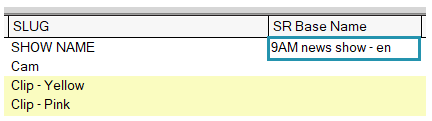
Under this new column, provide a name for the show, in the first story in the rundown (here, 9AM news show - en).
Note: Viz Mosart will only read the naming at story level, from the first story in the NRCS rundown. If the name is placed in any other story, it will be ignored.
Tip: If your NRCS operates on rundown level, not story level (for example OpenMedia), you can create a script that will propagate your desired final story name (as a text field on rundown level) to all stories in your rundown. As this also populates the first story, Viz Mosart will then successfully read the name.
This name will be mapped in Mosart to appear in the Story Recorder UI, when SR is enabled, as illustrated at the end of this procedure.
The NRCS-side configuration is complete, next is to arrange value-mapping on the Viz Mosart side.
In the Viz Mosart console application Manus Administrator, type ns. This opens the Newsroom Settings menu.
From the menu bar select Edit > Story External Metadata and add the following row if not already present:
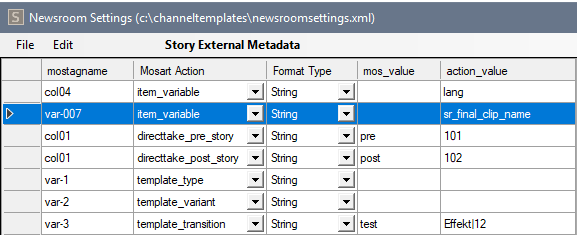
where
mostagname: the column name as specified in the NRCS (in this iNews example, var-007).
Note: For details on how to derive this naming (here var-007) from the NRCS, refer to section Story External Metadata in Newsroom Settings Editor.
Mosart Action : must be set to item_variable .
Format Type : must be set to String .
mos_value : empty.
action_value : must be sr_final_clip_name .
Restart the Viz Mosart Server.
Verify the setup:
Provide the Final Clip Show name as described.
Load the rundown in Mosart UI.
Enable Story Recorder mode (see Viz Mosart User Guide, in the Story Recorder section).
Check that the name provided in NRCS appears in the Story Recorder UI when the associated rundown is loaded and Story Recorder mode activated.
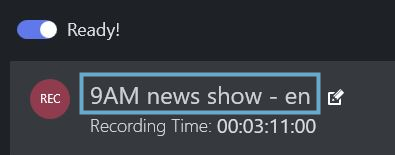
Any changes made in NRCS for the Final Clip Show name are not taken into consideration during a Story Recorder session, but only when Story Recorder mode is again activated (so in the next Story Recorder session).
Clip naming pattern for EDL files and the final show clips
EDL files and final show clips are automatically named by Viz Mosart using the following pattern:
First broadcast:<name>_<timestamp>.<ext>
Subsequent broadcasts of the same show:<name>_v<n>_<timestamp>.<ext>
Where:
name — the Final Clip Show name, determined in this order of priority: value provided from the NRCS (
sr_final_clip_name), or overridden by the operator in the Story Recorder panel, or the rundown name (default).timestamp — automatically generated (format
YYMMDDHHmmss).ext — depends on the output:
.tsedlfor Vantage EDL files, or the media extension configured on the transcoder for the final clip (e.g..mxf).v<n> — version counter, added from the second broadcast onwards.
Example with Final Clip Show name 9AM news show - en:
File | Description |
|---|---|
| EDL, first broadcast |
| Final clip, first broadcast |
| EDL, second broadcast |
| Final clip, second broadcast |
Enabling Snippet Generation at the Cut Point
This setup is optional and generates a few seconds (configurable) of verification video, intended to reveal the integrity of a fresh cut, after a story item has been paused and then retaken. This snippet creation employs Vizrt's versatile transcoder, Coder.
Download the most recent .exe version of Coder from the customer FTP, by navigating to
/products/VizOne/Latest Versions/Individual Installers and Docs/Coder/Latest Version.You need only install the Coder Worker .
Install Coder on the same machine as the Viz Mosart Server. Coder's default installation location is in C:\Program Files\Vizrt\Coder.
Note: If you install Coder anywhere but the default location, you must then update the following configuration, to specify the new path to the Coder executable, amlbatch.exe:
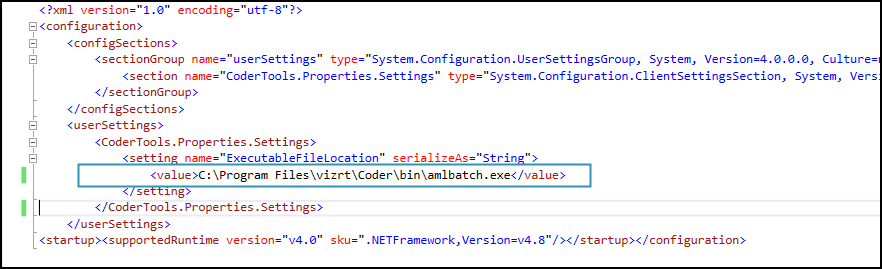
This config file is C:\Program Files (x86)\Mosart Medialab\Mosart Server\CoderTools.dll.Config.
On the machine that runs the Viz Mosart GUI, define a default media player for *.mxf files (for example, VLC).
In Manus Settings, under EDL File Outputs > Vantage, configure the following settings:
Snippet clips folder
Snippet generation delay
Snippet Length
Restart both the
Restart both:
Mosart Log Service (Windows Services)
Viz Mosart UI
Pre-Roll Duration
The pre-roll period must be long enough for the video server hardware to reset itself and be ready to continue recording, after a pause.
To set a pre-roll duration
Determine the time required by your video server hardware to commence recording. This is typically 10-15 seconds.
Configure this value as described in MinPrerollDuration.
You may increase the value in the SR panel:

This setting is retained between SR sessions.
Automatic Pause at Show End
As an option, you can automatically pause the show and recording.
To set automatic pause
Create a dedicated template, typically a Break.
Define a PAUSE_TIMELINE control command configured on the template.
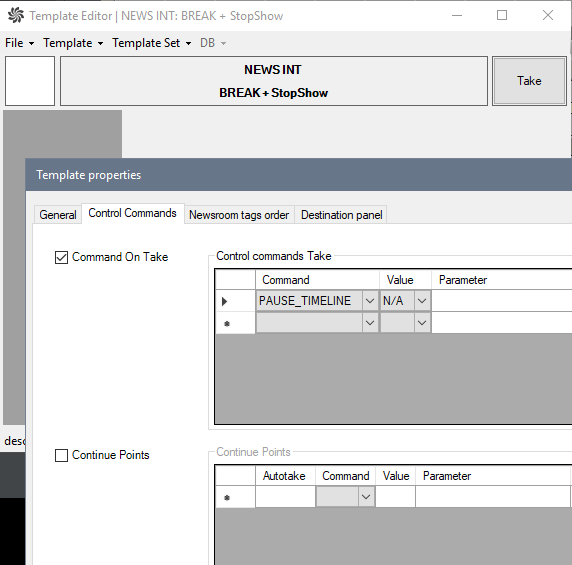
Insert this template at the end of the rundown.
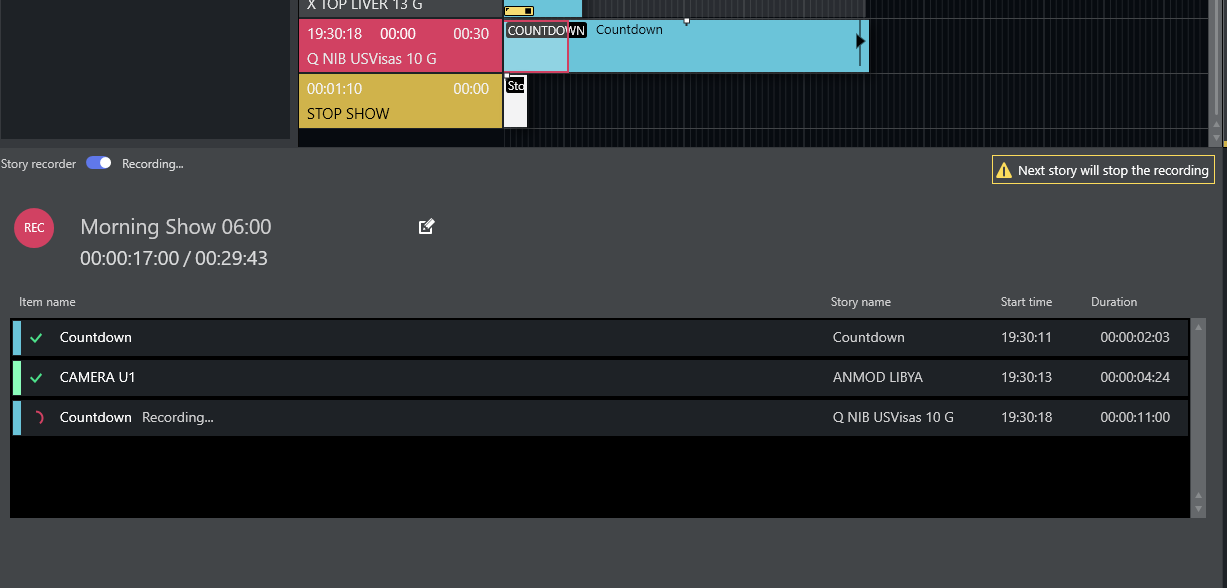
In the Story Recorder session, when the story before this template is taken on air, a message warns the operator that the next story is going to pause the show and thus the recording too:
Story Clip Production Setup
The following sections apply only to the Story clip production workflow, where individual story items are recorded as separate clips.
NRCS metadata for story clip production
For the story clip production workflow, each story that should be recorded must carry metadata that tells Viz Mosart to produce a clip.
NRCS with built-in integration
Some NRCSs (e.g. Saga) provide built-in Story Recorder integration. They include a <mosExternalMetadata> block at the story level in the MOS message (roStorySend):
<mosExternalMetadata> <mosScope>STORY</mosScope> <mosSchema>http://www.vizrt.com/mosObj/storyPublisher</mosSchema> <mosPayload> <Record>true</Record> <Publish>false</Publish> <StoryClipId>394e83ee-55cc-48a7-a5f8-92db7cc36e10</StoryClipId> <StoryClipSlug>My Story Name_anchor_clip</StoryClipSlug> </mosPayload></mosExternalMetadata>MOS Payload Element | Type | Purpose |
|---|---|---|
| bool |
|
| bool |
|
| string | Clip identifier (e.g. Mimir anchor clip ID, or unique GUID) |
| string | Human-readable clip description |
The schema URI http://www.vizrt.com/mosObj/storyPublisher is what Viz Mosart matches on. The block can be present on every story — stories with Record=false are parsed but ignored by the publishing pipeline.
If another NRCS wants to support this integration, it needs to provide the same <mosExternalMetadata> structure with the storyPublisher schema.
NRCS via Newsroom Settings mapping (iNews, other systems)
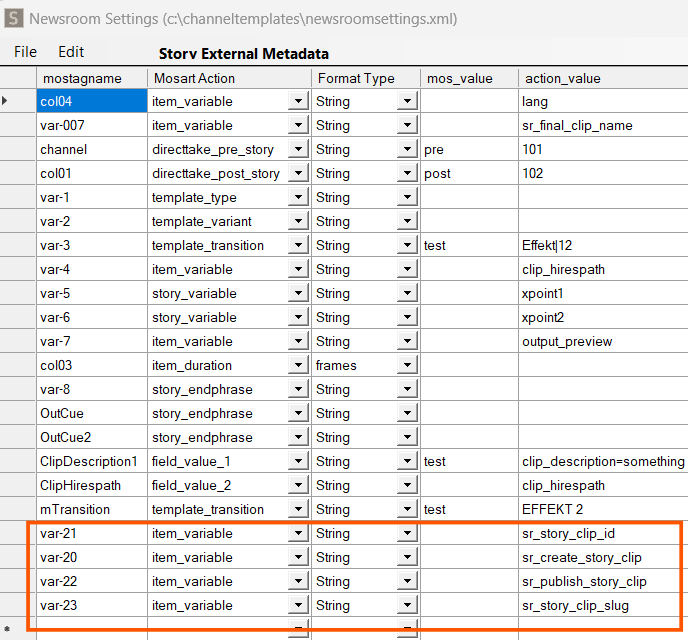
For an NRCS that does not use the storyPublisher schema, the same metadata can be delivered via MOS item variables. The fields are then mapped to Mosart through the Newsroom Settings (newsroomsettings.xml) Story External Metadata configuration:
Mosart field name | Mosart action | Purpose |
|---|---|---|
|
| Marks the story for clip production ( |
|
| Clip identifier (anchor clip ID or unique GUID) |
|
| Human-readable clip description |
|
| Marks for online publishing ( |
The NRCS column names are mapped to the corresponding sr_ action values. Both paths — the storyPublisher MOS schema and the Newsroom Settings mapping — produce identical results in Mosart.
The following example shows how iNews columns (var-20, var-21, etc.) are mapped to Mosart item_variable actions with the corresponding sr_ action values:
Keyboard shortcuts
The following Story Recorder actions are available for keyboard assignment:
These are configured as Control Command shortcuts with the command STORY_RECORDER and an Action parameter:
Action | Description | Applies to |
|---|---|---|
TOGGLE | Toggles Story Recorder mode on or off. | All workflows |
ENABLE | Enables Story Recorder mode. | All workflows |
DISABLE | Disables Story Recorder mode and publishes the recorded clip(s). | All workflows |
PAUSE | Pauses the timeline while in Story Recorder mode. | Show clip production |
RETAKE | Sets a retake point at the selected position. | Show clip production |
BROADCAST_TIMELINE | Broadcasts the paused timeline state to subscribed clients (only available while paused). | Show clip production |
Pause Timeline shortcut
In addition to the control command actions, a dedicated Timeline shortcut is available:
Shortcut name | Command | Description | Applies to |
|---|---|---|---|
Pause Timeline |
| Pauses or resumes the Mosart timeline when in Story Recorder mode. | Show clip production |
Failover
This step is optional and it assumes that Viz Mosart is already set up with redundancy as described in section Redundancy.
This means that:
Both the Viz Mosart main and backup server have same configurations for at least Mosart Administrator, AV Automation, Media Administrator and Overlay Graphics Interface.
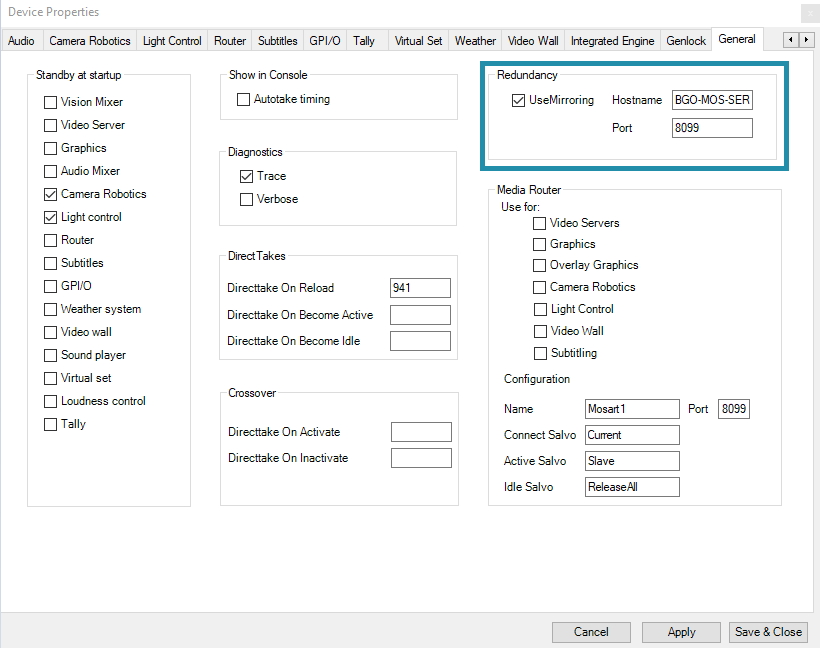
AV Automation is configured for mirroring on both main and backup servers (with main pointing to backup and backup pointing to main):
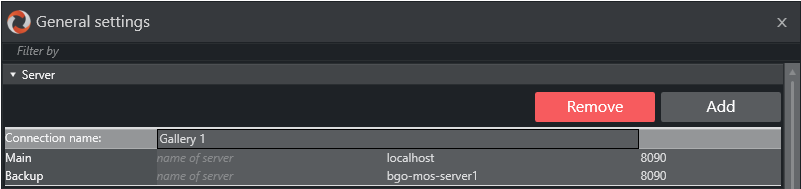
The Viz Mosart UI is configured to connect to the backup server:
For Story Recorder, there are additional steps:
Story Recorder is configured on both main and back in the same way in Manus Settings.
Backup host and port: Configure the Backup host and Backup port settings in Manus Settings (under Other Settings) on the primary adapter, and the Listener port on the backup adapter.
Snippet clips folder (optional): If Snippet generation around the cut point has been set up for main, this should be set up in the same way for backup. Install Viz Coder on both main and backup server. The snippet folder configured in Manus Settings (under EDL File Outputs > Vantage) must point to the same shared location on both main and backup, so that the Viz Mosart UI has access to snippet files regardless of which system is active.
Genlock calibration: The same calibration settings from AV Automation > Devices > Properties > Genlock tab must be configured on both main and backup to ensure frame-accurate timecodes are consistent across failover (Frame Accurate System Operations).
Verification
The video server is prepared for recording.
Viz Mosart is prepared to run in Story Recorder mode.
Snippet generation around the cut point is configured (optional).
The integration is now established between Viz Mosart and the NRCS (optional).
Failover is setup as described (optional).
Ensure you have calibrated the system to frame accuracy, as described in section Frame Accurate System Operations.
The Viz Mosart operator instructions, for switching on and running Story Recorder are described in the Viz Mosart User Guide, in the Story Recorder section.
We strongly suggest to build a new template set for Story Recorder, mainly because of the timing differences in the execution of the templates in Frame Accurate mode (now automatically latency-compensated for primary events), and partly because not every feature in Standard mode is available or possible in Frame Accurate mode.
Troubleshooting
Story Recorder must always first be switched On in Viz Mosart UI.
- Failure to Enable Story Recorder Session
- Recording Ports not Found
- Failure to Start Recording or Story Items not Recorded in Story Recorder Panel
- Naming of Final Clip Show from NRCS not appearing in Story Recorder UI
- Unreliable genlock. See more details in AV Automation status bar
- Genlock is not enabled
- Retake position no longer valid. Please set retake point
- Timeline can not be paused while pre-rolling
Failure to Enable Story Recorder Session
When the user switches on SR in the UI, you see:
Check these scenarios, in this order:
Viz Mosart Server and Mosart UI or Mosart Audio Player are on the same machine and the server was not installed last.
If you installed the server before the UI or Mosart Audio Player, Mosart Log Service will incorrectly point to a copy ofMMAsRunLogService.exethat is located in the Mosart UI or Mosart Audio Player folder installation. Instead, this should point to theMMAsRunLogService.exelocated in Mosart Server installation folder: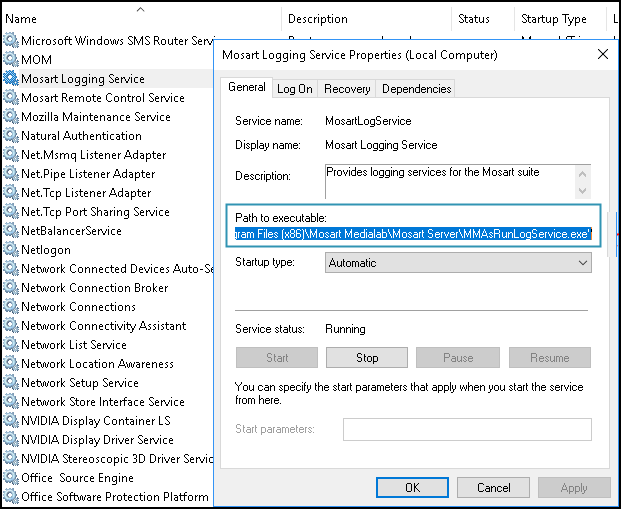
To fix this, you should either stop the Mosart Log Service from Services and start it as console from Mosart Medialab\Mosart Server\ MMAsRunLogService.exe (although you will still have same problem after a machine restart) or re-install the applications in this order: first the UI/Mosart Audio Player and then Server.
After Mosart Log Service is started, enable SR again.
Verify that the (new) Story Recorder Log Adapter, and the config LogAdapterStoryRecorderConfig.xml are setup according to section above, Enabling the Story Recorder Log Adapter, around step (3).
A common oversight is that someone forgot to un-comment the lines for Enabling the Story Recorder Log Adapter for Story Replay functionality in AsRunLogRepository.xml.
For additional help, refer to the general topic Troubleshooting Log Adapters.
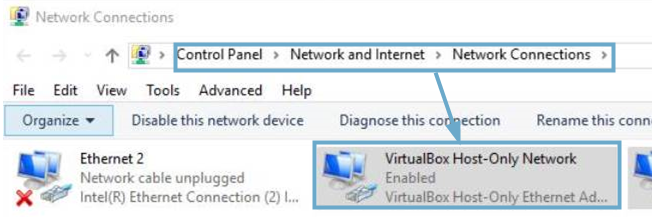
If the Viz Mosart UI is connected to a Mosart server on another machine, make sure there is no VirtualBox or similar configured on the Mosart server machine.
Recording Ports not Found
If when you switch on SR, you get errors about No recorders configured for Story Recorder, this indicates that the connection to the video server that performs the recorder is faulty.

Ensure you set up Viz Mosart, with correct configuration settings selected, as explained above in To configure video server recorder ports for Story Recorder.
Even if the configured recording ports are enabled for Story Recorder as described above, you may also get this error message after switching to a different video server salvo.
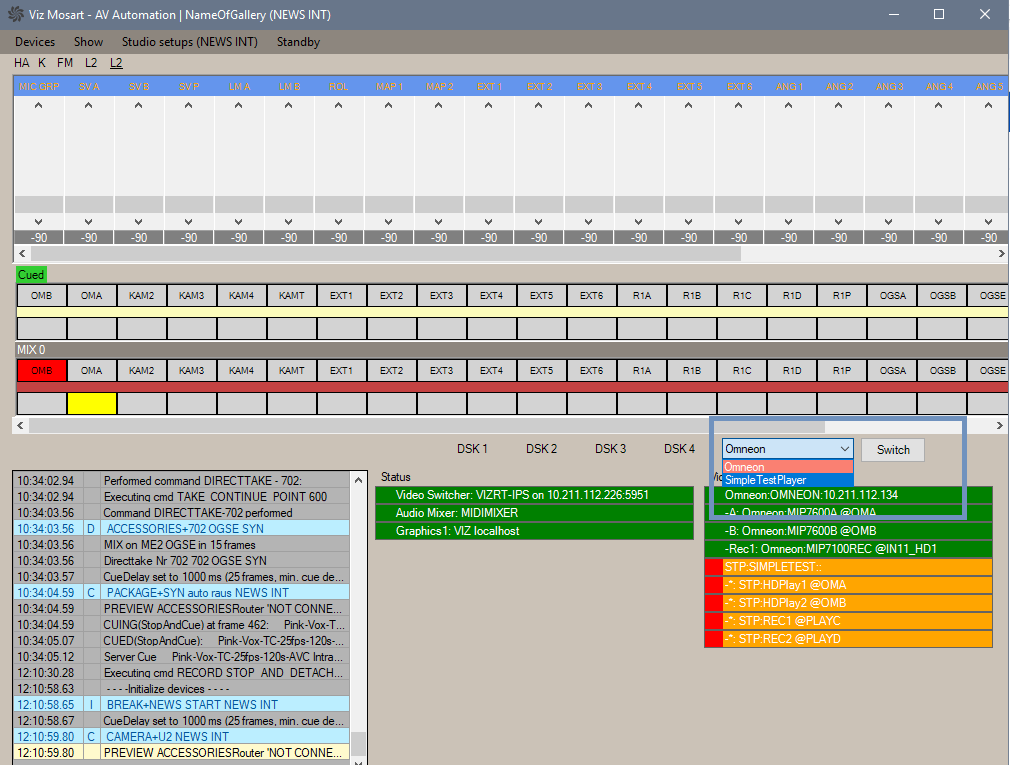
After switching to a different salvo, perform the following steps:
Check that there are recorder port(s) configured and enabled for Story Recorder as explained above in To configure video server recorder ports for Story Recorder.
Restart AV Automation or force a reconnect to the new video server (use Ctrl+ Shift + V).
This step should be done regardless whether the previous step was necessary or not.
Failure to Start Recording or Story Items not Recorded in Story Recorder Panel
Recording does not start and no story items appear in the Story Recorder panel.
Verify in Viz Mosart Manus Administrator that logging is enabled:
Open Media Administrator and type settings.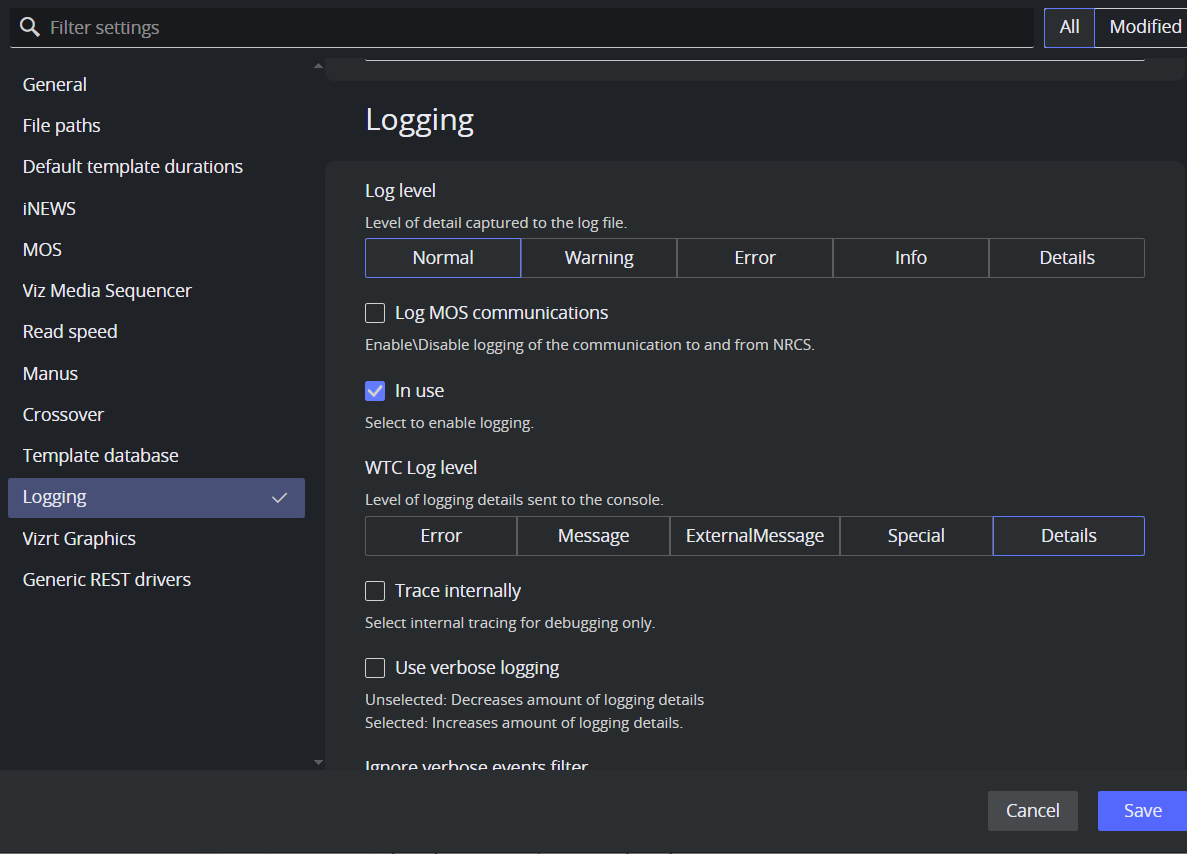
On the machine hosting the Viz Mosart server, check that service Viz Mosart Logging Service is up and running (as service or console).
If running as a service, verify that it points to MMAsRunLogService.exe from the Viz Mosart server installation folder.If the Viz Mosart Logging Service is restarted while other applications are running OK, then an action in the Viz Mosart UI (for example, reloading the rundown) must be performed to reestablish the connection to the Viz Mosart Logging Service.
Until a Viz Mosart UI action is made, no events are logged in the AsRunLog for the first story item taken on-air.
This leads to Story Recorder not functioning correctly. For example, recording may appear to start OK, but no story items show up in Story Recorder panel.If the Viz Mosart Logging Service is restarted when the Overlay Graphic Interface is being used for controlling the graphics systems, it must be restarted in order to re-establish the connection.
Until the Overlay Graphic Interface is restarted, no graphic-related log events are logged in AsRunLog for the first graphic encountered in the rundown, meaning Story Recorder will be unable to backtrack the graphic.
Note: After any Mosart Logging Service (re)start, as a rule of thumb, always restart AV Automation and the Overlay Graphics interface.
Make sure Mosart Logging Service does not run both as service and console at the same time.
To fix, stop both and then start either as a console or as a service.
Naming of Final Clip Show from NRCS not appearing in Story Recorder UI
You have set up your NRCS to provide Viz Mosart with a base naming for your final clip produced with Story Recorder, but the naming is not displayed in the Story Recorder panel.
Viz Mosart parses the MOS object corresponding to a story, and on the first primary story item found in the rundown it will add the show final clip show given in NRCS.
Examine the underlying XML:
Do Ctrl + Shift + Alt + double click in the Viz Mosart UI on the first story item in the rundown to open this window and verify if the value given from NRCS is present: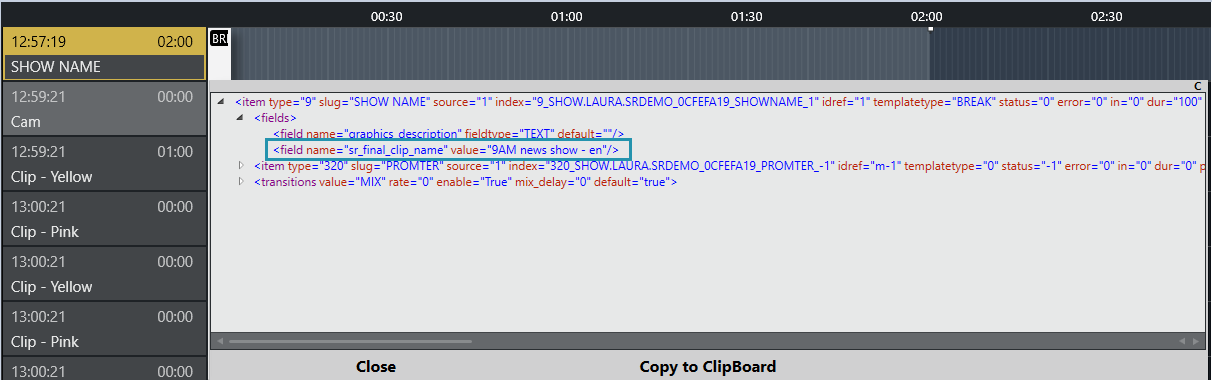
If this is not present, here are possible causes:
The name is read from the first story in the NRCS rundown. Check the status of the first story.
If for example it has been set to float, and is not displayed in Viz Mosart, you will need to add the name to whatever story in the NRCS is now the first story.If another story is Set As Next from Mosart UI, then you will need to add the name to this story in the NRCS which is now the first story.
If the Show Final Clip name was changed in NRCS during a Story Recorder session, this will be taken into consideration only at the next Story Recorder session (disable Story Recorder mode and enable again for a new show).
Unreliable genlock. See more details in AV Automation status bar
If this warning is shown in the Story Recorder panel while running a show or in pause mode, this means that Viz Mosart detected problems in the configured clock source (refer to Frame Accurate System Operations) and automatically fell-back to the internal clock source.

The AV Automation status bar will also indicate that there is an issue with the selected clock source:

If the warning is shown infrequently, then the message can be safely ignored and the show can continue as planned.
Viz Mosart has a built-in safety mechanism which takes care of intermittent or lost external genlock and/or timecode signal (refer to section Genlock and Timecode Reliability in the topic Frame Accurate System Operations).
If the warning appears frequently or it is persistent, the genlock signal and/or timecode signal have become unreliable and must be fixed.
Genlock is not enabled
In the Story Recorder panel, this warning means the genlock has not be activated for Viz Mosart. Refer to topic Frame Accurate System Operations for details on how to activate Genlock mode.

Story Recorder can be used without having proper genlock setup and a timecode reader card installed on the Mosart Server machine, but only for testing. In this case, the time of the day will be used.
However, in order for Story Recorder to generate high quality final clip shows, frame accuracy is a requirement.
Retake position no longer valid. Please set retake point
This is a user error, described in the Viz Mosart User Guide, under topic Story Recorder Mode.
Timeline can not be paused while pre-rolling
This is a user error, described in the Viz Mosart User Guide, under topic Story Recorder Mode.
Housekeeping
Viz Mosart automatically performs regular maintenance tasks to archive or delete working folders. For Story Recorder operations, the following are important:
No management of local EDL folder (EdlLocalFolder, typically set to C:\MMLogs\EDL) and EDL transcoder folder (EdlWatchFolder ).
See Enabling the Story Recorder Log Adapter.
Whilst these files are not large, they will require an occasional purging.Viz Mosart can perform some management of the clips generated during a Story Recorder session.
Intermediate recording files, prefixed with the string specified in the config RecordingClipNamePrefix (default SRVizrt) can be routinely purged from the video server, after a time lapse defined in RecordingRetentionDays .
When enabled, this task is run every time the service Mosart Server Log Service is (re)started .
Default value for the number of days to keep files on the video server, RecordingRetentionDays is 'keep forever'.
Note: Recorded clips can be very large files, easily filling the disk space.