Viz Mosart connects to a variety of audio devices, from various manufacturers.
Select the required audio device from AV Automation > Devices > Preferences > Audio.
Audio Mixer
This tab enables setting-up of the main mixer and optionally, a backup.
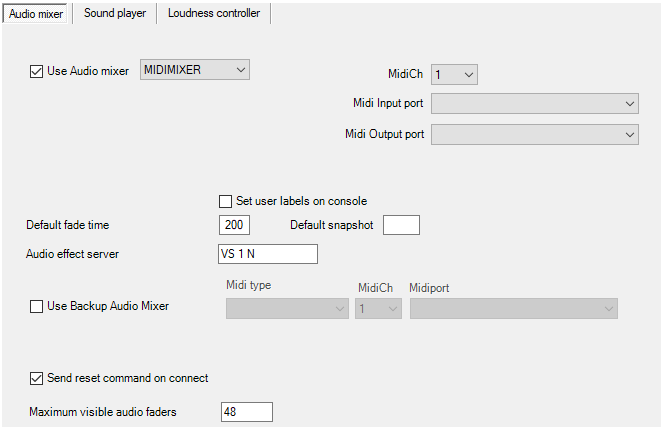
Use Audio mixer: Enables the audio mixer functionality.
Audio Mixer Types
Audio mixer | Protocol | Supported hardware / Comments | Interface |
|---|---|---|---|
Ardour / Harrison Mixbus VBM | OSC | Harrison Mixbus VBM
Info: Harrison MixBus 32C is not supported. | UDP |
CALREC | RAP | RS-422, TCP/IP (Artemis) | |
DHD | DHD RM4200-D v2.02 | TCP/IP | |
EUPHONIX | RAP | COM | |
LAWO EMBER+ | Ember+ | Lawo audio mixers with A__UHD Core. This requires that the Lawo audio mixer has correct firmware and settings to allow Ember+ control (contact Lawo for details about which specific audio mixer models support this functionality). | TCP/IP |
LAWO RMNOPL | RemoteMNOPL | Lawo mc² | TCP/IP |
LAWO ZIRKON | RAS, Lawo Zirkon subset | RS-422 or TCP/IP | |
MIDIMIXER | Sanford.Multimedia | MIDI | |
SSL | Light Broadcast Automation protocol, SSL Broadcast Automation Control Specification – v1.0 | RS-422 (for SSL over TCP/IP, select CALREC Audio Mixer) | |
STAGETEC | Stagetec Diamond RAS protocol, Monitora RAS | COM | |
STAGETEC EMBER+ | Ember+ | Unless advised otherwise, try 9000 for Port. | TCP/IP |
STUDER_3000 | Monitora + Ember, Ember 1.0 | Studer OnAir 3000 | RS-232 or TCP/IP |
STUDER_VISTA | Ember | Studer Vista | TCP/IP |
TASCAM SONICVIEW 16 EMBER+ | Ember+ | Unless advised otherwise, try 9000 for Port. | |
TRICASTER | NewTek | NDI/NewTek IPseries mixers. TriCaster, TriCaster Vectar, VMC. See also: TriCaster and Viz Mosart. | TCP/IP |
VIZENGINE | n/a | Viz Opus only | TCP/IP |
WHEATSTONE | Wheatstone Mixer Automation Protocol v.1.4 | TCP/IP | |
YAMAHA_O2 | MIDI | Yamaha 01V96, DM1000, DM2000, DME64N, O2V96, LS9, CL5 | MIDI |
Serial (Calrec, Lawo, Studer, etc.): Serial port connected to the audio mixer, when Serial radio button is selected.
TCP/IP: Hostname or IP address and port to communicate with the audio mixer, when TCP/IP radio button is selected. Note that for Calrec it is possible to configure a main and backup audio mixer by specifying two comma separated hostname values and port values.
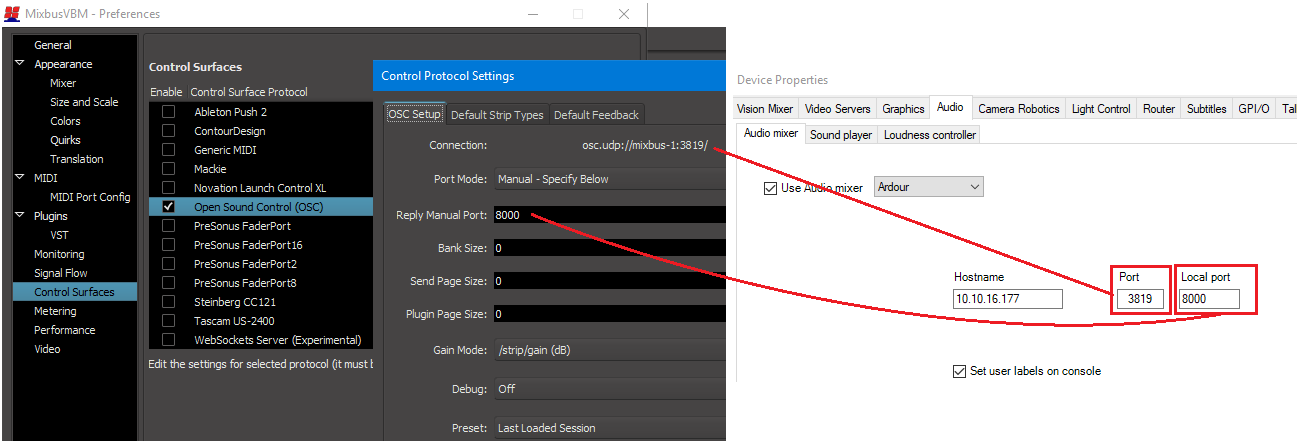
Hostname: Hostname or IP address of the audio mixer.
Port: Port on the audio mixer.
Local port: (Ardour only) The mixer will send messages to this port on the Mosart server. Use 8000 unless there is a good reason for choosing another port.
Backup hostname and port (LAWO RMNOPL): Hostname (or IP address) and port to the backup audio mixer console.
Set user labels on console: When selected, user labels on the (non-EMBER+) Lawo or Vista console are overwritten.
MidiCh (MIDIMIXER and YAMAHA_O2): MIDI channel assigned to the audio mixer. Depending on mixer model, this setting may have to correspond to settings on the mixer.
Midi Input port (MIDIMIXER and YAMAHA_O2): System MIDI input port to communicate with the audio mixer.
Midi Output port (MIDIMIXER and YAMAHA_O2): System MIDI output port to communicate with the audio mixer.
Default fade time: Time in frames for fading open faders with the manual fade function (CTRL+F).
Default snapshot: Snapshot to recall when starting the automation (MIDI parameter change).
Audio effect server: Name for the Audio effect fader. This fader will open if effect transitions are used.
Send reset command on connect: Used for STUDER3000 SW 2.2, or lower. Recalls a default setup for the Mixer panel.
Visible audio faders: Maximum visible faders in AV Automation.
AV Automation Audio Mixer Availability Table
Serial | TCP/IP | MidiCh | Midiport | Hostname | Port | Backup | Backup | Fader input | Useember | Comport | |
|---|---|---|---|---|---|---|---|---|---|---|---|
ARDOUR | X | X | |||||||||
CALREC | x | x | x | x | x | ||||||
DHD | x | x | x | ||||||||
EUPHONIX | x | x | |||||||||
LAWO | x | x | x | x | x | ||||||
LAWO | x | x | x | x | x | ||||||
LAWO EMBER+ | x | x | |||||||||
MIDI | x | x | |||||||||
SSL | x | x | x | ||||||||
STAGETEC | x | x | x | x | x | ||||||
STAGETEC EMBER+ | x | x | |||||||||
STUDER | x | x | x | x | x | x | |||||
STUDER | x | x | x | ||||||||
TASCAM SONICVIEW 16 EMBER+ | x | x | |||||||||
VIZ | x | x | x | ||||||||
WHEAT | x | x | x | ||||||||
YAMAHA | x | x | |||||||||
TRICASTER | x | x | x |
Audio Players
You select from available audio players at AV Automation > Devices > Properties > Audio tab > Audio Player sub-tab.
Viz Mosart Audio Player
Requirements
Refer to general section Prerequisites.
Supported File Formats
The Viz Mosart Audio Player supports formats: mp3, wav, wma, aac, m4a, mp4, aiff, avi.
To set up the Mosart audio player
On the machine that will be used for the audio player, open the Viz Mosart installation folder and locate the Audio Player installer file, named something like
VizMosartAudioPlayer-5.13.2.32554.msiInstall the audio player, ensuring to add a Desktop shortcut, for user convenience.
Start the program from the Desktop.
On the Viz Mosart server, open AV Automation.
Go to Devices > Preferences > Audio > Audio player.
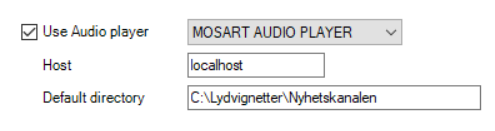
Check Use Audio player and choose from the players in the drop-down list.
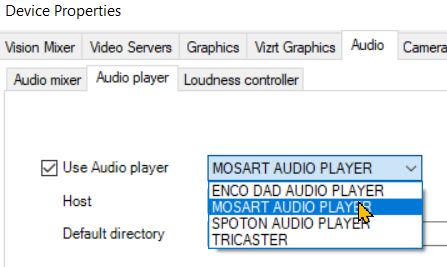
Under Host write the hostname or IP address of the computer where the audio player is running (the machine selected in step 1. above).
Info: To select alternative port usage, see Audio Player Port Numbering below.
Under Default directory, write the folder path where the audio files are stored. This is specified by the setting Audio Directory in the Viz Mosart Audio Player.
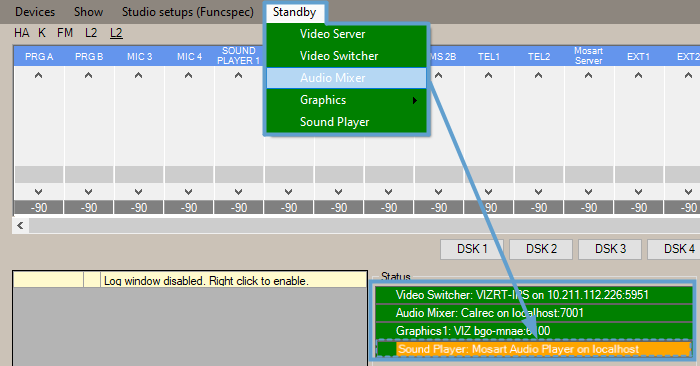
Restart AV Automation and check that the connection is green.
Working with the Viz Mosart Audio Player
When the Viz Mosart Audio Player is configured, the user opens the UI from a desktop shortcut

or file location “%programfiles(x86)%\Mosart Medialab\Mosart Audio Player\Mosart Audio Player.exe”.
Info: User actions are described in section Playing Audio of the Viz Mosart User Guide.
Viz Mosart Audio Player UI
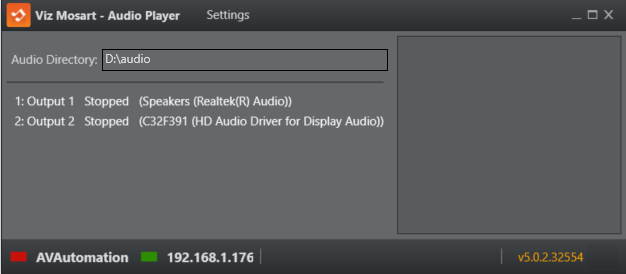
UI Element | Description |
|---|---|
Settings | Open the Settings menu for configuring the Audio Player. |
Audio Directory | Folder path to available audio files. All files in this folder are ready to be played Only files located in this directory are available to the Viz Mosart audio player. |
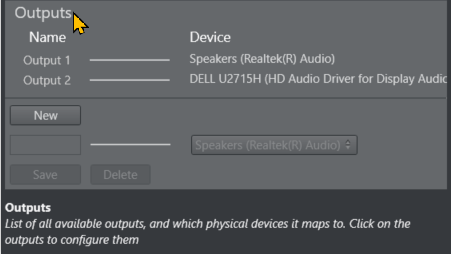
Numbered Output list | A list of all available devices. The numbered entity under Name is the number you use in AV Automation or the NRCS to specify the audio file playout (for example, in the screenshot above, Output 1). |
Log panel (right hand panel) | All log messages that the audio player creates. |
AVAutomation (status) | Green: AV Automation is connected |
IP Address | IP address of the computer that the Audio Player is running on. |
Version | Version number of the Audio Player. |
The Settings menu
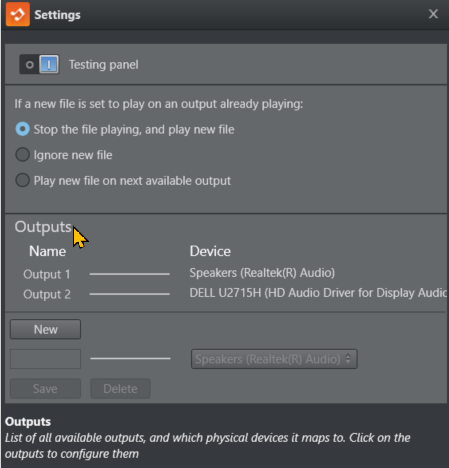
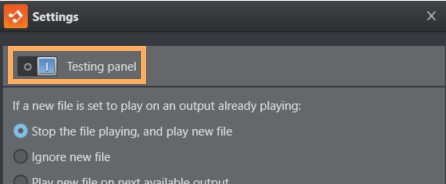
Testing panel
Select this option to display a player at the foot of the Audio Player panel.
To select the directory containing your audio files
Click Change Directory.
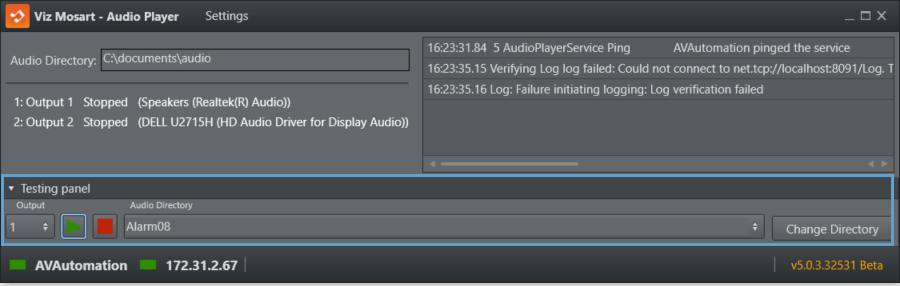
To select a file for playing
Click the double-arrow to list and select a file.

Behavior when file is already playing
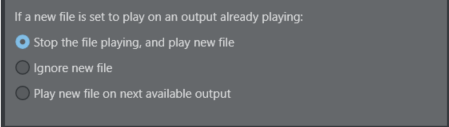
In this panel, you can determine what action the Audio Player will take when a new file is played and a file is already playing.
Outputs
The Name column shows all outputs. The Device column shows all available playback devices on the computer.
The line between them shows which playback device the output uses to play the audio file.
To select audio device for an output
Click an Output. (In this case, Output 1 has been clicked.)
The panel below displays a drop-down menu of available devices.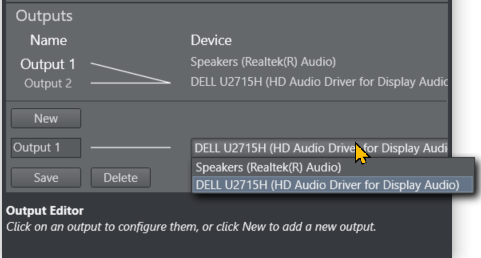
Choose from the displayed devices to associate one of your computer's playback devices with the selected output.
(Other operations) Here you can also
Rename
Overwrite the content of a name under Outputs (for example Output 1 above) by first clicking on it, typing a new name, then clicking Save.Delete
Create a New
output.
Help
When working with settings, a tooltip box at the bottom of the panel displays additional information about the current operation.
Mouse-over a setting to see the tooltip.
Audio Player Port Numbering
The port number used by the Audio Player is by default 8084.
To change Audio Player port number
If the Player port number conflicts with some other service, it can be changed.
Editing the Audio Player Configuration file Mosart Audio Player.exe.config located at
%ProgramFiles(x86)%\Mosart Medialab\Mosart Audio Player\.Change the baseAddress attribute to use another port, for example 8087.
<add baseAddress="http://localhost:8087/LiveSoundService.svc/"/>If the port number is changed in this way, the AV Automation settings for the Audio Player must also be modified to use this port number.
Specify the port number in the Host field in AV Automation's Audio Player properties to this format:
Server=localhost;Port=8087;To verify that the Audio Player actually uses the new port, you can test if the URL (for example, http://localhost:8087/LiveSoundService.svc/) is responding in a web browser.
Operating the Audio Player
Refer to section Playing Audio in the Viz Mosart User Guide.
TriCaster Audio Player
By selecting TriCaster from the list of available audio player devices, you can control (access and play audio clips) the TriCaster onboard audio player from a Viz Mosart template.
To set up a TriCaster audio player
Start the TriCaster on a host machine available to the Viz Mosart server.
In AV Automation, navigate to Devices > Properties > Audio (tab) > Audio player (tab).
From the drop-down menu to the right of Use Audio player, select TriCaster (previously called vizrt-ips).
In the Host field, enter the hostname or IP address of the TriCaster host.
In Default directory, enter the audio clips directory on the TriCaster machine (for example, C:\ProgramData\vizrt\Media\Sound and Music\Sample\www.SoundTraxxMusic.com).
Click Save & Close.
Restart AV Automation and make sure you have a green connection (as in the SpotOn audio player example below).
In AV Automation, navigate to Template Editor > Template > Select or Template Editor > Template > New.
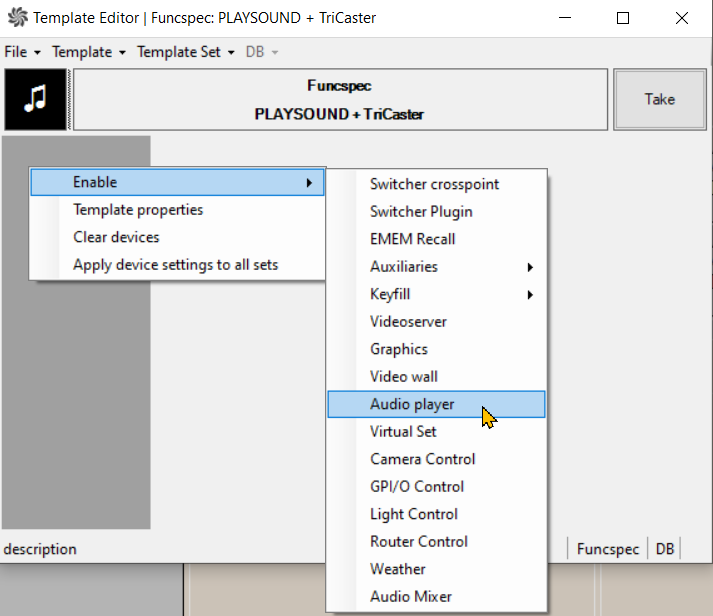
Choose or create an appropriate template, right-click in the dark grey area to the left and select Enable > Audio player.
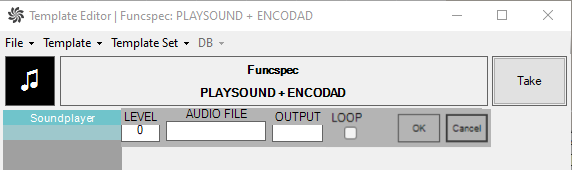
In AUDIO FILE, enter an existing file name.
Info: Looping (selecting LOOP) is not currently available for TriCaster
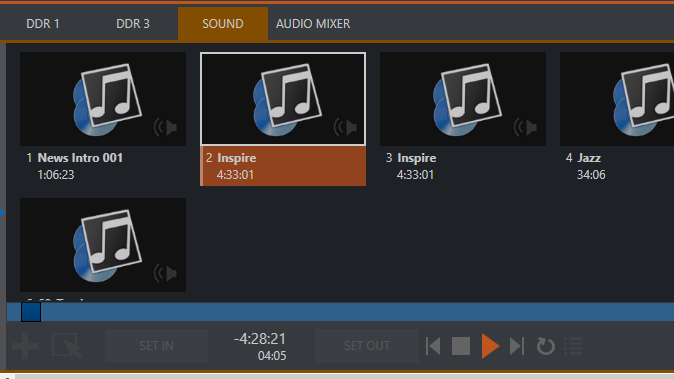
These can be browsed in the SOUND tab on the TriCaster (in this example, Inspire.mp3).
On the Soundplayer device, click OK.
See also: TriCaster and Viz Mosart.
Third Party Audio Players
ENCO DAD Audio Player
By selecting ENCO DAD Audio Player from the list of available devices, you can control (access and play audio clips) the ENCO DAD audio player from a Viz Mosart template.
To set up an ENCO DAD audio player
Start the ENCO DAD on a host machine available to the Viz Mosart server.
In AV Automation, navigate to Devices > Properties > Audio (tab) > Audio player (tab).
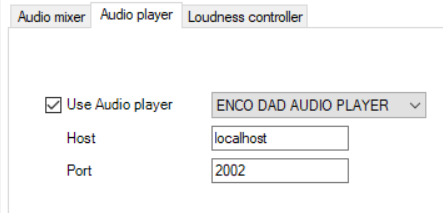
Check Use Audio player.
From the drop-down menu to the right of Use Audio player, select ENCO DAD AUDIO PLAYER.
In the Host field, enter the hostname or IP address of the ENCO DAD host.
In the Port field, enter the ENCO DAD monitors port. At clean installation, this value is initially preset as 2002, but if left empty, clears to 0.
Click Save & Close.
Restart AV Automation and make sure you have a green connection.
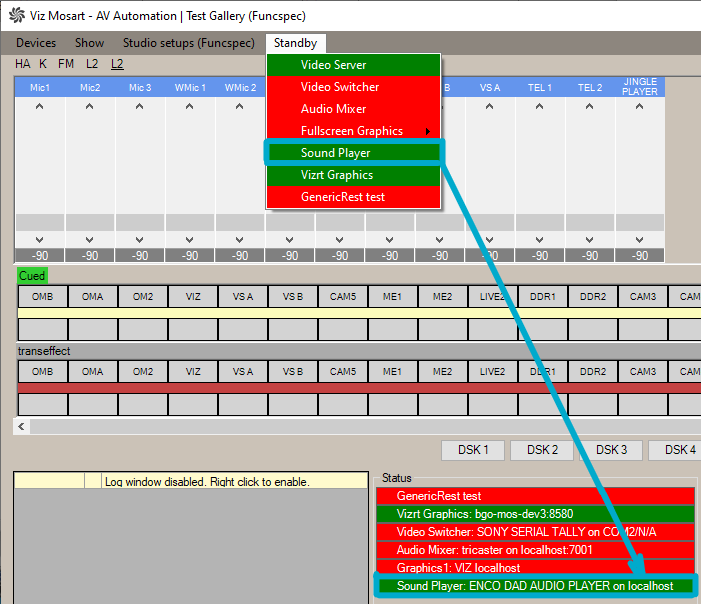
In AV Automation, navigate to Template Editor > Template.
Choose an appropriate template, right-click in the dark grey area to the left and select Enable > Audio player.
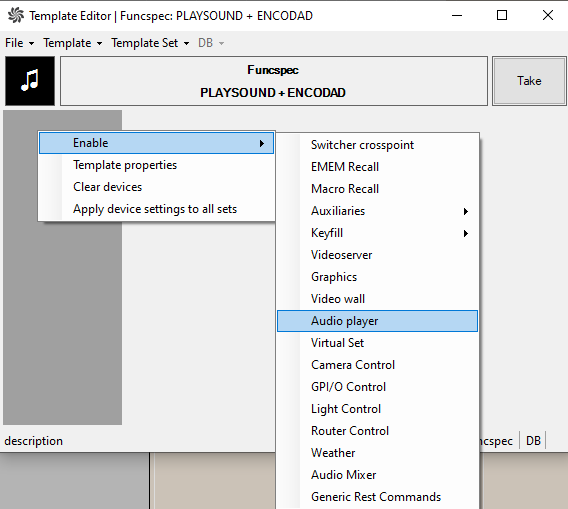
Info: Looping (selecting LOOP) is not currently available for Third Party Audio Players.
In AUDIO FILE, enter the name of a file in the ENCO DAD library.
In OUTPUT, enter a valid machine number (in ENCO DAD).
For Soundplayer device, click OK.
SpotOn Audio Player
To set up a SpotOn audio player
Download, install and start the device software to a host machine available to the Viz Mosart server.
In AV Automation, go to Devices > Properties> Audio > Audio player.
Check Use Audio player.
Choose SpotOn Audio Player from the players in the drop-down list.
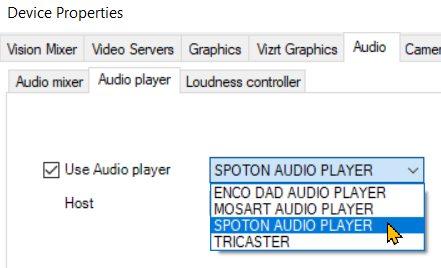
Under Host write the IP address to the machine where the SpotOn player is running.
Click Save & Close.
Restart AV Automation and check that the connection is green
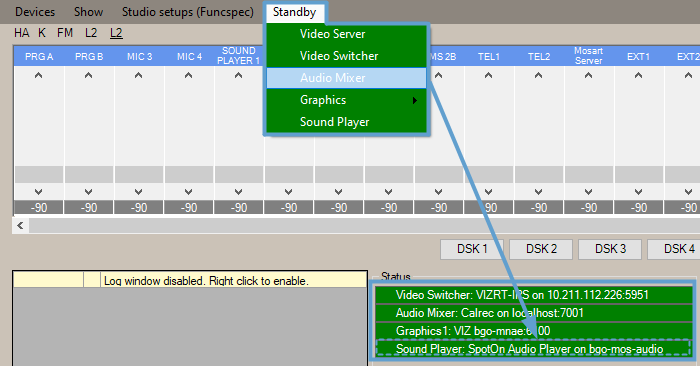
Working with the SpotOn Audio Player
Addressing an audio file that is stored in a SpotOn client is similar to the default player method above, but the file identifier is different.

Info: Looping (selecting LOOP) is not currently available for the SpotOn player.
LEVEL: This value does not affect the audio fader that is taken to Program. Instead a special command option is offered. Set LEVEL to -90 to send a STOP (playing audio) command. All other values are ignored.
OUTPUT: Enter the panel button number to identify the associated audio file (in this sample screenshot below, 2a).
Tip: Use the button number (mapped to OUTPUT) as reference (instead of the audio file name). You can then replace the audio file assigned to a button (for example, when a show is rebranded and new music selected) and still keep the same template information.
This avoids having to change the file name.
AUDIO FILE: Enter the panel button name here (in this example 0452_32Bit).
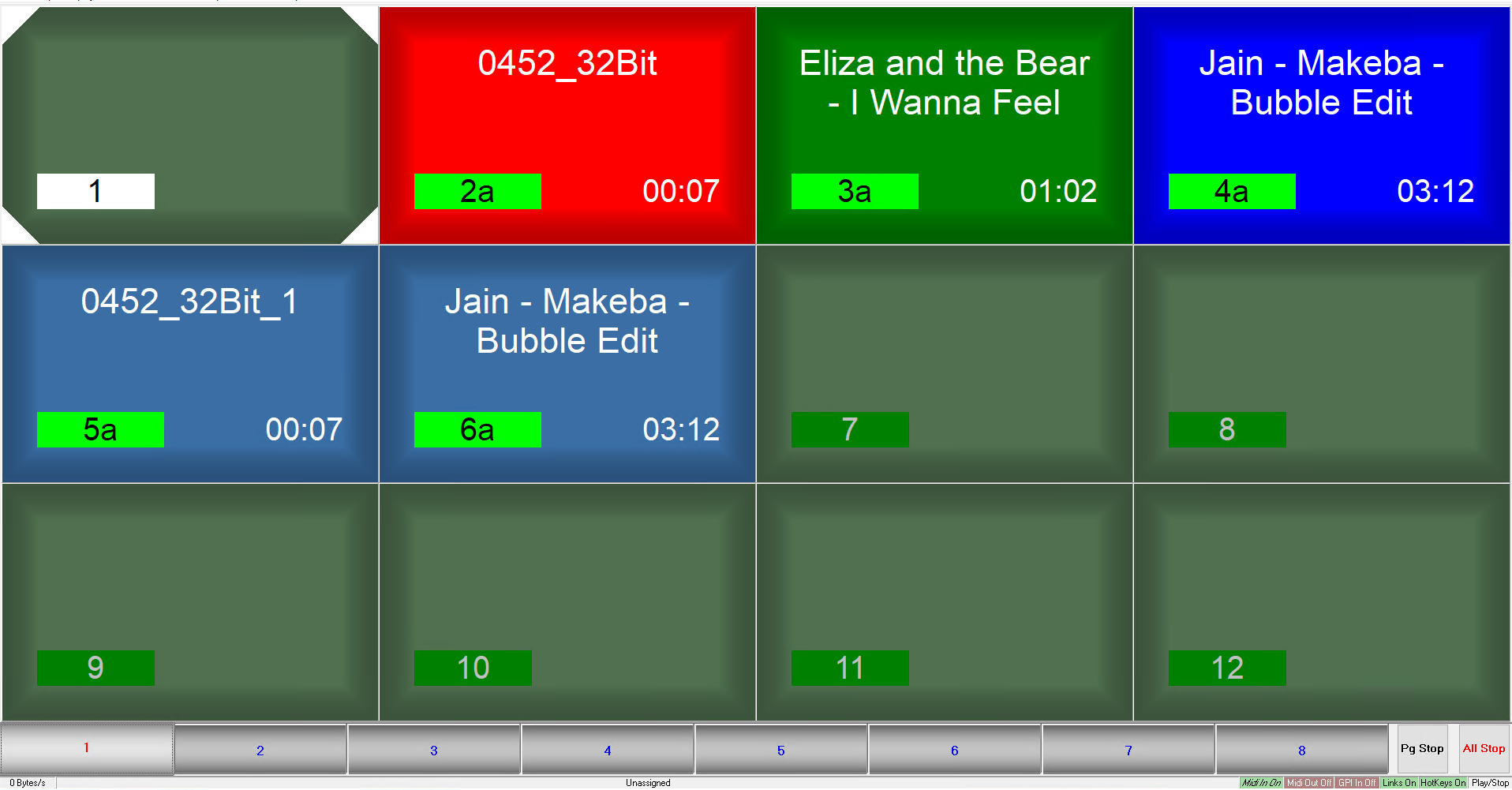
Info:
Newsroom tag available. If a newsroom tag is added, and a value is provided by the NRCS, that value for the file name (with either AUDIO FIE or OUTPUT) is used.
When both panel button number and panel button name are used as file identifier, the value of panel button number takes precedence.
Loudness Control
Viz Mosart can interact with a loudness controller from Junger.
To configure loudness control
Navigate to AV Automation > Devices > Properties> Audio > Loudness controller

Follow these setup guidelines:
Use loudness controller: Check the box to enable loudness control.
Loudness controller type: Dropdown menu selector. Choose JUNGER T*AP
Triggers/levels: Name of triggers or loudness levels, one for each line. These appear in a tooltip menu of Template Editor, and must correspond to the configuration in the loudness controller(s)
Channels: Fixed values. For Junger T*AP there are four stereo channels per host.
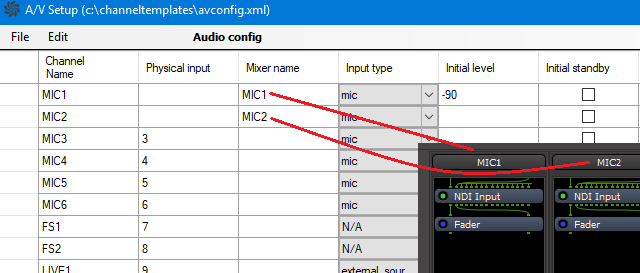
Connections to the audio faders are configured in AV Automation > Devices > A/V Setup > Edit > Audio config > (Loudness channel)Host:port: Hostname or IP address and optional port number for each controller.
Save & Close.
Info: If the root node name is different from T*AP the name must be set in the AV Automation configuration property JungerRoot .
See Also