Set application level preferences using the menu below:
System
The System group controls logging and the storage locations Viz Arc uses for its own data (logs, projects, and the shared profiles/configuration).
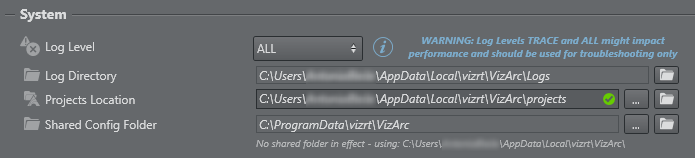
Log Level: Sets the verbosity of the application log, from most to least detailed:
ALL,TRACE,DEBUG,INFO,WARN,ERROR,FATAL,OFF. The default isINFO.
Note: theTRACEandALLlevels are very verbose and can impact performance — use them only for troubleshooting.ALL: Shows all level logs (below).
TRACE: Shows traced code; useful for identifying errors in a function if there is a software crash. Logs all commands sent to the Engine in a separate log file.
DEBUG: Shows specific technical information.
INFO: Shows the main information in a log.
WARN: Shows issues that may potentially cause application anomalies.
ERROR: Shows any error that is fatal to the operation.
FATAL: Shows only errors that force a shutdown of the application to prevent data loss.
OFF: Switches logs
Off.
This setting does not limit what you can inspect while Viz Arc is running: the live log can still show less severe messages than are being written to disk. The live log is held in memory in a circular buffer of fixed size (the most recent entries only, older ones are discarded), independently of the on-disk log level.
Log Directory: Read-only. Shows the folder where log files are written. Logs are always kept per user on the local machine (
%localappdata%\vizrt\VizArc\Logs) and are never redirected to a shared folder. Use the Reveal button to open it in Windows Explorer.Projects Location: The folder where Viz Arc file based local projects are stored. Use Browse (
…) to change it and Reveal to open the current location in Windows Explorer.Shared Config Folder: Optional machine-wide folder that holds the profiles and configuration shared by all users of the machine. When set, every user reads and writes the same configuration from this location. The line below the field shows where configuration is actually being read/written in the current session. Changing this setting requires administrator rights and a restart — see Shared Configuration Folder below for details.
Shared Configuration Folder
By default, each Windows user on a machine keeps their own Viz Arc profiles and configuration. The Shared Configuration Folder lets an administrator point all users on the machine — and the Viz Arc REST service — at a single common location, so that profiles and configuration are shared instead of being per-user. The location can even be a network share (UNC path), allowing several machines to use the same configuration.
What is shared, and what is not
Only the configuration that is meant to be common is shared. Personal, volatile, and cache data always stays local to each user, even when a shared folder is configured:
Stored in the shared folder | Always kept local (per user) |
|---|---|
|
|
Keeping caches and volatile data local is deliberate — these should never be copied onto, or contended over, a network location.
How the location is resolved
The shared folder is stored in the Windows registry (see Registry setting). On startup Viz Arc resolves the active data folder as follows:
If a shared folder is configured, valid, and writable, it is used for profiles and configuration.
A configured value is only treated as a genuine shared folder if it is an absolute path (a drive path such as
D:\VizArcSharedor a UNC path such as\\server\share\VizArc) and it differs from the defaultProgramDatalocation. A relative path is ignored, and a value equal to the default location means “not configured”.If the configured folder cannot be written to (for example an unreachable or read-only share), Viz Arc does not block startup or lose saves — it falls back to the per-user local folder and logs a warning.
If no shared folder is configured, Viz Arc keeps its historical behavior: administrators use the machine-wide
C:\ProgramData\vizrt\VizArclocation, while standard users use their per-user%localappdata%\vizrt\VizArcfolder.
The small text under the field always tells you which case applies in the current session:
Status line | Meaning |
|---|---|
Currently using: <path> | A shared folder is configured and in effect; configuration is read/written there. |
No shared folder in effect - using: <path> | No shared folder is configured; the normal per-machine/per-user location is used. |
Configured folder unavailable - currently using: <path> | A shared folder is configured but could not be written to, so Viz Arc fell back to the local location for this session. |
The Shared Config Folder field shows the value that is configured, while the status line shows where configuration is actually being read/written. These can differ — for example right after you change the setting (the change only takes effect on restart), or when the configured folder is temporarily unavailable.
Setting or changing the shared folder
To configure a shared folder from within Viz Arc:
Next to Shared Config Folder, click Browse (
…) and select the target folder.Confirm the machine-wide change when prompted.
If the current configuration should be carried over, Viz Arc offers to copy it:
When the target folder is empty: choose Copy to copy the current profiles and configuration across, or Don't copy to start empty.
When the target folder already contains configuration: choose Overwrite to replace it with the current configuration, or Keep existing to use what is already there.
Because this is a machine-wide (registry) change, Windows prompts for administrator rights (UAC) if Viz Arc is not already elevated.
Restart Viz Arc for the change to take effect.
Use the Reveal button to open the folder that is currently in effect in Windows Explorer.
Registry setting
The shared folder pointer is stored machine-wide in the registry under the existing Viz Arc key HKEY_LOCAL_MACHINE\SOFTWARE\vizrt\Viz Arc with the value CommonDataFolder. The value is always read from and written to the 64-bit registry view (matching the x64 installer), so it is not affected by WOW6432Node redirection. Setting it through the Viz Arc Settings UI is the recommended approach, but administrators can also set the value directly — for example via reg.exe, Group Policy, or a deployment script — when rolling Viz Arc out across many machines. Any change to this value takes effect the next time Viz Arc (or the Viz Arc REST service) starts.
The Viz Arc REST service resolves the shared folder in exactly the same way as the desktop application, so both read and write the same shared profiles and configuration.
Communication
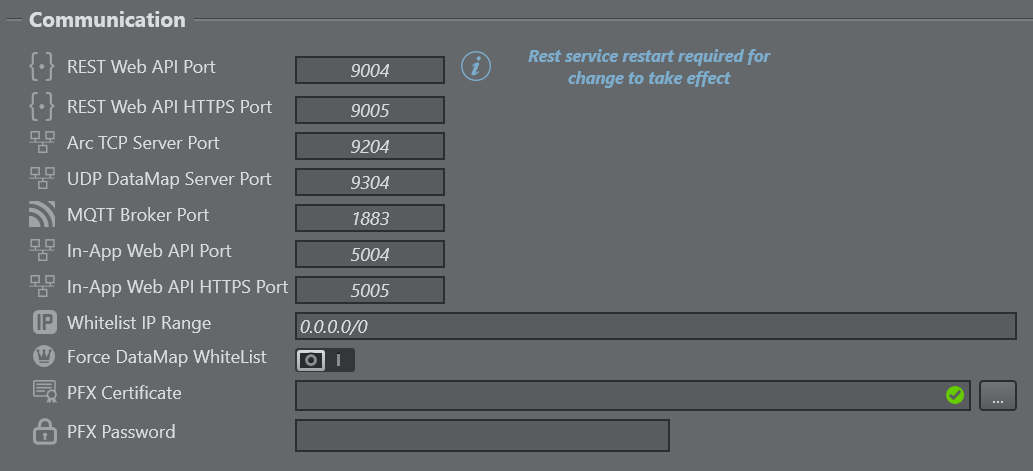
REST Web API Port: The REST port used for listening to incoming requests by the Viz Arc REST server.
REST Web API HTTPS Port: Same as above, but for the HTTPS clients. Requires the setup of the PFX certificate parameter (below).
Arc TCP Server Port: The TCP Server port to be used for incoming TCP Connections.
UDP DataMap Server Port: The UDP Server port to be used for incoming UDP packets for DataMap updates.
MQTT Broker Port: The internal MQTT Broker port to be used. Set to
0to disable the Broker.In-App Web API Port: The port to be used for the internal web server.
In-App Web API HTTPS Port: The port to be used for the internal web server.
Whitelist IP Range: Specifies a semi-colon (;) separated list of IP addresses/ranges (in CIDR notation) allowed to access the web server.
PFX Certificate: The path to the PFX certificate required to enable HTTPS for the REST service.
PFX Password: The password of the PFX certificate.
Note: All settings take effect upon restart of the REST service or Viz Arc.
General
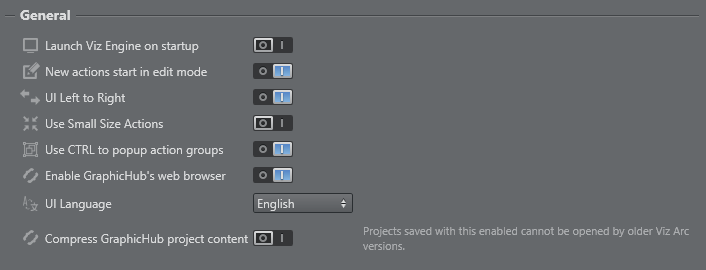
Launch Viz Engine on startup: Launches Viz Engine on Viz Arc application startup, when enabled.
New actions start in edit mode: Starts new actions in edit mode when created when set to
On.UI Left to Right: Switches the UI to right to left mode (experimental) when set to
Off.Use Small Size Actions: Uses smaller buttons for Actions when set to
On.Use CTRL to popup action groups: Hold CTRL while left clicking on the Expand button of a Group Action to expand the group temporarily as a popup. Disable this option to make this the default behavior without holding the CTRL button.
Enable Graphic Hub's web browser: Uses web view based Graphic Hub browser for scene browsing.
UI Language: Determines the language to be used for the UI (feature under development).
Compress GraphicHub project content: Compresses large projects before saving them to a GraphicHub, so they store successfully and upload faster. Off by default. Projects saved with this enabled cannot be opened by older Viz Arc versions — see below.
Compress GraphicHub Project Content
A GraphicHub limits the size of a single project-content field, so very large projects can fail to save. When enabled, Viz Arc compresses (gzip) project content above ~1 MB before uploading it, keeping it under the limit and speeding up saves — a 50 MB project typically stores as a few MB.
Automatic reads: compressed projects are always detected and opened transparently, even with the option off, and also via the REST/web interface. Toggling it on/off takes effect immediately (no restart).
Scope: only large project content is compressed; small projects and already-compact content are left as-is, and project metadata stays readable.
Compatibility: existing projects are unaffected, but projects saved compressed cannot be opened by Viz Arc versions that predate this feature. Enable it only once all installations sharing the GraphicHub are updated.
Exports:
.arcexports always store plain content and stay portable across any version.
Playlist
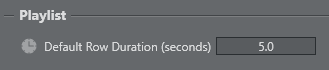
Default Row Duration: The default duration of a playlist row on creation.
Scripting

Compile scripts on project load: Forces any custom script included in the project to be compiled when opening a project.
Main Script Debug Port: The debug port to connect an external debugger for the main script.
Editor Script Debug Port: The debug port to connect an external debugger for the script in the template designer.
JS Modules Search Path: Sets the JavaScript module path. Use a semi-colon (;) to separate multiple paths.
Unreal Engine

Ignore Actors with name: A regular expression (in C# syntax) that excludes Unreal Actors when parsed from a BluePrint Actor (for example, the BluePrint Action or in a Unreal Template). Leave this field empty if all Actors should be considered. Another sample could be (bCanBeDamaged|RuntimeGrid|bIsSpatiallyLoaded). This regular expression would exclude all actors with the exact name bCanBeDamaged or RuntimeGrid or bIsSpatiallyLoaded. Switch the Log Level to at least INFO to see in the log which Actors got effectively ignored (for example, after creating a BluePrint action).
AI/LLM Configuration
For the AI feature(s), choose between the two AI providers Anthropic or OpenAI.
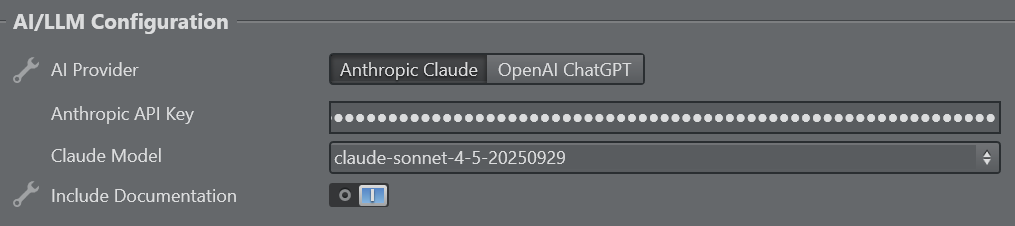
AI Provider: Selects either Anthropic Claude or OpenAI ChatGPT.
API Key: Uses the API key provided by the AI provider.
Model: Selects the model to be used for AI based on the provider.
Include Documentation: Determines whether to send Viz Arc` documentation along with AI prompts. Disable this to reduce token usage, enable it to get better results.
This configuration section is only to be configured for users intending to use the Template Builder’s built in prompt. When external applications using the MCP server are going to be used, this section can remain empty/unconfigured.
Map
A key Viz Arc feature is the ability to set up augmented reality elements, tracked cameras and polygon masks in outdoor productions directly over a map.
To use Bing maps and the search feature, please create an API key, read more here.
Select a Default Provider for map imagery using the Map menu below:

Default Provider: Selects the default map provider for the map section
Bing API Key: The API Key used to download map tiles and location searches on the set view. Use the refresh button to check the entered API Key. A restart of the application is required to use the new API key.
Toast Notifications
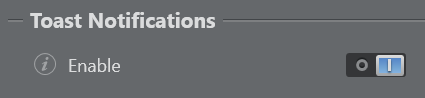
Toast notifications show notifications on the bottom right of the window to show actions being triggered by external triggers (such as the web API). They can be enabled or disabled here.
Performance
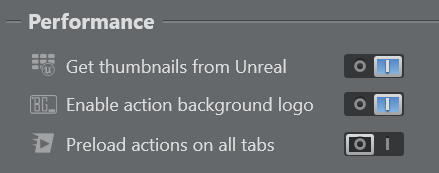
Use this menu to select the following Performance options:
Get thumbnails from Unreal: Enables the retrieval of thumbnails from Unreal Engine.
Enable action background logo: Enables a watermark logo to be displayed on Actions, to clearly show the type of action.
Preload actions on all tabs: Enables to preload all the action UI’s on all tabs when opening a project. This increases load times, but it eliminates loading lags when opening a different action tab for the first time. This might be convenient for large projects.
User Interface Appearance
Use these settings to customize the UI appearance for builder and On Air mode.
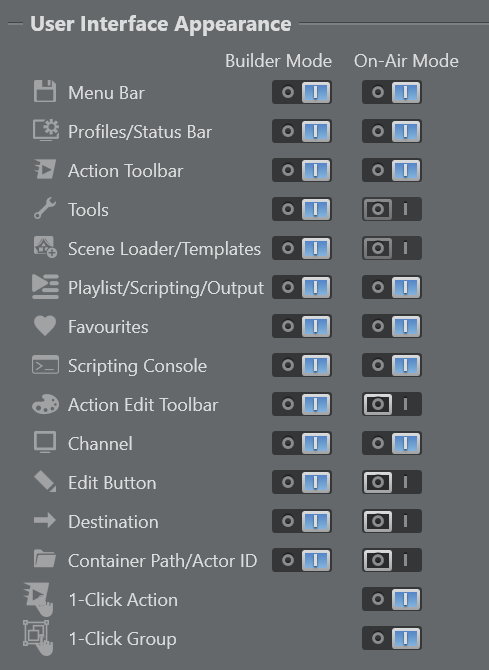
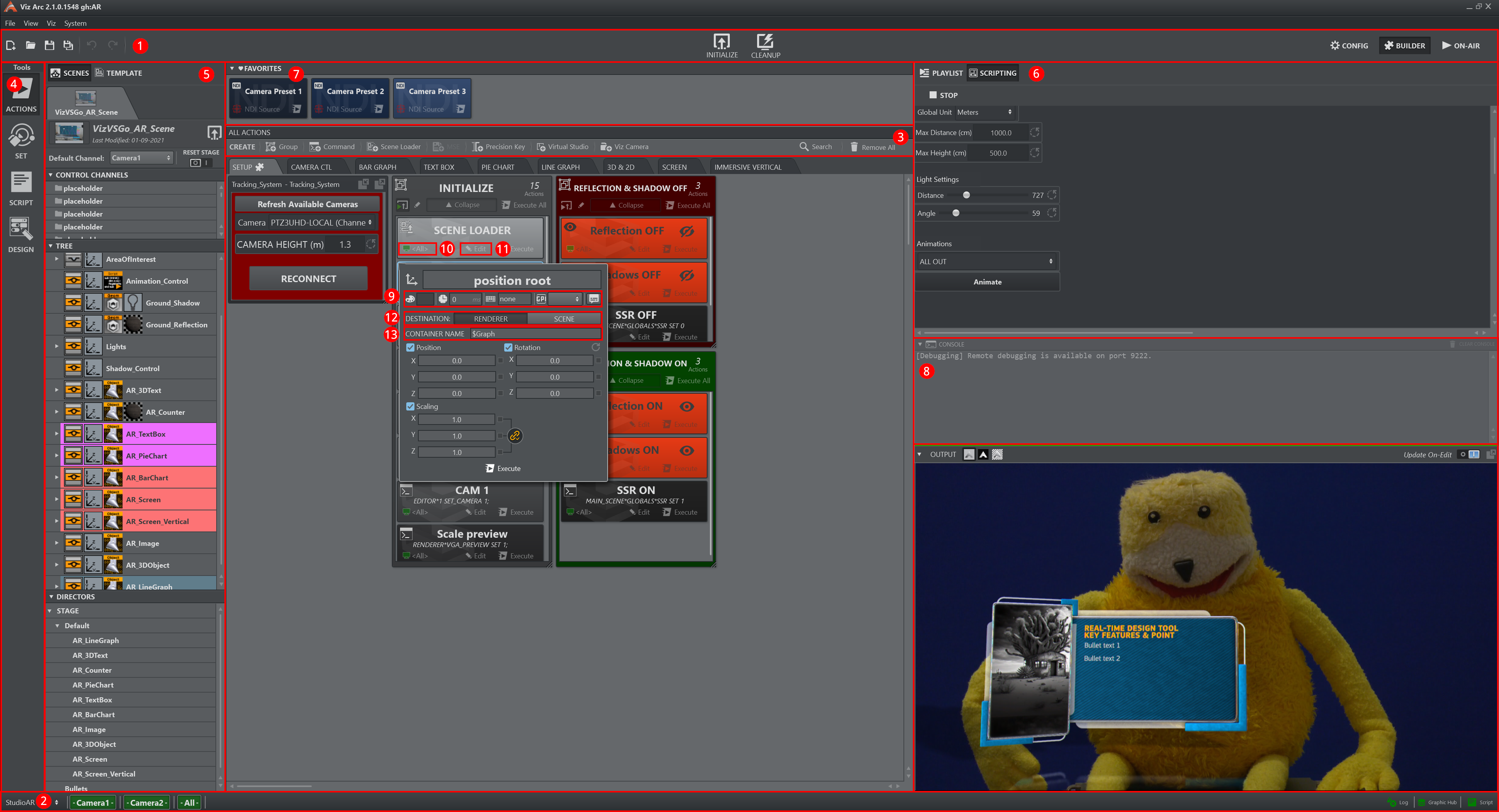
Menu Bar: Toggles the menu bar containing the new, open, save, save as, undo/redo initialize and cleanup shortcuts. Most items still be reached through shortcuts or the menu.
Profiles/Status Bar: Toggles the bottom bar containing the profiles selection and the channel status information.
Action Toolbar: Toggles the toolbar containing shortcuts to create actions.
Tools: Toggles the left hand side tool bar. Tools can still be reached through the View menu.
Scene Loader/Templates: Toggles the left hand side of the UI containing the scene loader and the templates.
Playlist/Scripting/Output: Toggles the right hand side of the UI containing the script, playlist and output panel.
Favorites: Toggles the favorites bar.
Scripting Console: Toggles the scripting console.
Action Edit Toolbar: Toggles the action toolbar containing color selection and more when editing an action. Most properties can still be changed through the context menu.
Channel: Toggles the channel visibility on the action.
Edit Button: Toggles the action’s edit button. The action can still be edited using the context menu.
Destination: Toggles the Viz scene-specific action’s destination property.
Container Path/Actor ID: Toggles Viz scene-specific action’s scene path and Unreal specific actor IDs.
1-Click Action: In case the Action Toolbar is switched off in On Air mode, this options allows you to toggle the 1-Click action behavior.
1-Click Group: In case the Action Toolbar is switched off in On Air mode, this options allows you to toggle the 1-Click group behavior.
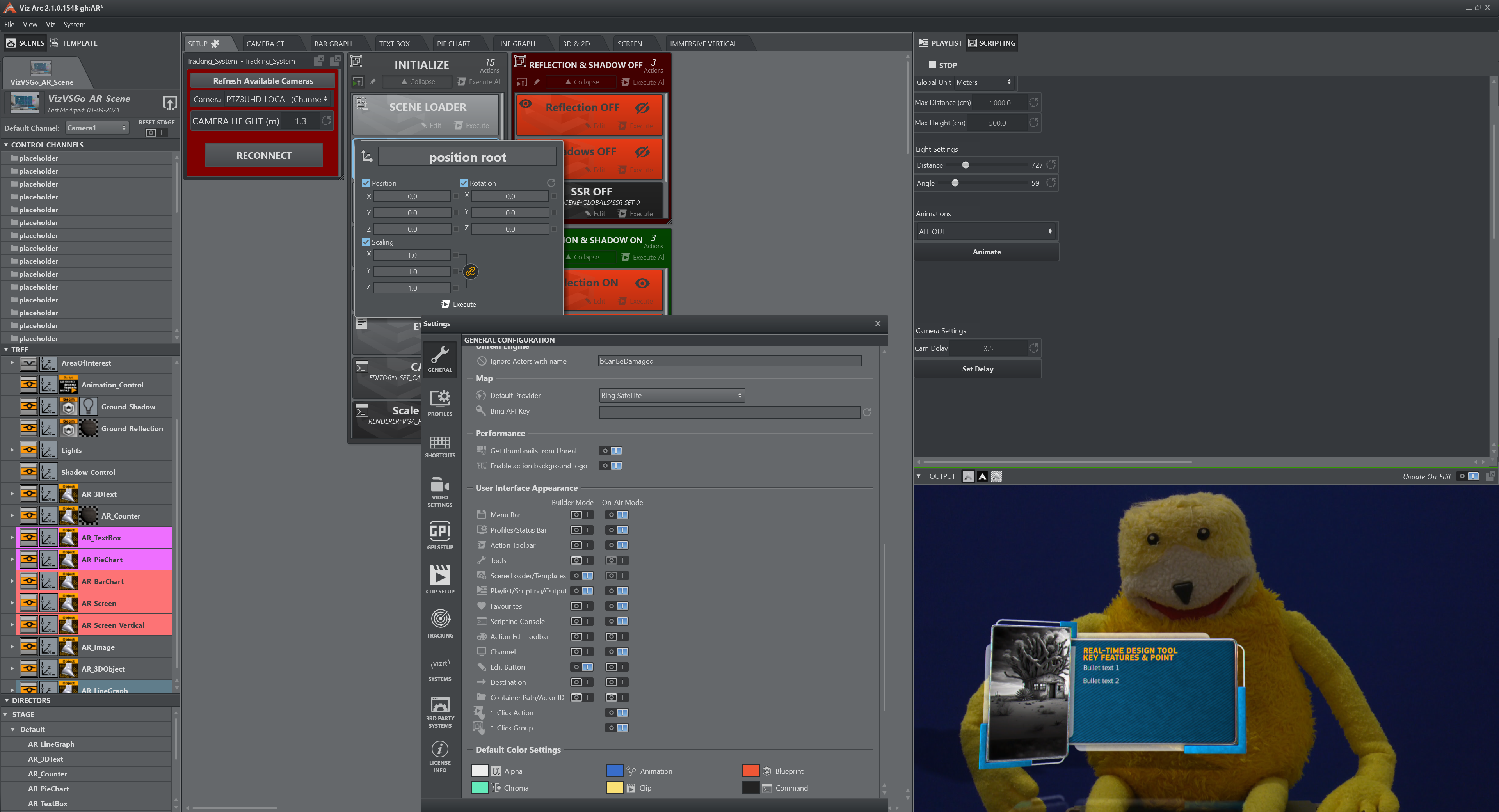
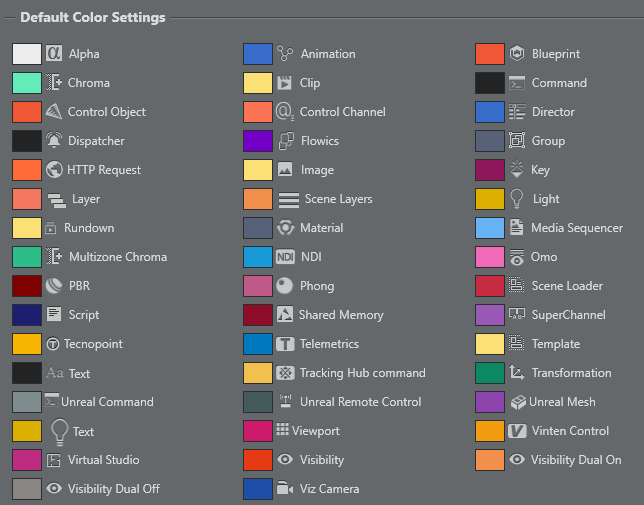
Default Color Setting
You can assign a default color for each action, such as transformation, alpha, visibility and so on. You can still assign a different color in the main area.
See Also
Project Action Types for more information on how to execute Viz Trio pages.
GPI Setup for more information about setting up GPI Triggers and Callbacks.