Preview Output
Preview Output lets you choose between the following outputs:
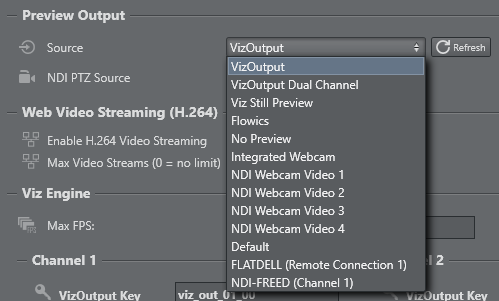
The selected source is displayed throughout all Viz Arc interfaces. Use the Refresh button to force the detection of newly connected sources.
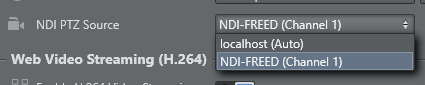
The NDI PTZ Source can be selected explicitly to any NDI source with PTZ capabilities or use localhost (Auto) to use the same source as selected in Source.
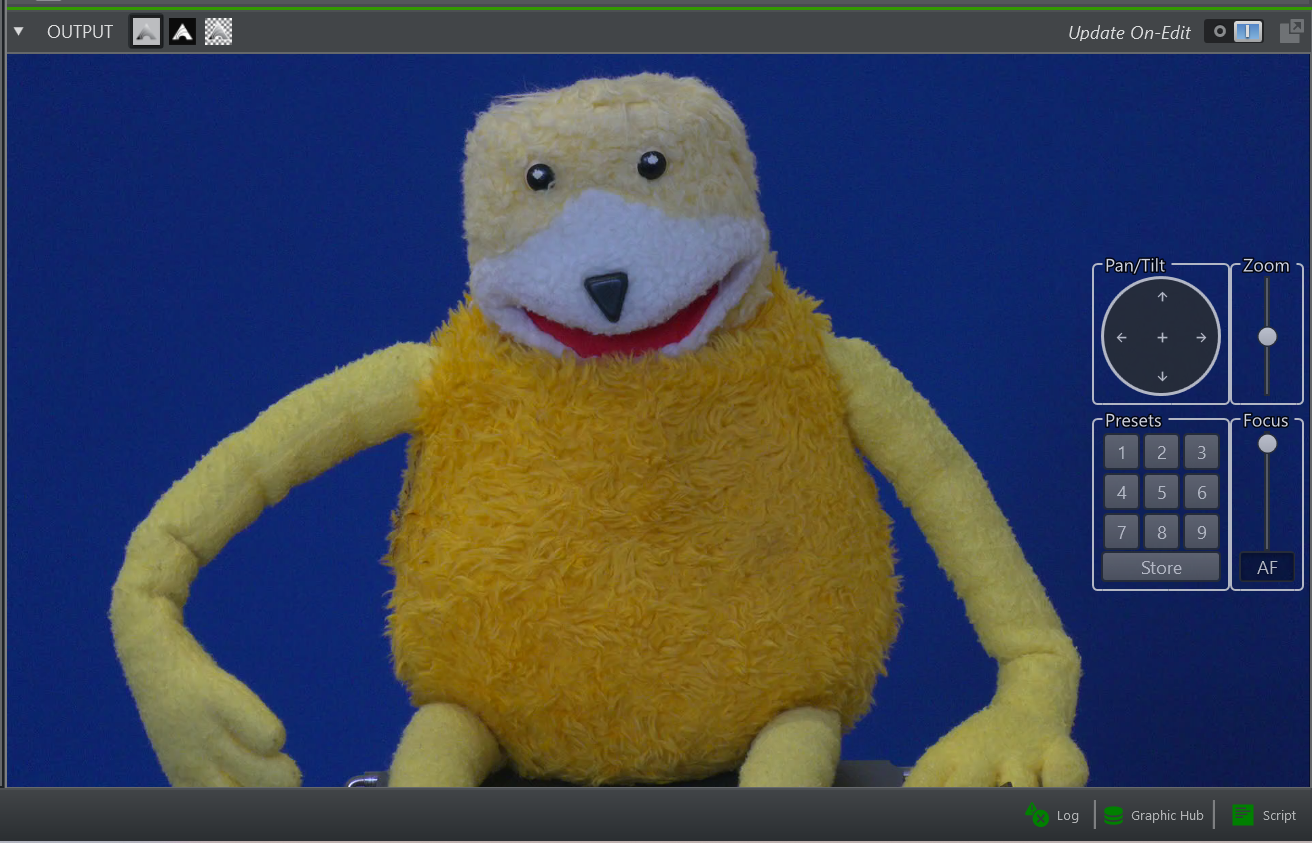
Use the Refresh button on the source to update those sources. The selection enables a PTZ control overlay on the preview output.
VizOutput
The Viz Arc built-in preview uses the Viz Engine’s Shared Memory communication to display the output of Viz Engine.

Max FPS: Limit the maximum number frames per second displayed for the Viz Output, sometimes useful when experiencing performance issues.
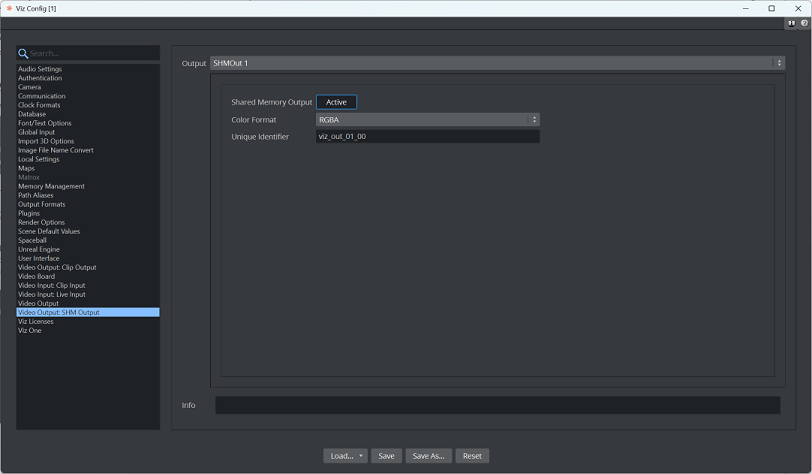
It's also possible to configure VizOutput settings for Channel 1 and Cannel 2:
VizOutput Key: The VizOutputKey Sync Key is used for receiving the Viz Preview. You must configure the desired key in the Viz Engine configuration (default key: viz_out_01_00).
Output port: The default Viz Engine TCP communication port.
VizOutput Sync Key: The value must match the SHMSyncMasterKey Viz Engine config setting (default key: viz_engine_SHMsync).
To have a working preview, you must
Install Viz Engine as a video machine even if you do not have video hardware installed on your system.
Configure VizOutput settings in Viz Arc, in the Video Settings section.
Configure your Viz Engine to also output through Shared Memory.
Important! You must also check your Viz Engine Configuration.
For more information, see Preview Output.
Viz Still Preview
Note: This setting is intended for Viz still preview only.
To configure still preview, configure a dedicated Channel in the Profiles section and tag it as Preview Channel. The communication port must be configured to match the Viz Engine's still preview port, which is by default 50010. A still preview configuration example is shown below:
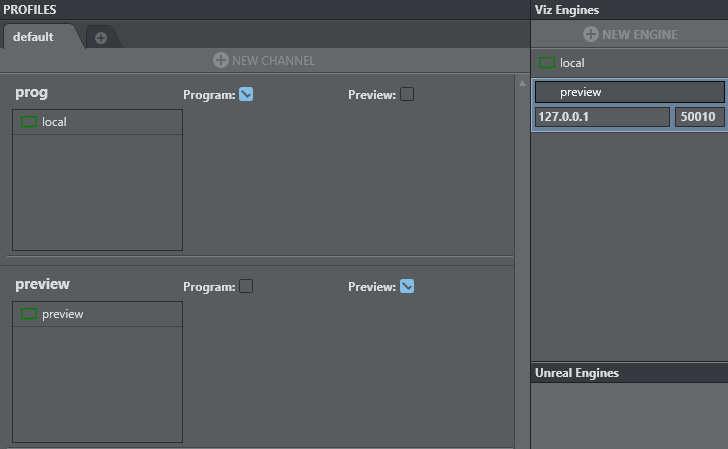
The still preview is used in conjunction with the template workflow and can be generated using the Preview Selection keyboard shortcut.
Web Video Streaming
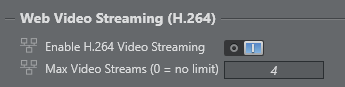
These settings control the H.264 encoding used by the preview in the Viz Arc web interface:
Enable H.264 Video Streaming: Enables the local H.264 encoding for web viewers. The video is encoded once per source directly on the Viz Arc machine, using a GPU encoder when the graphics hardware provides a compatible one. When disabled, web viewers receive the MJPEG stream instead.
Max Video Streams: Limits the number of concurrently encoded H.264 streams (0 = no limit). Viewers watching the same source share a single encoded stream, while every distinct source uses an encoder of its own; additional viewers beyond the limit fall back to MJPEG.
See the Web View section of the Preview page for a detailed description of the two transports and their limitations.
Flowics

Output URL: The URL of the Flowics output to display when the Flowics source is selected in the preview. The output is embedded as a live web page rather than being streamed as video, both in the desktop preview and in the web interface. The URL can also be changed from scripting using the SetFlowicsOutput function, for example to follow the output of the currently selected channel.
NDI
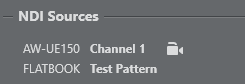
All detected NDI sources are listed here. The  icon indicates that the source is a controllable PTZ source.
Direct Show
Viz Arc displays all deleted DirectShow video sources. An example of configuring an external device (HP HD Camera) connected to Viz Arc is shown below:
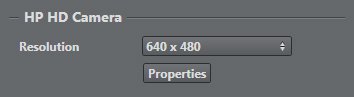
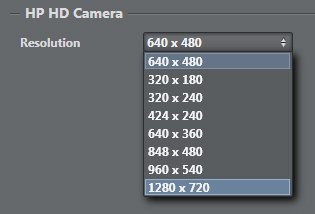
Having selected HP HD Camera, select the resolution required:
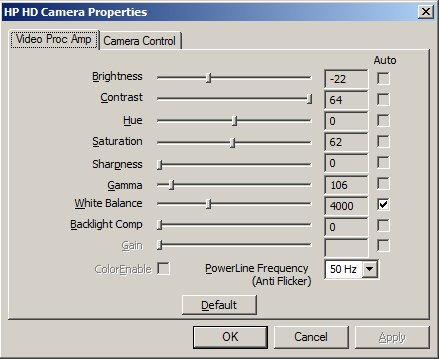
Press the Properties button. A popup window appears where you can customize output properties.
NDI through DirectShow
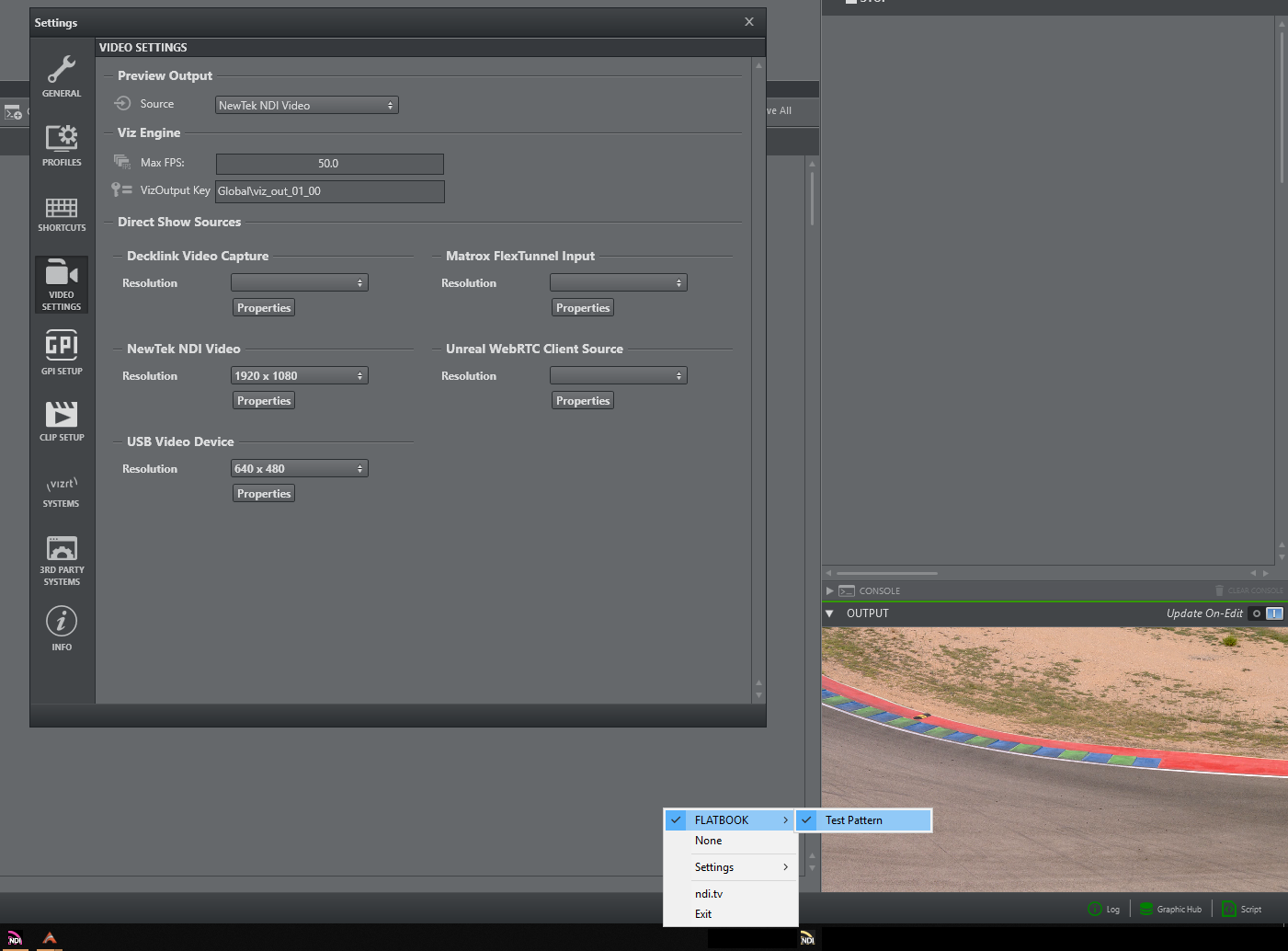
DirectShow sources lets you visualize any NDI stream within the system. The NDI tools must be installed on the system and the NDI Virtual Input needs to run. From there, select the desired NDI stream. In Viz Arc, select the NewTek NDI Video filter. No further configuration is required on the source filter itself.