This pane displays the Viz Engine output or any other video source configured. By enabling Update On-Edit, it is possible to see project changes in real-time.
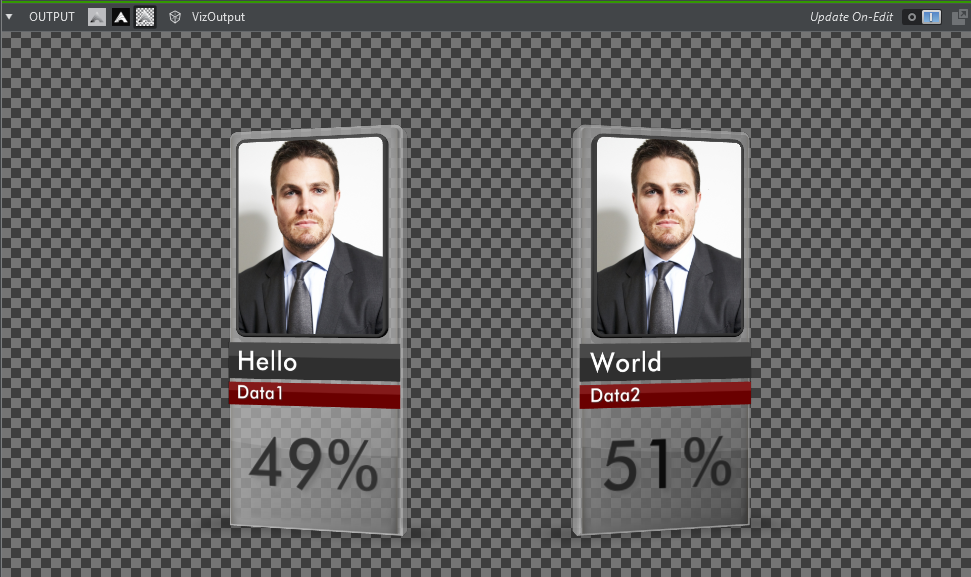
Use the three icons at the top left of the preview panel to select a visualization mode for the preview.

 : Shows Fill. Only shows the fill channel.
 : Shows Key. Only shows the key channel.
 : Shows Keyed. Only shows the keyed output.
Note: Currently only NDI sources and the Viz Output through shared memory (starting form Viz Engine 4.x) are capable of carrying fill and key information. This feature only works on NDI and Viz Engine sources. Select Show Fill for any other sources.
A drop down menu on the right side of the output mode buttons, can be used to quickly change the source of the output among the available outputs.
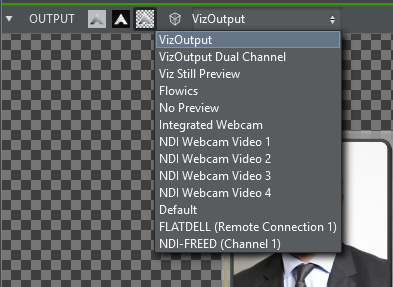
Select No Preview in the source drop down to disable the preview output altogether: no frames are decoded or displayed, and the panel shows Preview disabled instead. Use it to save CPU, GPU and network resources when no preview is needed.
Press the Camera Navigation  button in the top bar to fly the camera of the previewed Viz Engine using mouse and keyboard, in the style of a game spectator camera:
Hold the right mouse button and move the mouse to look around.
Press W, A, S, D to move, and SPACE / CTRL to move up and down.
Use the mouse wheel to adjust the movement speed.
Press 1 to 9 to switch between the scene's cameras.
When the preview shows the local Viz Engine output, camera navigation controls that Engine directly; for NDI and other remote sources, the profile's Viz editing Engine is used. Toggle the button off to release the camera again.
Click the Detach button to pop out the preview window to a separate window. Close the window again to attach it back into the main window.

Use the top bar context menu to add additional useful overlays.
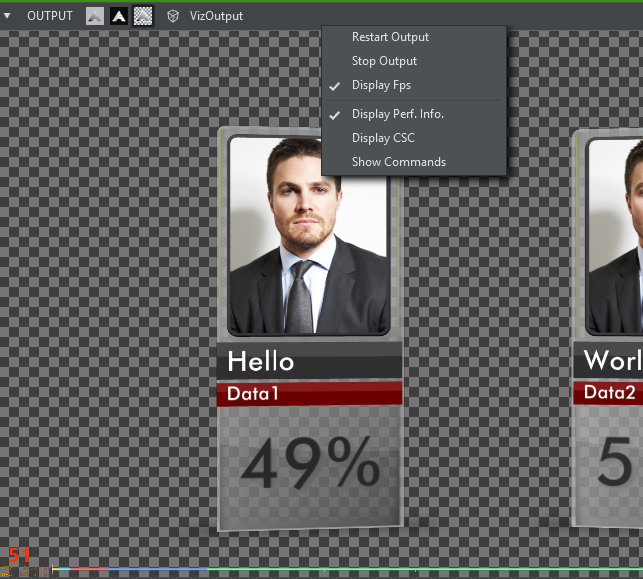
Restart Output: Restarts the stream decoding process.
Stop Output: Stops the output, might be used to save CPU/GPU resources.
Display Fps: Displays the effective frames per second of the actual display in Viz Arc as a red number on the bottom left corner.
Display Perf. Info: Shows the bottom performance bar when connected to a Viz Engine.
Display CSC: Displays the center cross when connected to a Viz Engine.
Show Commands: Shows commands when connected to a Viz Engine.
Web View
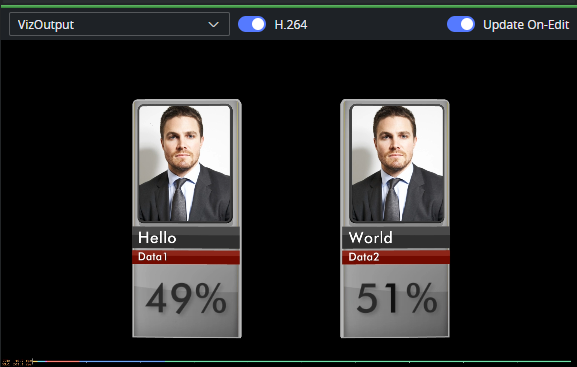
The preview is also available in the Viz Arc web interface. It mirrors the desktop preview: the source is selected from the same list of configured sources, and every viewer can start and stop their own stream. Flowics outputs are embedded as a live web page instead of being streamed as video.
The web preview supports two transports, selectable with the H.264 toggle in the web player:
H.264: Low latency and bandwidth-efficient — the recommended transport. Requires Enable H.264 Video Streaming to be switched on in the Web Video Streaming (H.264) group of the video settings.
MJPEG: The most compatible transport, working in any browser and over plain HTTP, at the cost of a considerably higher bandwidth. It is used automatically whenever H.264 is not available.
All video is encoded locally on the Viz Arc machine using Windows Media Foundation — no external media server is involved. For H.264, Viz Arc automatically selects the best encoder the machine offers: a GPU encoder when the graphics hardware provides a compatible one (for example Intel Quick Sync or AMD), and otherwise the software encoder built into Windows, which works on any machine at the cost of some additional CPU load. On systems without a compatible GPU encoder — for example machines with only an NVIDIA GPU — the software encoder is used. Regardless of the encoder, each stream is encoded once and fanned out to all its viewers.
Note: H.264 comes with the following limitations:
Decoding in the browser requires a secure context: it is always available on the Viz Arc machine itself (localhost and the built-in web views), while remote browsers must access the web interface through HTTPS. Over plain HTTP, a remote browser falls back to MJPEG automatically.
Max Video Streams limits the number of concurrently encoded H.264 streams (0 = no limit). Viewers watching the same source share a single encoder, while every distinct source uses an encoder of its own. When no encoder slot is free, additional viewers fall back to MJPEG.
A modern, WebCodecs-capable browser is required (any recent Chrome, Edge, Firefox or Safari). Older browsers fall back to MJPEG.