This page covers the following topics:
Crash Handling and Project Recovery
In the rare event of an unrecoverable error, Viz Arc protects the operator's work: It writes a crash log, saves a snapshot of the open project, and offers to restore that snapshot on the next start. The original project (whether stored locally or on Graphic Hub) is never touched by a crash save.
What Happens During a Crash
A crash log (
crash_YYYY_MM_DD_HH_MM_SS.txt) is written next to the regular log files, containing the error and stack trace. The regular log receives the same information.The currently open project is saved as a crash snapshot (
crash-D-M-YYYY.json) into a dedicated crash folder, kept separate per project so snapshots of different projects can never mix (even when a local and a Graphic Hub project share the same name).The crash save runs in the background with a fixed time limit and shows no dialogs, so a failure save can neither hang the shutdown nor get stuck behind a message box. It is a local snapshot only: A Graphic Hub project is not written back to the hub with mid-crash state.
Recovery on the Next Start
When Viz Arc finds a crash snapshot at startup, it asks:
“It seems that there was an issue with Viz Arc but we managed to recover your project state. Would you like to recover it?”
Yes: The snapshot is loaded instead of the last saved project state. The project keeps its original identity, so a normal Save afterwards writes back to the original location (including Graphic Hub).
No: The last regularly saved state is loaded.
In both cases, the handled snapshot is not deleted but archived into a recovered subfolder of the project's crash folder (the newest ten per project are kept), so it remains available for inspection or manual recovery. Snapshots are archived the same way when they become obsolete: After a regular save or a clean application exit.
Limitation: The recovery prompt is tied to the active project as recorded by the last save. For a project that was opened but never saved in that session, a snapshot may exist in the crash folder without the prompt appearing. it can still be opened manually from there.
If Viz Arc Appears Frozen
End the process via the Windows Task Manager. On the next start the crash-recovery prompt restores the last snapshot if one was written. For a support case, collect the newest files from the Logs folder (see below). The regular log of the day plus any crash_*.txt – before restarting.
Starting While Viz Arc Is Already Running
Viz Arc runs as a single instance per machine. If Viz Arc is already open when it is started again, the existing window is brought to the foreground; a background process left over from an earlier session is ended automatically before the new instance starts. In everyday use, neither case requires any action.
There is one situation Viz Arc cannot resolve on its own: Switching Windows users without logging out. When a colleague left Viz Arc open in their (still logged-in) Windows session, the process belongs to that user and Windows does not allow another user's session to close it. Viz Arc then asks how to proceed:

Exit (recommended): First release the other instance. Sign the other Windows user out, or end their
VizArc.exein the Task Manager (Users tab; ending another user's process requires administrator rights). Restart Viz Arc.Continue: Viz Arc starts and works normally, except for features whose network ports are still held by the other instance (for example, the Arc control TCP server may not be available in this session).
If Viz Arc Does Not Start
Check the newest log file (
log_YYYY_MM_DD.txt) and anycrash_*.txtin the Logs folder. Startup problems are logged there, including errors that occur before the main window appears.A corrupt settings file does not block startup: Viz Arc falls back to default settings and logs the problem. However, a syntactically valid configuration containing a bad value (for example one written by a script) is loaded as-is. To reset the settings, close Viz Arc and rename or remove
Config.jsonfrom theconfigfolder. It is recreated with defaults on the next start.When a shared data folder is configured (registry value
CommonDataFolderunderHKLM\SOFTWARE\vizrt\Viz Arc. For example, on a network share) and that folder is unreachable, Viz Arc starts with the local per-user data folder instead and shows a warning. Settings may then appear reset until the shared folder is reachable again.
File Locations
Unless a shared data folder is configured, all of these live under the per-user data root %LocalAppData%\Vizrt\VizArc\:
Content | Location |
|---|---|
Settings |
|
Daily logs |
|
Crash logs |
|
Crash snapshots |
|
Archived snapshots |
|
Logs, crash files and other per-user data always stay in the local per-user root, even when the shared data folder is used for the configuration.
Vizrt Issues
Unable to Load Scene
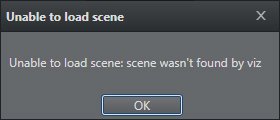
Make sure that there is a channel associated to a scene, and that you are connected to a Vizrt profile.
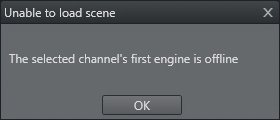
Check if Viz Engine is up and running.
Viz Arc cannot find the selected scene. Check that you are connected to the correct Graphic Hub.
Graphic Hub Not Connected

Check if Graphic Hub is up and running.
Check in the Config window that the Graphic Hub REST settings are correct (Host/IP and Port, Username and password).
Check that the machine on which Viz Arc is installed is connected to the machine containing Graphic Hub.
Follow the procedure in General Configuration to correctly configure Graphic Hub REST in Viz Arc.
Preview Not Connected
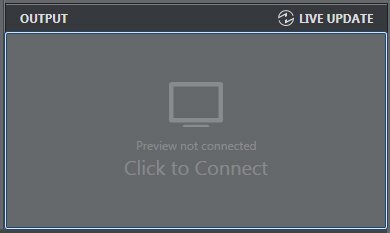
Check if Viz Engine is up and running.
Check in the Config window that the Viz GH and MSE settings are correct (Host/IP and Port).
Check that the machine on which Viz Arc is installed is connected to a Viz Engine.
See the section Configuring Viz Engine.
Output Initialize Failed
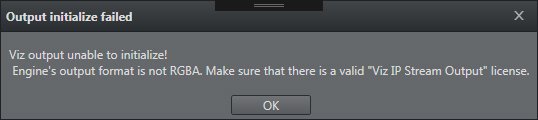
Check that Viz Engine is configured in RGBA output format.
Ensure that there is a valid Viz IP Stream Output license.
Check that you are using Viz Engine 3.9 or higher.
See the section Configuring Viz Engine.
Cannot Connect/Send to Viz Engine
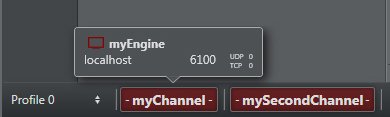
Check that Viz Engine is up and running and set in On Air mode.
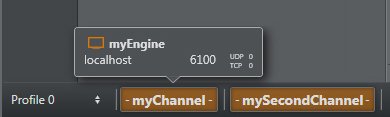
Check that Viz Engine is set in On Air mode.
Cannot Send Shared Memory Commands
If Viz Engine can’t receive SHM commands, it's possible that the UDP and TPC ports are not configured in Viz Config.
In Viz Engine, go to Config > Communication > Shared Memory.
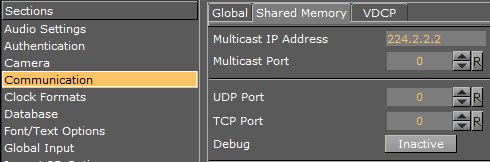
For more information, see Profiles.
Unreal Engine
Unreal Engine not Available

Check that Unreal Engine is up and in Play Mode.
Check in the Config window that the Unreal Engine settings are correct (Host/IP and Port).
Check that the Viz Arc machine is connected to the machine containing Unreal Engine.
Check that you have copied the arcCom plug-in folder to \Epic Games\UE_4.20\Engine\Plugins.
See Profiles for more information on configuring Unreal Engine in Viz Arc.
Cannot Connect/Send to Unreal Engine
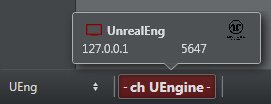
Check that Unreal Engine is up and running and set in Play mode.
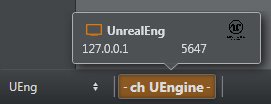
Check that Unreal Engine is set in Play mode.
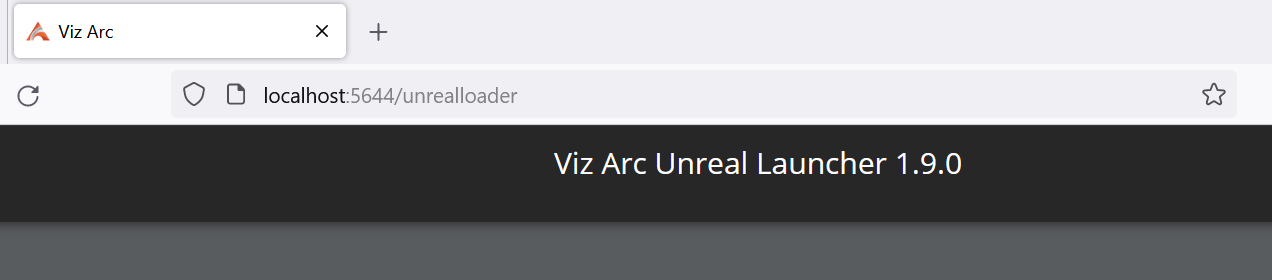
Check if the Unreal Launcher service is running and responding by pointing a web browser to http://hostname:5644 where 5644 is the launcher port.
Unable to Load Unreal Level
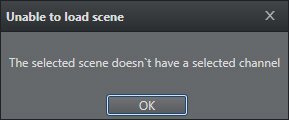
Ensure that there is a channel associated to a Level, and that you are connected to an Unreal Engine profile.
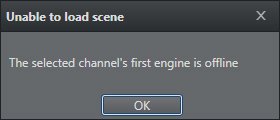
Check that Unreal Engine is running and in Play mode.
Viz Arc cannot find the selected Level. Check that you are loading a Level that exists in the selected project.
Support
Support is available at the Vizrt Support Portal.