This section describes the various Stream Deck plug-ins for Elgato.
Note: Most plug-in actions require Viz Arc to be running.
On this page
Viz Arc
The main Viz Arc Stream Deck plug-in: execute actions, control the playlist, trigger scripts, and drive Object Tracker, Arena, DataMap, project loading and shortcuts.
Execute Action
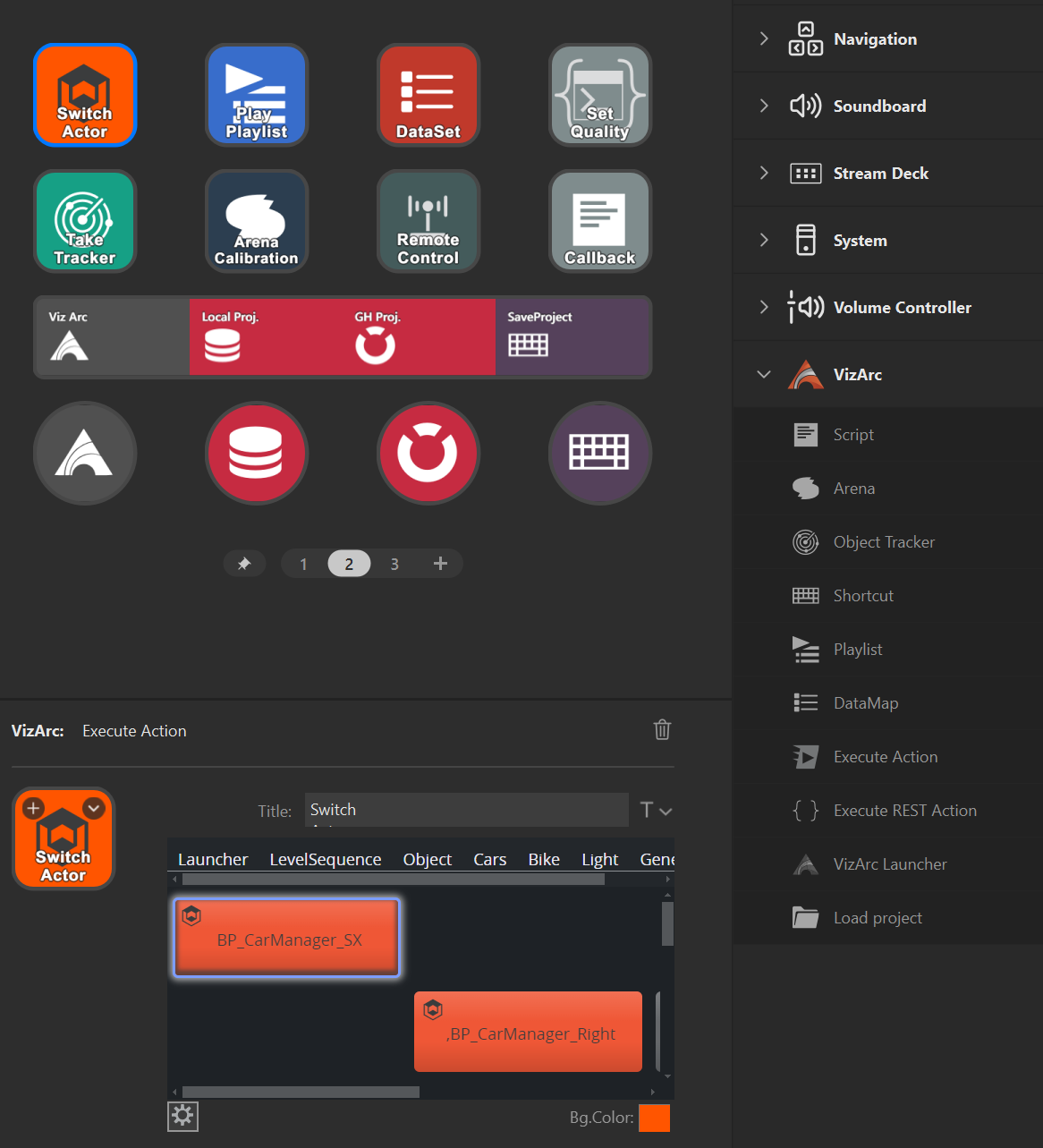
Drag and drop the Execute Action item to any of the Stream Deck buttons. The action lets you select an Action from the currently loaded project by selecting any of the actions.
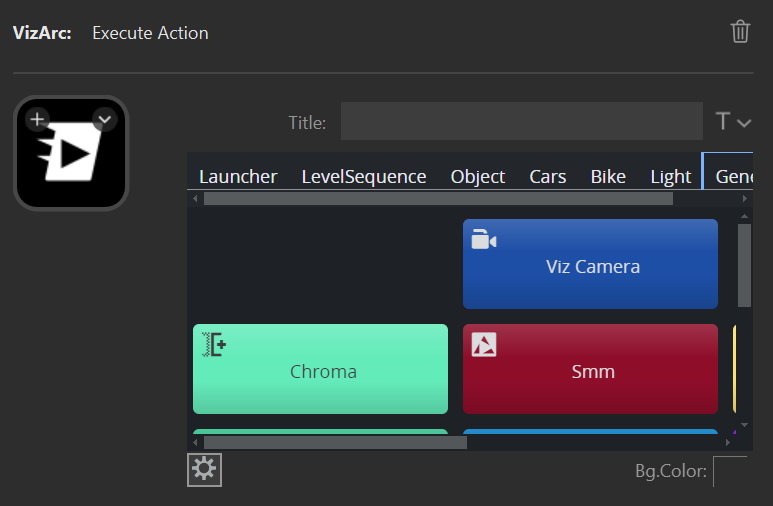
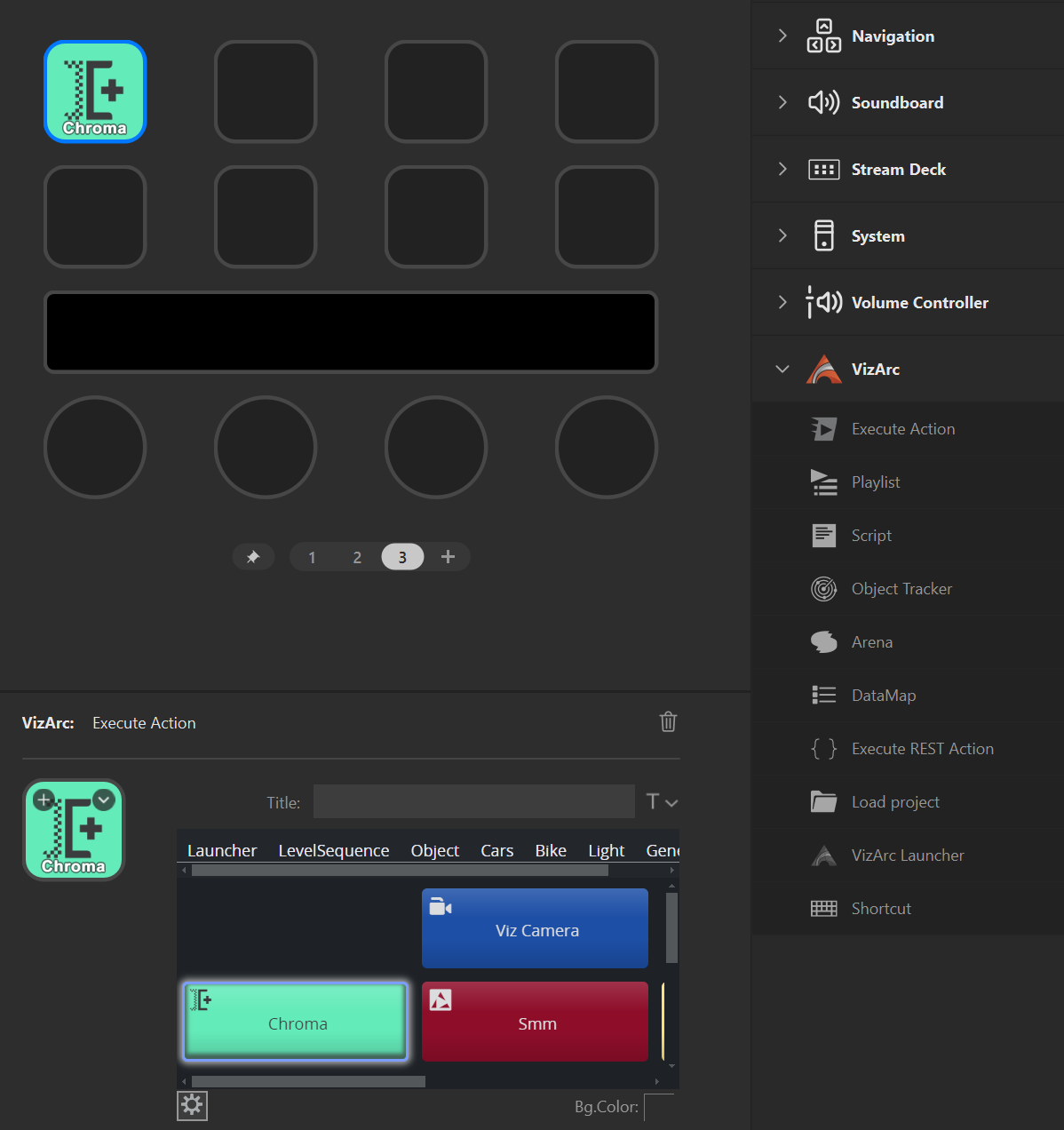
Note that the action is NOT executed when selecting it by clicking on it. Once the action has been selected, the button shows up with the action icon and action name.
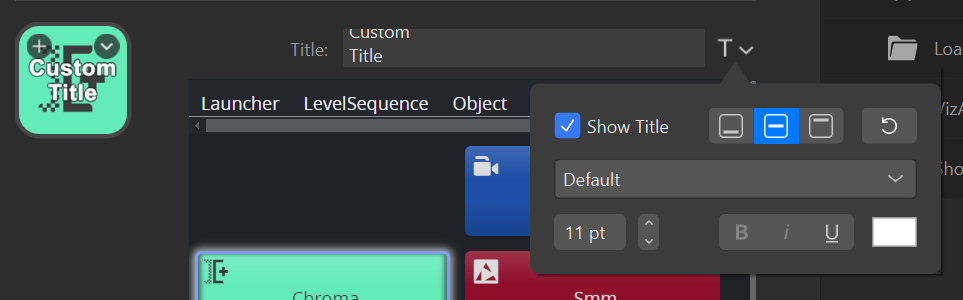
The name can be customized through the Title property editor.
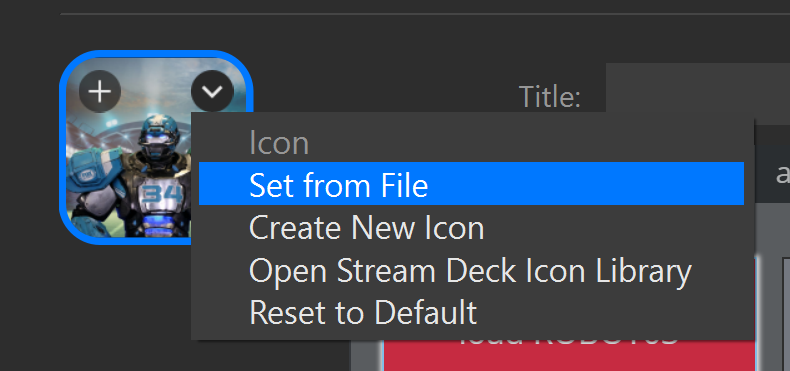
The background can be customized as you please using a wide range of sources and editors.
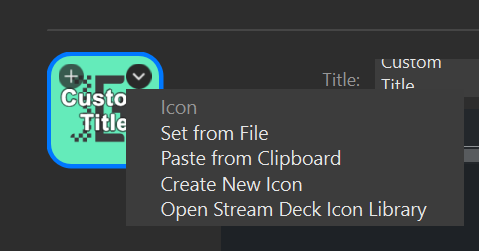
An example loading an icon from a .jpg file.
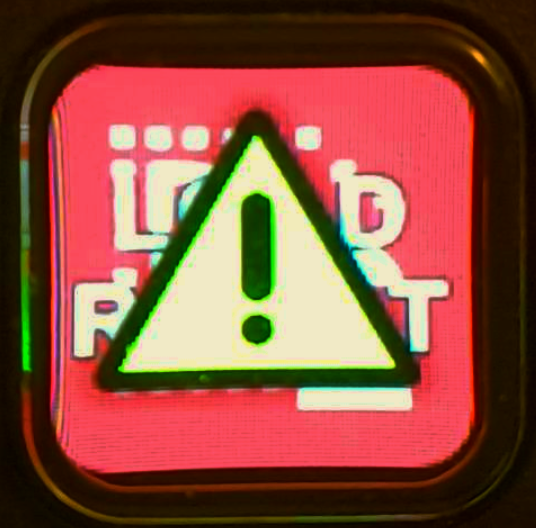 When executing: Once the Viz Arc Action to be executed has been selected, pushing the button executes the action only if Viz Arc is running and the project from which the action originates is currently opened. If the action cannot be found or Viz Arc is not running, a small triangle shows indicating that the execution did not succeed.
 This icon appears when the action is not in the current project loaded in Viz Arc and therefore cannot be executed because it is unreachable.
Playlist
The Playlist action lets you control various aspects of Viz Arc's playlist.
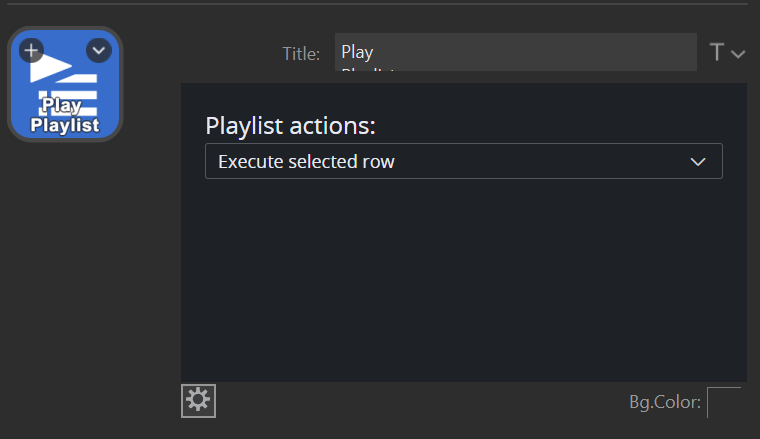
Execute Selected Playlist Row: Plays the currently selected playlist element.
Execute Selected Playlist Row And Next: Plays the currently selected playlist element and advances to the next playable playlist element.
Preview Selected Playlist Row: Previews the selected playlist element.
Go to First: Selects the first playlist element.
Play Current Playlist: Plays the currently selected playlist from the selected item on.
Stop Current Playlist: Stops the currently selected playlist.
Play Playlist By Name: Selects and plays the playlist by the specified name. If the name is ambiguous, it plays the first occurrence.
Play Playlist By Index: Selects and plays the playlist specified by the given index, where 0 is the first playlist.
Change Active Tab: Selects the tab by the specified name.
Execute Row By Callup Code: Executes the playlist row matching the callup code you type in the property inspector.
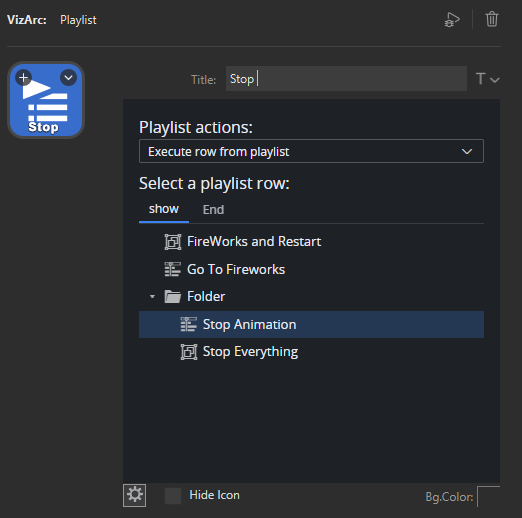
Execute Row From Playlist: Executes one specific playlist row that you pick once from a browsable list of tabs and rows.
Execute Row From Playlist
Executes one specific playlist row immediately, regardless of which row is currently selected in Viz Arc.
How it works
Pick the target row once from a browsable tree of the currently loaded project's playlist tabs and folders.
Folders can be expanded/collapsed but not assigned directly as a target, only individual rows can be chosen.
The previously selected row is automatically revealed when you reopen the configuration.
Once a row is chosen, the button's title is automatically set to that row's label and can't be edited freely.
Info: Unlike Execute Current / Execute And Next which act on whatever row is currently selected in Arc, and fail if nothing is selected. Execute Row From Playlist always targets the specific row you assigned, independent of the current selection in Arc.
Note: If the assigned row can no longer be found (because it was deleted or moved, a different project is now loaded, or no Viz Arc project is currently connected) the key displays a yellow warning triangle over its icon.
Refer to the playlist to learn more about Viz Arc's playlist functionality.
Script Callback
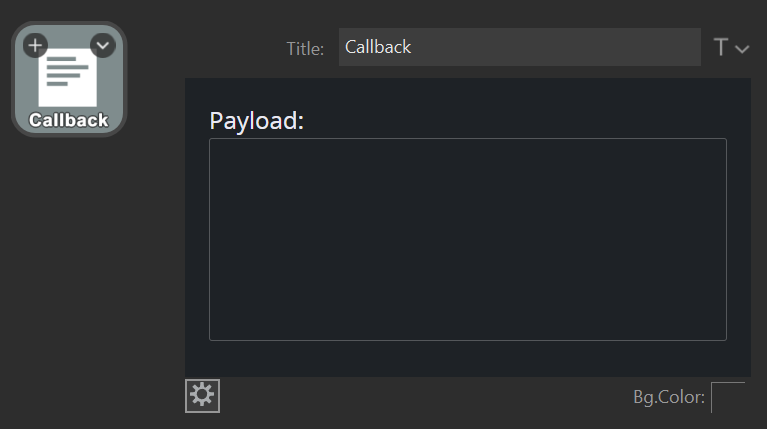
The Script Callback action triggers Viz Arc script functions that may be defined in the global script or a template.
The Payload can be any string passed to the script method.
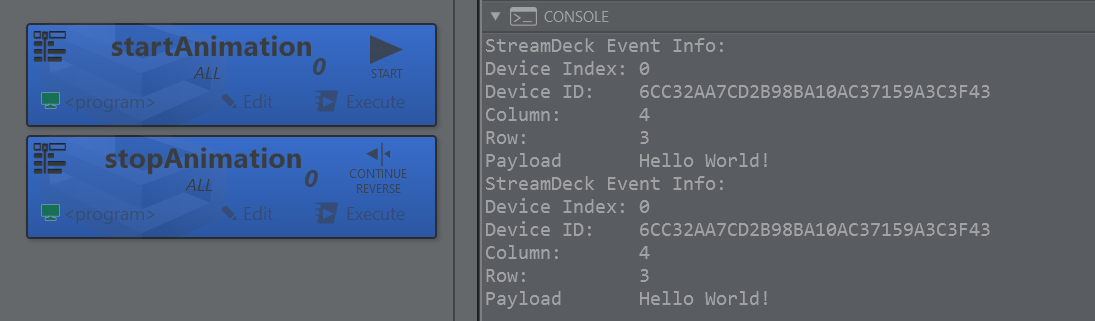
A sample Viz Arc script might look like this:
function printSDEvenyInfo(sdEvent){ // print all the available information for a StreamDeck event Console.WriteLine("StreamDeck Event Info:") Console.WriteLine("Device Index: " + sdEvent.DeviceIndex) Console.WriteLine("Device ID: " + sdEvent.Id ) Console.WriteLine("Column: " + sdEvent.XKey ) Console.WriteLine("Row: " + sdEvent.YKey ) Console.WriteLine("Payload: " + sdEvent.Payload )}Global.OnStreamDeckKeyDown = function (sdEvent){ printSDEvenyInfo(sdEvent) // start an animation when StreamDeck key is down GetAction("startAnimation").Execute()}Global.OnStreamDeckKeyUp = function (sdEvent){ printSDEvenyInfo(sdEvent) // stop an animation when SrreamDeck key lifts up again GetAction("stopAnimation").Execute()}The script above executes the startAnimation action when the Stream Deck button is pressed and the stopAnimation action when the button is released.
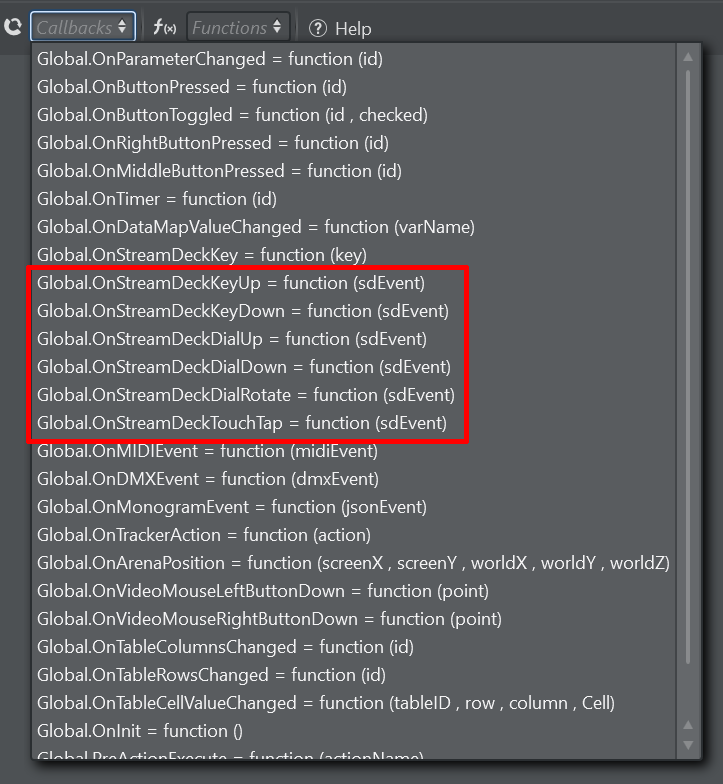
The available script callbacks are:
OnStreamDeckKeyDown: Invoked when the key is pressed.
OnStreamDeckKeyUp: Invoked when the key is released.
OnStreamDeckDialUp: Invoked when a dial is pressed.
OnStreamDeckDialDown: Invoked when a dial is released.
OnStreamDeckDialRotate: Invoked when a dial gets rotated.
OnStreamDeckTouchTap: Invoked when a user tapped a touch area button.
Object Tracker
The Object Tracker action lets you execute Object Tracker related macros.
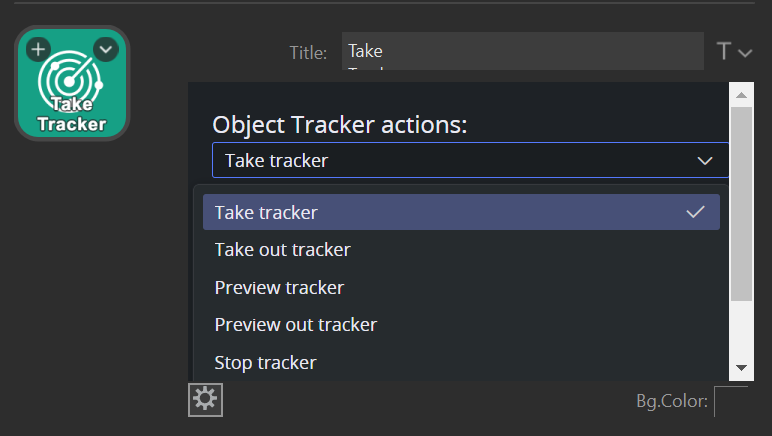
Take Tracker: Takes all active trackers On Air.
Take Out Tracker: Takes all active trackers Off Air.
Preview Tracker: Previews all active trackers.
Preview Out Tracker: Previews out all active trackers.
Stop Tracker: Stops all active trackers.
Set Active Tracker: Selects the currently active tracker by index, starting at 1.
Reset Pointer Offset: Resets all pointer offsets.
Refer to the Object Tracker User Guide for more information.
Arena
The Arena action lets you execute Viz Arena related macros.
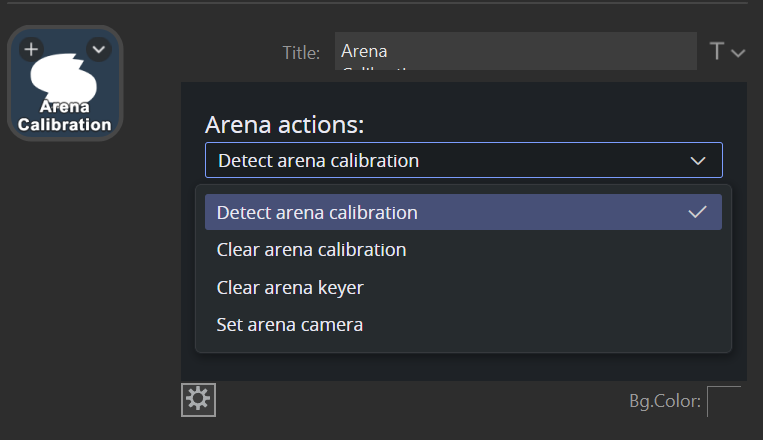
Detect Arena Calibration: Detects the calibration of the current image, equivalent of pressing the shortcut D in Viz Arena.
Clear Arena Calibration: Clears the calibration, equivalent of pressing the BACKSPACE button in Viz Arena.
Clear Arena Keyer: Clears the keyer, equivalent of pressing C in Viz Arena.
Set Arena Camera: Selects the current camera for both Viz Arena preview and program feeds.
Refer to the Viz Arena Integration documentation for more information.
DataMap
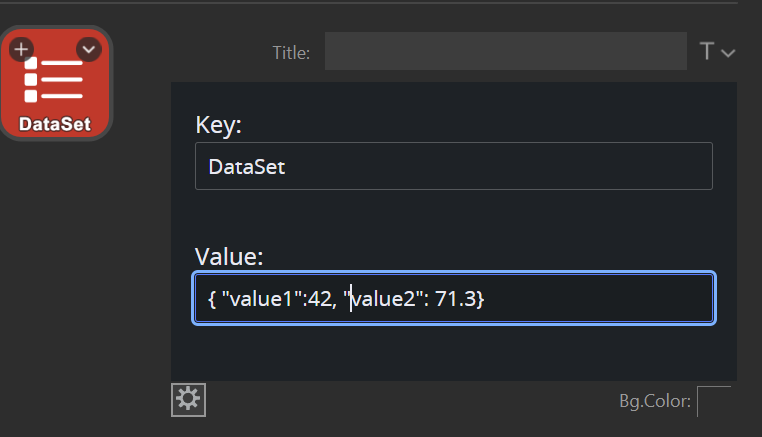
The DataMap action allows you to set a Viz Arc DataMap variable.
Execute REST Action
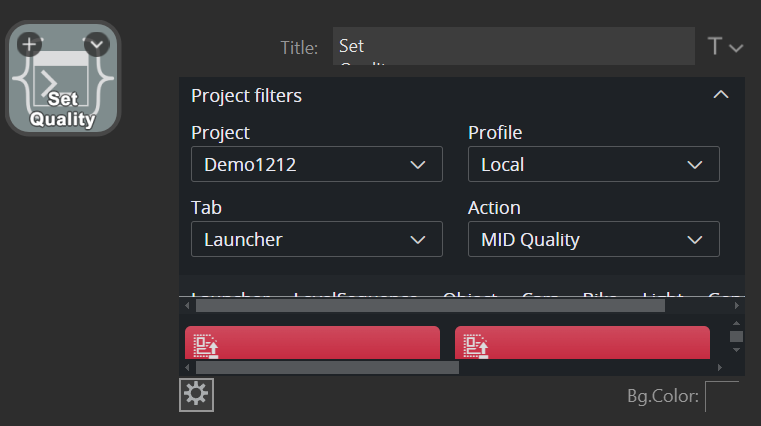
The Execute REST Action allows you to launch Viz Arc actions using the REST service which does not require Viz Arc to be running.
You need to specify a project, an action and a profile on which to execute the action.
You can also navigate the action canvas and tabs to select an action.
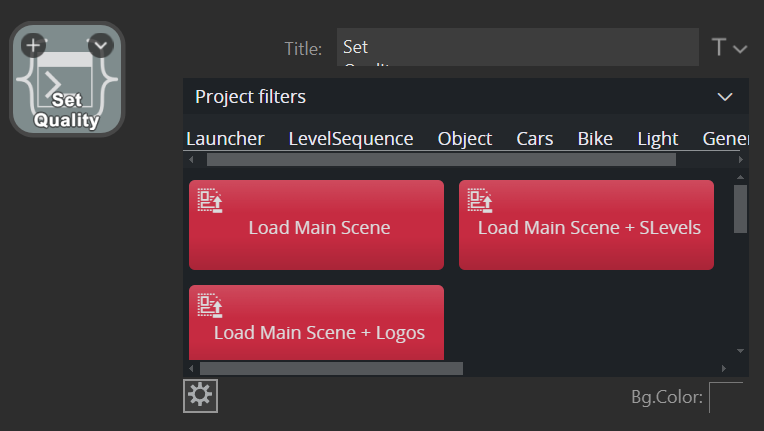
Load Project
The Project Loader allows to load a project from Graphic Hub or a local file based project. Select a project to be loaded from the drop down menu.
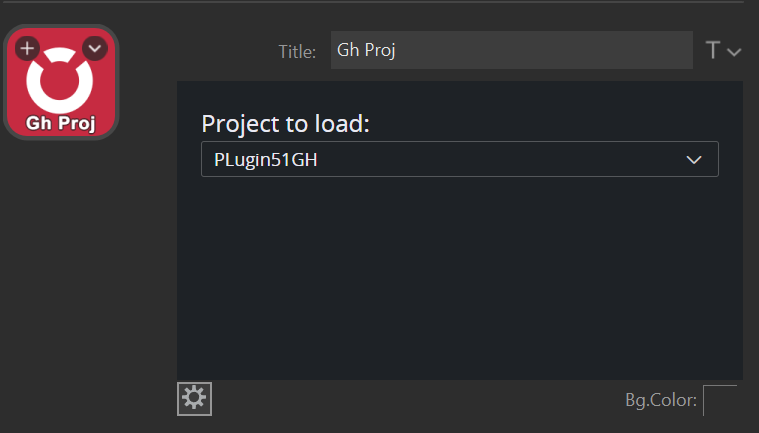
Viz Arc Launcher
With the Viz Arc Launcher, you can start Viz Arc in case it is not running with a specific project with optional command line arguments.
This plug-in relies on an installed Viz Arc Unreal Loader service. Change the Launcher address to a different host/port if the Unreal Launcher and Viz Arc are installed on a remote host.
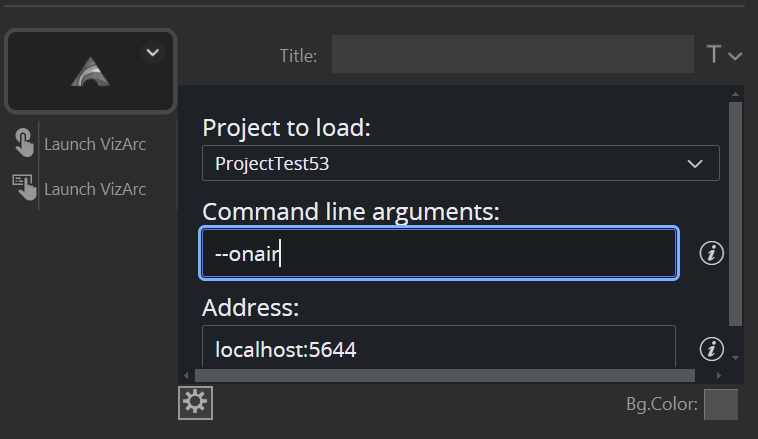
Shortcut
The Shortcut action lets you execute Viz Arc's shortcuts.
Precision Key
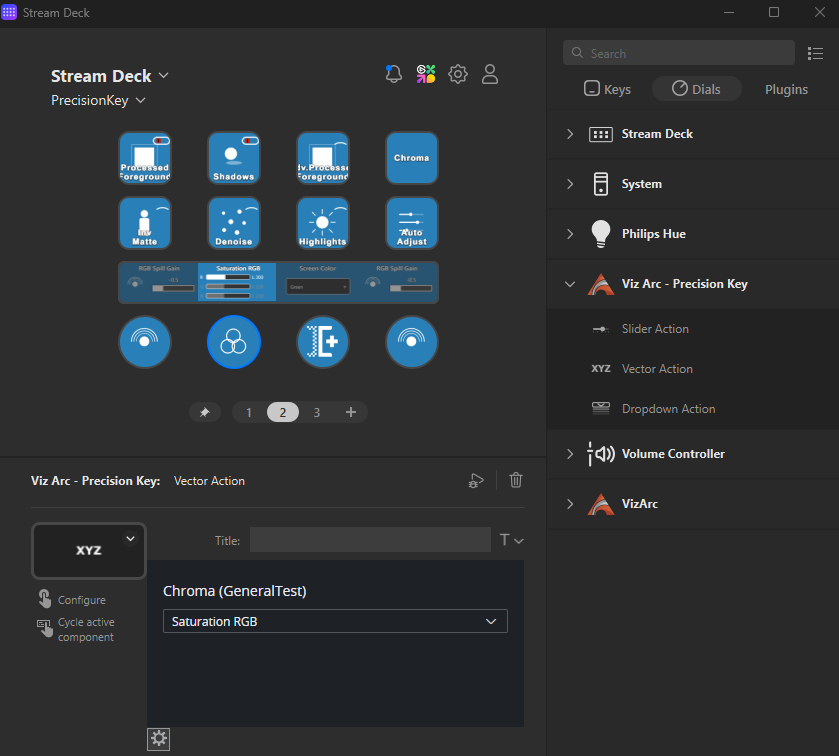
The Precision Key Stream Deck plug-in (com.vizrt.arcprecision) lets you control the Viz Arc Precision Keyer directly from an Elgato Stream Deck+. Every dial, button and touch strip maps to a chroma-key parameter hue, despill, light wrap, shadows, color correction and more for whichever Chroma action is currently selected in Viz Arc.
Note: Most plug-in actions require Viz Arc to be running, with its In-App Web API reachable (default <http://localhost:5004).>
Pre-configured profile
Precision Key ships with a ready-made Stream Deck+ profile (ArcPrecisionKey) with every action already placed on the dials and touchscreen, so you don't have to build the layout from scratch.
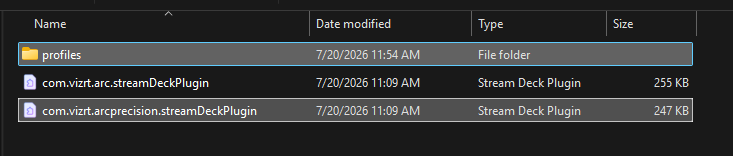
Info: The profile is installed alongside the plug-in but is not applied automatically: select it once from the Stream Deck app's profile list (or import the .streamDeckProfile file from the plug-in's profiles folder) to load all the pre-configured buttons and dials.
Connecting to Viz Arc
Every action's property inspector has a gear icon at the bottom that opens the Settings window, where the address of the Viz Arc In-App Web API is set (In-App Web API, default <http://localhost:5004).> Change this if Viz Arc runs on a different machine.
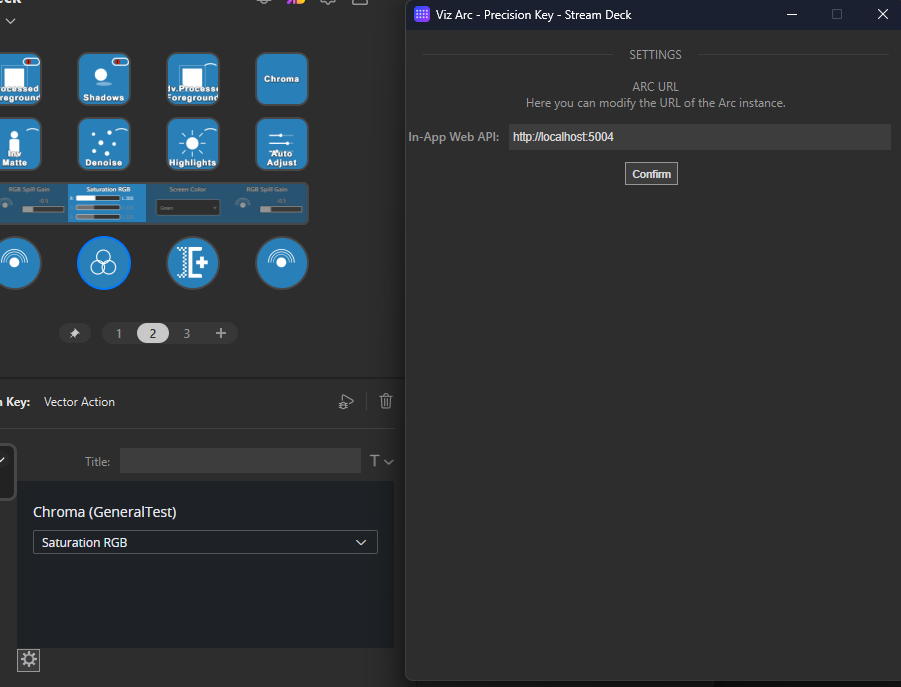
Once connected, every action's key or dial adopts the color of the currently selected Chroma action in Viz Arc, so the deck visually reflects what you're about to adjust. If no Chroma action is selected or Viz Arc disconnects: Keys fall back to a neutral dark gray and show Select Chroma Action.
Slider Action
Maps a dial to a single numeric Precision Keyer property. Select the property from the dropdown in the property inspector; the touchscreen shows a live progress bar with the current value while you turn the dial.
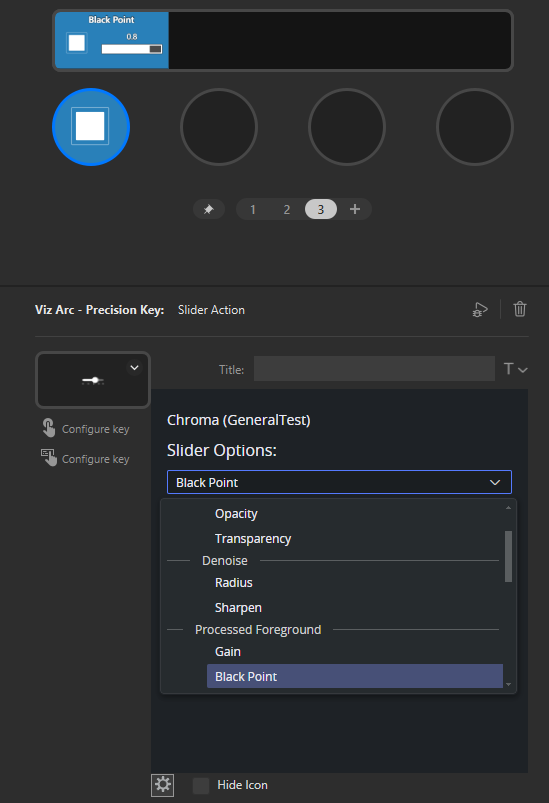
Available properties:
Primary Matte: Hue, Saturation, Opacity, Transparency
Denoise: Radius, Sharpen
Processed Foreground: Gain, Black Point, White Point
Shadows: Inner, Gain
Highlights: Inner , Gain
Light Wrap: Edge Blur, Blur Factor, Background Blur, Background Edge Gain, Background Spill Gain, RGB Edge Gain , RGB Spill Gain
Stream Deck+ touchscreen showing the live progress bar for a Slider Action
Turn the dial to adjust the value in real time the change is sent to Viz Arc immediately.
Hold the dial down while turning to apply a 10× step multiplier for fast, coarse adjustments; release to return to the normal step size.
Press the dial to open the property inspector and change which property this dial controls.
Toggle Action
Flips a single on/off Precision Keyer setting each time the key is pressed.
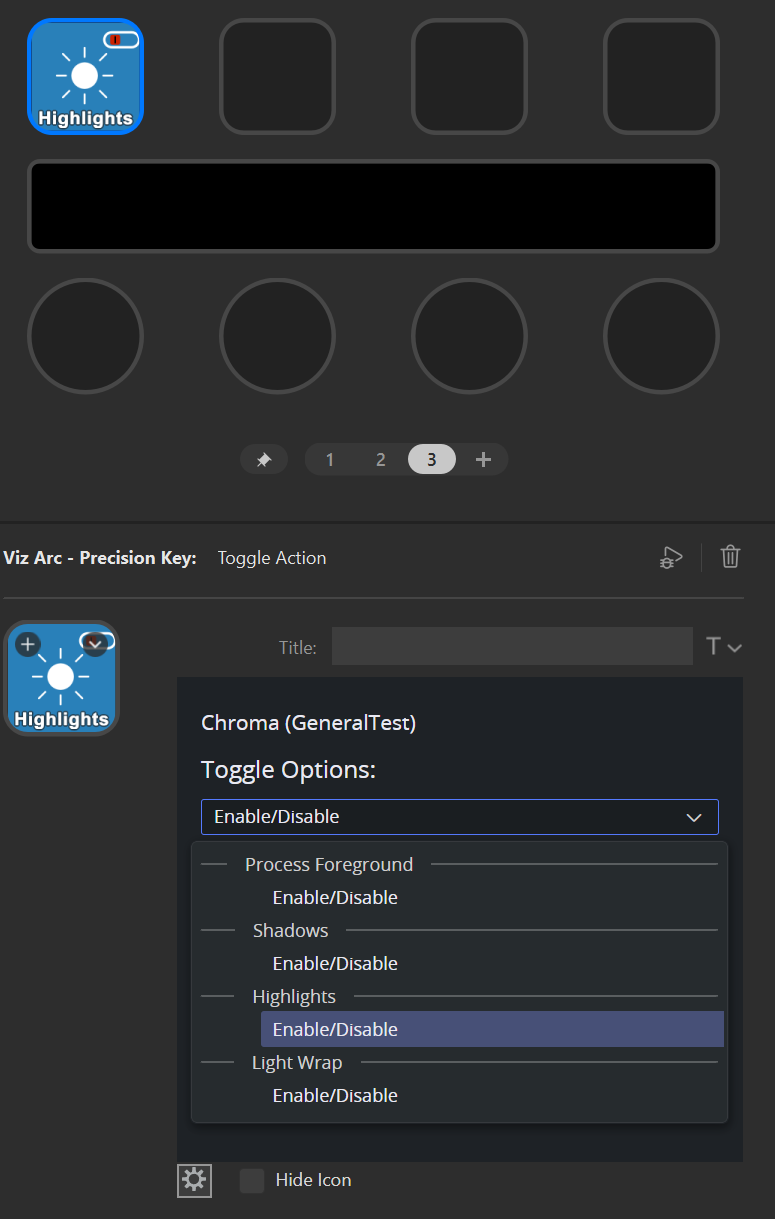
Available properties:
Processed Foreground: Enable / Disable
Shadows: Enable / Disable
Highlights: Enable / Disable
Light Wrap: Enable / Disable
Pressing the key flips the property and sends the new state to Viz Arc immediately.
The key icon shows a small overlay badge reflecting the current state (enabled / disabled) on top of the category icon.
Preview Action
Sets the keyer's output/preview mode (keyingOutputMethod) to one specific value. Only one preview mode can be active at a time.
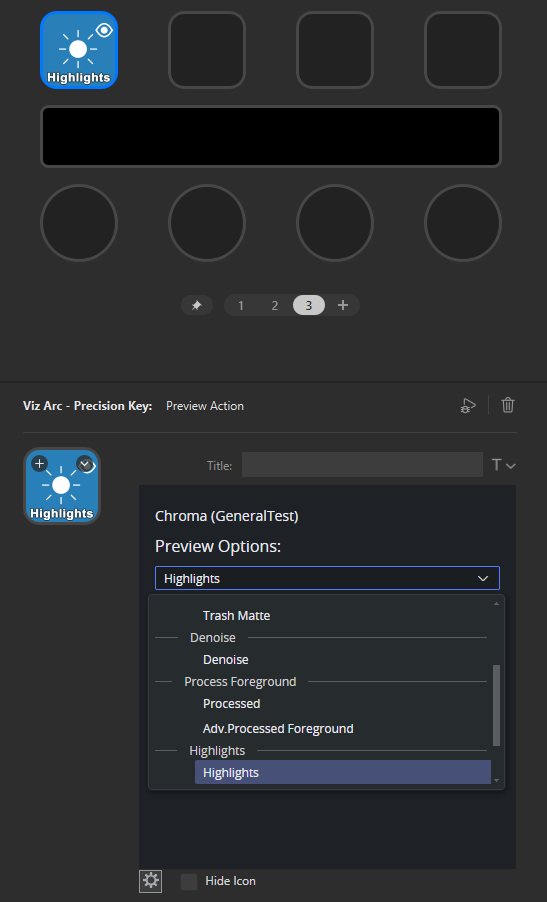
Available options:
General: Composite Output →
OFFPrimary Matte: Matte →
KEY, Advanced →KEY_ADVANCED, Inv Matte →INVERSE_KEY, Trash Matte →MATTE_SCENEDenoise: Denoise →
DENOISEDProcessed Foreground: Processed →
PROCESSED, Adv. Processed Foreground →PROCESSED_ADVANCEDHighlights: Highlights →
LUMINANCELight Wrap: Edges →
KEY_EDGE, Spill →SPILL
Preview keys on the Stream Deck showing the eye badge for the active preview mode
Pressing a Preview key sets
keyingOutputMethodto its target value, and automatically switches every other configured Preview key back to off both on the deck and in Viz Arc.An eye badge on the key shows whether that preview mode is currently active: open eye = on, closed eye = off. The Composite Output key never shows an eye badge, since it represents "no preview."
The active preview mode is remembered per Chroma action, so switching between Chroma actions in Viz Arc restores the correct Preview key state for each one.
Chroma Label
A read-only status button with no configuration, it displays the name of the currently selected Chroma action in Viz Arc, with the key background matching that action's assigned color.
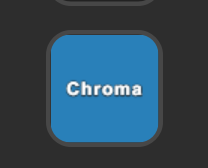
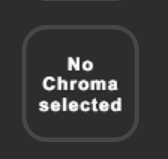
Info: When no Chroma action is selected, or Viz Arc is disconnected, the button reads "No Chroma selected" on a neutral gray background. All Chroma Label keys on the profile update together.
Vector Action
Controls three linked numeric properties at once (typically the three channels of a color or CMY/RGB adjustment) with one dial.
Available groups:
Despill: Despill CMY.
Light Wrap: Solid Color RGB.
Processed Foreground: Backing Plate RGB.
Color Correction: Saturation / Contrast / Exposure RGB, Lift RGB, Gamma RGB, Gain RGB.
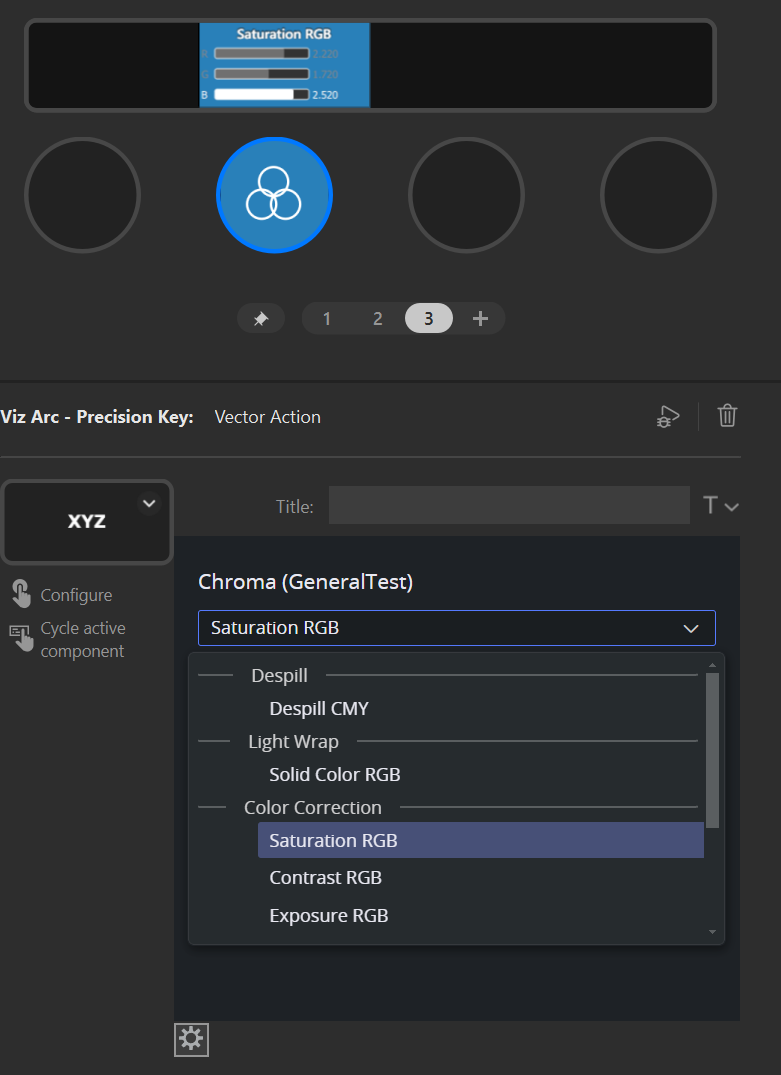
The touchscreen shows three labeled bars (for example, C / M / Y or R / G / B); the active channel is fully lit, the others dim to 30%.
Tap the touchscreen: for Color Correction groups only, this switches between editing one channel at a time and moving all three together ("proportional" mode). For all other groups (Despill, Light Wrap, Processed Foreground), tapping has no effect.
Hold the dial while turning for a 10× step multiplier, same as the Slider Action.
Press the dial without turning to cycle to the next channel (X → Y → Z), when not in proportional mode..
In proportional mode, Color Correction groups also engage the matching "lock" in Viz Arc (for example, lock Saturation, lock Gain) so the three channels stay linked in the Arc UI too.
Dropdown Action
Controls a property that has a fixed list of choices. Scroll through the list on the touchscreen and confirm with the dial.
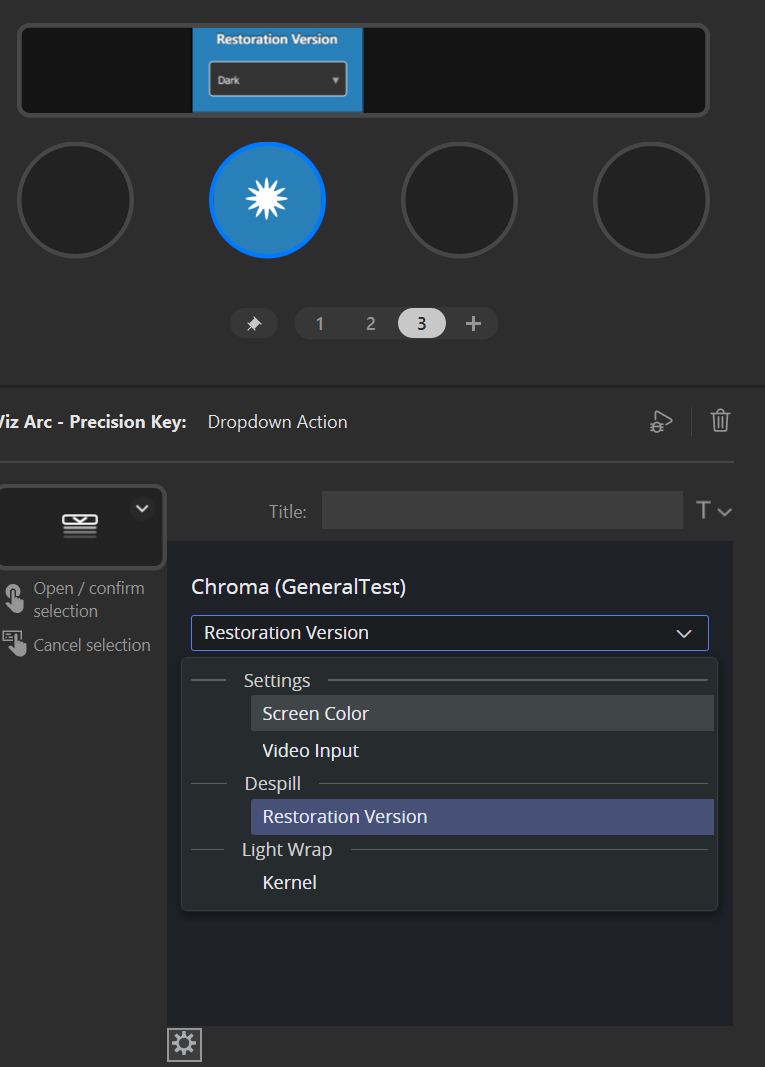
Available properties:
Settings: Screen Color (Green, Blue, Ext, AI), Video Input (VIDEOIN\* 1–16, STREAMIN\* 1–16, CLIPIN\* 1–16)
Despill: Restoration Version (Dark, Light)
Light Wrap: Kernel (Sobel, Laplace)
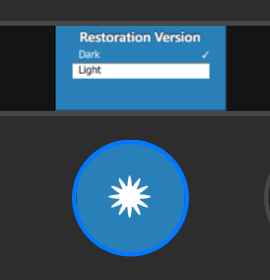
Closed, the touchscreen shows the current value with a ▼ indicator.
Press the dial to open the list; turn the dial to move the highlight through the options (scrolls when there are more than four items). The current value is marked with a checkmark.
Press the dial again to confirm the highlighted option and send it to Viz Arc.
Tap the touchscreen while the list is open to cancel and close it without changing anything; tap while closed to open it.
Auto Adjust
A single fixed button, no configuration required. Pressing it runs Viz Arc's Auto Adjust algorithm against whichever Chroma action is currently selected.
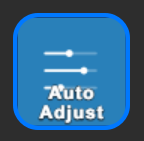
The button is only active (colored) when a Chroma action is selected in Viz Arc; otherwise it stays neutral gray and the press has no effect.
After a successful run, Precision Key re-selects the same Chroma action in Viz Arc after a three second delay, to refresh its state.
Visual feedback
Whenever a button sends a request to Viz Arc (Auto Adjust, and any confirmed selection), the key or dial confirms success or failure directly on the device.
Success: A brief white flash on the key icon and touchscreen (~200 ms), then it reverts to normal.
Failure: A red blink for about three seconds (with a one second interval), the action could not reach Viz Arc or was rejected.
See Also