The main menu contains the following items:
Server Menu
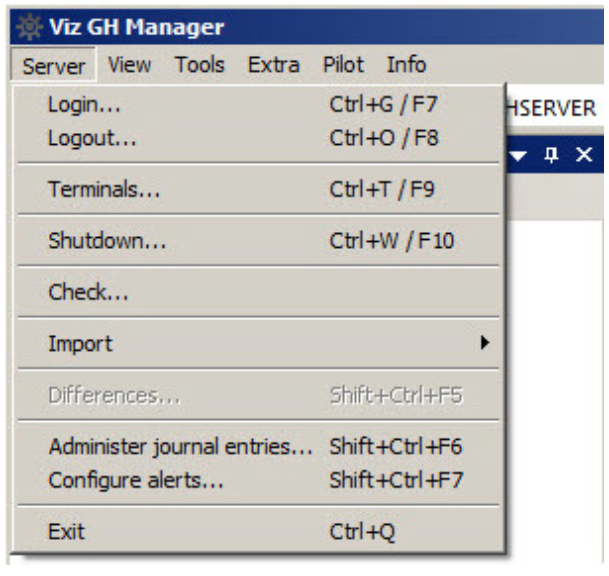
Login...: Opens the Login window, used to log on to one or more Graphic Hubs.
Logout: Opens the Log out window used to log out from a Graphic Hub.
Terminals...: Opens the Terminals Window. The Terminals monitor window can be used to monitor available terminals on the network.
Note: Terminal monitoring is only supported for Graphic Hub Terminal versions prior to version 3. For Terminal 3, connect to the Terminal’s web interface.
Shutdown...: Opens the Shutdown window, used to remotely shut down servers (see Graphic Hub Shut Down ).
Check...: Opens the Check Server window where a search for Data Errors in the internal structure can be performed. Requires the user to be logged on as an Administrator.
Import
Viz 2.x data: Opens the Import window. From this window it is possible to import a Viz 2.x data folder to the selected database.
Viz 2.x archive(s): Opens the Import window. From this window it is possible to import one or more Viz 2.x archives from a folder to the selected database.
Manually selected Viz 2.x archive(s): Opens the Import window. From this window it is possible to import one or more Viz 2.x archives to the selected database.
Resume from canceled or crashed import: Opens the Import window. From this window it is possible to resume from a failed import by using an automatically created import backup file.
Edit preferences: Opens the import Preferences window. From this window it is possible to define various preferences for the import operation, for example the root directory for import log files.
Differences: Opens the Server Diff window. From this window it is possible to detect differences between two servers, or the servers in a cluster environment (see Detect and Solve Server Differences).
Administer journal entries: Shows/hides the Administer Journal Entries panel in the Main window (see Journal Panel ).
Configure Alerts: Opens the Alerts panel, where e-mail notifications and recipients can be configured for an event where errors occur in the system (see Alerts ).
Exit: Automatically logs out from all connected Graphic Hubs, and closes the Graphic Hub Manager.
View Menu
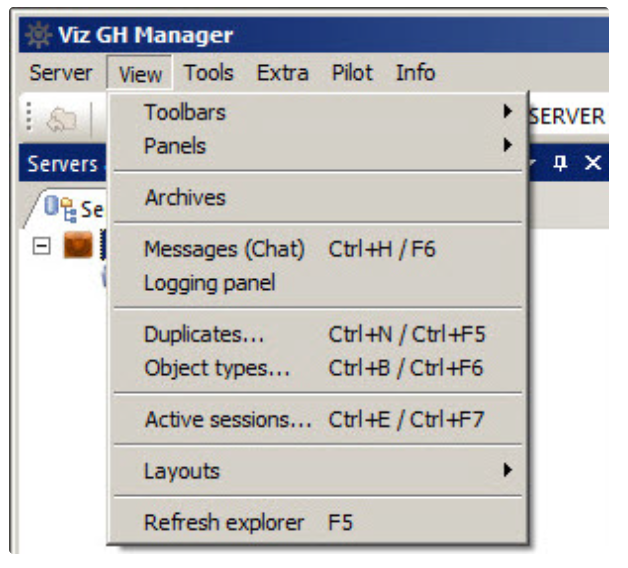
Toolbars: Select which tool bars to view:
Main
Servers and Folders
Folders and Files
Quick Search
Layout
Panels: Select which Panels to view:
Search Panel (see Import External Images)
Archives: Open the Archives Panel
Messages (Chat): Show/hide the chat panel in the main window.
Logging panel: Opens the Logging Panel, which shows logged messages, which includes:
Error messages
Warning messages
Info
Update messages
Tick the Write to log-file to write the selected messages to the Graphic Hub log file, if required.
Duplicates: Open the duplicates window. From this window it is possible to locate duplicate server files (see Locate Duplicate Files ).
Object types: Opens the Object Types window.
Active sessions: Opens the Active Sessions window. From this window it is possible to monitor all active sessions.
Layouts: Select, save and maintain layouts:
Load layout: Select a layout to load.
Save current layout:
Save current layout as...: Save the current layout as a new layout.
Lock/Unlock current layout ‘xxx’: Lock or Unlock the current layout.
Maintain layouts: Opens the Maintenance of layouts window.
Refresh explorer: Refreshes the Explorer.
Tools Menu
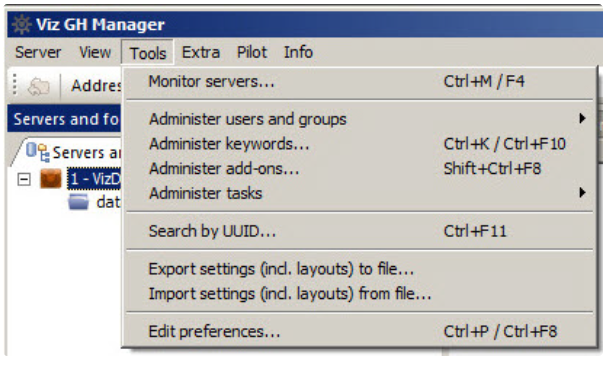
Monitor servers: Opens the Monitor Servers window. This window shows an overview of all the servers Graphic Hub Manager is logged in to.
Administer users and groups: Opens the Administer Users and Groups window. From this window it is possible to manage users and groups on the various servers (see User and Group Management ).
Administer keywords: Opens the Keywords window. From this window it is possible to manage the Keywords in the database.
Administer add-ons: Opens the Add-ons Panel.
Administer tasks
Running deploy tasks: Shows/hides the Running Deploy Tasks panel in the Main window.
Scheduled deploy tasks: Shows/hides the Scheduled Deploy Tasks panel in the Main window.
Finished deploy tasks: Shows/hides the Finished Deploy Tasks panel in the Main window.
Search by UUID: Opens the Search by UUID on server window, used to search for files in the connected databases using universally unique identifiers.
Configure deploy agent: Opens the Properties of Deploy Agent dialog box. From this dialog box it is possible to define various Graphic Hub Deploy agent settings (see Deploy Agent Modes). This menu-option is only available in setups with an installed Graphic Hub Deploy agent.
Export settings (incl. layouts) to file: Opens a window from where it is possible to export all the workstation-based customizations to the Graphic Hub Manager, such as changes to any of the panels, column layout and visibility, as well as the user interface in general.
Import settings (incl. layouts) from file: Opens a window, from where it is possible to import all the workstation-based customizations to a Graphic Hub Manager, such as changes to any of the panels, column layout and visibility, as well as the user interface in general.
Edit preferences: Opens the Preferences window. From this window it is possible to define various system preferences.
Extra Menu
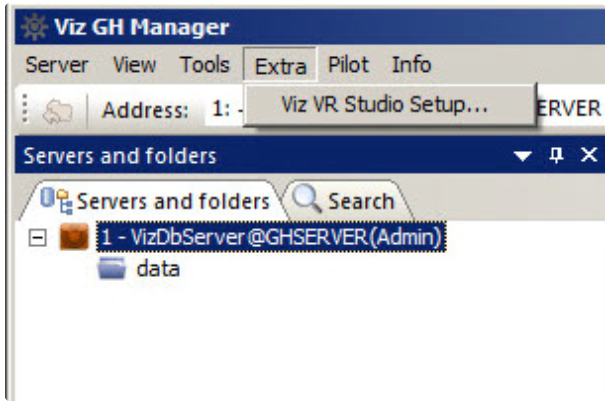
Viz VR Studio Setup: Allows you to import the enabling XML file so that Graphic Hub can support a virtual set environment (see Enable a Graphic Hub for a Virtual Studio).
Pilot Menu
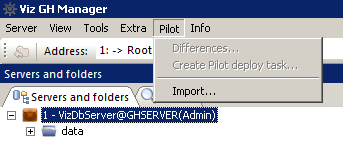
Differences...: Opens the Pilot data differences panel.
Create Pilot deploy task...: Opens the create Pilot data deploy task panel.
Import...: Opens the import Pilot data panel (see Main and Replication Servers).
Info Menu
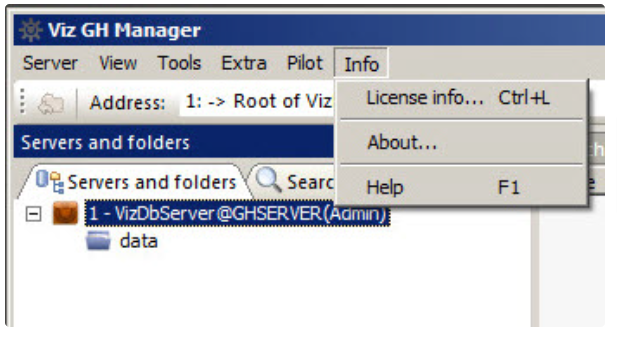
License info: Opens the License Info window. From this window it is possible to monitor the license information for the available servers.
About: Shows the software version and build number of the Graphic Hub Manager.
Help: Opens the Graphic Hub online help file.