With Viz Trio you can assign macro commands and scripts to shortcut keys on either a show-by-show or global basis.
This section covers the following topics:
Working with Shortcut Keys
For shortcut keys assigned on a global level, use the Configuration Window.
Show-specific shortcut keys are assigned using Show Properties.
Managing Shortcut Keys
To reassign a shortcut key
Double-click the command in the list to perform changes.
To remove a shortcut key
Select a macro or script that has been manually added and then either
Right-click and select Remove from the context menu
On the keyboard press Delete.
Macros and Scripts
To assign a macro or script to a shortcut key
Click the Add Macro or Add Script button. The Macro Commands editor opens:
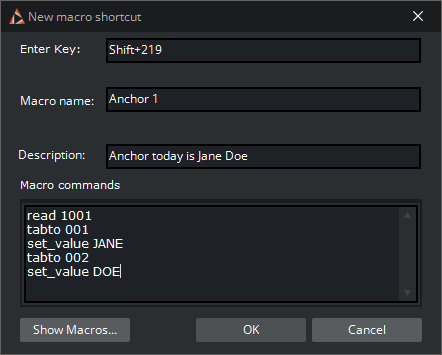
Select the keyboard keys for the shortcut. This includes combinations of CTRL, SHIFT, ALT, ALT GR with other characters.
If the selected shortcut key is already in use you may override it, unassigning it from the previous macro or script.
Enter a Macro or Script Name and Description of the macro or script.
If the macro name is already assigned, use Save as New
Add macro or script commands in the Macro commands (or Script) input area.
To confirm, click OK .
Adding Functions
To add a predefined function to a macro or script shortcut
Open the macro/script for editing.
Under Macro commands, click Show Macros to open a list of predefined functions.
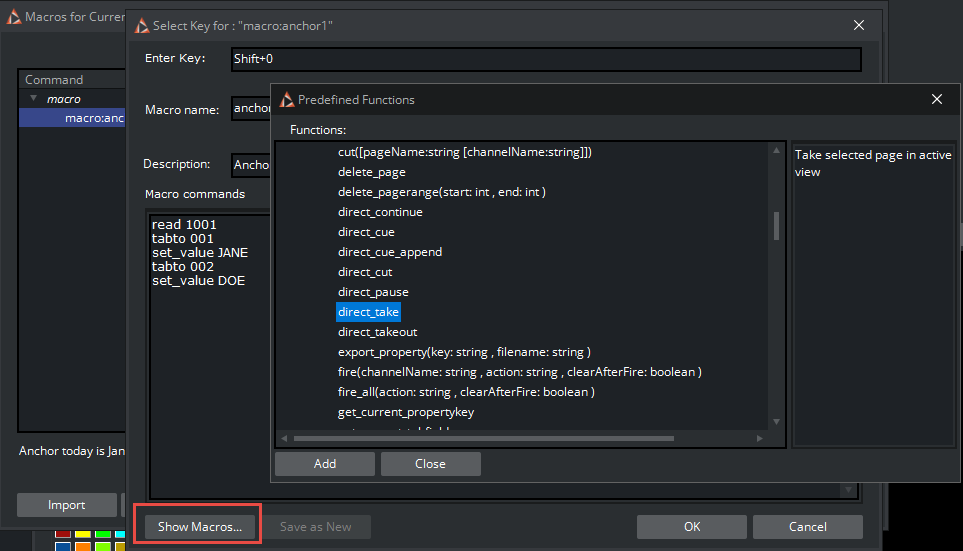
Select required function and click Add.
Save changes.
Info: Predefined macro commands can also be applied to scripts.