If you have a connection to a Viz World server and a local Viz World installation, you can select and edit maps. Since Viz World only runs on Windows, the Map Editor is only available through Viz Pilot Edge when running on Windows machines. See Viz World Client Integration for information on configuring your system.
Note: Maps from Viz World can be used in a graphics template or element if the scene contains the ControlWoC plugin. In Template Builder this is imported as a Map field.
Note: It is not possible to set navigation mode, relative longitude, relative latitude, zoom, geometry mode, pan and tilt when working with maps in Viz Pilot Edge.
Selecting a Map
To select a map, hover the mouse over the map thumbnail and click the magnifier icon (Choose a map) in the fill-in form:
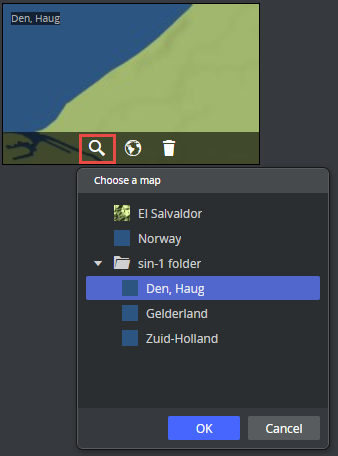
Select a map and click OK. The map appears in the thumbnail in the fill-in form and in the graphic in the preview window.
Note: Choosing a map only requires communication with a Viz World server. However, a local Viz World installation is required to edit maps.
Info: Since Viz World only runs on Windows, the Map Editor is only available through Viz Pilot Edge when running on Windows machines.
Editing Maps
Once a map is chosen and a Map Client is running on the machine, the map can be edited.
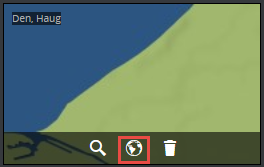
This opens the Viz World Map Editor, where all edits are performed.
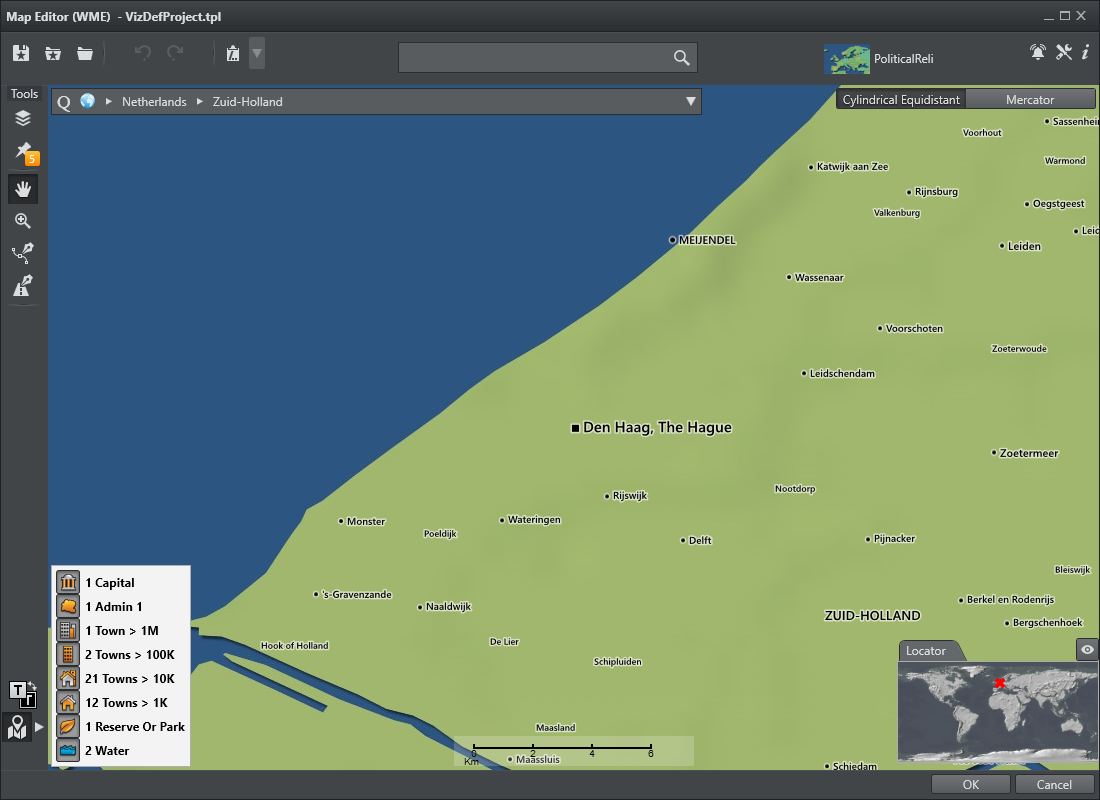
After the map is opened in the Map Editor and edited, the name changes (for example, to Den, Haug [modified]) to indicate that the map has been edited.
WARNING: Clicking outside the Viz World Map Editor while it is open hides the window behind the Viz Pilot Edge window. Viz Pilot Edge continues to listen to data from Viz World until the window is closed. Recover the Map Editor from the taskbar and close it.
The map thumbnail view is not available after saving and reopening a template that includes a map, however, the map is still there. Once the Viz World Map Editor is opened and communication is established, the map thumbnail view is available.
The Preview Window updates according to the selected map and edits performed.
To remove the map from the field, click the Remove  icon.
icon.
Warnings
Warning symbols and grayed-out map buttons indicate that Viz World is unavailable or that there is a Viz World error.
If no map is selected or no default value is found, the Edit map button is grayed out and disabled.
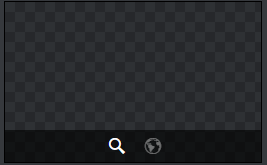
A map must be selected before edits can be made.
If the Edit map button is clicked and a Viz World client service is not running on the local computer, the button disappears.