Smart Panel installs together with Mosart Web Apps. It has one page of its own in the Mosart Web Apps Configuration Tool, the Smart Panel tab of App Configuration, which sets how the clock timers are written and which time zone they follow. For the rest it uses the shared Mosart server, authentication and HTTPS settings. Configure those once and Smart Panel is ready.
Some panel features reach further than Viz Mosart, and each of those has its own one-time entry in the Configuration Tool: a TriCaster for live video and macros, a Media Sequencer for graphics, and Viz Arc for Viz Arc actions. Set up only the ones your panels use.
Setting up Smart Panel
Follow these steps in order. Each one builds on the previous, so do not skip ahead.
Step 1: Check your Viz Mosart version.
Smart Panel is part of the Mosart Web Apps suite that ships with Viz Mosart, and individual panel features depend on the Mosart server supporting them. For the Viz Mosart version required by your Mosart Web Apps release, see the Mosart Web Apps Release Notes at the Vizrt Documentation Center.
Step 2: Make sure Viz Mosart is running.
Smart Panel talks to a live Mosart server for automation commands, timing and rundown data. Before you continue, check that:
Manus Administrator is running.
The Viz Mosart UI is running and displaying a rundown.
If either is down, start it now. You only need to do this once after a server reboot.
Step 3: Open the Mosart Web Apps Configuration Tool.
This is where every Mosart Web App, including Smart Panel, is set up. You should already have it from the Mosart installation.
Step 4: Point the Web Apps suite at your Mosart server.
In the Configuration Tool, open Studios and fill in the Viz Mosart server host and port for your studio, together with its optional backup server.
Smart Panel does not have a separate connection screen, it uses these shared settings to talk to the Mosart server.
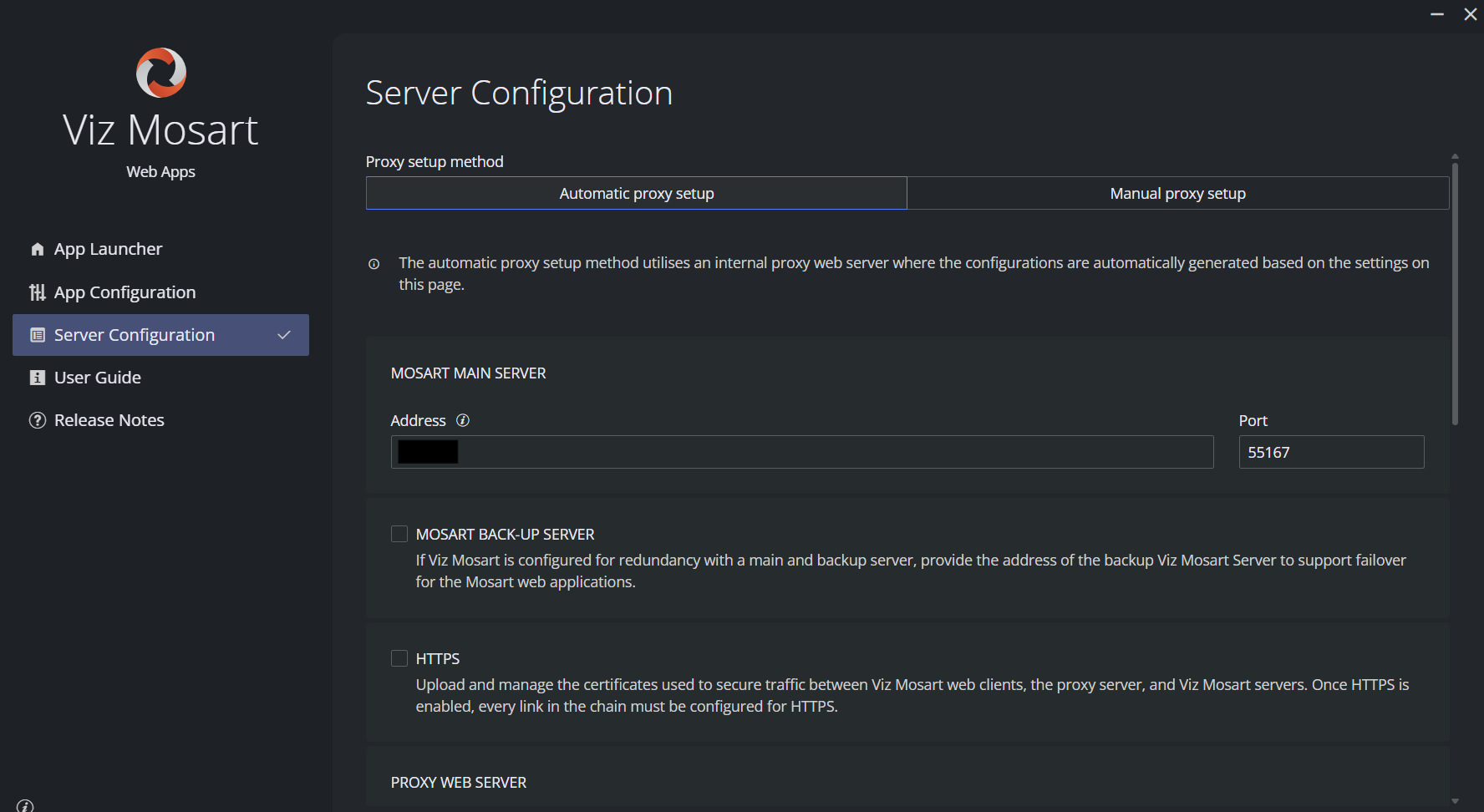
Step 5: (Optional) Enable live video previews.
If you plan to show video in the Live element, set up the sources you need now. See Live Video Sources below.
Step 6: (Optional) Set up the integrations your buttons need.
Buttons can drive a TriCaster, a Media Sequencer or Viz Arc as well as Viz Mosart. See Integrations for Button Actions below.
Step 7: (Optional) Turn on HTTPS and authentication.
By default Mosart Web Apps runs without HTTPS or sign-in. If your site needs them, configure both in the Configuration Tool. See Using HTTPS and Roles and Access below.
Step 8: (Optional) Set how the clock timers are written.
In the Configuration Tool, open App Configuration and choose the Smart Panel tab. Under TIME FORMAT, leave Use browser default on to follow the language settings of each Smart Panel machine, or clear it and pick a regional format, a 12-hour or 24-hour clock and whether the hour carries a leading zero. Use this PC's settings fills those in from this machine's Windows regional format. Under TIME ZONE, choose Local (browser), the default, or Mosart server. Both settings apply only to the Time of Day and Next Break Time timers, and a panel reads them when it loads, so reload any panel that is already open.
Step 9: Open Smart Panel and verify.
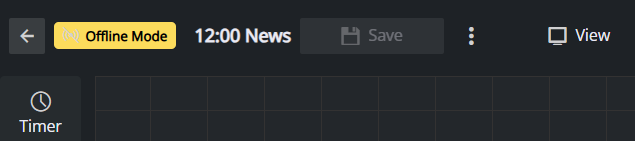
Browse to http(s)://<your-mosart-web-apps-host>:port/smartpanel (the default port is 55142 for HTTP and 55143 for HTTPS). You should see the landing page, empty on a fresh install, headed Your panels, with a New button ready. Open or create any panel and check that the Offline chip in the app bar is not shown. If it is, the connection to Viz Mosart did not come up. See Troubleshooting below.
Tip: Place a Connection Status widget on a panel to see the Mosart server state as a small beacon, with a second beacon for the backup server where redundancy is configured. Hovering a beacon reports the Viz Mosart Server version it is connected to. While the main server is idle, clicking its beacon on a running panel takes it out of idle.
Live Video Sources
The Live element supports four source types. Only the first two need anything configured:
Source type | What to configure |
|---|---|
NDI | Nothing in the Configuration Tool. Mosart Web Apps discovers NDI sources on the network itself and streams the one you pick to the browser. The NDI Runtime must be installed on the Mosart Web Apps host; without it the source list reports that the NDI runtime is not available on the server. |
TriCaster | The TriCaster address, username and password, entered once under TRICASTER FOR LIVE PREVIEW. Both TriCaster inputs and outputs are then selectable. See Server Configuration. |
HTML video | Nothing. Point the element at a video URL the browser can fetch directly, for example an |
Stream | Nothing on the Mosart side. Enter either a |
Info: Live video works over HTTPS. Both NDI and TriCaster are served by the Mosart web server on the browser's behalf, over the same origin as the rest of the app, so there is no separate host for the browser to reach and no mixed-content problem. Earlier releases required a separate Viz Coder service for NDI; that is no longer used and does not need to be installed.
Streaming a panel out as NDI
A panel can also be sent the other way, as an NDI output, so a finished panel can be taken as a source on a video device or mixer. This is started and stopped from the panel's own app bar and uses the same NDI runtime on the Mosart Web Apps host, so nothing extra is configured for it.
Integrations for Button Actions
A button can target Viz Mosart, a TriCaster, a Media Sequencer or Viz Arc. Viz Mosart needs nothing beyond the server address from Step 4. The others each need their one-time entry in the Configuration Tool:
TriCaster: uses the same TriCaster credentials as live video. With those in place, a button can take a TriCaster macro, chosen by folder and name.
Media Sequencer: enter the Media Sequencer address and REST API port (default 8580) under MEDIA SEQUENCER. This enables buttons that take an MSE graphic, and Asset List elements that read their content from a Media Sequencer playlist or show. See Server Configuration.
Viz Arc: enter the address and port of the Viz Arc REST web service (default 9004) under VIZ ARC. The Configuration Tool probes the host as you type and tells you whether the service answers. The Viz Arc REST web service requires its own licence, and only the Mosart Web Apps host needs network access to it. See Server Configuration.
Roles and Access
Smart Panel has two roles, which are only enforced when authentication is enabled. With authentication off, everyone has full control.
Role name | Permissions |
|---|---|
smartpanel-viewer | Open and use panels, but not edit them. |
smartpanel-admin | Full control, including creating and editing panels. |
Roles are assigned in your authentication provider, not in the Configuration Tool, and are read from the roles claim. See Authentication.
Info: A user who signs in with neither role is shown a screen explaining that they do not have access, rather than an empty panel list. If that appears unexpectedly, the user is authenticated but has not been granted either Smart Panel role in your identity provider.
Session timeout
Where authentication is enabled, the Configuration Tool's Server Configuration page carries an Allow session timeout group inside Authentication (OIDC), with one switch per web app and a summary line reporting how many can time out.
Smart Panel's switch is off by default, reading Stays signed in while open. A panel renews its own session for as long as its page is open, so a control-room surface is never signed out mid-show.
Turned on, it reads Renews while in use; can time out when idle, which suits a shared machine where an abandoned session should not stay signed in. A panel left mid-edit is saved automatically a few seconds before the session ends.
Session timeout sets how long an unused session survives, in minutes, from 5 to 10080, defaulting to 30. It applies only to the apps whose switch is on.
Warning: Leave the switch off for a gallery or control-room panel. Nobody touches a panel between takes, so an idle timeout would put a sign-in dialog over the controls during a show. See Authentication.
Multiple Studios
On a site that runs several Viz Mosart back ends from one Mosart Web Apps host, Smart Panel is opened per studio, and the panel then drives the Viz Mosart server belonging to that studio. Define the studios once on the Studios page of the Configuration Tool, and launch the app for a studio from the Home page. See Studios.
Using HTTPS
If Mosart Web Apps is served over HTTPS, define the environment using the HTTPS and Certificates page of the Mosart Web Apps Configuration Tool. Smart Panel inherits the same HTTPS setup as the other Web Apps. There are no Smart Panel-specific certificates to manage.
Troubleshooting
The "Offline" chip stays on in the app bar
The Offline chip means Smart Panel has lost contact with Viz Mosart. The panel keeps working, but timers, labels, and faders display fixed sample values instead of live data. As soon as the connection comes back, the chip disappears and live values resume automatically.
If the chip does not clear after a few seconds, work through the checks below in order.
Is Mosart Server configured? Open the Mosart Web Apps Configuration Tool, go to Studios and confirm the host and port of the studio's Viz Mosart server are set. Save and reopen Smart Panel.
Is Mosart Server running and reachable? On the Mosart Server machine, confirm Manus Administrator is running and a rundown is loaded. If it is, but Smart Panel still shows Offline, the Mosart Web Apps host can not reach the server, check the network connection between the two machines.
Using a custom reverse proxy? Smart Panel always calls
/mosart/...on the Mosart Web Apps host (SignalR hub, REST API, status endpoints). The bundled Caddy proxy forwards/mosart/*to Mosart Server automatically. If you replaced Caddy with your own proxy (nginx etc.), make sure it forwards/mosart/*to the Mosart Server.Is authentication misconfigured? If OIDC is on, an expired or rejected JWT causes the page to reload. Persistent reload loops mean the identity provider is rejecting the token. Re-check the OIDC settings.
Check the browser console. Open the browser developer tools (F12), reload Smart Panel, and look at the Console tab for red error messages. They usually point directly at one of the causes above (server unreachable, authentication rejected, network blocked).
A sign-in dialog appears over a panel
Where authentication is enabled, a panel normally holds its session for as long as its page is open. A You will be logged out soon countdown, or a Session timeout! dialog, means either that Smart Panel's switch has been turned on in Allow session timeout, or that the browser could not reach the Mosart Web Apps host for longer than the session length. Check that switch first, in Server Configuration, then the connection to the host.
The Live element reports a problem
The source picker states which part failed, so read the message before changing anything:
Message | What to do |
|---|---|
NDI runtime is not available on the server | Install the NDI Runtime on the Mosart Web Apps host. |
Can't reach the NDI source service | Check that Mosart Web Apps is running. |
No NDI sources found | The runtime is fine and nothing is advertising. Check the sources are powered on and on the same network as the Mosart Web Apps host. |
TriCaster is not configured | Set the TriCaster host, username and password in the Configuration Tool. |
TriCaster rejected the credentials | Correct the username and password in the Configuration Tool. |
Can't reach TriCaster | Check the TriCaster is powered on and reachable on the network. |
No TriCaster sources found | The TriCaster answered but advertised no inputs or outputs. Check the TriCaster's own configuration. |
Can't load this video | For an HTML video source, check the link, that the file exists, and that the format is one the browser supports. |
Enter a ws:// or wss:// OvenMediaEngine signalling URL, or an http:// or https:// stream/video URL | The address entered under Stream source does not start with a scheme Smart Panel accepts. Correct the scheme. |
Buttons do not execute
If timers and labels work (no Offline chip) but a Button click does nothing, check:
The button's Command type is filled in and, for Template buttons, a template is selected.
For a TriCaster, Media Sequencer or Viz Arc button, that the matching integration is configured. See Integrations for Button Actions above.
Authentication mismatch between Mosart Server and Mosart Web Apps. Smart Panel needs the same authentication mode on both sides:
If Mosart Server is configured with OIDC, Mosart Web Apps must also have HTTPS and OIDC enabled (Server Configuration in the Configuration Tool).
If you want to run over HTTP (not recommended), Mosart Server must have a REST API key configured (RestApiKey), and Smart Panel must be opened with that key as a URL parameter (?apikey=<key>). Note that this exposes the key in browser history and logs.
To confirm the underlying REST endpoint is responding, open the Mosart Server Swagger page in a browser:
HTTP:
http://<mosart-server-host>:55167/swagger/index.htmlHTTPS:
https://<mosart-server-host>:55168/swagger/index.html
If the Mosart Server is configured with a REST API key (RestApiKey), click Authorize in Swagger and supply the same key (header X-API-Key) before invoking any endpoint. If neither an API key nor OIDC is configured on the Mosart Server, the REST API is not usable, the Swagger page may load, but every call returns 401.
Layout not saved between sessions
Layouts are stored in a single file, smartPanelLayouts.json, under C:\ProgramData\Mosart Medialab\Mosart Web Apps. The built-in default layouts are part of the Mosart Web Apps installation and cannot be lost. If user-created layouts disappear after a server restart, check that this folder is included in your normal backup routine and has not been wiped by a reinstall.