The Elgato Stream Deck plugin for Viz Mosart allows you to send Viz Mosart rundown actions including Start/Continue, Skip Next, Unskip Next, Take a template. You can also fire a Direct take or a Control command.
The plugin communicates directly with the Viz Mosart server and all actions are triggered without needing a Mosart GUI open, active or in focus.
Installation
Software Download
To download Stream Deck for Windows
From Elgato's site, https://www.elgato.com/us/en/s/downloads
select Stream Deck for Windows software and download.
The Stream Deck utility starts up automatically after install.
Info: The software can be installed on a different machine than the Viz Mosart Server or Mosart GUI client.
If not already installed, download and install the latest version of Viz Mosart Web Apps, located on the Vizrt FTP at
/products/VizMosart/Latest Version/WebApplications/
and perform the one-time Server Configuration setup.
Note: Viz Mosart Web Apps has to be installed if you want to use the Stream Deck plugin with Mosart
From the Web Apps installation folder, locate the plugin file com.vizrt.mosart-remote.streamDeckPlugin.
Double click the file com.vizrt.mosart-remote.streamDeckPlugin for installation on the same PC where you just installed the Stream Deck for Windows software.
Accept when the Stream Deck application requests installation confirmation.
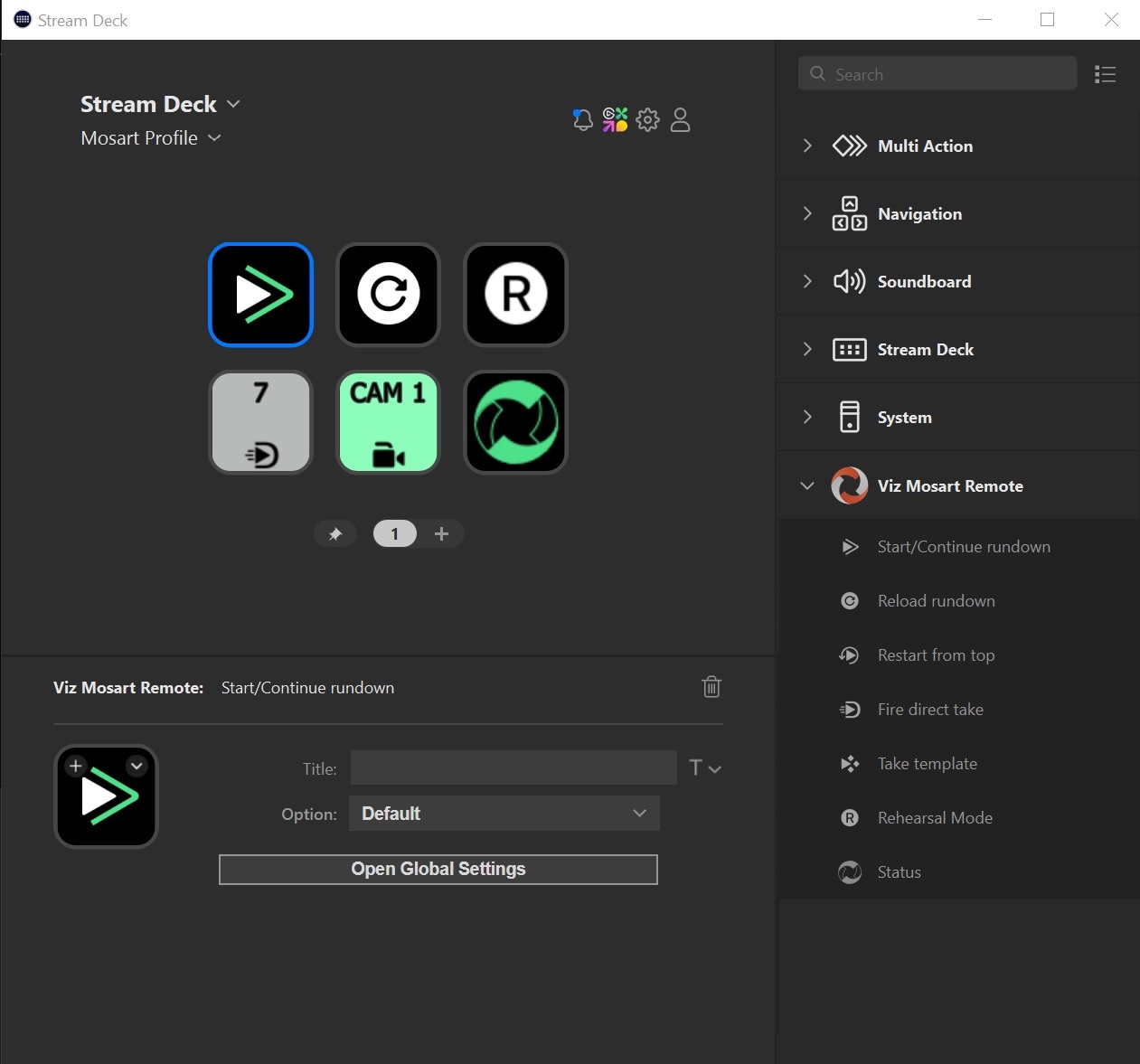
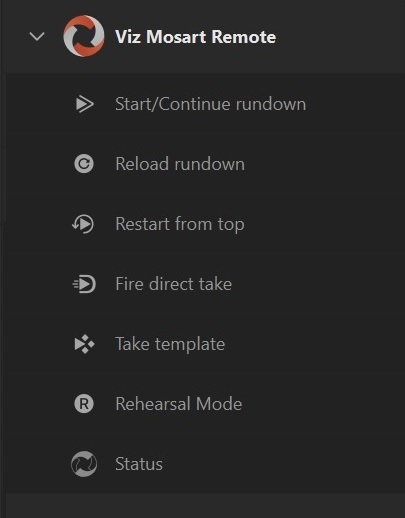
After installation, the Viz Mosart section displays with newly available actions.
Configuration
Configuring the Mosart Host
To configure the Viz Mosart host
Drag the Start/Continue rundown to any free Stream Deck key.
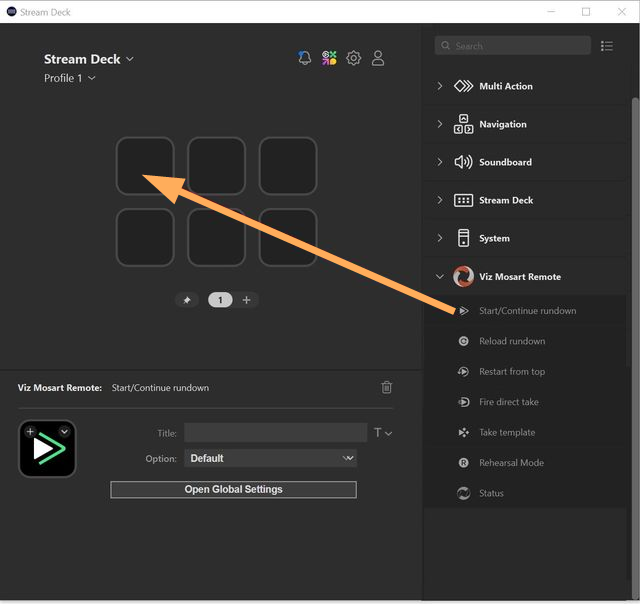
Click Open Global Settings to configure the plugin.
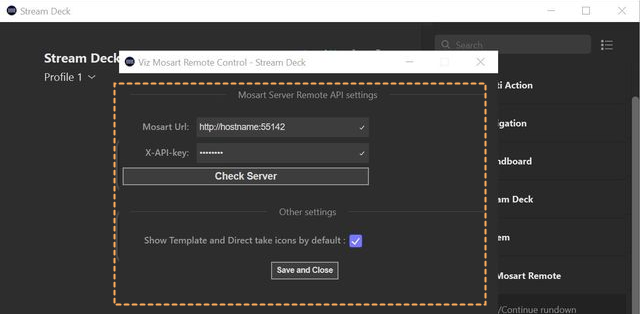
In field Mosart Url, enter the URL of the hostname of where your Mosart Web Applications are installed (failover is supported).
This Mosart Web applications proxy web server must be prefixed with http:// (or https if used) and suffixed with port number :55142. See the screenshot for an example.
Info: See the Viz Mosart Web Applications Config Tool User Guide (section Server Configuration) for more information about the Mosart Web applications proxy web server.
In field X-API-key enter the key.
Info: See the Appendix topic Mosart Remote Control REST API in the Viz Mosart Administrator Guide for more information about REST API endpoint and X-API-key.
For redundancy setup, configure the same API-key on both main and backup.
Click Save & Close. (The settings are set once-only and are saved for all operations).
Actions
Start/Continue Rundown
Start or Continue a rundown. This action is the equivalent of a Mosart GUI timeline key, Start Continue.
Options
Default: The next template's default transition.
Mix or Wipe: Presents the rate entry field.
Effect: The number of the effect.
Reload Rundown
This action triggers a rundown reload event. The timeline is stopped and the current rundown reloaded from the NRCS. No additional parameters.
Restart from Top
Restart the rundown from the first story. No additional parameters.
Fire Direct Take
Trigger a given Direct Take template. You must provide the number of the desired template.
You can also optionally show or hide the Direct Take icon.
Take Template
This action takes a template by its type and variant (name) and which bus.
Template Type: Selection of template type first to be used. For example, Camera, Package.
Variant: Exact variant name derived from your channel templates belonging to the chosen template type.
Program/Preview: Select the preferred way of inserting this template into the current running story
Show Icon: Show/Hide the Template type icon on the Stream Deck device button.
Rehearsal Mode
Choose whether to enable/disable/toggle Rehearsal mode.
A Rehearsal Mode icon on the Stream Deck device displays yellow when Rehearsal Mode is activated, either from this action or from the Mosart GUI.
Skip Next
By choosing Skip Type in the drop-down menu, the user can skip either the next item or sub-item, in the rundown.
Unskip Next
By choosing Skip Type in the drop-down menu, the user can unskip (undo) a skipped item or sub-item, in the rundown.
Control Command
This action will execute a control command on Viz Mosart.
Choose the control command to execute from the drop down menu. You can add parameters in the text area in the form “Param1=val1”, separated by new line.
Tip: For a full list of the supported control commands and their parameters, refer to the Viz Mosart Administrator Guide, in the Appendix section Mosart Remote Control REST API.
Status
The status of the current connected server is displayed.
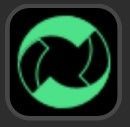 GREEN: Connected
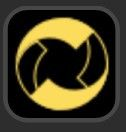 YELLOW: Standby/Idle
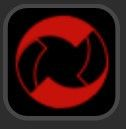 RED: Not connected
This key is disabled on the Stream Deck device, pressing performs no action.
Note: When installing the Mosart Plugin, you may need to close and reopen the Stream Deck client application, to enable displaying of status.