The Media Pool enables quick locating and assigning media items to the rundown or keyboard buttons.
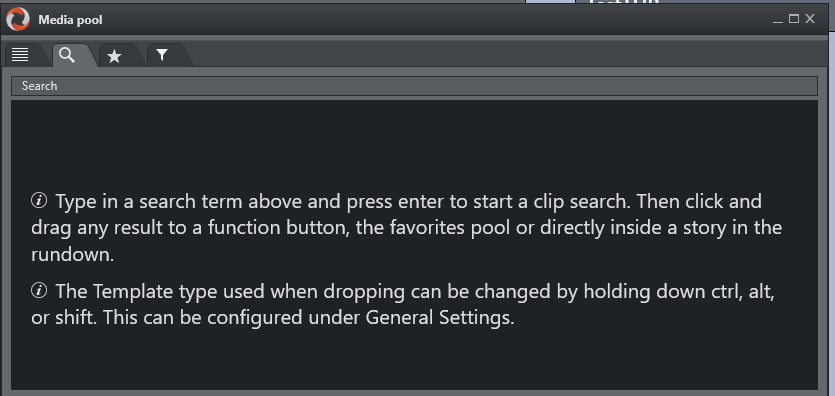
The pool comprises four tabs:
Assets Tab
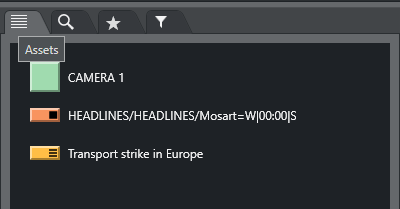
The Assets tab displays all assets for a selected story or group.
Info: Assets from the selected story (or group of stories) that were manually added to the story in the Viz Mosart rundown (and are not present on the NRCS) are not displayed on the Assets tab.
To assign an asset to a production
From the Asset tab, the displayed media elements can be used in several ways.
Elements can be dragged directly from the Assets tab and into the Rundown window to add and edit the currently loaded rundown.
Dragged elements are added at the point at which they are released - primary elements like lives or packages are inserted before or after another primary element, and secondary elements like lower thirds are added to the primary element on which they are dropped.
The elements are added to the rundown with the template type that it is entered in the NRCS. Any modification to the rundown disappears on the next Reload or when the story is changed in the NRCS, unless the story is locked.
Elements can be dragged to a shortcut button in the Shortcut Keys window, to be recalled later with a single keystroke. See Keyboard Shortcuts.
Elements can be dragged to the Favorites tab
 and stored for easy access.
Elements can also be assigned to the production through double-click actions or through right-click actions. See Actions from Context Menu below for more on this.
The legends corresponding to the various template types and are customizable, see User Interface - Assets.
Hover-over Asset Details
Hovering the cursor over an item in the Assets tab displays more information about the item, including any secondary elements attached to it.
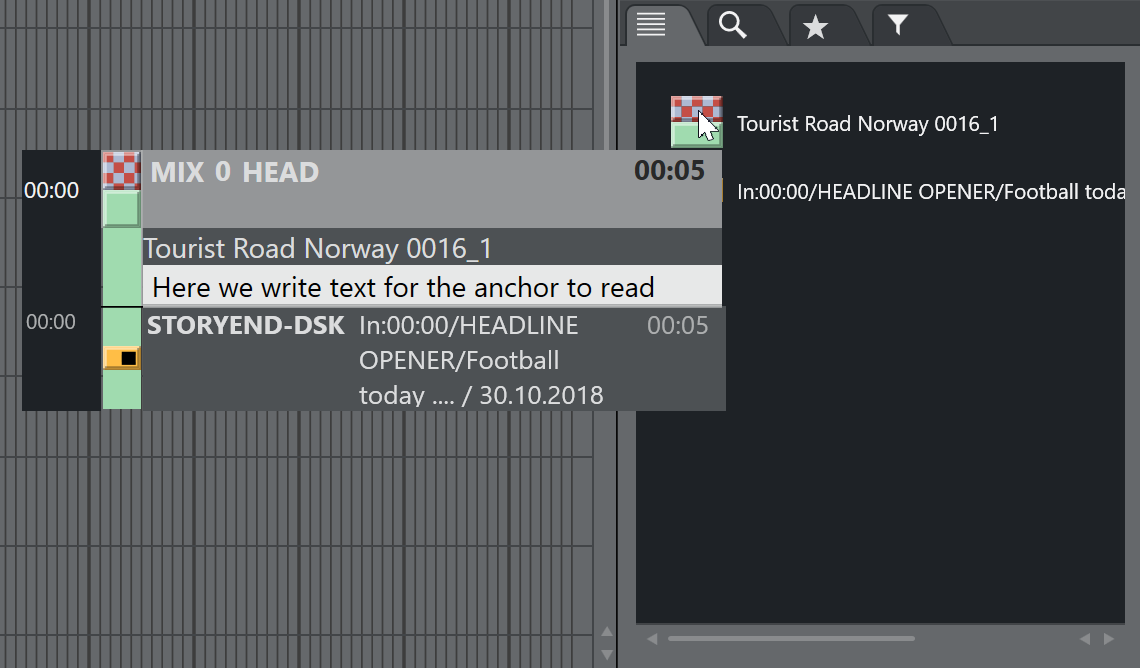
Info: You switch this feature on or off with the option Hide big tooltips in assets window, found under Tools > General settings > User interface > Assets.
Thumbnails
When the asset contains graphics, the tooltip displays a thumbnail of the content. Thumbnails are also available for video clips from Viz One or Media Service, and for Vizrt graphics, when Viz Pilot Edge is configured with a Preview Server.
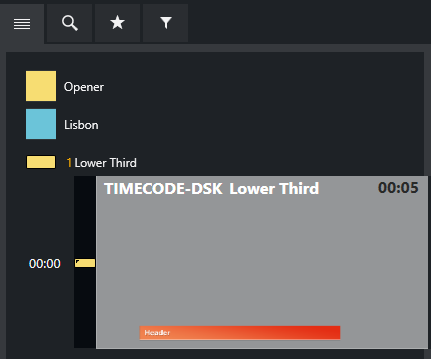
To control display of thumbnails
Select/deselect Show thumbnails for graphics under Tools > General settings > User interface > General.
(Default: Show thumbnails).
Actions from Context Menu
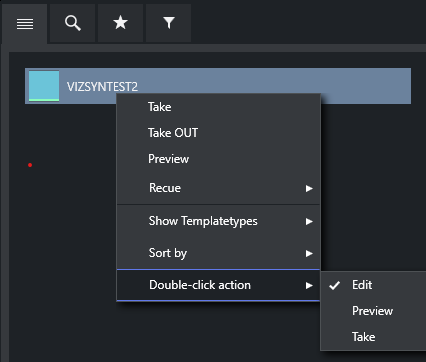
Right-clicking an element in the Assets tab displays a context menu for managing the asset.
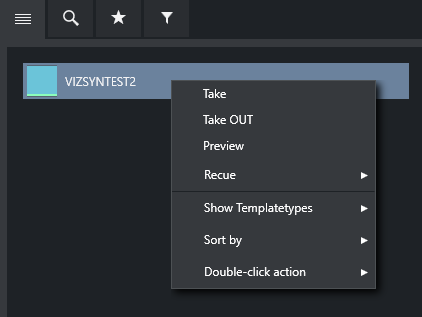
Take: Take the element to air immediately.
Take OUT: For secondary elements with a duration, takes them off air immediately.
Preview: Adds the selected primary element as next story element in the rundown.
Continue: (when available) Takes an element Continue point.
Recue
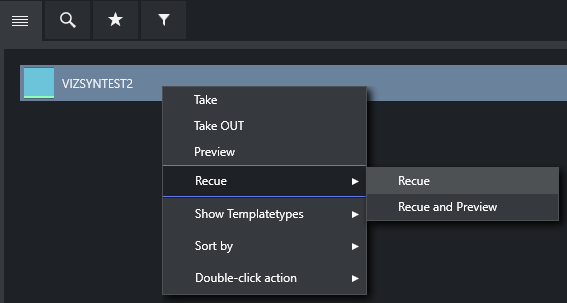
Recue > Recue: Recue the video content of a template with video content that has been previously played.
Recue > Recue and Preview: Also adds the template to the timeline in the next position.
Show Templatetypes: Select which Viz Mosart template types display in the Assets tab.
By default, CAM and JINGLE are not shown.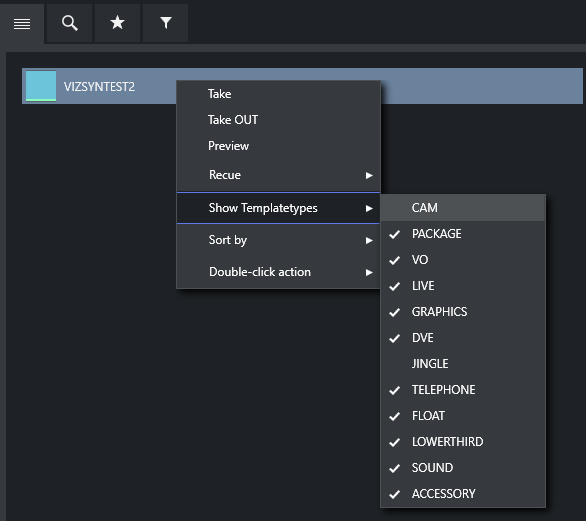
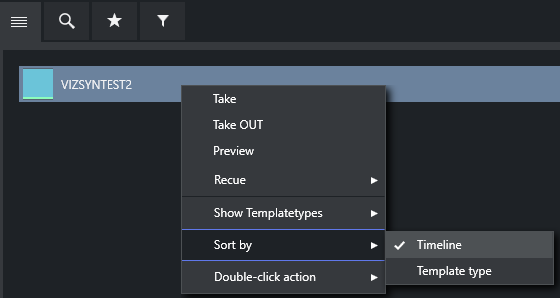
Sort by: Select whether the list is sorted by Template type or Timeline order.
Double-click action: Define what happens when double-clicking an asset. The choices are:
Edit: Open the asset in the Viz Pilot Edge editor (as available) for last-minute changes.
Preview: See Preview above.
Take: See Take above.
View Preload: Preload any selected graphic.
Search Tab
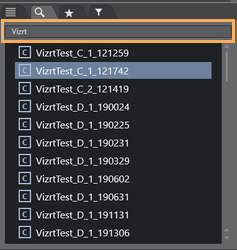
From the Search tab you can locate clips stored on a connected video server. These assets can then be dragged to shortcut buttons which have been predefined to access a template designed for containing a video file.
To search for a clip
Type a search string and press ENTER.
The search field is case sensitive.
Example:
Create a shortcut key for a Package type template which allows drop of content (for details see Keyboard Shortcuts). Then use the Search window to find a video file, and drag it onto the same button.
The video file is now executed within the template assigned to the button.
Additionally, elements can be dragged directly from the Search window, to Shortcut keys and to the Media Pool and Rundown windows.
By default:
Dragging drops the file as an Adlibpix type, with variant default.
SHIFT+drag drops it as a Package type, with variant default.
CTRL+drag drops it as a Voiceover type, with variant default.
See General Settings > User Interface > Search Pool for more information on setting up this feature.
Favorites Tab
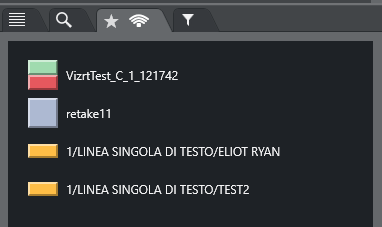
The Favorites tab can be used to gather primary and secondary elements from several stories in the rundown, creating a temporary toolbox for the operator. Items in the Favorites tab have a context-sensitive (right-click) menu that offers similar functionality as in the Assets tab.
Info: In the illustration above, the appearance of the shared icon  , indicates that the favorites displayed on this Viz Mosart client (UI), are public and shared with all other Viz Mosart clients that are connected to the same Viz Mosart server.
See the description for Use public buttons, in section General Settings > User interface > Keyboard.
Adding and Removing Elements
To add elements to the Favorites tab
Select the story containing required elements (as shown in the Rundown window)
Drag the desired elements into the Favorites tab.
To remove an element from the Favorites tab
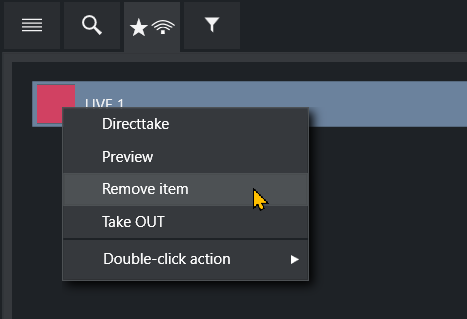
To remove a single element from the Favorites tab, mark the element, right-click and from the context menu, select Remove item.
To remove all elements from the Favorites tab
To remove all collected elements from the Favorites tab, right-click on the tab header and select Clear Pool.
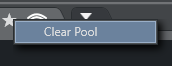
Working with Elements in the Favorites Tab
Elements saved on the Favorites tab can be used in the same way as those in the Assets tab, as described earlier in To assign an asset to a production:
Dragged to a new place in the rundown
Dragged to shortcut keys
Directtake to air or to Preview, Take Out or Remove item through a right click context menu.
Elements can also be assigned to the production through double-click actions or through right-click actions, as described below under Context Menu.
Context Menu
Right-click an element in the Favorites window, for a context menu.
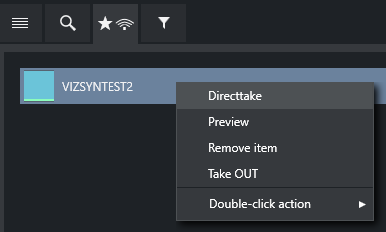
Directtake: Takes the element straight to air immediately.
Preview: Adds selected primary element as the Next story element in the rundown.
Remove item: Remove the item from the Favorites tab.
Take OUT: Take the graphic out if on air (only for graphics).
Double-click: See Assets Tab | Double-click.
In addition:
Hovering the cursor over an item in the Favorites tab displays more information about the item, including any secondary elements attached to it.
Any item added to the Favorites tab pool can also be found among the Quick Access Panel pool favorites and vice versa.
Quick Access Tab
The Quick Access tab (QAT) offers an additional route for interacting with the rundown. Potentially all rundown elements rundown are displayed, but filters can be applied.
The QAT is an enhancement of the Quick Access Panel and shares the filtering functionality; filters applied to one are immediately applied to the other.
It is possible to filter by type, status (On Air, preview, aired), slug, story title, available, unavailable.
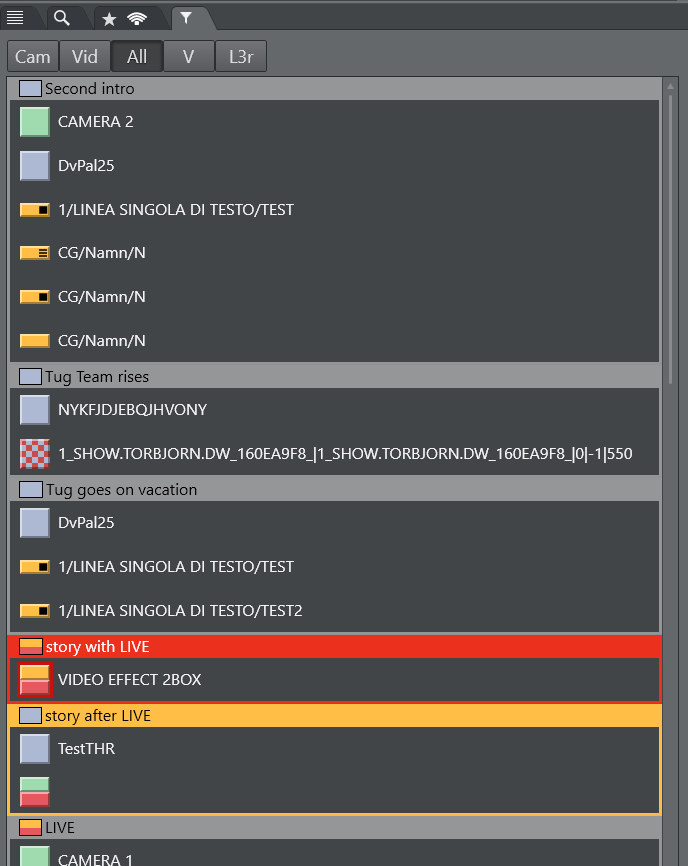
You can drag elements from this panel to anywhere in the rundown, where they then attach to that story or item.
You can also drag secondary elements directly onto any primary element.
Drag elements to the neighboring Favorites tab
to keep for easy access. Drag onto a Keyboard Shortcuts button in the Shortcut keys window.
Assign to the production through double-click actions or through right-click actions, as described below.
The context menu that appears when right-clicking on an element provides similar features as described for the Assets Tab.
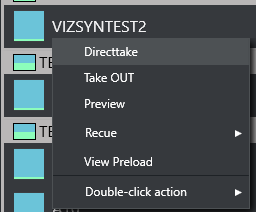
The only additional function is View Preload, which, if the selected item is a video clip or a graphic, will send it to the configured preload/preview video server/graphics engine.
Operation
The QAT can be operated with keyboard or mouse. Use configurable keyboard shortcuts control commands, called QUICKEVENT, for an optimal workflow.
Both mouse and keyboard can be used to select multiple items:
By holding CTRL while using the mouse, the item can be set as group-selected/unselected.
By using the the QUICKEVENT command NEXT_GROUP_ITEM, the user can step through the selected items.
Items can be taken to air or preview using these QUICKEVENT control command shortcuts.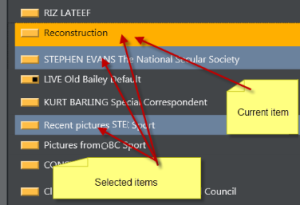
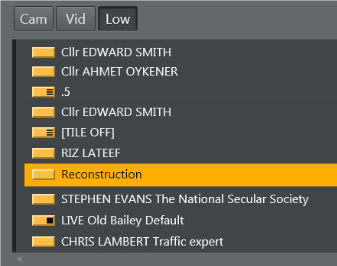
The items can be grouped by story, or listed without showing the stories. In this example only lower thirds (Low) are visible:
Story, item and sub-item on-air indication:
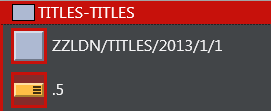
Lower thirds can be taken both On Air and Off Air. While they are On Air, the On Air indication is visible. All items in the list can be drag-and-dropped directly to the Favorites tab, Wall items, Timeline or Keyboard shortcuts.
It is possible to show and control all kinds of Viz Mosart elements in this view.