Use the Video Output section to configure special settings for video output, such as SPG settings and so on.
Video Output Properties

Sync Output Configuration: Opens the Video Output Editor. You can also open the Video Output Editor by pressing ALT + V.
Video Wall/Multi-Display: Sets the main output to the Digital Visual Interface (DVI).
Important: For video wall setups, this setting must be active and the output format must be set to FULLSCREEN.
Render Preview Default Setting: Sets the default value for the Preview button (see Control Buttons), when Viz Engine is in On Air mode.
Inactive: Renders only video out signals. This increases performance, as the renderer does not have to render into an editor on-screen and into pixel buffer.
Active: Renders both video out signals and on-screen (this decreases performance).
Fullscreen: Sets the On Air window to screen size.
Preferred Adaptive Scene Design Format: Defines which adaptive format to use. If, for example, a scene holds a portrait format, this format is used instead of the default format.
Output Format / Colorimetry / Bits Per Channel
You set the output format, colorimetry, and bits per channel of the rendering engine using these combo boxes. All video hardware configurations are associated with the video standard set here as the output format. This setting also defines the frequency (frame rate) at which Viz Engine runs.

For PAL and NTSC, you can set the aspect ratio to 4:3 (standard TV) and 16:9 (wide screen TV). Fullscreen sets the output format to the screen size of the current machine. Fullscreen also allows to modify the frame rate setting, but not other settings. Viz Engine supports UHDTV, 4K, UHDTV2, and 8K. UHDTV, 4K, UHDTV2, and 8K formats are only displayed when the system hardware supports them.
Choose User Defined to display a panel below the output format list. You can use user defined output format to meet the requirements of multi-pipe systems, such as a video wall. Configure the multi-pipe settings in the right part of the Editor.

Width: Sets the width in pixels.
Height: Sets the height in pixels.
Frame: Sets the refresh rate/frequency per frame in hertz (Hz).
Aspect: Sets the aspect ratio. For example, 1.778:1, which is 16:9 or 1.333:1, which is 4:3. The designer can set other aspect ratios for each scene, as described in the Scene Settings page in the Scene Management section of the Viz Artist User Guide.
Note: Make sure the physical refresh rate of the graphics hardware and the video hardware are configured with compatible settings.
Offset X: Sets the horizontal alignment in pixels, on the screen. Value is calculated from the top left of the screen.
Offset Y: Sets the vertical alignment in pixels, on the screen. Value is calculated from the top left of the screen.
There are three frequency groups/families: 50, 59,94, and 60 Hz. These define the output format and how fast Viz Engine operates. The frequency is the same as frames per second. This also defines the input format that is allowed, so an NTSC SD input cannot produce a PAL SD output, but an HD input with the same frequency as the SD output would work.
Information: NTSC and PAL are not supported by X.Mio5 boards (2110).
Fullscreen and User Defined hide the Video Output Channel, as these output formats do not support any kind of output channel.
Information: The Colorimetry option only appears for 1080p 50 / 59.94 / 60, UHD, 4K, 8K, Fullscreen and User Defined. At the other formats the output is BT.709 (SD: BT.601).
UHDTV Support
UHDTV resolution is currently supported on Matrox X.mio3 - DSX LE 4 (SDI video boards only) and X.mio5 (recommended).
UHDTV2 resolution is currently supported on X.mio5 X2. Only 50 FPS is currently supported.
Video Output Editor
The Video Output Editor defines the synchronization standard and the output signal phases.
Freerun: Locks Viz Engine to a clock signal on the video board.
Blackburst: Locks Viz Engine to a Blackburst GenLock signal.
Tri-level: Locks Viz Engine to a Tri-Level GenLock signal.
Auto: Auto detects the genlock signal and locks to it.
Digital Input 1 and 2: Locks Viz Engine to the signal on Input 1 or 2.
PTP: Uses a Precision Time Protocol source for synchronizing. Mainly used in IP networks.
H-Phase and V-Phase: Shifts the output signal with respect to the sync signal.
Note: The Auto option is only available on Matrox boards. On Matrox boards the h- and v-phase settings, are updated automatically with default values based on the output resolution (Except IP-based cards). Measuring the exact h- and v-phase is still required for each setup.
Make the V- and H-Phase Values Coincide
Set the V-phase value.
The V-granularity is taken from the genlock.
The V-delay is calculated from V-phase * V-granularity.
The genlock is set with this V-delay.
Set the H-phase value. Note that there is a distinction between whether the H-phase is a positive or a negative value.
If the H-phase > 0:
The genlock H-delay is set to
0.The H-granularity is taken from the video out channel.
The H-delay is calculated from H-phase * H-granularity.
The fill and key channels are set with this H-delay.
If the H-phase <=0:
The fill and key channel H-delay is set to
0.The H-granularity is taken from the genlock.
The H-delay is calculated from - H-phase * H-granularity.
The genlock is set with this H-delay.
Note: The granularity and possible min/max values are printed to the Viz Artist/Engine console during startup.
It should be taken into account that when the genlock video format is different from the fill/key video format, the value of the V-delay matches the genlock lines and not the video output lines. The same applies to negative H-phase values.
Video Output Channel
In the Video Output Channel panel, you select which Viz Artist/Viz Engine Output is mapped to the Matrox connector. The Video Output Channel panel shows the mapped Viz output channel and its editable parameters. The configuration has the same logic and looks familiar to the Video Input section of the configuration menu (see Video Input: Live Input). This panel is not displayed if Matrox hardware is not used.
Important: If the configuration is done for a Dual Channel UHD setup using SMPTE ST 2110, the second Viz Engine needs to use the second SFP pair for output. See Explicit Usage of the Second SFP Pair on Matrox X.mio5 Q25 and DSX LE5 Q25 for more information.
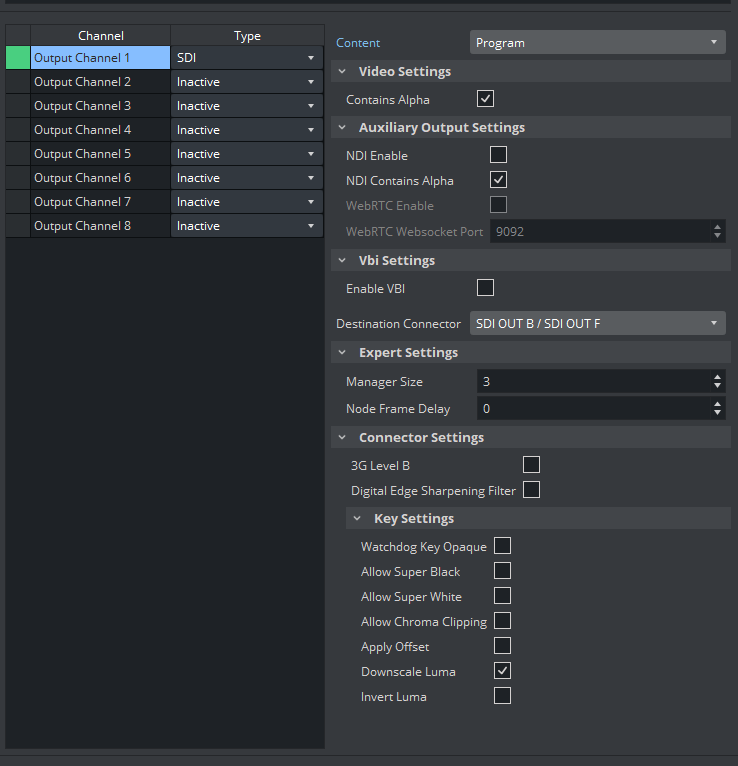
To enable an Output Channel, select the row and choose the Type of channel: SDI, IP, or NDI (and, on DSX.core/M264 systems, the fixed Internal type on Output1). After that, choose the Content for the channel.
There is no longer a fixed Output1=Program / Output2=Preview pairing. Each of the up to 8 output channels is configured independently — you can have any number of Program outputs (not just one or two), in any order, and mix types freely (for example, an SDI program, a second SDI program at a different resolution, and an NDI output carrying a Matte Scene, all at once).
Resolution and node sharing: an additional output configured at the same resolution as the main program shares that program's rendering node/connector pipeline (the old single-node behavior). An additional output configured at a different resolution gets its own independent path instead. The rules for that independent path depend on Type:
SDI: the resolution must be one of the standard broadcast resolutions (720p, 1080p, 1080i, or UHD if the board supports it).
IP: the resolution can be arbitrary (see the custom resolution list below), but it must be progressive, and the underlying card node is sized up to the next multiple of 64 pixels in width / 2 lines in height to accommodate it.
NDI: the resolution is fully arbitrary and independent — there's no shared card node to size around.
The possible content values are:
Unused: Does not map this channel for output.
Program: Maps a Program output to the selected video output. Any number of output channels can be set to Program — this is no longer capped at two.
Still Preview: Maps the Preview output to the selected video output. Only available on SDI or IP channels.
Information: Still Preview requires an SDI or IP output channel. It no longer shares a slot with Program outputs — you can configure any number of Program outputs alongside a Still Preview, limited only by the number of output channels available.
Matte Scene: Used for virtual studios, the effective matte scene.
KeyerAuxChannel: Shows the key preview to adjust the Chroma Keyer.
Media Asset: Outputs any media asset — Live, Clip, Web, SuperChannel, Image, Aux, etc. — chosen independently of the channel's own input configuration. This replaces the old Graphics content value; where Graphics only let you pick a GFX channel, Media Asset lets you monitor any asset type.
Clean and Downscaled Preview are no longer separate top-level Content values. They are now child outputs of a Program output (set via a separate Child Output control), and are only offered on a Program output that is SDI or IP, is not the main program, and — for Downscaled Preview — only when the main program is configured at UHD or higher. Their behavior is otherwise unchanged: Clean outputs DVE video without overlay graphics (with its own audio mix, excluding stage audio), and requires Matrox X.mio3, X.mio3 IP, X.mio5, or X.mio5 IP (Watchdog functionality is not supported on X.mio5/X.mio5 IP, and still requires VideoOut A = Clean, VideoOut B = Program); Downscaled Preview outputs the Program content downscaled to HD, and is ignored unless the Program output is UHD.
Notes: Graphics output only work when the main scene is VER, but the nested scene can be VER or Classic.
A clean feed increases the video In → Out delay, by one frame. At least one program always to be configured.
Clean feed and Downscaled Preview are only available on boards with a hardware compositor available (not DSX LE series).
Output Type
Each output channel (Output1…OutputN) has an independent Type: SDI, IP, NDI, or (DSX.core/M264 only) Internal. Type determines the underlying transport and, together with the board, what resolutions and content are available.
Type | Transport | Audio | Resolution source | Notes |
|---|---|---|---|---|
SDI | Physical SDI connector | Yes | Fixed broadcast list only: 720p, 1080p, 1080i, plus UHD if the board reports UHD output capability | Card-bound; supports Clean/DownscaledPreview child outputs and Still Preview |
IP | 2110 IP Stream | Yes | output-resolutions.xml custom list, plus the resolution can equal the main program's resolution (shared "card node") | Additional IP outputs at a different resolution than the main must be progressive; engine aligns width to a multiple of 64px and height to a multiple of 2 lines to fit the card node; frame rate must match the card node |
NDI | NDI network stream | No (video only) | output-resolutions.xml custom list, fully arbitrary (no card-node alignment) | Not tied to a physical connector; independent from the legacy Program-only NDI and NDI Aux sender |
Internal | None (software) | N/A | Fixed to the global output format | DSX.core/M264 only; always pinned to Output1; content is fixed to Program; cannot be reassigned |
New: NDI as an output Type (5.6, Parallel Outputs)
Alongside SDI and IP, an output channel can now be set to Type = NDI. This is a genuinely new capability, distinct from the long-standing Program-only NDI and NDI Aux sender
Program-only NDI | New Type = NDI output channel | |
|---|---|---|
Where configured | NDIENABLE/NDICONTAINSALPHA under the first SDI/IP (or Internal) Program output's Aux settings | TYPE dropdown on any output channel |
Content | Always mirrors that channel's Program feed | Any supported content: Program, Matte Scene, Keyer Aux, Media Asset (not Still Preview, not a Clean/DownscaledPreview child) |
Resolution | Always the global output resolution | Independent — selectable from output-resolutions.xml, arbitrary |
Instances | One global instance | One per configured output channel |
Audio | Follows the program's audio config | None — video-only |
Because it's video-only, don't use the new NDI output type as a replacement for an audio-carrying feed; use SDI/IP, or the legacy Aux NDI sender if you need the audio-following-program behavior.
Requirements: an NDI output license (binary or counted) and the Parallel Outputs license feature. Both a Content and a Type combobox must be exposed — if you don't see NDI in the Type list, the license/feature isn't active.
Alpha / bit depth: NDI output channels support alpha and 16-bit output depending on the configured pixel format (matches PA16/P216 handling used elsewhere), same as SDI/IP Contains Alpha.
Resolution cap: like every other sender in the engine, the NDI output is still capped by the license's maximum video resolution — an NDI channel cannot exceed what your Viz Engine license allows even if you add a bigger entry to output-resolutions.xml.
Custom output resolutions — output-resolutions.xml
Location: C:\ProgramData\vizrt\VizEngine\output-resolutions.xml
Created automatically with defaults the first time any output resolution list is requested, if the file doesn't already exist.
Loaded once per engine session (edits require a restart to take effect).
Used to populate the Resolution dropdown for IP and NDI output channels only; SDI always uses the fixed broadcast list and ignores this file.
Default file contents:
Alias | Width | Height | Scan mode |
|---|---|---|---|
540p | 960 | 540 | progressive |
720p | 1280 | 720 | progressive |
1080p | 1920 | 1080 | progressive |
1080i | 1920 | 1080 | interlaced |
1440p | 2560 | 1440 | progressive |
UHD | 3840 | 2160 | progressive |
Schema — add your own <Resolution> entries the same way:
<?xml version="1.0" encoding="UTF-8"?><OutputResolutions> <Resolution width="960" height="540" scanmode="progressive" alias="540p"/> <Resolution width="1280" height="720" scanmode="progressive" alias="720p"/> <Resolution width="1920" height="1080" scanmode="progressive" alias="1080p"/> <Resolution width="1920" height="1080" scanmode="interlaced" alias="1080i"/> <Resolution width="2560" height="1440" scanmode="progressive" alias="1440p"/> <Resolution width="3840" height="2160" scanmode="progressive" alias="UHD"/> <!-- custom example --> <Resolution width="1600" height="900" scanmode="progressive" alias="900p"/></OutputResolutions>scanmode accepts progressive, interlaced, or auto (auto follows the engine's global system progressive/interlaced setting).
alias is what appears in the Resolution dropdown and in the config file (RESOLUTION command); it must be unique and non-empty or the entry is silently skipped.
Selecting a UHD-sized custom entry (≥3840 wide or ≥2160 tall) on an IP or NDI output still requires the board to report UHD output capability — otherwise the engine rejects it with "UHD resolution not supported on this output."
Selecting "Auto" resets width/height/scan mode to 0/0/Auto, meaning "use the general output configuration" (the global system format).
Content and child outputs, by type
Content | SDI | IP | NDI | Internal |
|---|---|---|---|---|
Program | Yes | Yes | Yes | Yes (fixed) |
Still Preview | Yes | Yes | No | No |
Matte Scene / Keyer Aux / Media Asset | Yes | Yes | Yes | No |
Clean / DownscaledPreview (child output) | Yes | Yes | No | No |
Clean/DownscaledPreview child outputs require an SDI or IP main Program output — NDI output channels can't host or depend on them.
The engine always requires at least one active SDI or IP Program output before any dependent child/Still-Preview output can exist; NDI/other content types can be configured without one.
Output Licensing
Several independent output paths exist that can send video over NDI, WebRTC, or SHM, each licensed differently. This section documents the current licensing behavior for each, as implemented in the engine today.
Note: SDI_OUT_BINARY, NDI_OUT_BINARY/NDI_OUT_COUNTED, and PARALLEL_OUTPUTS are the only license features involved. There is no dedicated WebRTC license feature and no dedicated SMURF/SHM license feature.
Licensing by output path
Output path | Configured via | License(s) required | Resolution-capped |
|---|---|---|---|
SDI/IP output channel — Content = Program or Still Preview | Type = SDI/IP, Content = Program/StillPreview | SDI Out | Yes |
SDI/IP output channel — Content = Matte Scene, Keyer Aux, or Media Asset | Type = SDI/IP, Content = MatteScene/KeyerAux/MediaAsset | SDI Out + Parallel Outputs | Yes |
NDI output channel (any Content) | Type = NDI | NDI Out (binary or counted) + Parallel Outputs | Yes |
NDI Aux — Program clone | Output1 Aux settings, "NDI Enable" | NDI Out (binary or counted) | Not enforced at creation |
WebRTC Aux — Program clone | Output1 Aux settings, "WebRTC Enable" | Parallel Outputs | Not enforced at creation |
NDI Aux — per GFX/SuperChannel | GFX/SuperChannel config, NDI send | Parallel Outputs | Yes, per frame |
SMURF/SHM Aux — per GFX/SuperChannel | GFX/SuperChannel config, SHM key | None | No |
RTP/Mezzanine Out (legacy, unrelated to Parallel Outputs) | Legacy RTP Out aux | Mezzanine IP Out | n/a |
Notes on SDI/IP output licensing
SDI Out is the same license feature that has always covered SDI/IP output — it is unchanged for a single Program output.
Parallel Outputs is only required on an SDI/IP channel when its Content is Matte Scene, Keyer Aux, or Media Asset. Additional Program or Still Preview outputs on SDI/IP do not require Parallel Outputs — only SDI Out, same as before.
Notes on NDI-shaped outputs
There are three distinct NDI-sending features, each licensed differently:
NDI output channel (Type = NDI) — requires both NDI Out and Parallel Outputs, regardless of Content.
NDI Aux (Program clone) — the legacy Output1 "NDI Enable" checkbox that always mirrors the main Program feed — requires only NDI Out.
NDI Aux (per GFX/SuperChannel) — the classic per-channel "send this channel over NDI" option — requires only Parallel Outputs, and does not require an NDI Out license.
Notes on WebRTC and SMURF/SHM
WebRTC has no dedicated license feature of its own; the Program-clone WebRTC Aux sender is gated solely by Parallel Outputs.
SMURF/SHM Aux (per GFX/SuperChannel SHM output) has no license check and no resolution cap — it is unconditionally available whenever a channel supports it and has an SHM key configured.
Output Type IP/SDI Settings
Video Settings
Contains Alpha: Defines if this output channel provides key information on the associated key output connector.
Auxiliary Output Settings
This option only appears if the output type is SDI/IP and output content is Program. Additional output content program will not show this option.
NDI Enable: Enables NDI output as a clone output of the output program. Same resolution. Supports DVE.
NDI Contains Alpha: Enabled alpha for the NDI auxiliary output.
WebRTC Enable: Enables WebRTC output as a clone output of the output program. Same resolution. Supports DVE.
WebRTC Websocket Port: Port used for the WebRTC connectiong
VBI Settings
Enable VBI: Enabled VBI for the output channel.
Destination Connector
Chooses which connector to use
Expert Settings
Manager Size (frames): Sets the number of frames available in the on-board memory for output. A too high value may cause memory problems on the Matrox board. Default value is
3.Node Frame Delay: Specify the delay of the Matrox output node. This is relevant if the output node is intended to be used for recording by another application such as Channel Recorder.
Connector Settings
3G Level B: Activates
Level Bfor 3G mode in 1080p 50/60/60M (default mode isLevel A).
Digital Edge Sharpening Filter: Applies an edge sharpening filter to digital output video. Default mode is
Inactive. SD configurations only.
Key Settings
Watchdog Key Opaque: Specifies if the output key must be opaque or transparent when the watchdog unit activates. Default mode is Inactive.
Allow Super Black: Allows the luminance of the output signal to fall below the nominal SMPTE pixel values (7.5 IRE units) when enabled. Default mode is Inactive.
Allow Super White: Allows the luminance of the output signal to exceed the nominal SMPTE pixel values (100 IRE units) when enabled. Default mode is Inactive.
Allow Chroma Clipping: Determines whether to clip over-saturated chroma levels in the active portion of the output video signal. Default mode is Inactive.
Apply Offset: Applies an offset to the luminance values such that the inverted result still falls within the 16-235 range. Default mode is Inactive.
Downscale Luma: Compresses the luminance range of the output key signal from 0-255 to 16-235. Default mode is Active.
Invert Luma: Inverts the luminance part of the output key signal (inverts the key). Default mode is Inactive.
Multiconnector Mode
Defines which multiconnector mode to use for 3G / 12G SDI channels. This setting is only available for Series 5 Matrox SDI cards (for example, X.mio5 12G SDI) when configured to UHD.
None: 12G single connector mode.
2SI: Quad-Link 2 sample interleave.
Square Division: Quad-Link Square division.
Important: Multiconnector mode is only enabled for UHD resolutions and when at least four connectors are available.
If fewer than four connectors would be free for SQD or 2SI, this option is greyed-out and the connectors automatically run at their maximum bandwidth.
See Also