Prerequisites
Matrox SDI or IP board with enough connectors available
Parallel Output license.
Important:
Parallel Outputs support GFX channels only in Texture mode.
If the resolution of the scene in the GFX channel exceeds 2048 pixels in either direction, the 4K Video Enablement license is required in addition.
Exceeding 4096 pixels is not supported.
Types of Output Signal
Viz Engine is capable of sending multiple signals out of one Viz Engine instance. Given enough available connectors (in SDI), next to a Fill and Key signal, one Viz Engine instance is able to deliver (one or more) output formats:
Preview purposes | Keyer purposes | Adaptive and Multioutput purposes |
|---|---|---|
Still Preview (by sending a Viz Engine command). | Matte Scene: To setup a virtual studio and its matte areas. | Any number of the available output channels, each with its own Content and resolution. |
Clean Feed: the incoming video without any compositing effects (graphics on top). | KeyerAux: To finetune the Precision Keyer. | |
Downscaled Preview (for example, for UHD workflows) the output is 1080p. |
From Viz Engine 5.6, additional outputs are no longer limited to two GFX channels and can run at their own resolutions. See Video Output for the current list of output types and their licence requirements.
To Configure the Output Signal
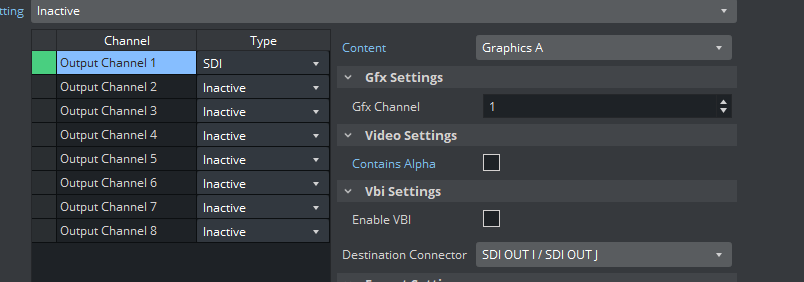
Go to configuration setting Video Output.
On the left side, choose your output channel (SDI/IP) (Hardware dependent).
Select the Content (see Types of Output Signal).
For Media Asset, choose the asset type and the channel you want to map. This replaces the Graphics content value of earlier versions.
Information: The assignment can also be changed on the fly during runtime.
See Also