Pages can automatically retrieve information from a range of Database Connections, using the Promo Server to carry out the queries.
When working with databases, it is important to always make sure the database columns match the data type of a page’s field. If a database column is of type Integer, and your field is of type String, you will not be able to make any updates.
Note that changes to a page in the Page Pool view will affect all referenced occurrences of that page in a playlist. Changes to a page in the Playlists view will only have an effect on page.
To populate a Template from a Database
Info: Before you start, ensure you have configured your Database Connections.
Select your channel.
Double-click a page. This opens the Page Editor.
Select a field from the page fields list, and you will see Get content dynamically on the right side of the Page Editor, if this field type supports Page Content Filling.
Click the second expander.
Make your configurations.
Click Save or Save as.
To configure a database query
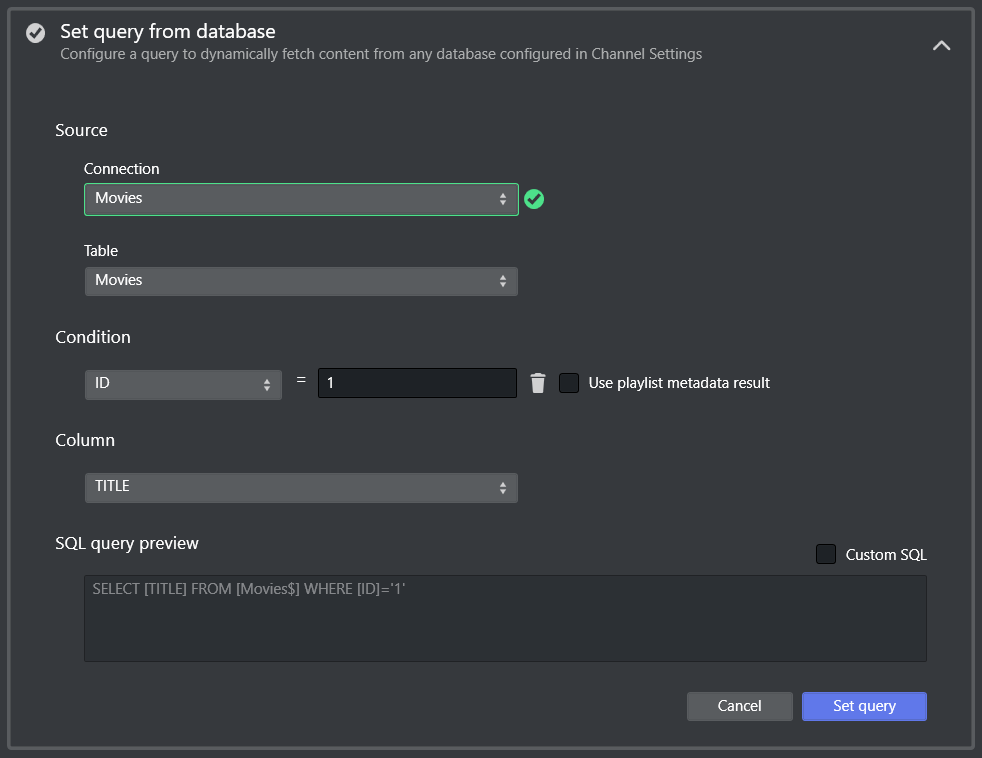
After selecting a connection, there is an attempt to connect that will fetch all the available data in the database.
If it failed to connect to the database, you can either try to reconnect, or check Database Connection in External Data Sources.When it is successfully connected, you can choose to generate query string automatically by selecting table, column and conditions, or use custom query by check Custom SQL.
Click Set query when query is configured, Promo Server will send back the result if the page is opened from playlist.
Press Save or Save as to save the query.
Info: For Oracle database, we currently support columns with the data types listed below.
Supported data types |
|---|
CHAR |
NUMBER |
DATE |
VARCHAR |
TIMESTAMP |
BINARY_DOUBLE |
BINARY_FLOAT |
Info: For inquiries about additional data types, please contact your local Vizrt customer support team.