The Precision Keyer can be controlled as usual through the standard UI. Additionally, there are other options to control when creating Precision Keyer actions.
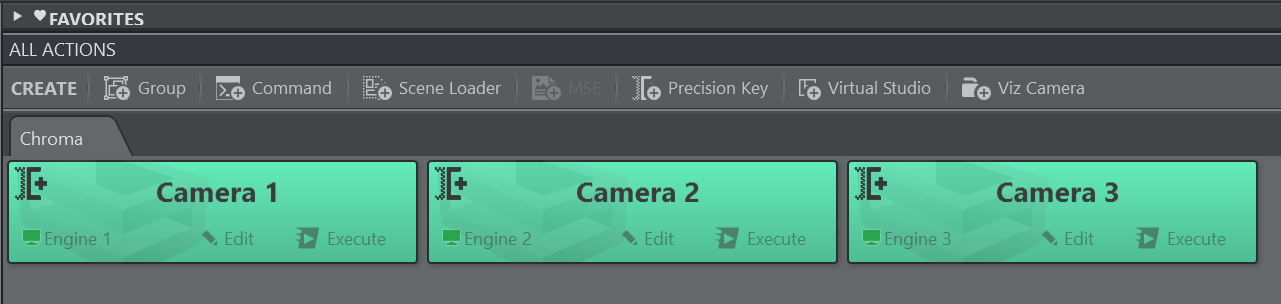
Once at least one Precision Keyer Action has been created on the action canvas, the left hand tool bar displays a KEYER button which holds a dedicated UI for Keyer actions.
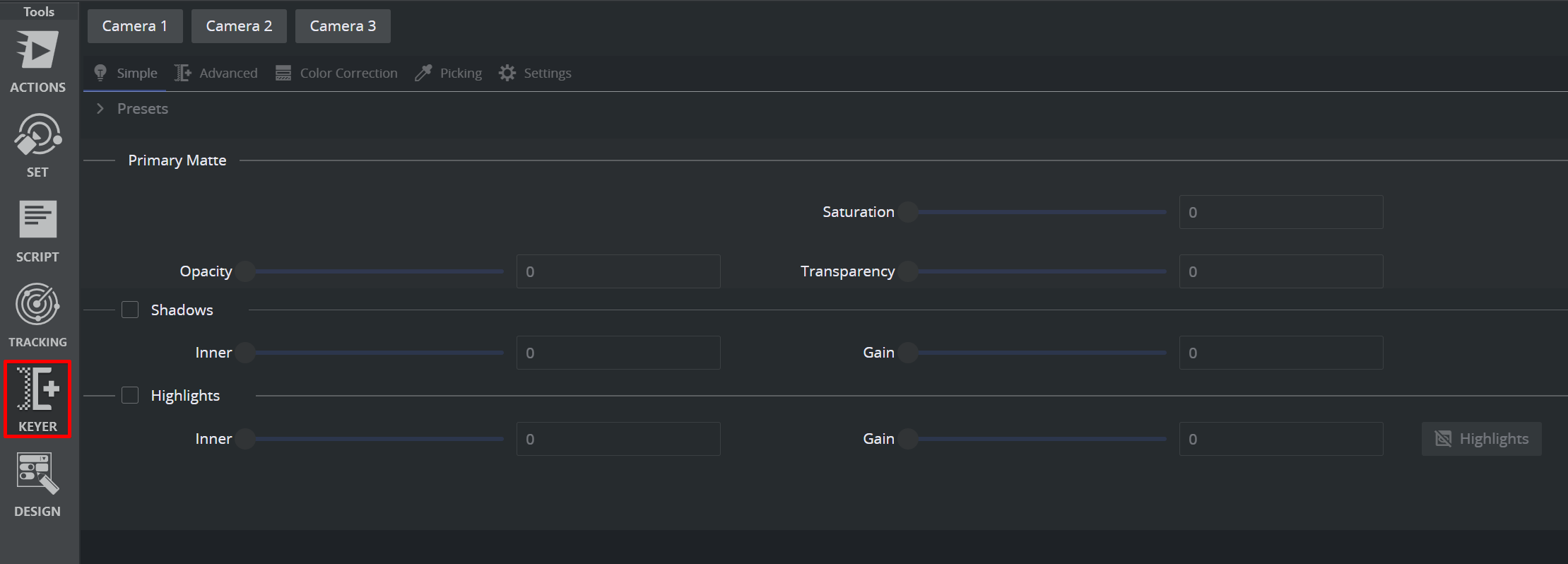
A list of all Precision Keyer actions is displayed on the top bar, click on one of them to work on it.
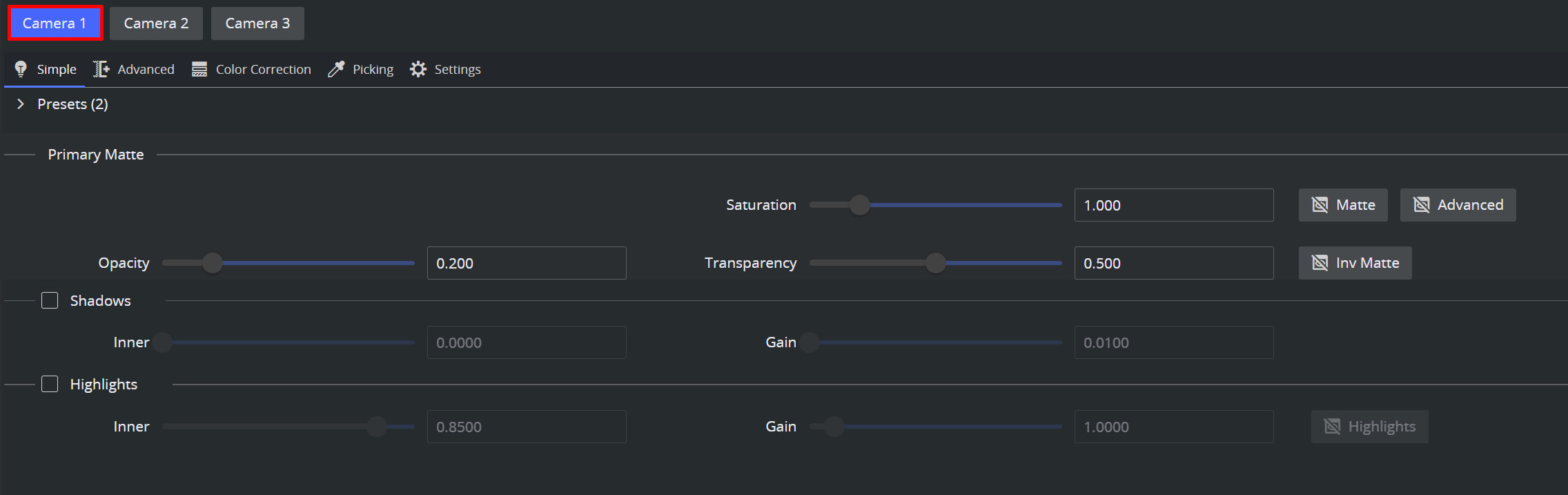
Simple
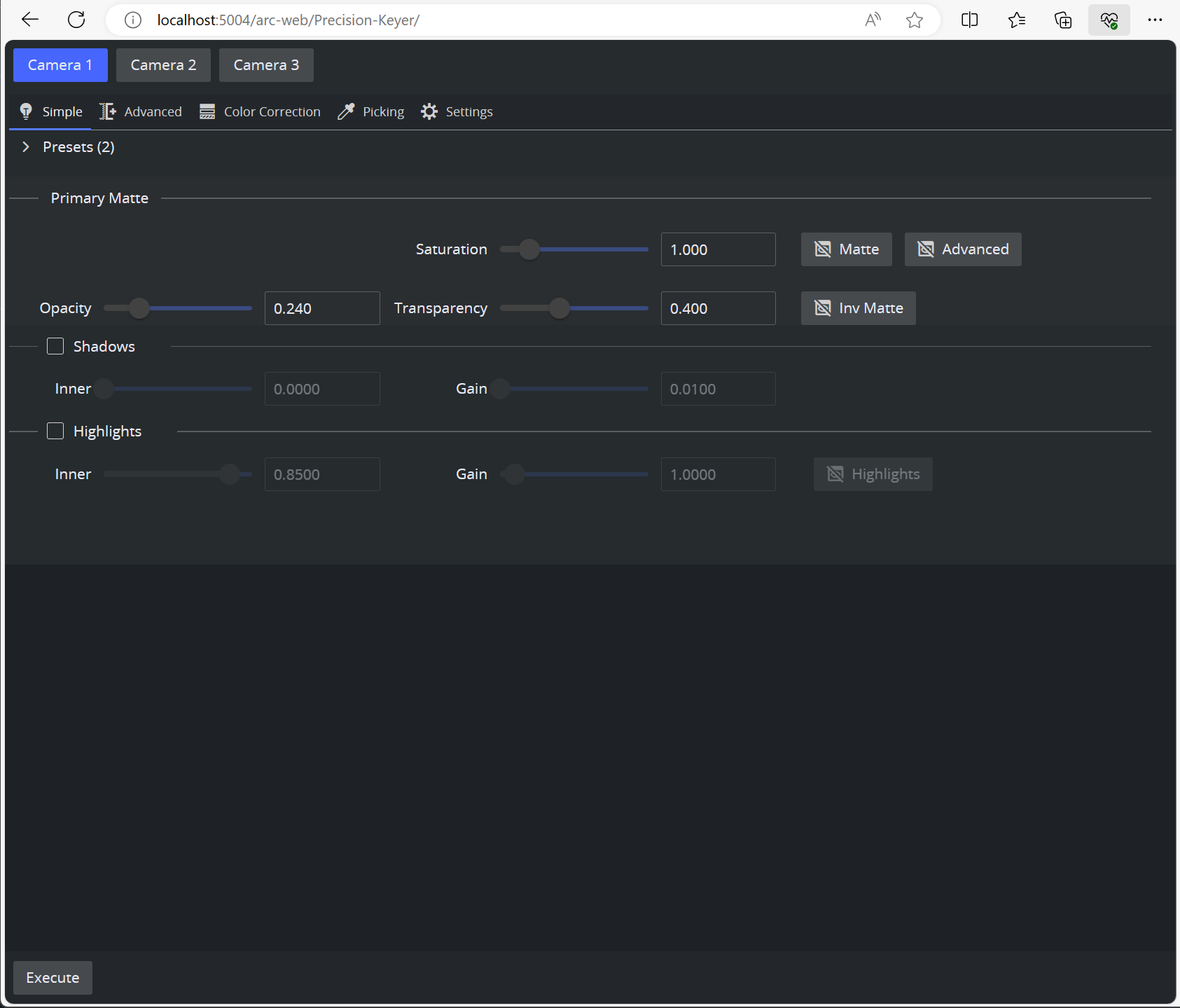
The Simple view displays only the most important settings that might be changed during On Air operations.
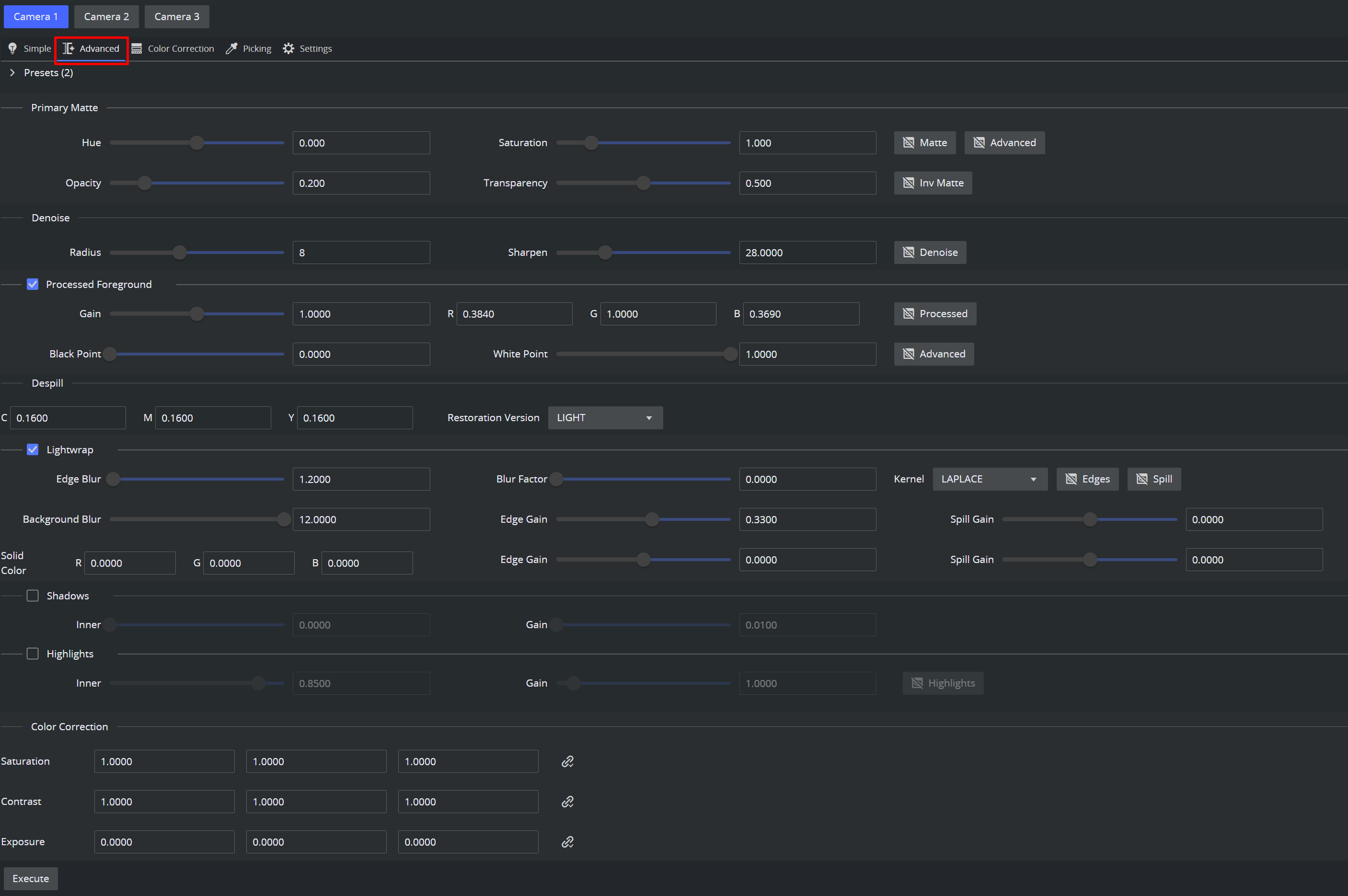
Advanced
The Advanced view displays all values of the Precision Keyer.
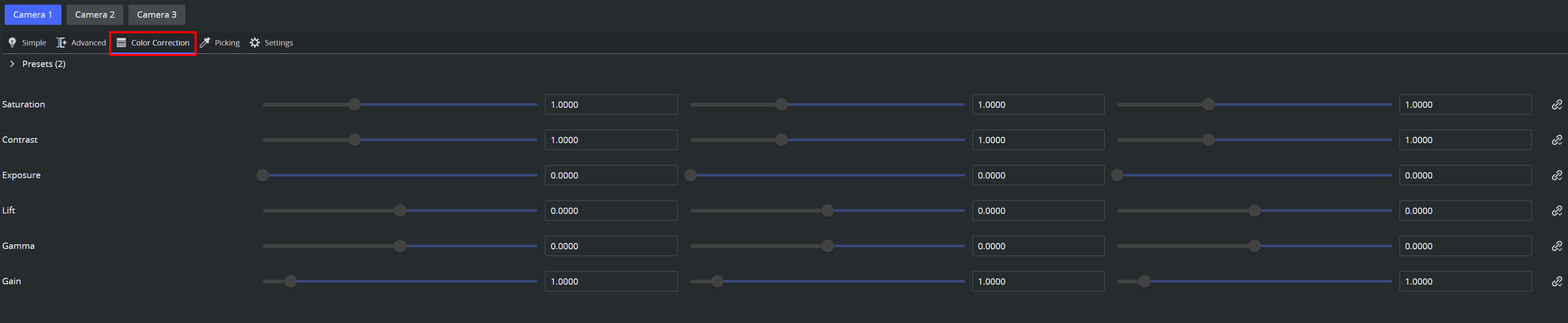
Color Correction
The Color Correction view displays the color correction values with additional sliders.
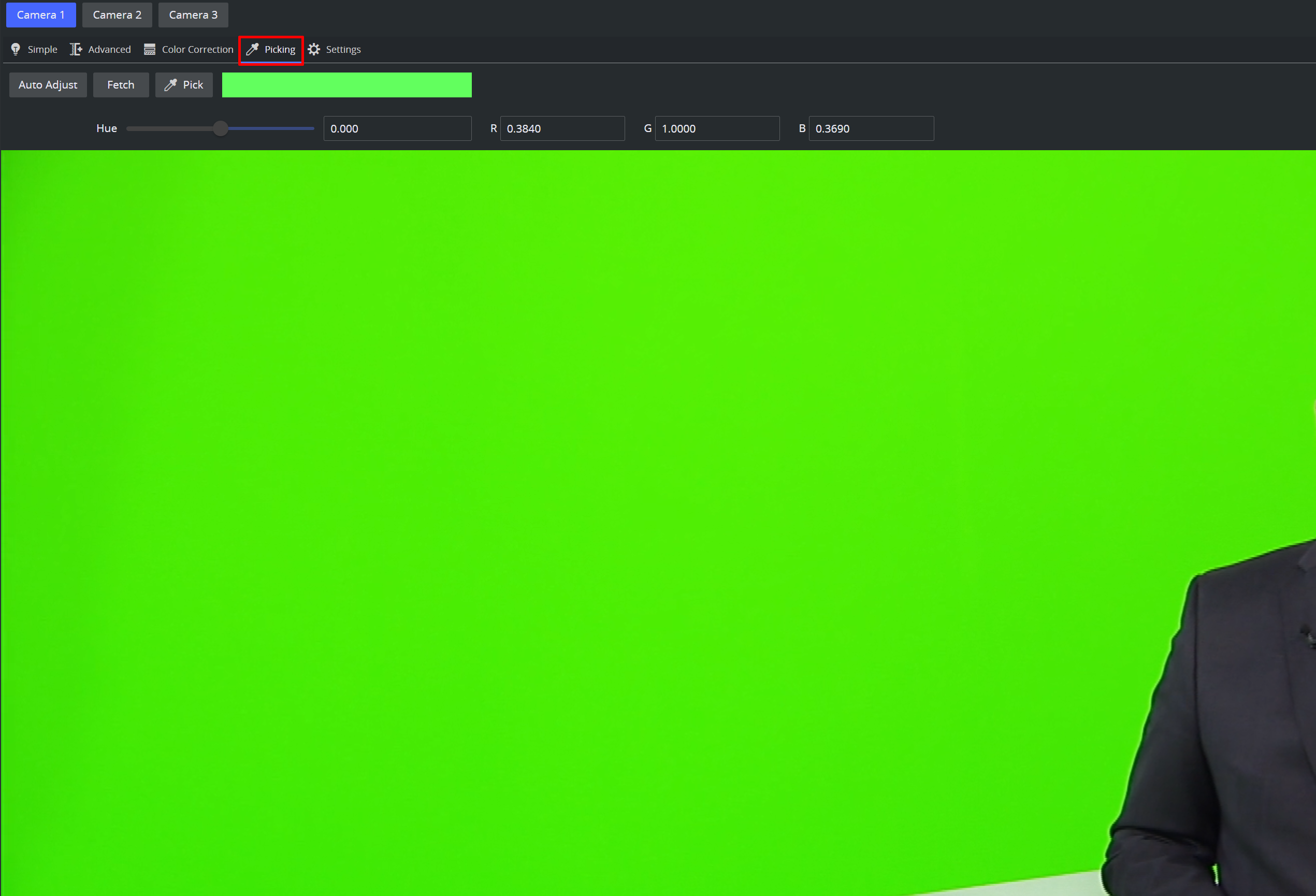
Picking
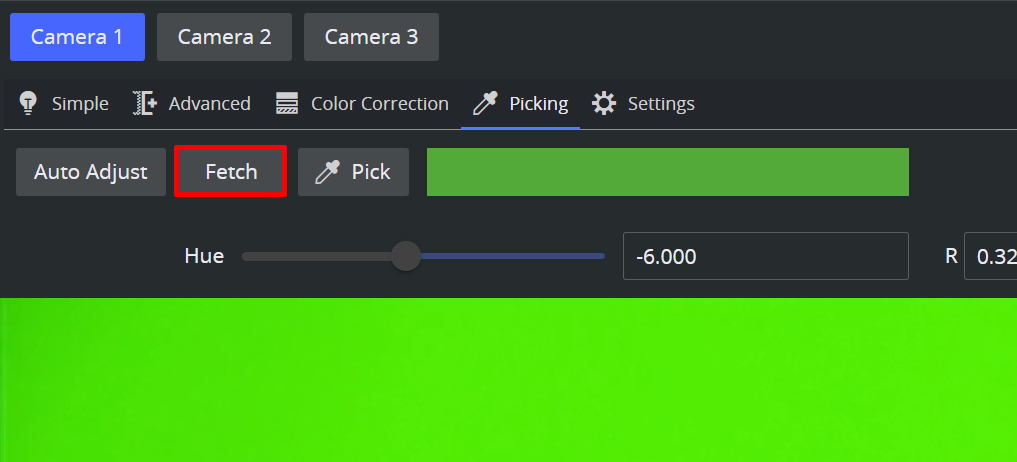
The Picking view shows the values relevant for the backdrop color and the hue value.
Use the Pick button to pick any color on the UI. Use the mouse wheel to increase or decrease the picking area.
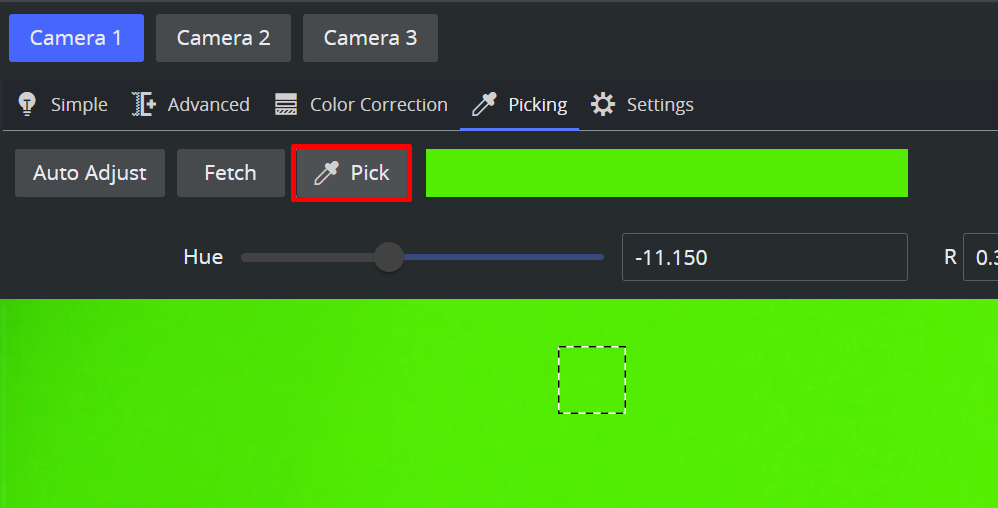
Note: The Pick button uses a color-picking feature built into modern browsers (Chrome and Edge). For security reasons, browsers only allow this feature on "trusted" pages (pages loaded over a secure HTTPS connection, or pages opened on the same computer that Viz Arc is running on (a localhost address)). If picking does not work over a remote connection, make sure HTTPS is configured in Viz Arc. Browsers block the eyedropper on remote connections that are not secured with HTTPS.
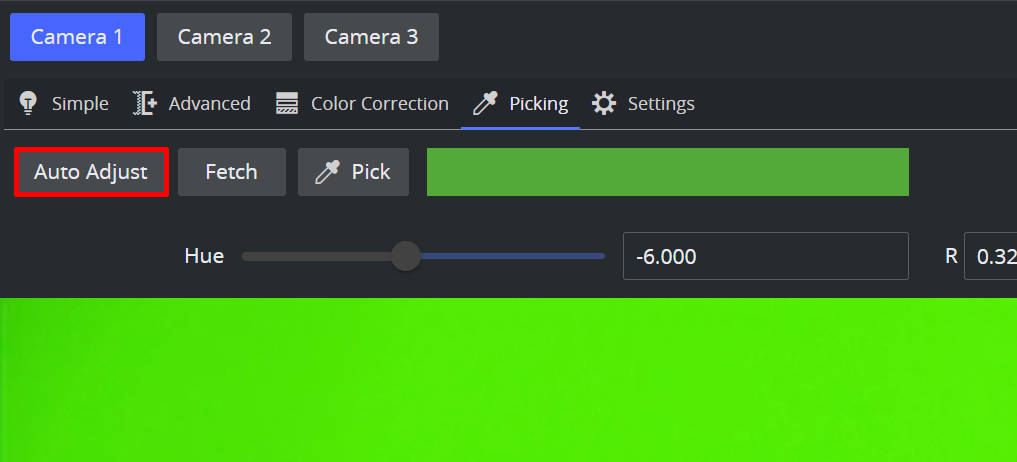
Use the Auto Adjust button to let the Viz Engine automatically determine an optimal backing color and hue.
Press the Fetch button to get the current value from the connected Viz Engine.
Settings
The Settings view shows the basic settings of the Precision Keyer.
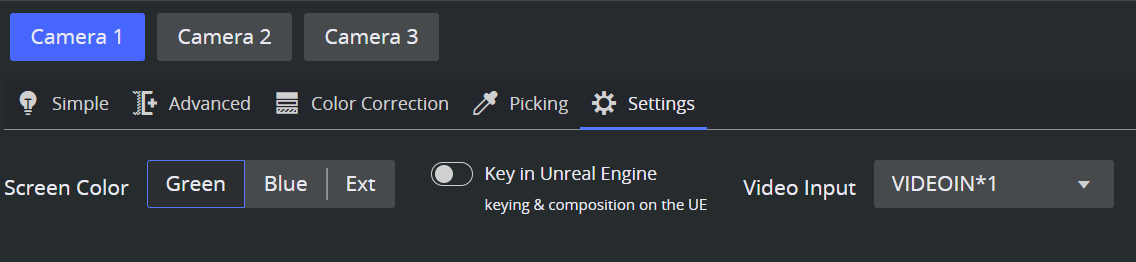
Screen Color: Whether to key on a green or blue screen or whether the keying should take place externally.
Key in Unreal Engine: Whether the keying process should be calculated in the Unreal Engine or the Viz Engine.
Video Input: The video source within the Viz Engine where the keying should take place.
Presets
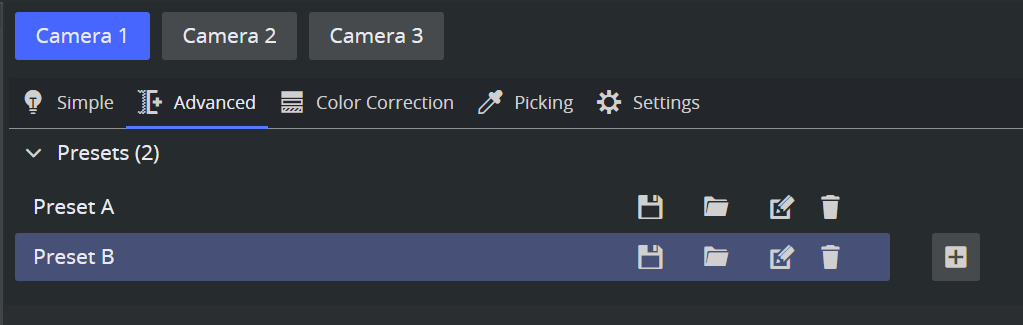
The presets can be recalled, stored, deleted and created like in the classic User Interface. The presets are available in the Simple, Advanced and Color Correction views.
Execution
The entire chroma action can be explicitly executed using the Execute button on the bottom left part of the view.
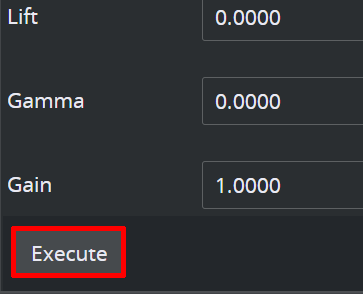
Note: Selecting the action does not execute the action on Viz Engine.
Web View
The entire UI can be visualized in an external web browser. To open it with the default browser go to View > Web Views > Precision Keyer.
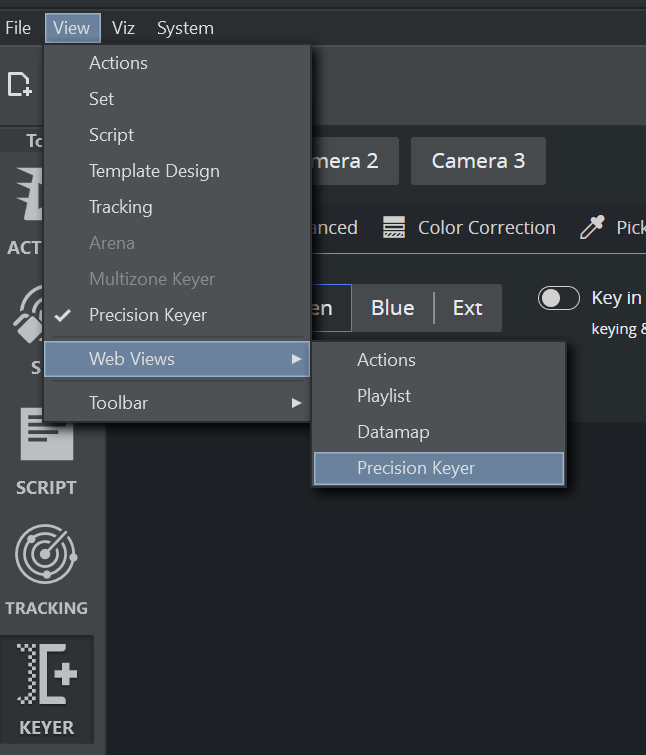
Or enter the URL http://localhost:5004/Precision-Keyer/ into a web browser. The same view is also available as the Precision Keyer mode of the web interface home page (http://localhost:5004/?mode=precision: The address the menu entry opens), where the mode appears in the side rail as soon as the project contains Precision Keyer actions. Replace localhost with your hostname to reach the page from an external machine.
External Control
The Precision Keyer can also be adjusted from hardware control surfaces:
Stream Deck: The Precision Key plug-in puts the Keyer on Stream Deck dials: Numeric, vector and enum properties are tuned by turning an encoder, with keys for toggles, preview modes and one-press Auto Adjust. See the Stream Deck plug-in documentation.
Loupedeck: The Loupedeck integration adjusts the Keyer values using hardware dials and touch buttons. See the Loupedeck documentation.