The Platform section controls settings that apply to the whole installation rather than to a single package: authentication, certificates, networking, the storage license, replication, advanced options and the audit log.
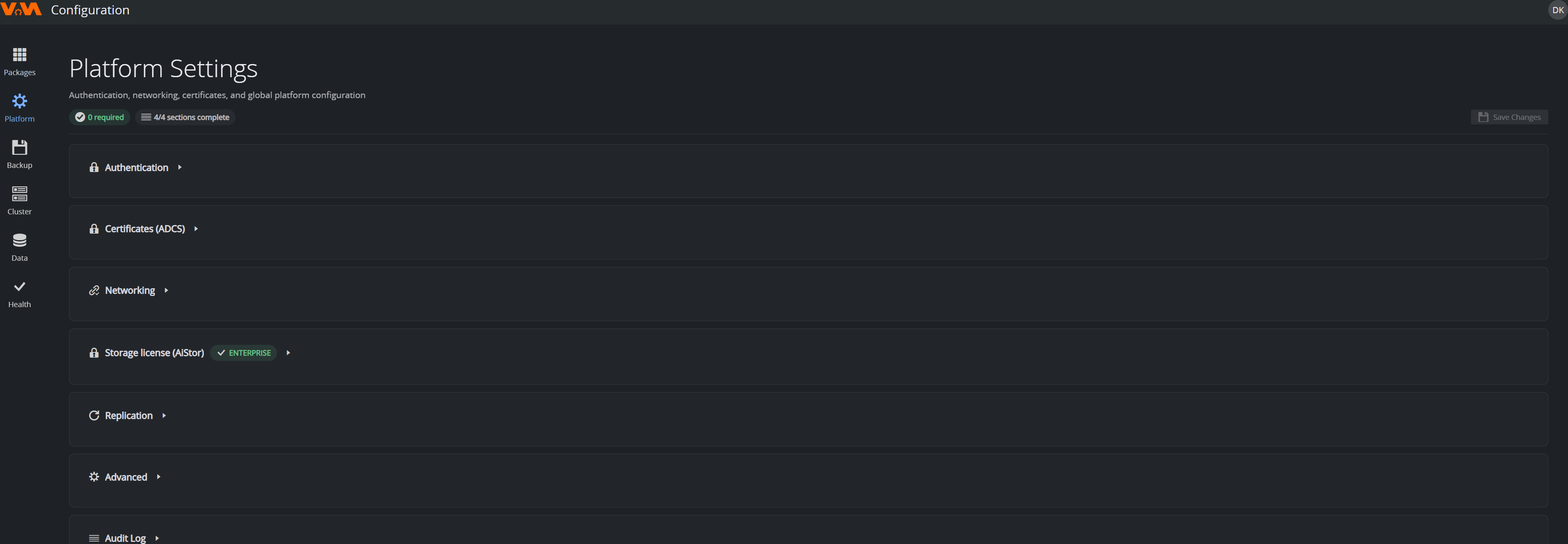
Platform settings are designed to be operable even when the VAM application itself is down — this is what makes recovery possible. You can sign in to the Configuration Service and fix platform settings even if VAM is reporting unhealthy.
Each area is a collapsible section. Open a section, edit its fields, then use Save Changes at the top-right.
Validate Before Apply, and the Safety Window
Platform changes are validated before they are applied, and risky changes have an undo window — this is what stops a typo from locking everyone out:
- Pre-flight validation. When you save, the change is checked against the live dependency first. A wrong or unreachable OIDC authority, or an unreachable ADCS endpoint, is rejected up front — nothing is written. A hostname that doesn't resolve in DNS yet is a non-blocking warning (the change still applies).
- Pending window / auto-revert. After an auth/cert change is applied, a banner asks you to confirm with Keep new settings. If you don't confirm within a few minutes (for example because the change locked you out), the change automatically reverts to the previous working values. You can also Discard immediately.
Authentication (OIDC)
Points every VAM service at your identity provider. Fields:
- OIDC Provider URL: the authority / issuer (for Microsoft Entra ID this is
https://login.microsoftonline.com/<tenant>/v2.0). - Client ID and Realm.
- OIDC Client Secret: write-only. A Set / Not set chip shows whether one is stored; leave the field empty to keep the current value, paste a new value to rotate it.
On save, the provider's discovery document is fetched and its issuer is checked against what you entered — a wrong host, realm, or tenant is rejected before any service is pointed at a broken authority.
Certificates (ADCS)
How VAM obtains TLS certificates from your Active Directory Certificate Services authority. Fields: ADCS Server URL, Username, Password (write-only, same Set/Not-set behavior as above), Certificate Template and Issuer.
A change to the URL, template, or credentials is canary-validated: the platform issues a throwaway certificate through a temporary copy of the issuer carrying the new values, and only if that succeeds does it update the live issuer and re-issue the affected certificates. A bad value leaves the running certificates untouched, and the banner tells you the validation failed.
- Restart affected services now: off by default. The new certificate is issued into its secret either way; this toggle only controls whether the consuming services are restarted immediately (to present the new certificate) or pick it up on their next restart.
Networking
The external hostname and TLS settings clients use to reach the platform. On save, the hostname is checked in DNS — if it doesn't resolve yet you get a non-blocking warning (the change still applies) so you can add the DNS record afterwards.
Storage License (AiStor)
The enterprise object-storage (AiStor) license. The section header shows the current entitlement (for example, ENTERPRISE). Paste a new license here to install or replace it. Replication and other enterprise storage features are gated on a valid license.
Replication
Connect two clusters so they keep copies of each other's object data (active-active). You do one quick step on each cluster.
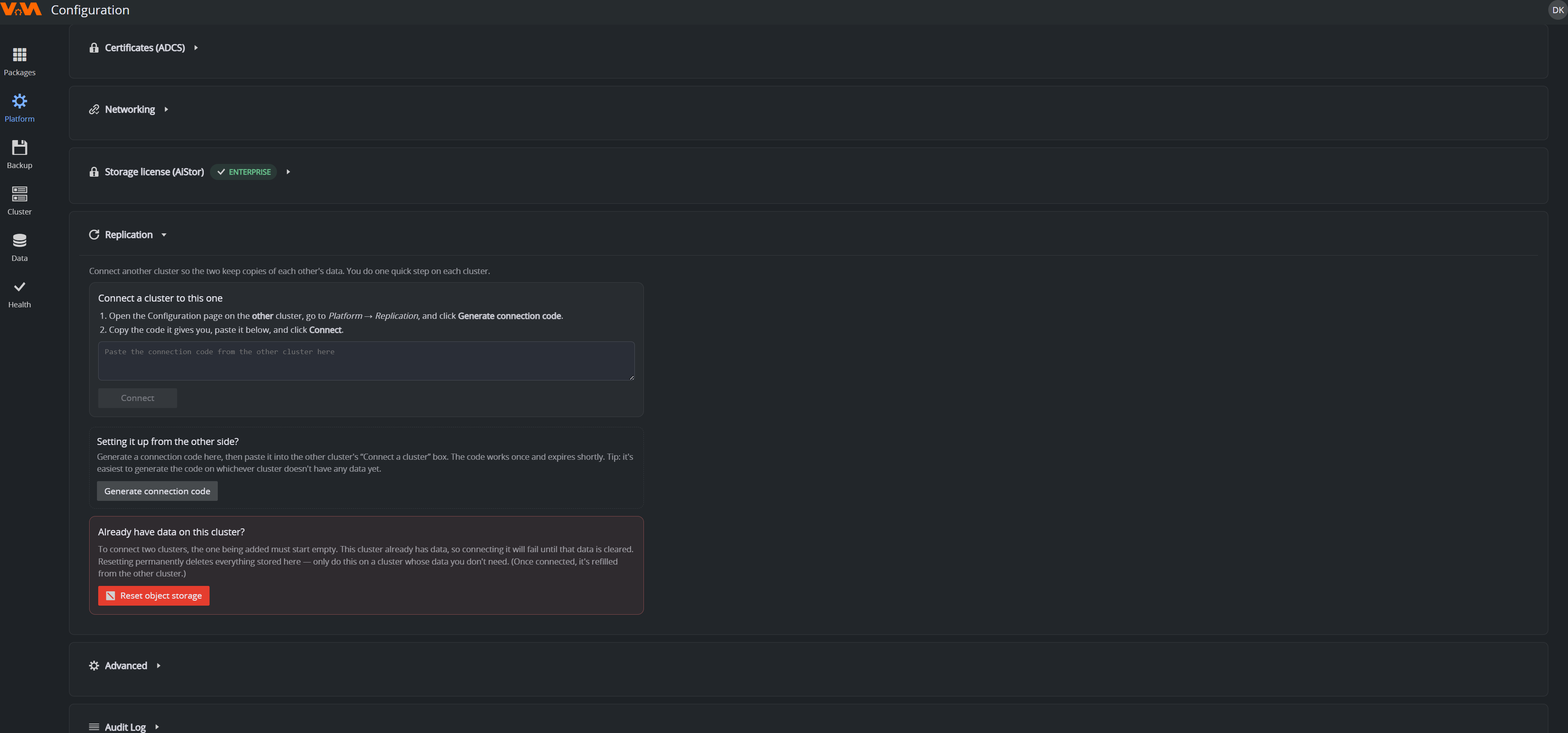
- On the cluster that already has data, open Platform → Replication and click Generate connection code.
- On the other cluster, paste that code into Connect a cluster to this one and click Connect.
The code is single-use and expires shortly. The cluster being added must start empty — the panel warns you and offers a reset if it already holds data. Once connected, the Replication view shows per-site status and an aggregate health summary and a Disable action tears the mesh down and removes the peer sites.
Advanced
Less-common global options (for example developer-mode exposure of internal services). Most installations never need to change these.
Audit Log
A record of platform-configuration changes — who changed what, and when. Use it to review recent administrative activity.
Trust Roots
Admin-uploaded root CA certificates that the platform trusts (for example an internal CA that signs the ADCS endpoint or other services VAM calls). Reached from Platform → Trust Roots.
- Click Upload PEM and choose a PEM-encoded root certificate.
- The root is added to the
vizam-trust-bundlethe platform distributes, and (best-effort) mirrored into the ADCS issuer's CA bundle. - Restart workloads after change (a checkbox, off by default) controls whether running workloads are restarted now to pick up the new trust, or on their next restart.
Each root is listed with its subject, expiry and SHA-256, with a Delete action to remove it.
If the Configuration Service Itself Won't Start
There is a vamctl command-line path for emergency platform-settings recovery without the web UI — contact support.