Backups capture the state of your VAM installation so it can be restored after data loss, accidental deletion, or a failed upgrade.
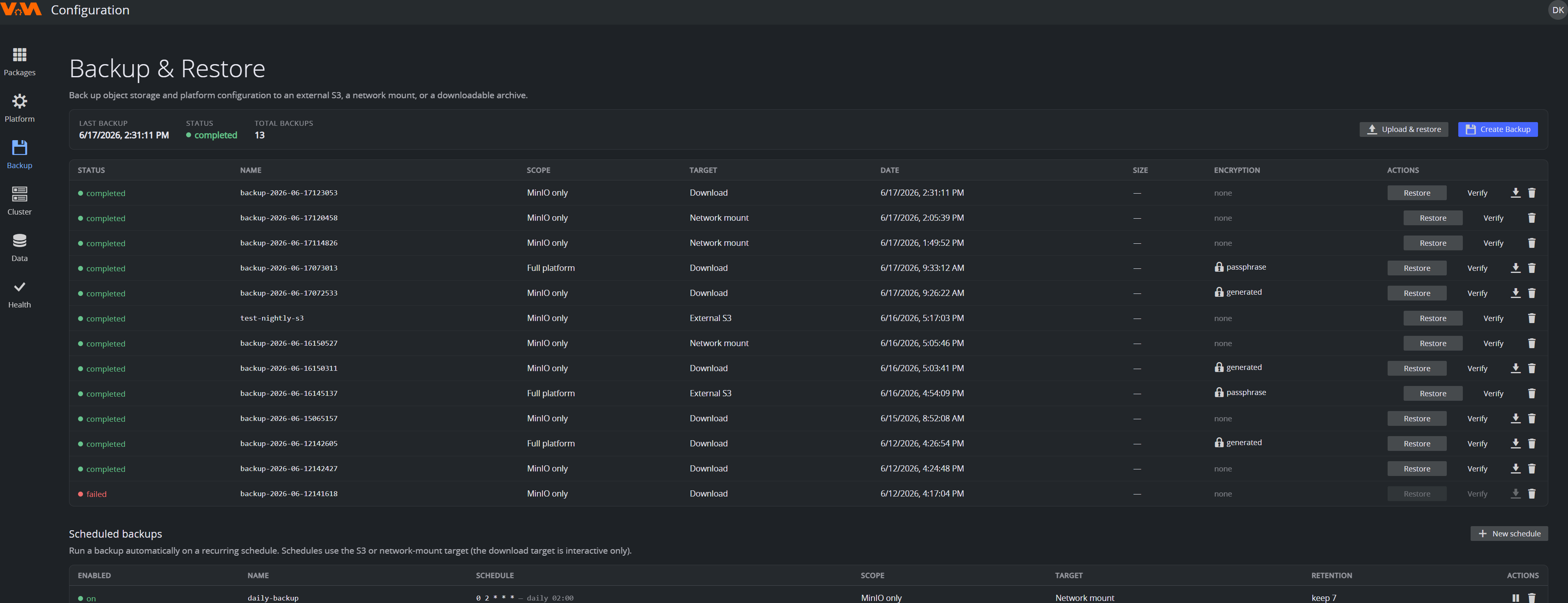
The Backup view lists every backup with its status, scope, target, date, size and encryption, plus a header summary (last backup, status, total count). Unlike earlier versions there is no separate destination to configure first — you choose the scope, target and encryption each time you create a backup.
What a Backup Contains — Choose the Scope
When you create a backup you pick a scope:
- MinIO only: the object-storage (AiStor/MinIO) data.
- Full platform: object storage plus platform configuration (package configuration, platform settings, trust roots) and, for the bundled Keycloak, its users/roles. External OIDC is owned by your provider and is not in scope.
Run a Backup
- Open Backup and click Create Backup.
- Choose the scope (MinIO only / Full platform).
- Choose the target:
- Download: produces a downloadable archive (interactive only).
- Network mount: writes to an SMB/NFS share mounted into the cluster (see Network-mount target below).
- External S3: an S3-compatible endpoint/bucket.
- Choose encryption: none, a generated key, or your own passphrase. (Keep generated keys / passphrases safe — they are required to restore.)
- Optionally add a label, then start. Live progress is shown; the new backup appears in the list when done.
Network-Mount Target
The Network-mount target needs a PersistentVolume that points at your SMB/NFS share. The Configuration Service can create the PV/PVC for you from the backup screen — provide the share path and credentials and it provisions the mount target (the SMB CSI driver must be installed for SMB). After that the share is selectable as a backup target.
Schedule Recurring Backups
In the Scheduled backups section, click New schedule and pick a frequency and retention. Schedules use the S3 or network-mount target — the Download target is interactive-only and can't be scheduled.
Verify a Backup
Each backup has a Verify action that checks the backup's integrity without doing a full restore. Run it periodically, and especially before relying on a backup for a planned change.
Restore
Warning: restoring replaces the current installation's state. Changes made after the backup was taken are lost, and a restore involves downtime.
From a Backup in the List
- Find the backup and click Restore.
- Review what the restore replaces, then confirm.
- Wait for completion. The Configuration Service may briefly sign you out as services restart; sign back in afterwards.
From a Downloaded Archive
Use Upload & restore at the top of the page to upload a previously downloaded backup archive and restore it — useful when moving a backup between environments. You'll need the encryption key/passphrase if the archive was encrypted.
Full Disaster Recovery (New Cluster)
For restoring onto a freshly reinstalled cluster, use the vamctl installer's restore path rather than the Configuration Service — see Installer → Upgrade → Rollback.
Testing Backups
Untested backups are a liability. Periodically Verify your latest backups in-place, and for full confidence restore a recent backup onto a sandbox installation and confirm key data is present.