Template Builder operates in two distinct modes, Design mode and Run mode. Understanding the difference between these modes is essential for building, testing and previewing templates effectively.
This section covers the following topics:
Overview
Templates in Template Builder often contain template scripts, TypeScript code that runs lifecycle events such as onCreate, onLoad, onBeforeSave and onAfterSave, that can manipulate field values, control visibility and perform validation.
Run and design mode clearly separates the editing phase from the execution/testing phase:
Design mode: The default editing mode. The model, fields and script can be modified without the script running automatically.
Run mode: A simulation mode where the script is active, lifecycle events can be triggered and playout commands can be tested against a real Viz Engine, through Media Sequencer.
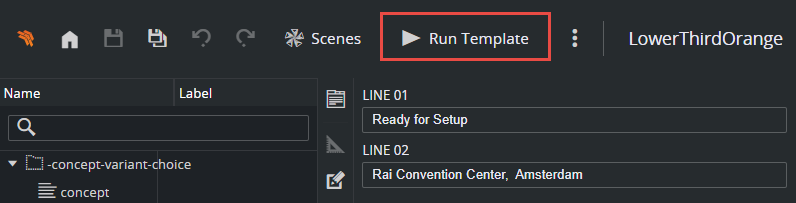
Design Mode
Design mode is the default state when a template is opened. In this mode, full access is available to:
Model Editor: Add, remove and configure fields in the VDF model.
Script Editor: Write and edit template script (TypeScript).
Graphics Preview: A live preview of the template with the current model defaults.
Save, Undo, Redo: All editing operations are available.
Template settings, tag management, scene editing and other configuration.
While in Design mode, the template script is not running. The preview shows the template with the model's default values, but no script logic is executed.
Note: The script is still being transpiled in the background during editing (for syntax checking and error reporting), but it is not executed against the model.
Running the Script in Design Mode
The Script Editor panel includes a Run Script button ( ) allowing to execute the script without leaving Design mode. When activated, the button changes to Stop Script (pause icon).
What Happens when Run Script is Clicked
The current TypeScript is compiled to JavaScript.
The compiled script is inlined into the model (as a data-URI link).
The Model Editor and preview now operate with the script active (script-driven changes to field values are applied to the model itself).
When to Use Run Script in Design Mode
This is useful when a script manipulates default values in the VDF model (for example, setting initial field values, configuring visibility rules, or populating dropdown options). Because Design mode edits the model directly, any changes the script makes to field values become the new stored defaults that are saved with the template.
Tip: Use Run Script in Design mode when the script should set up default values that persist in the template. Use Run mode to test runtime behavior without altering the saved template.
Auto-stop Behavior
The script is automatically stopped if the model structure is modified or the script source is edited. This prevents unexpected interactions between manual edits and running script logic.
Run Mode
Clicking Run Template in the toolbar, switches the template into Run mode. The toolbar button changes to Back to Design.
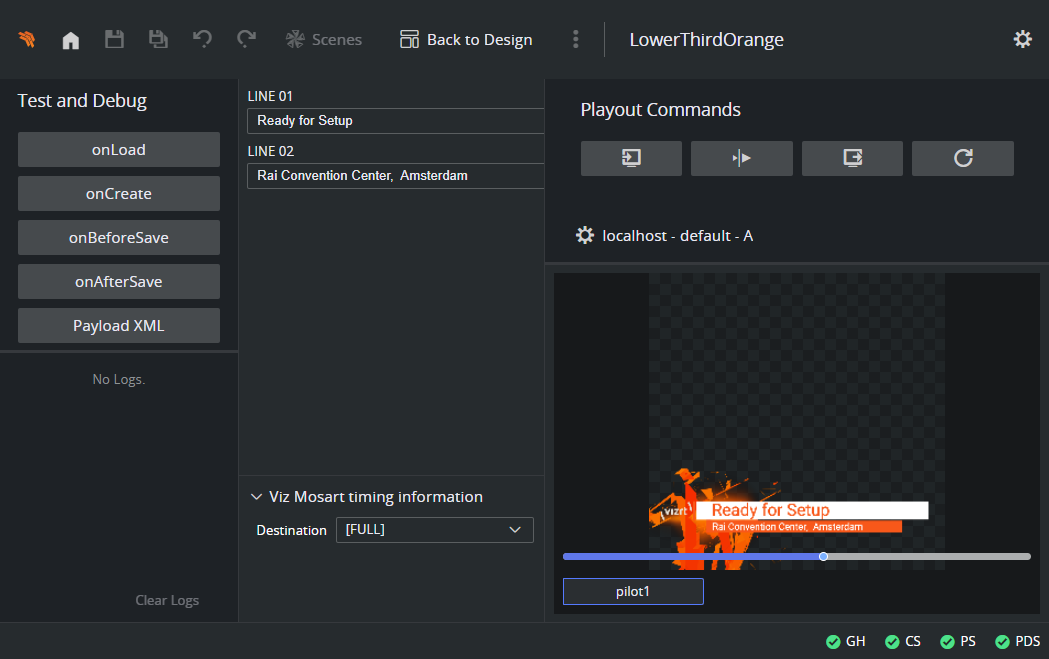
What Happens when Entering Run Mode
The template script is compiled.
A payload is generated from the model's default values.
The UI switches from the Model Editor to the Payload Editor, the same editor that users interact with in Viz Pilot Edge.
The Test and Debug panel appears on the left.
The Playout Commands section appears on the right.
Key Characteristics of Run Mode
Payload-centric: The interaction is with a working payload, just as an operator would see it. Script logic runs against the payload, not the model.
Non-destructive: Changes made in Run mode do not modify the saved template model. When returning to Design mode, the model is unchanged.
Editing disabled: Save, Undo, Redo, scene editing and template title editing are disabled to prevent accidental modifications during testing.
Custom data is reset: Transient script data (
$data) is cleared when entering and leaving Run mode to avoid stale values between sessions.
Important: Any values entered or changes the script makes in Run mode, are not saved back to the template. Run mode is purely for testing and simulation. To persist script-driven default values, use the Run Script button in Design mode instead.
Test and Debug Panel
The Test and Debug panel is displayed in the left pane when in Run mode. It provides buttons to manually trigger script lifecycle events and utilities to inspect the current state.
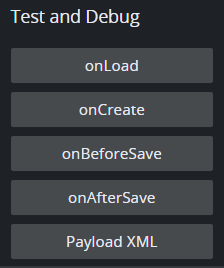
Trigger Buttons
onLoad: Triggers the
vizrt.onLoadhandler, simulating a template being loaded from an existing data element. Useful for testing how the script initializes fields when a previously saved element is opened.onCreate: Triggers the
vizrt.onCreatehandler, simulating a new data element being created from the template. Useful for testing first-time initialization logic.onBeforeSave: Triggers the
vizrt.onBeforeSavehandler, simulating a save operation. The handler can returntrue(allow save) orfalse(cancel save). A notification appears indicating whether saving would proceed or be cancelled.onAfterSave: Triggers the
vizrt.onAfterSavehandler. Useful for testing any post-save logic in the script.
Utility Buttons
Payload XML: Copies the current payload as XML to the clipboard. Useful for inspecting the exact payload structure or pasting it into other tools for debugging.
Model XML: Copies the model (with inlined script) as XML to the clipboard.
Tip: The XML copy buttons are helpful when reporting issues or verifying the data structure that would be sent to MSE during playout.
Script Log
The lower half of the Test and Debug panel contains the Script Log, a live log that captures all console.log, console.info, console.warn and console.error calls made by the template script during execution.
Log entries are color-coded by severity (info, warning, error).
Object values are displayed as JSON strings for easy inspection.
Clicking Clear Logs resets the log pane.
The Script Log is the primary way to debug template scripts. Adding console.info() statements in a script, triggering events from the panel, and observing the output makes it straightforward to trace script behavior.
Playout Commands
The Playout Commands section in Run mode allows sending the current template to a Viz Engine via Media Sequencer for playout. This enables testing the template in a production-like environment without leaving Template Builder.
Configuring a Playout Destination
Before using playout commands, a destination must be configured. Clicking the settings button at the bottom of the Playout Commands section opens the Playout Settings dialog.
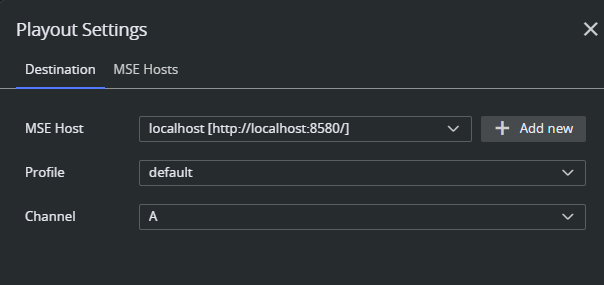
The dialog has two parts:
Host management: Add, edit, or remove MSE hosts. Each host has a name and a URL, and the connection can be validated to confirm the URL is reachable.
Destination selection: Select a host, then choose a profile and channel from the drop-downs. The available profiles and channels are fetched from the selected MSE host automatically.
Note: The configured destinations are persisted in the browser's local storage.
Command Buttons
Once a destination is configured and the template is saved, the following commands are available:
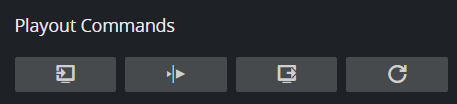
Take: Takes the template on-air on the configured channel. The current payload and model are sent to MSE.
Continue: Sends a continue command to advance the graphic to the next state (for example, the next animation keyframe).
Out: Takes the graphic off-air on the configured channel.
Update: Sends an update to the on-air graphic with the current payload values, without taking it off-air first.
Important: The template must be saved before entering Run mode for playout commands to work. Unsaved changes mean the system cannot construct a valid reference to the template's model on the server, which is required for playout.
Design Mode vs Run Mode
Design Mode | Run Mode | |
|---|---|---|
Primary Editor | Model Editor | Payload Editor |
What is Edited | The template model (VDF model), field definitions, structure, defaults. | A working payload generated from the model's defaults. |
Script Execution | Off by default, can be toggled with "Run Script". | Always active (script is inlined into the model). |
Changes Saved | Yes, all edits (including script-driven) are saved with the template. | No, payload changes are discarded when leaving Run mode. |
Save / Undo / Redo | Available | Disabled |
Lifecycle Event Testing | Not available | Available via Test and Debug panel. |
Playout Commands | Not available | Available (requires saved template + configured destination). |
Script Log | Not available | Available, captures console output from the script. |
XML Copy Utilities | Not available | Available, copy payload or model as XML. |
Template Settings, Tags and Scenes | Available | Disabled |