The Settings File
Most of the Pilot Data Server settings are stored in a single file: %ProgramData%\Vizrt\Pilot Data Server\DataServerConfig.ini.
This file backs most of the settings in the Launcher Settings. This file can be manipulated without the Launcher running, but the Pilot Data Server service needs to restart if the settings are changed in the file. This file can also be copied to a target machine to pre-configure Pilot Data Server without entering the UI.
The Settings UI
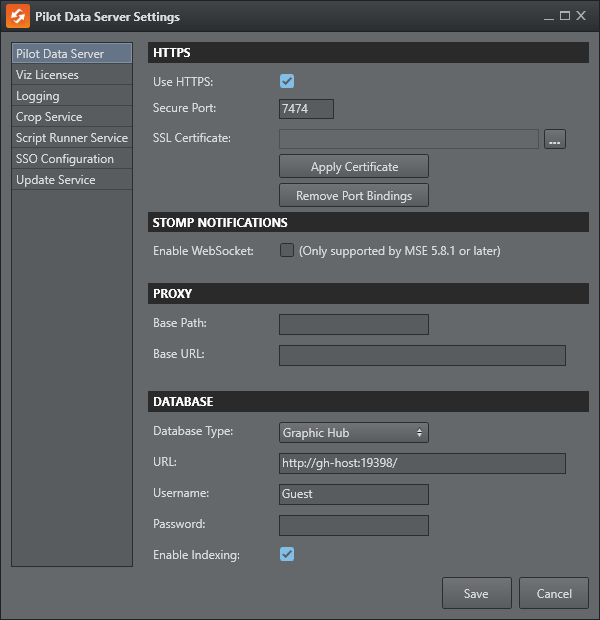
HTTPS
Pilot Data Server can be configured to use the SSL transport layer when communicating. If HTTPS is configured, all endpoints of Pilot Data Server can be accessed using the HTTPS protocol.
Check Use HTTPS.
The suggested default port is 7373. Although it can be changed, it is recommended to use this port.
Configuring SSL Certificates
To enable HTTPS for Pilot Data Server, you must configure an SSL certificate used by the server to secure communications. Select a certificate from the Windows Certificate Store, bind it to the configured port and application ID, and optionally, remove existing port bindings if necessary.
Understanding SSL Certificates
An SSL certificate is a digital credential that enables a secure communication, by encrypting data transmitted between clients and the server. It verifies the server's identity to clients, ensuring trustworthiness. Certificates are stored in the Windows Certificate Store and can be accessed via specific logical stores and locations. Pilot Data Server uses the following:
Store Location
LocalMachine: This location stores certificates available to all applications and services on the machine.Certificates in this location typically require administrative privileges to access.
Store Name
My: Also known as the Personal store, it contains certificates intended for server-level use, such as those for HTTPS.
Configuring the Certificate for Pilot Data Server
To configure a certificate for Pilot Data Server, follow these steps:
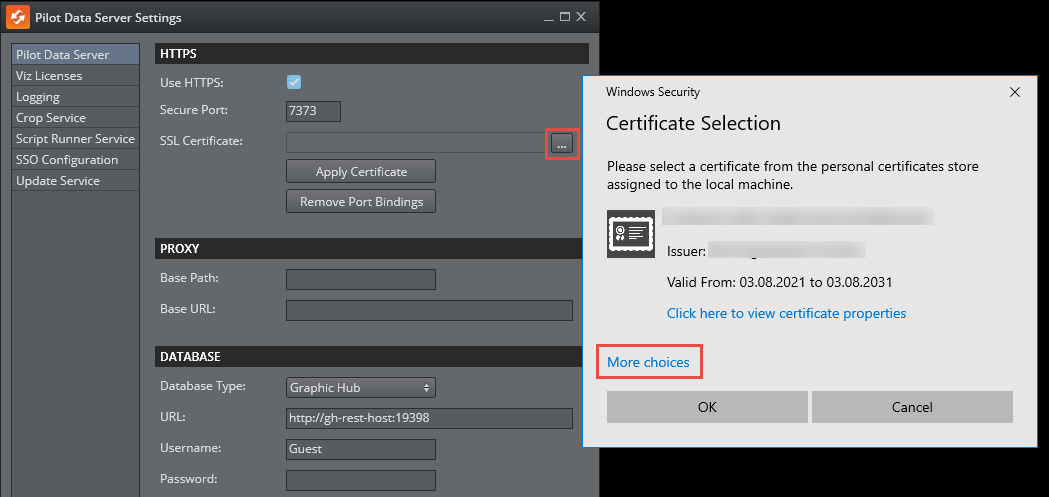
Browse for a Certificate: Click the
 button next to the SSL Certificate text box to browse for a certificate.
Select a Certificate:
The Windows Certificate Store browser opens, defaulting to
Mystore under theLocalMachinelocation.It may be necessary to click More choices in the dialog box to expand the list of certificates in the store.
Select a certificate that matches your server's domain or hostname. Ensure the certificate:
Is valid (not expired).
Contains the private key.
Is issued by a trusted Certificate Authority (CA), or is a custom certificate, such as a self-signed certificate, that you trust and intend to use.
Click OK to confirm your selection.
Apply the Certificate:
Once a certificate is selected, its “friendly name” appears in the text box. Hovering over the “friendly name” of the certificate shows more comprehensive info on the selected certificate.
Click Apply Certificate. This action binds the certificate to the configured port and application ID using the
netshcommand. The command associates the certificate’s thumbprint with the application and ensures HTTPS is enabled.
Remove Existing Port Bindings (Optional):
If you need to remove existing certificate bindings for the configured port and application ID, click Remove Port Bindings. This unregisters any current SSL certificate bindings associated with the application. This operation only locates bindings done by the PDS launcher. Any manual bindings previously done are not detected. See note below.
Notes:
Search providers and Preview Server must also be in HTTPS environments in order for calls to them to work. To enable support for HTTPS requests for Preview Server, see the Preview Server Administrator Guide.
If necessary, to manually clear the HTTPS port configured using the Pilot Data Server Launcher (Pilot Data Server, Script Runner, Crop Server), clear from the sslcert and urlacl lists with the following commands:
netsh http delete sslcert ipport=0.0.0.0:7373
netsh http delete urlacl https://+:7373/
STOMP Notifications
Enable WebSocket: This setting enables STOMP notifications over the WebSocket protocol. See below.
Proxy
Pilot Data Server can be installed along with a proxy/reverse-proxy server. See Proxy Support for more information.
Base Path: This setting modifies the internal URL only when no proxy server is configured. It appends a path segment to the internal URL, defining the endpoint where Pilot Data Server listens for requests. For example, if the internal Pilot Data Server URL is
http://mypds:8177, setting "pds" as the base path, changes the internal URL tohttp://mypds:8177/pds.Base URL: This setting rewrites the internal URL to an external-facing URL in every response, making it accessible through the proxy. This ensures clients interact with a consistent URL matching the proxy's external address. The base URL must be provided as an absolute URL string. For example, setting the base URL to
https://example.com/pdscauses the server to rewrite response URLs to match this external address.
Note: These two settings cannot be combined. Base URL takes precedence over Base Path.
Database Connection
Pilot Data Server can connect to either an Oracle or a Graphic Hub database. Select your preferred choice in the dropdown.
Graphic Hub
URL: Full URL to the Graphic Hub REST service.
Username: Username when Pilot Data Server connects to Graphic Hub.
Password: Password when Pilot Data Server connects to Graphic Hub.
Oracle
Data Source: A connection string with format hostname/servicename (SID ) to the Oracle database, for example localhost/vizrtdb.
Username: Username when Pilot Data Server connects to the Oracle Database.
Password: Password when Pilot Data Server connects to the Oracle Database.
Enable Indexing
When enabled, Pilot Data Server creates a local indexing file under:
%PROGRAMDATA%\Vizrt\Pilot Data Server\[GUID]\The [GUID] is a hash generated from the connection parameters (such as hostname, port and username), used to connect to Graphic Hub or Oracle. As a result, each unique database configuration has its own folder with a corresponding index folder.
The indexing file maintains a local mirror of data element names, template names, and concept names. With indexing enabled, searches across concepts for templates and data elements are significantly faster. However, Pilot Data Server consumes more resources, as it must actively query the database to keep the index in sync.
If indexing is disabled, all client search queries are forwarded directly to the database backend, resulting in slower performance, especially for cross-concept searches.
Configuring the Pilot Data Server HTTP Port
The default Pilot Data Server port is 8177. To change the port:
On the Pilot Data Server machine, open the ini file in a text editor: %ProgramData\Pilot Data Server\DataServerConfig.ini.
Replace the following setting: Port = 8177.
STOMP over TCP
Pilot Data Server sends change notifications to clients through the STOMP protocol (the default STOMP TCP port is 9876). This is used to form a URL to the STOMP server, sending change notifications to Media Sequencer. This URL is served out as a link in the /changelog endpoint of Pilot Data Server.
Note: This STOMP endpoint cannot be placed behind a HTTP proxy. The host name of the STOMP server must be accessible over TCP from the Media Sequencer host.
On the Pilot Data Server machine, open the ini file in a text editor: %ProgramData\Pilot Data Server\DataServerConfig.ini.
The STOMP address consists of the machine’s fully qualified domain name (FQDN) and the STOMP port.
Changing the STOMP TCP Address
The STOMP TCP server uses the machine's FQDN as its base address (the default port is 9876). The port can be changed by setting ChangeServerPort in the ini file:
ChangeServerPort = 9988The resulting STOMP URL is stomp://hostname.domain.com:9988/.
If the auto-detected FQDN is incorrect or unreachable from client machines (for example, because the machine picks up the wrong DNS suffix), the hostname used in the STOMP URL can be overridden by setting ChangeServerReportAddress to the correct hostname.
ChangeServerReportAddress = pdshost.server.example.comThe resulting STOMP URL becomes stomp://pdshost.server.example.com:9988/. If ChangeServerReportAddress is left empty (default), the auto-detected FQDN is used.
URLs Embedded in STOMP Notifications
The base URL used inside STOMP change messages (for links included in the data of the notifications) is determined separately from the STOMP connection address. It is controlled by the BaseUrl setting:
BaseUrl = https://baseurl.domain.comIf BaseUrl is not set, the server constructs a base URL from the configured protocol (HTTP/HTTPS), port, base path, and the machine's FQDN.
Note: ChangeServerReportAddress does not affect the URLs embedded inside STOMP messages. It only controls the hostname that clients use to connect to the STOMP service.
STOMP over WebSocket
Pilot Data Server also provides STOMP over WebSocket for clients that prefer WebSocket transport.
The WebSocket STOMP endpoint URL is derived from the server’s HTTP base URL (not from the STOMP TCP hostname).
It uses the configured
BaseUrl(andBasePath) to build the endpoint.If
BaseUrlis set, WebSocket STOMP uses it as the base. Otherwise, the server constructs from protocol (HTTP/HTTPS), port,BasePath, and the machine’s FQDN.
ChangeServerReportAddressdoes not affect the WebSocket STOMP endpoint. It only overrides the hostname used in the TCP STOMP URL embedded in the changelog feed.
Info: The WebSocket STOMP endpoint can run behind a reverse proxy, provided the proxy supports the WebSocket upgrade (HTTP 101 Switching Protocols). Ensure the proxy forwards the path/stomp, and preserves query parameters.