Below the main menu is the Explorer of the Graphic Hub Manager.
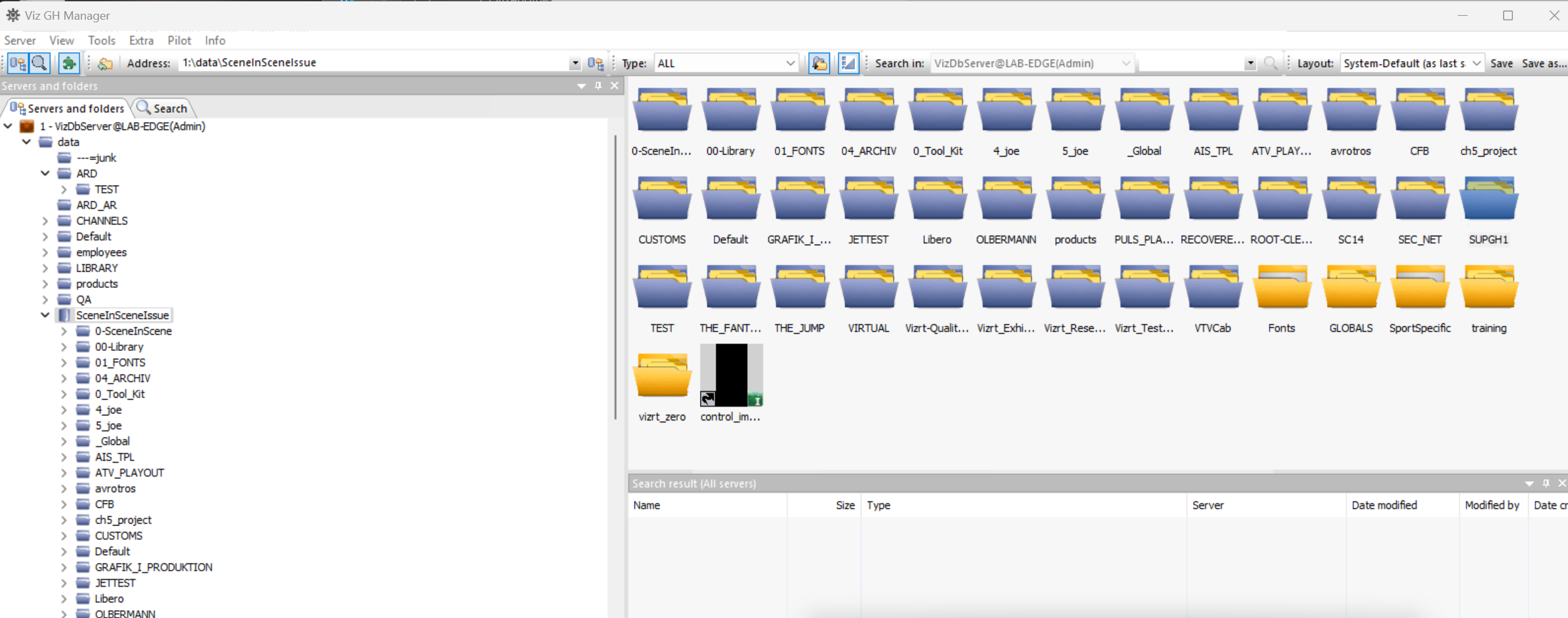
Tip: The panels in the Explorer are resizable, and they can be dragged around. Also, it is possible to navigate through the trees in the Explorer with the mouse pointer, arrow keys, or by typing the first character of the required folder/file.
The Explorer is automatically updated immediately after changes made to files and/or folders, but a manual refresh of the Explorer is sometimes necessary, for example after re-enabling columns. To refresh the Explorer, select View > Refresh Explorer or press F5.
This page contains information on the following topics:
Explorer Columns
When server files are shown in the Explorer view, columns are used to show information about the files.
There are two mandatory columns, Name and UUID (these can be hidden if required), and then additional columns which can be added or removed as required. Each column can be moved to a new position as required.
Column customization works for:
Explorer
Search results
Journal
Server differences
Scheduled tasks
Action Logs
Running tasks
Finished tasks
Column Headings

Name: Shows the name of the file.
Size: Shows the size of the file.
Type: Shows the file type, for example material.
Date Modified: Shows the date and time when the file was modified the last time.
Modified by: Shows the name of the user that modified the file the last time.
Date Created: Shows the date and time when the file was created.
Owner: Shows the name of the user that owns the file.
Checked out by: Shows the name of the user that has checked it out, if the file is checked out.
Locked by: Shows the name of the user that is working on it, if the file is session locked.
Access rights (U/G/W): Shows the access rights for user, group, and world (see User and Group Management).
Folder links: Shows the number of folder-links (number of folders the file is placed in).
To Hide, View, Remove or Add Columns
Right-click on the column bar.
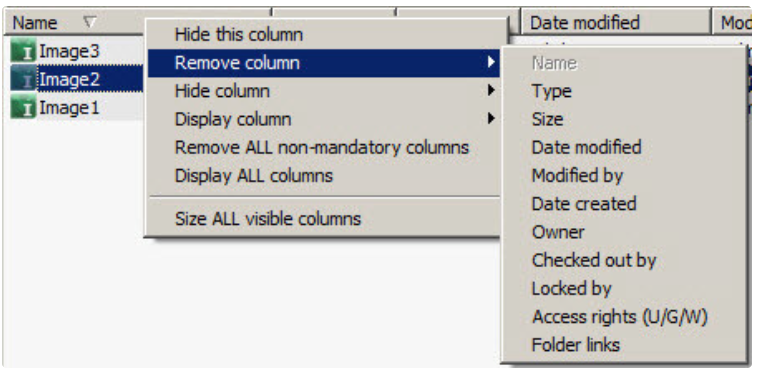
Add, remove, hide or show columns, as required. To customize the column order, drag the column to the required location.
Note: In Remove Column, UUID and Name are grayed out. They cannot be removed, but they can be hidden.
Explorer Icons
The following icons are used in the Explorer:
Icon | Description | Icon | Description |
|---|---|---|---|
 | Regular Folder |  | Image |
 | Project Folder |  | Material |
 | Audio |  | Material advanced |
 | Base font |  | Scene |
 | Font |  | Video |
 | Geometry |
More items than the above listed exist in Graphic Hub, but they are not labeled with an icon
Tool Bar
At the top of the Explorer is the Tool Bar.

Main
Show Servers and folders: Show/hide the Servers and Folders, or click View > Servers and Folders.
Show search: Show/hide the Preferences.
Show add-ons: Show/hide the Add-ons Panel.
Servers and Folders

One level up: Jump one level up in the Servers and Folders tree structure.
Address: Shows the current folder path.
From the drop-down list, it is possible to see the history of all folders that have been used within this session. To re-open to one of these folders, select it from the list. The format in which the history is shown is <ServerNumber>:\data\<path>. The history of a server that has been disconnected is no longer available.
Folders and Files

Type: Filter file types. Click the arrow to the right to toggle between the options.
Show/Hide project and folders: If enabled, the subprojects/sub-folders of the selected folder show in the Explorer list.
Display icons/Details: Toggles between showing files in the Explorer with details or as icons.
Quick Search

Search in: Graphic Hub Quick search function. Select a server to search in, enter a search string and press ENTER or click on
 to start a Free text search on the selected server.
Layout

Layout: Loads a saved layout. Options:
System Clean (Locked): (Basic standard layout)
System Default: (as last saved (default layout)
Save: Saves the current layout.
Save as...: Saves as a new layout.
Note: A Layout is local for the current machine in use.
Display Files as Icons
By default, the files in the Explorer are presented with detailed information. To view the files as icons, toggle the

(As Icons) button in the Tool Bar.
Note: The icons can also be enabled from the shortcut menu of the Explorer.

When files are viewed as icons, in the lower right corner of the icon characters show the file type:
Icon | Description | Icon | Description |
|---|---|---|---|
| Audio | | Material advanced |
| Base font | | Scene |
| Font | | Video |
| Geometry | | Image |
Additional information may also be shown on the icon:
Icon | Description | Icon | Description |
|---|---|---|---|

| File holds more than one folder-link | 
| File is checked out |

| File is session locked | 
| File is both session locked and checked out |
See Also