There are several setup applications available to install the components of Viz Virtual Studio, as indicated in the table below:
Setup Application | Content |
|---|---|
VizVirtualStudioBundle-x64-<VERSION>.exe | Bundle with Tracking Hub and Studio Manager |
StudioManager-x64-<VERSION>.msi | Studio Manager installer |
TrackingHub-x64-<VERSION>.msi | Tracking Hub installer |
It is recommended to install Studio Manager and/or Tracking Hub using the Virtual Studio Bundle setup application, as this installs the prerequisite software as well.
The bundle installs the packages listed below. A package that is already present on the machine is detected, and its check box is disabled.
Prerequisites
Microsoft Visual C++ 2005 Redistributable (x64)
Microsoft Visual C++ 2008 Redistributable (x64)
Microsoft Visual C++ 2010 Redistributable (x64)
Microsoft Visual C++ 2012 Redistributable (x64)
Microsoft Visual C++ v14 Redistributable (x64), which covers the 2015 to 2022 releases
Note: CodeMeter Runtime Kit, for WIBU licensing is not part of the Bundle staring with version VVS 1.9.0. It needs to be installed seperately.
Applications
Tracking Hub
Studio Manager
Viz AI Core
Viz AI Core Plugin
Viz AI Lens Calibration Plugin
.NET Framework
Studio Manager requires Microsoft .NET Framework 4.7.2 or higher. The Studio Manager installer offers to download it if it is not already present.
The bundle setup application itself requires .NET Framework 4.6.2 or higher in order to run, so on a machine that does not meet the Studio Manager requirement the bundle cannot be started either.
To Install Tracking Hub and Studio Manager Using the Bundle Installer
Log on to the computer as a Computer Administrator and start VizVirtualStudioBundle-x64-<VERSION>.exe to run the setup application.
By default, the Tracking Hub and Studio Manager options are selected in the installer. If required, remove the options.
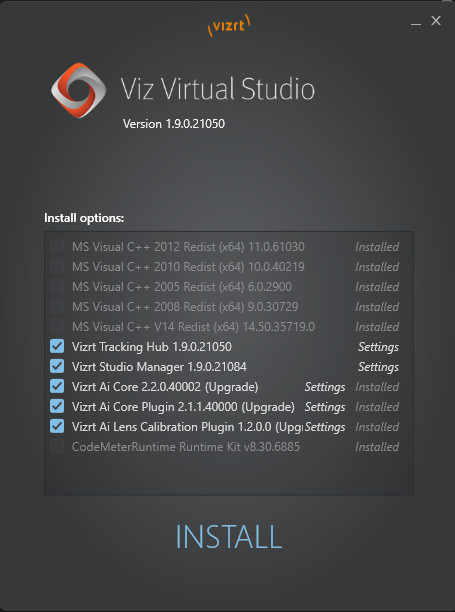
Click Install and follow the on-screen instructions.
Note: The packages to install can be selected by check boxes. If a package is already installed, the check box is disabled.
After installation, the Programs and Features panel shows entries for each installed package

Note: Issues have been reported with failing redistributable updates on Windows 10. This can lead to Tracking Hub not starting properly. In case this happens:
Ensure there is no Microsoft update in queue or in progress (if you are not sure, reboot Windows).
Manually uninstall any MS Visual C++ 2015-2022 Redistributables (both x86 and x64) and restart.
Manually install the MS Visual C++ V14 Redistributable (both x86 and x64) and restart.
Install VizVirtualStudioBundle-x64-1.9.0.
Note: Issues have been reported with failing redistributable updates on Windows 10 and Windows 11 related to Microsoft Visual C++ v14 Redistributable 14.50.35719. The Bundle installer will print an error after installation if this redistributable is already installed on the PC. Options to prevent this error:
Uncheck redist option in bundle if it is already installed.
Uninstall Microsoft Visual C++ v14 Redistributable 14.50.35719 before starting the bundle installer.
To Repair or Remove Tracking Hub
Once the Bundle has been installed, you can run the Tracking Hub Bundle setup application again to enter Repair or Uninstall modes. Select Repair or Uninstall as required:
Uninstalling the bundle removes the applications it installed: Tracking Hub, Studio Manager, Viz AI Core, Viz AI Core Plugin and Viz AI Lens Calibration Plugin. The prerequisites — the Microsoft Visual C++ redistributables and the CodeMeter Runtime Kit — are intended to remain on the PC. You can remove them separately, if desired.
After Repairing, you must restart the computer. After restarting, you can proceed to Start Viz Virtual Studio.
Unattended Installation of Viz Virtual Studio Applications
Installation Parameters
Parameter Name | Default Value | Available Values |
|---|---|---|
Tracking Hub MSI | ||
INSTALLFOLDER | %\Program Files%\Vizrt\VizTH\ | |
Studio Manager MSI | ||
INSTALLFOLDER | %\Program Files%\Vizrt\StudioManager\ | |
Virtual Studio Bundle | ||
INSTALLFOLDER | %\Program Files%\Vizrt\VizTH\ %\Program Files%\Vizrt\StudioManager\ | |
Example
Description | Command |
|---|---|
Install Tracking Hub in unattended mode with only progress bar using the msi installer and installation path is C:\TH |
|
Install Studio Manager silently with no UI using the msi installer and installation path is C:\SM |
|
Install Tracking Hub in C:\TH and Studio Manager in C:\SM and all necessary MS Visual C++ redistributables and CodeMeter runtime kit using Virtual Studio Bundle |
|