Studio Manager normally displays the whole configuration of the Tracking Hub it connects to. Where one Tracking Hub serves several studios, an operator therefore sees — and can change — cameras and rigs that do not belong to them.
The camera filter restricts the display to a chosen list of rigs. It serves the purpose the computers.txt file had in VizIO. Each studio gets its own filter file, and Studio Manager is started with the name of the file.
Available from | Studio Manager 1.9.0 |
Jira | |
Scope | Display filter only — see Limitations |
Quick start
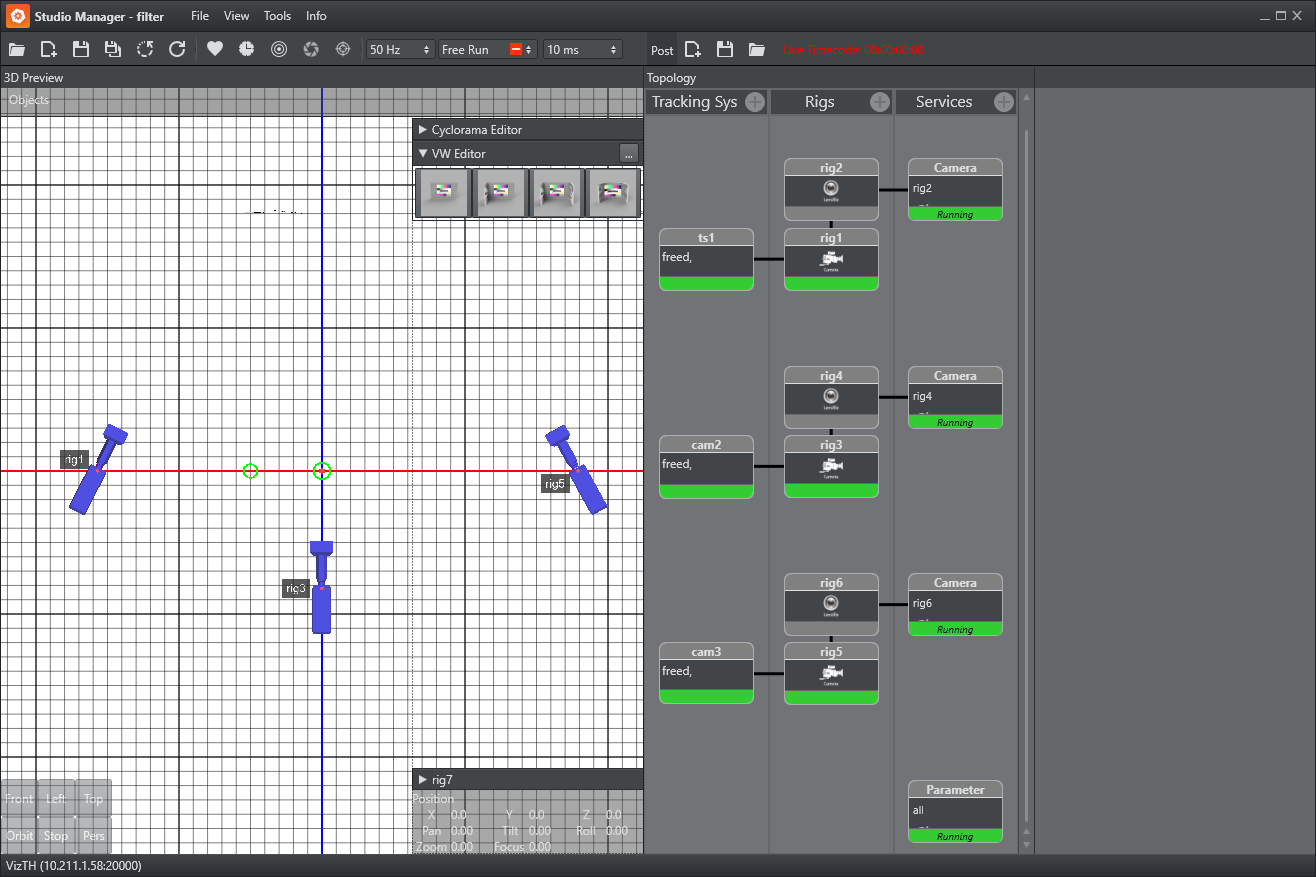
Create a file in
C:\\ProgramData\\vizrt\\StudioManager\\, named after the studio, for examplestudio1.xml:<?xmlversion="1.0"encoding="utf-8"?><CameraFilterVersion="1.0"><Rigs><RigName="rig1"/><RigName="rig5"/></Rigs></CameraFilter>Start Studio Manager with the name of that file:
StudioManager.exe -camerafilter studio1Studio Manager displays only
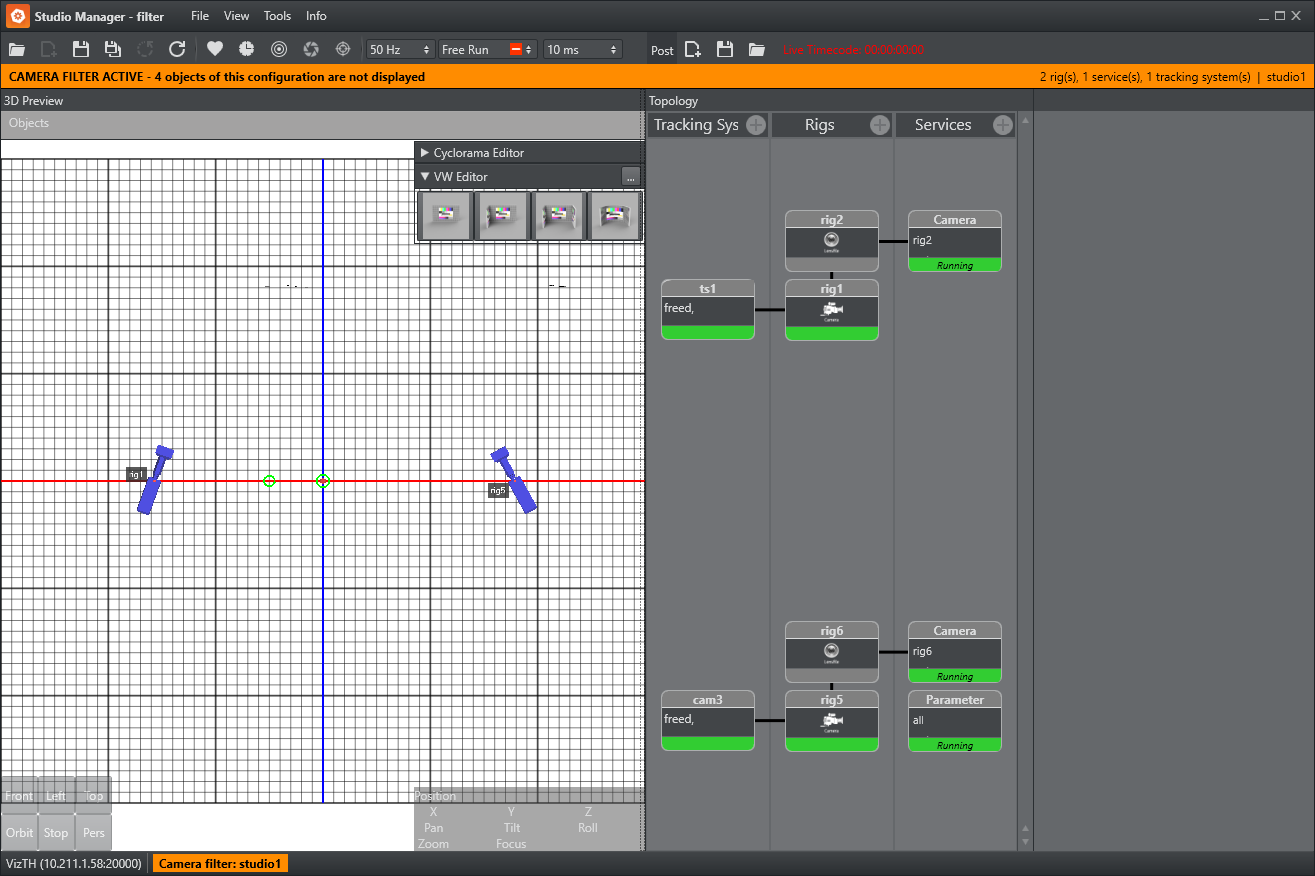
rig1,rig_crane(camera 2) andrig_handheld(cameras 3 and 4), together with everything belonging to them. An orange banner across the top of the window states that the configuration is only shown in part.
Without the startup argument Studio Manager behaves exactly as before and displays everything.
Setting up a filter
Where the file goes
Filter files live next to Studio Manager's other configuration files:
C:\ProgramData\vizrt\StudioManager\This is the folder that already holds Settings.xml, ColorCorrection.xml and AISettings.xml. A path is deliberately not accepted on the command line — one file per studio lives in this folder, and each operator gets a shortcut naming their own.
The startup argument
StudioManager.exe -camerafilter <name><name> is the file name, with or without the .xml extension. -camerafilter studio1 and -camerafilter studio1.xml are equivalent.
The argument name is not case sensitive. These spellings are all accepted:
Form | Example |
|---|---|
Separate value |
|
With |
|
With |
|
Double dash |
|
Aliases |
|
Rolling it out to operators
Give each operator a desktop shortcut to StudioManager.exe with their studio's filter appended to the target, for example:
"C:\Program Files\vizrt\Viz Virtual Studio\StudioManager\StudioManager.exe" -camerafilter studio1The installer does not create filtered shortcuts and does not deploy filter files — both are a deployment step per site.
File format
Elements
Element | Attribute | Meaning |
|---|---|---|
|
| Root element. Required. |
| Optional grouping element. | |
|
| Name of the rig to display. Required. |
| Optional. Comma-separated camera numbers, 1-based, exactly as the UI shows them. | |
| Optional grouping element. | |
|
| Optional. Keeps a tracking system visible even when no displayed rig is connected to it yet. |
Full example
<?xml version="1.0" encoding="utf-8"?><!--Studio 1--><CameraFilter Version="1.0"> <Rigs> <Rig Name="rig1" /> <!--hard camera, all cameras--> <Rig Name="rig_crane" Cameras="2" /> <!--crane, only camera 2--> <Rig Name="rig_handheld" Cameras="3,4" /> <!--handheld, cameras 3 and 4--> <Rig Name="rig_steadycam" Cameras="*" /> <!--same as no Cameras attribute--> </Rigs> <TrackingSystems> <TrackingSystem Name="ts_stype" /> </TrackingSystems></CameraFilter>The parser is forgiving
These files are edited by hand on site, so:
element and attribute names are matched case insensitively —
<rig name="...">works as well;the
<Rigs>and<TrackingSystems>grouping elements are a convenience, not a requirement —<Rig>and<TrackingSystem>elements are picked up from anywhere in the document;rig and tracking system names are compared case insensitively and surrounding spaces are trimmed;
an entry that cannot be understood — a
<Rig>without aName, aCameras="abc"— is written to the log with its line number and skipped. One bad entry does not stop the rest of the file from working.
You do not list the whole rig chain
Naming a rig automatically brings in the rigs it is chained to — its lens file, arm, and so on. A camera rig is presented in the UI as a whole chain of lattices, so listing the camera rig is enough.
What is displayed and what is hidden
The filter is applied while the configuration is read from Tracking Hub, so hidden objects never reach any part of the UI: not the topology, not the 3D viewport, not the property panel, and not the rig drop-down lists.
Column | Rule |
|---|---|
Rigs | Displayed if the file lists the rig, or if it is chained to a listed rig. |
Services | A service bound to a rig (camera, TC camera, multi camera, videowall, object, multi object, MoCap, TrFlow, NDI) is displayed if one of the rigs it refers to is displayed and its camera number is allowed. Services not bound to a rig — timing, parameter, state, timecode — are infrastructure and are always displayed. A rig-bound service not yet assigned to any rig is also kept. |
Tracking systems | Displayed if one of the displayed rigs is connected to it. A |
Camera numbers restrict only the rigs the file lists explicitly, and only entries that actually carry a camera number. An object service on a rig listed as Cameras="3" is therefore not hidden by the 3.
How you can tell a filter is active
Where | What you see | |
|---|---|---|
Banner | An orange strip across the full width of the window, below the tool bars and above the three topology columns: "CAMERA FILTER ACTIVE — 12 objects of this configuration are not displayed", with the breakdown *"3 rig(s), 8 service(s), 1 tracking system(s) \ | studio1"* on the right. |
Status bar | The same orange highlight at the bottom of the window, naming the filter. | |
Tool tips | Hovering either one lists the filter file, the rigs it names, the per-category counts, and a reminder that the hidden objects are unchanged in Tracking Hub. | |
Log panel | The startup arguments and the state of the filter are logged when the main window opens, including a warning if an argument was passed that Studio Manager did not recognise. |
Before a Tracking Hub is connected nothing has been filtered yet, so the banner appears without counts. The counts are updated every time the configuration is read.
Commands disabled while a filter is active
Three commands act on the whole Tracking Hub, including the rigs the operator cannot see. Leaving them enabled would let a display filter destroy another studio's setup, so they are greyed out:
Command | Why |
|---|---|
Reset Configuration | Wipes the entire Tracking Hub configuration. |
New Configuration | Resets as well, then asks for a new name. |
Quit Tracking Hub | Ends the Tracking Hub session for every connected client. |
Hovering a greyed-out button explains the reason. Everything else stays available: Save, Save As, Synchronize Backup, and all editing of the displayed objects.
Limitations
This is a display filter, not access control. It hides objects from this Studio Manager instance. It does not prevent another instance — or another operator running without a filter — from changing the same objects. Enforcing that would require support on the Tracking Hub side.
The filter never changes the Tracking Hub configuration. Studio Manager sends incremental commands and lets Tracking Hub save its own configuration; it never uploads a whole configuration. Hiding an object therefore cannot delete it, and saving while filtered does not drop the hidden objects.
Objects you create stay visible until you restart. A rig created — or renamed — through Studio Manager while a filter is active remains displayed for the rest of the session, even though the file does not list it. Hiding something you have just created would be confusing. The filter file is never written to, so after a restart the display is exactly what the file says. Add the new rig to the file to keep it.
Rigs are drawn at their own slot positions. Rigs keep the slot index Tracking Hub assigns, so a filter that selects a few rigs out of many leaves empty rows between them in the topology.
Troubleshooting
Everything is still displayed
The filter is not active. Check the status bar at the bottom of the window — when a filter is in effect it names the filter in orange. If it does not:
the startup argument is missing from the shortcut, or
the argument is misspelled. An unrecognised argument is reported as a warning in the log panel, along with the full command line Studio Manager was started with.
Studio Manager refuses to start
A filter was requested but cannot be used. The message names the reason and shows the expected file path and the file format. Studio Manager deliberately does not fall back to displaying everything, because that would silently defeat the purpose of the filter. Causes:
Message | Cause |
|---|---|
does not exist | No such file in |
is not valid XML | A syntax error, e.g. an unclosed tag. The XML parser's own description is included. |
has no | The file is XML, but not a camera filter. |
does not list a single rig | No usable |
"Camera filter does not match the configuration"
The loaded configuration contains rigs, but not one of the rigs the filter names, so Studio Manager would display nothing at all. The dialog lists the rigs the filter names and the file to correct. Usual causes: a typo in a rig name, or the wrong filter for the configuration that was loaded.
Rig names that the configuration does not contain are otherwise only a warning in the log, so one filter file can be used with several configurations.
A rig or camera I expected is missing
Check the exact spelling of the rig name against the name shown on the tile in the Rigs column.
If the rig is listed with a
Camerasattribute, only those camera numbers are displayed. Camera numbers are 1-based, as shown in the UI.Look in the log panel — every hidden object and every skipped file entry is logged.