Calibration Tab
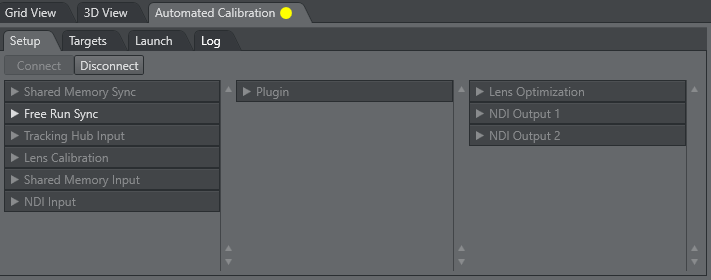
The calibration tool contains four tabs:
Setup: Configures the tool for specific needs.
Targets: Sets up the used targets, defining dimensions.
Launch: Starts/stops the tool, and optionally adds lens points.
Log: Prints the current status of the calibration tool.
Setup the Automated Lens Calibration Tool
The setup tab provides all of the options to configure the tool for different use cases, such as incoming signals (video, sync, tracking, etc.), plugin settings, output, lens file, and NDI rendering.
Continue From
A running calibration can be stored at any point and picked up later, instead of starting a new lens from scratch. These controls sit next to Connect / Disconnect, and become available once the tool is connected.
Continue From: Lists the stored calibrations. Selecting one loads the settings and targets it was made with, and the Start Calibration button on the Launch tab changes to Continue Calibration. Leave the field empty to calibrate a fresh lens.
New: Clears the selection and restores the default settings and an empty target list. A confirmation is requested before anything is discarded.
Refresh: Rescans the folder, to pick up calibrations stored while the panel was open.
Stored calibrations are kept in C:\ProgramData\vizrt\StudioManager\Data. Each one consists of a .dat file holding the calibration itself, and a .cfg file holding the tool settings and targets it was made with. A calibration is only offered in the list when both files are present.
Note: Continuing a calibration replaces the current settings and targets with the ones stored alongside it.
Shared Memory Sync
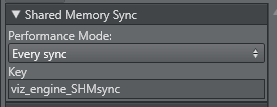
Performance Mode: Defines the sync rate on how often an image gets received within the tool. The rate can be limited depending on the GPUs performance.
Key: Sets the shared memory key to communicate with Viz Engine. viz_engine_SHMsync is used by default.
Free Run Sync
The sync source can be set to Free Run when no connection to a local Viz Engine sync source is present. This allows to calibrate any incoming NDI signal source without a Viz Engine Scene.
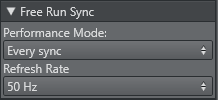
Performance Mode: Defines the sync rate on how often an image gets received within the tool. The rate can be limited depending on the GPUs performance.
Refresh Rate: Sets the refresh rate of the used NDI camera / input signal.
Tracking Hub Input
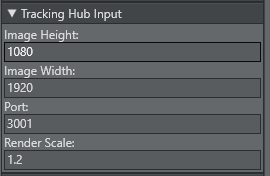
Image Height / Width: Defines the aspect ratio of received TH camera image. Attributes should not be changed, as long as the standard 16:9 format is used.
Port: Sets the UDP communication port where it receives the tracking information. Default is set to
3001.Render Scale: Sets the scale value for deformation calibration. Default is set to 1.2.
Lens Calibration
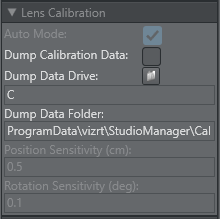
Auto Mode: Fetches lens information automatically for a target seen in the defined area. Active by default (to be removed in a later version).
Dump Calibration Data: Collects the images and tracking information for debugging (support cases).
Dump Data Drive / Dump Data Folder: Defines location where dumps get saved.
Position / Rotation Sensitivity: Threshold settings for Image detection. To be modified via config file only.
Shared Memory Input
Parameters to receive the camera input.
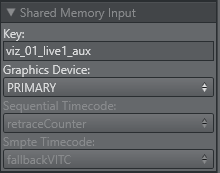
Key: Sets the Shared Memory key of the received input. By default, Live Input 1 is used (viz_01_live1_aux).
Graphics Device: Assigns the GPU to be used.
Plugin
The settings mentioned above need to be assigned to the plug-in (defaults in screenshot).
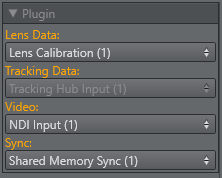
Lens Data: Name of the node used to calibrate the lens (assigned automatically).
Tracking Data: Sets the name of the node used for receiving the cameras tracking data (assigned automatically).
Video: Sets the source of the incoming video frame. Options available are Shared Memory Input (via Viz Engine) and NDI Input.
Sync: Assigns sync to be used for calibrating (assigned automatically). In case a direct NDI signal is used, Free Run Sync needs to be selected.
Lens Optimization
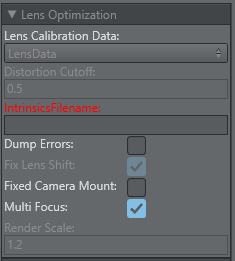
Distortion Cutoff: Sets the percentage of distortion that does not get calculated into the lens file. Only to be set in the configuration file (not recommended).
Intrinsics Filename: Sets the name for the target tracking meta information. This file can later be used to track targets with this lens file.
Fixed Camera Mount: Ignores position tracking data, and the camera is considered static. Used for PTZ cameras.
Multi Focus: Tracks focus when disabled. Can be used for quick files with static focal length.
NDI Output
Shows the actual calibration tool as an NDI signal.
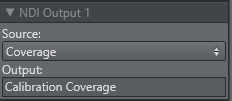
Source: Type of output. Coverage shows the calibration tool, Preview marks the targets with rendered overlays for previewing the expected calibration result.
Output: Name of the NDI stream in the network.
Targets
The Automated Lens Calibration tool uses special targets to detect the optics behavior.
Now four different targets have to be placed in front of the camera strategically. Two targets are usually enough for a good calibrating result, depending on the lens, adding more targets might be useful.
Adding Targets
If the shipped hard plastic targets are not available, the targets can be printed manually. The ID and the target dimensions have to be added in the Targets table. The target ID can be found on the printed target itself.
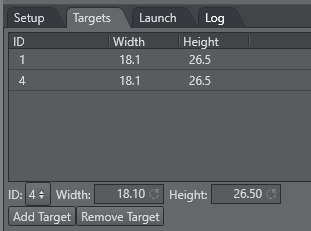
Dimensions of the targets must be entered in centimeters [cm].
Note: Width and height dimensions need to be measured within the target, not the sheet size.
Launch
Starts the actual calibration tool after all the required parameters are set.
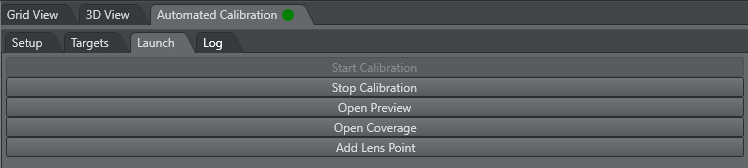
Open Preview / Coverage: Opens the NDI outputs in a dedicated window, locally.
Add Lens Point: Adds an extra lens point at the current Zoom / Focus position to the raw lens file calibration.
Start / Continue Calibration: Starts the calibration. The button reads Continue Calibration while a stored calibration is selected under Continue From, and the run then carries on from it.
Save Progress: Stores the current state of a running calibration so it can be continued later. A dialog asks for the name; reusing an existing name overwrites it. The calibration keeps running. This does not write the lens file.
Start the Lens Calibration Process.