This section covers the following topics:
Viz Artist Mode
Viz Trio templates are based on scenes created in Viz Artist. From the main menu, click Tools > Viz Artist to start Viz Artist, opening the template’s scene that is currently loaded in Viz Trio’s preview window. You can edit the scene, and save the changes in Viz Artist.

When in Viz Artist mode, Artist displays a button labelled Trio in the upper right corner. Click Trio to return to Viz Trio.
When you are back in playout mode, the confirmation dialog above asks you whether the scene should be reloaded on external renderers, like the external preview engine.
The template is re-imported automatically.
On Air Mode

The top bar contains the button above, which takes Viz Trio on and off-air. OnAir is red in on-air mode. When Viz Trio is in OnAir mode, normal playout operations to the Program engine(s) are available. When Off Air, it is only possible to read in the local preview engine.
Slave Mode
Select the main menu switch File > Slave Mode to enable/disable slave mode.
Slave mode means that any other Viz Trio client connected to the same Media Sequencer, which is not in slave mode, is in effect master.
A master triggers the slaves to change the show folder when they change. This typically makes sense when the commands to change the folder are issued from a newsroom system, the newsroom system is then master.
To exit slave mode, click the Main menu option File > Slave Mode again.
Show Modes
Prior to version 2.11, Viz Trio supported two show modes: traditional shows where templates and pages were part of the same view, and context enabled shows where templates and pages are split into two views. From version 2.11, Viz Trio only supports Context Enabled Shows.
Context Enabled Shows
A context-enabled show has the possibility to switch concepts and variants within a show. For example, a News concept could be switched to a Sports concept. Within that concept there could be variants of a specific scene (such as lower and top third).
Graphics for all these variations must be made, but once they are available and imported into Viz Trio, they can be switched and played out at the touch of a button.
Within a specific concept, all variants of a scene are shown as a single template in Viz Trio’s Template List.
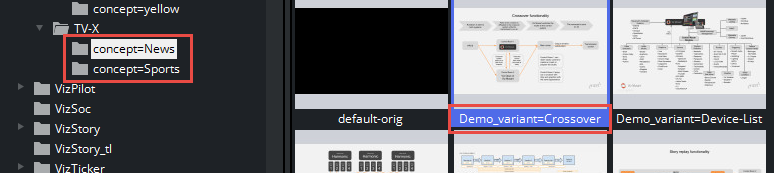
For a show to successfully use context-enabled scenes in Viz Trio, the folders and scene names in Viz must follow a certain naming convention, giving them properties and values for Viz Trio to recognize and use.
Concept Naming Conventions
Type | Property | Name | Example | |
|---|---|---|---|---|
Concept (folder) |
| = |
|
|
Context (folder)User-defined |
| = |
|
|
Variant (file) |
| = |
|
|
Note: It is essential to add an underscore "_" to separate the scene name from the variant’s keyword in the names of variants!
User-defined Contexts
Viz Trio supports the creation of user-defined contexts. The number of user-defined contexts is unlimited. However, user-defined contexts are only controllable through the Viz Trio command-line editor. The examples below show Viz Trio commands used with the user-defined contexts Aspect and Platform:
show:set_context_variable Aspect 16x9show:set_context_variable Platform HDshow:set_context_variable X YTip: User-defined contexts can be controlled using Viz Trio commands, which in turn can be used to create user-defined macro commands for use with scripts and shortcut keys.
See Also
Macro Commands and Events, and in particular the show commands.