 | Graphics are controlled from the Graphics tab at the top of the Control Panel. |
 | Each graphic has a toggle switch to show or hide that graphic and a settings button that will allow you to customize the content and behaviour of that graphic. |
 | You can customize the appearance of your graphics (design, colors and font) from the Theme tab. |
Filling in your Name Tag
Vizrt InteractifAI automatically uses your Zoom profile information to populate your name, role and location. You can edit or update this information at any time within the app from the Settings page by clicking the right-most icon 
Uploading your Logo
Uploading your logo is simple:
Open the Logo settings using the
icon.Select Upload Image
Choose your file and upload
Tip: For images with transparent backgrounds, we recommend using .png files.
Understanding the Ticker
The ticker lets you share key messages or headlines with meeting participants in real time.
The ticker has a title or image that can be displayed to identify it, and then a list of messages that scroll along the screen containing your information. The list of messages can be entered manually in the Ticker settings panel or read automatically from a Google Sheet via the URL.
Adding an Agenda
Add the agenda for your meeting using the Agenda option. This is a freeform list of text that automatically adjusts the size to fit in the space available.
Questions and Answers
Similar to the Agenda, the Q&A option also allows you to enter freeform text, but it doesn’t have to be limited only to questions and answers – you can customize the title of this graphic and put any text in the list that you want to share in your meeting.
How to use Polls
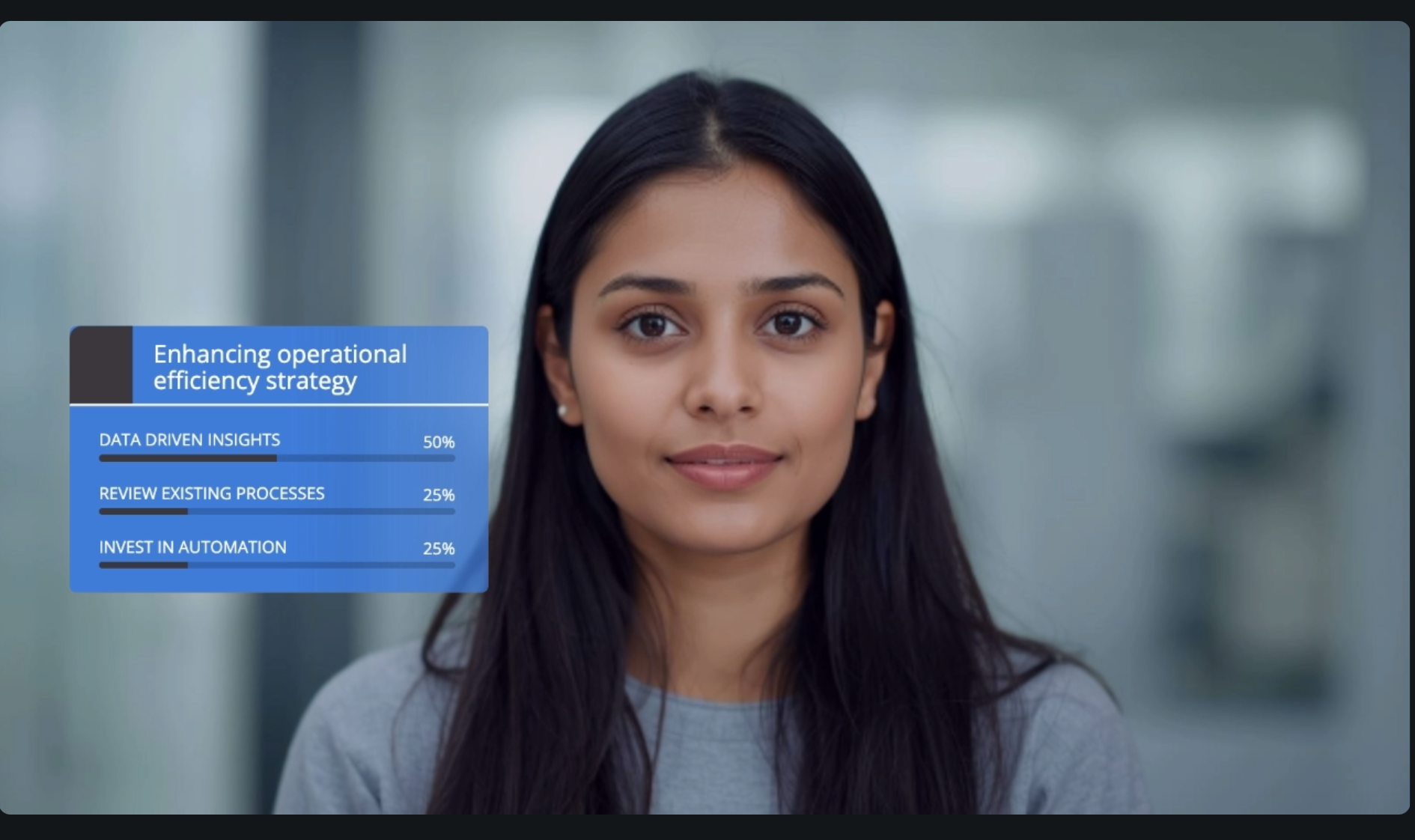
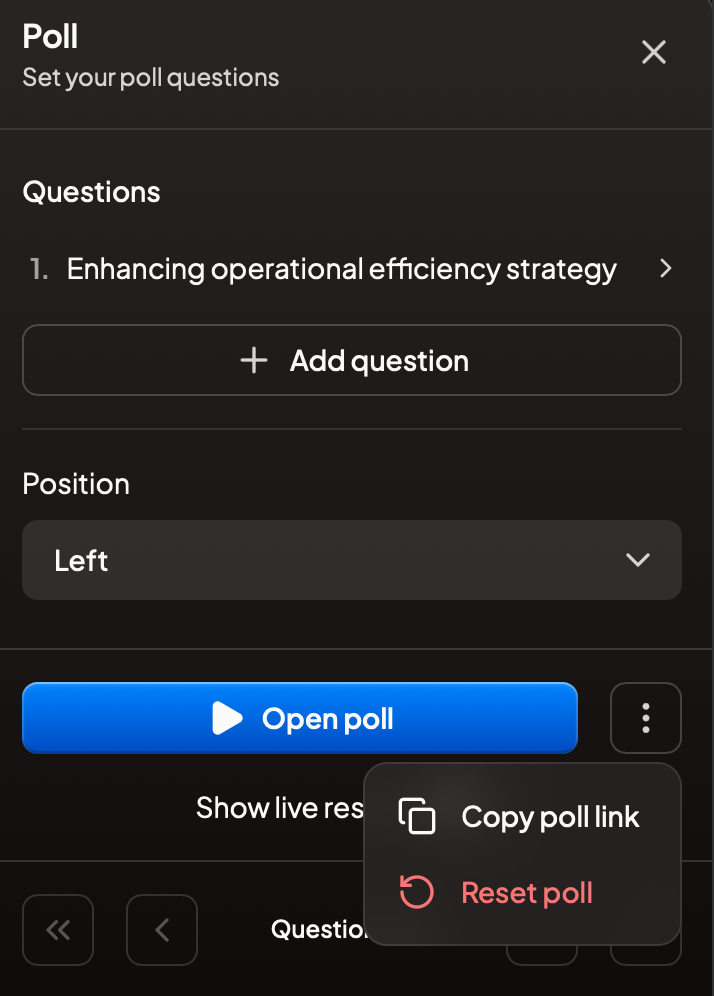
Polls let you collect live feedback from participants during a meeting.
You can:
Add a question and multiple response options.
The ability to choose single or multiple answers.
Position the poll display on the left or the right of the screen.
When the poll is shown:
A QR code appears on screen for participants to scan
Or you can Copy poll link and share it in the Zoom chat.
You can toggle live results on or off, and the poll remains open until you close it.
Tip: The Reset poll function allows you to clear existing poll data. This makes it possible to use the reuse a poll for other meetings between various groups or departments.
 |  |
Adding External Content
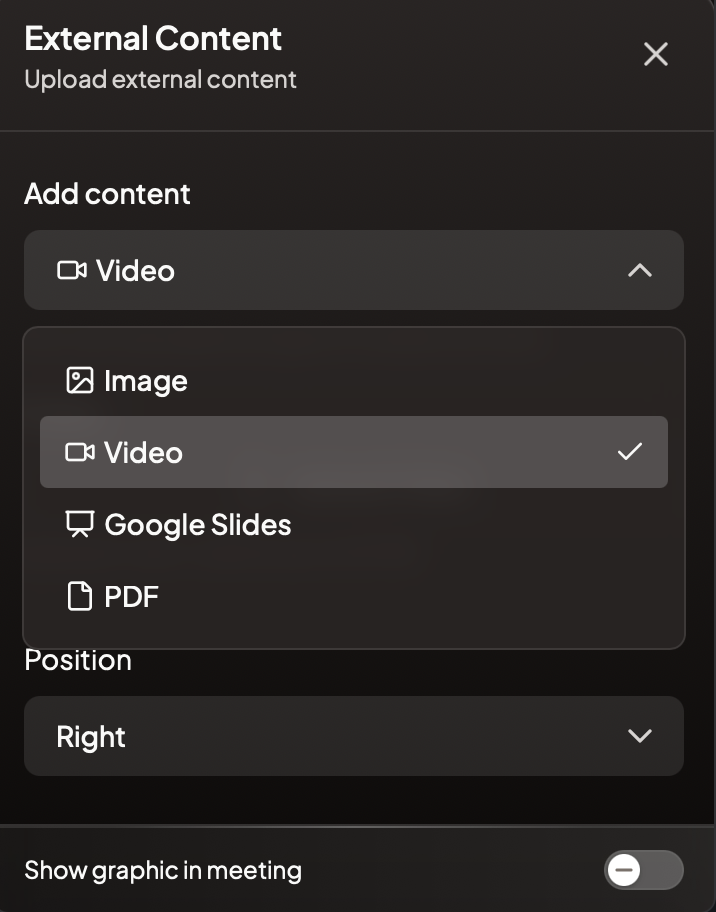
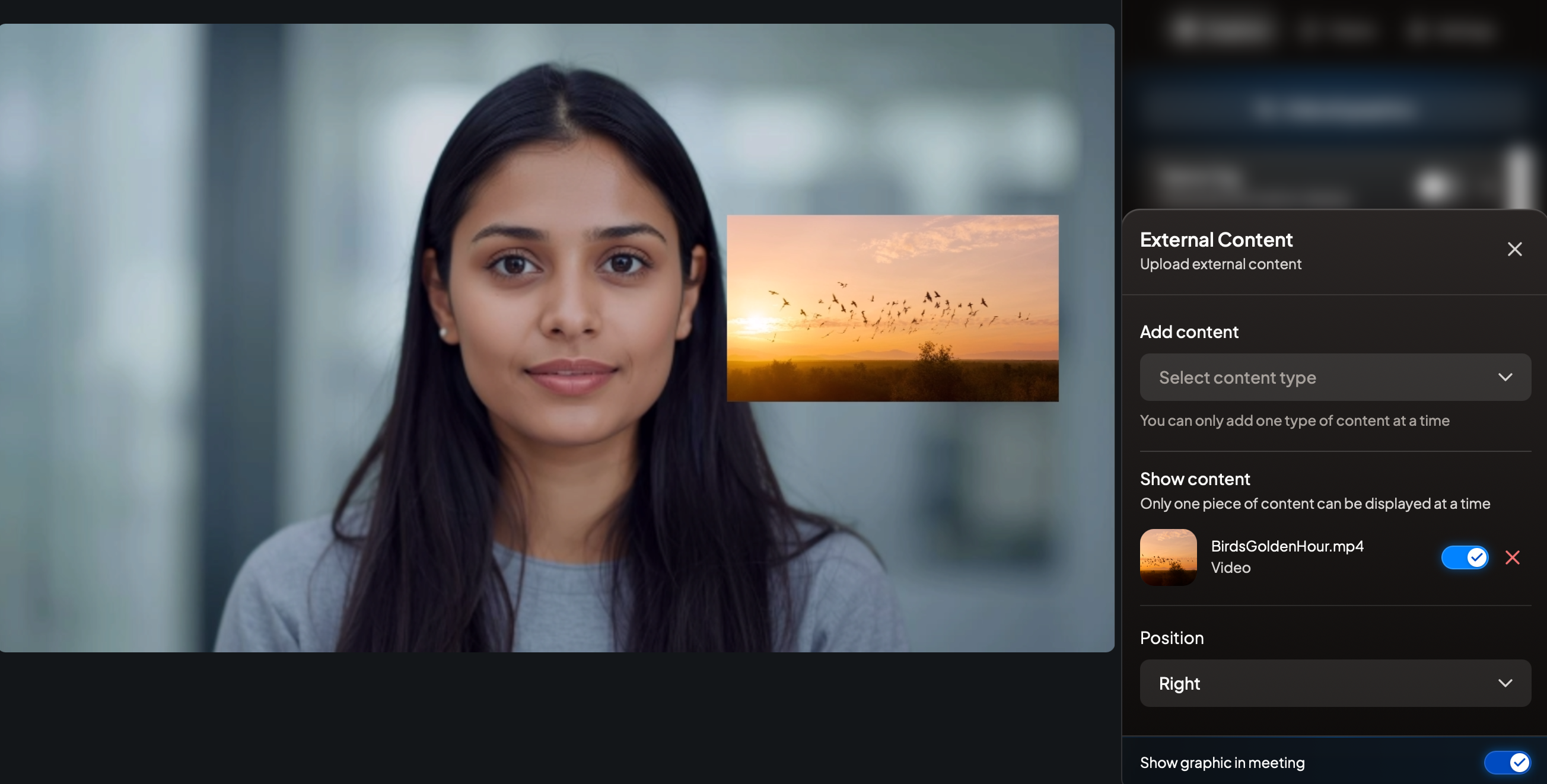
External Content allows you to overlay additional content directly into your meeting, including:
Images
Videos
PDF
Google Slides
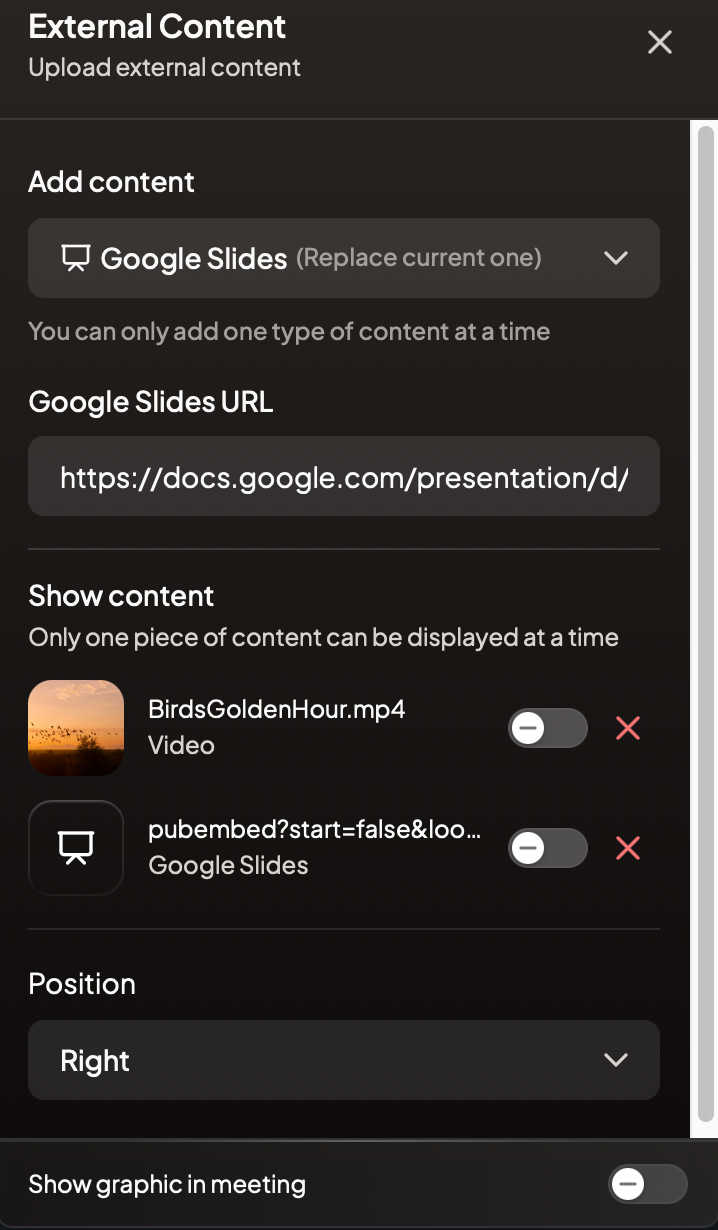
To show external content, you must first choose a display orientation. Portrait and Landscape orientation are supported for all graphics. For best results with PDF, we recommend landscape orientation. After the orientation is selected, use the enable switch to choose which content element to display, you can load up to one item from each of the four categories at the same time.
Tip: An effective way to use External Content is to export a PowerPoint presentation as a PDF, allowing you to present and navigate through each page at your preferred speed.
To use Google Slides, you must first Publish to the web in Google Slides and paste the generated link into Vizrt InteractifAI.
Video content supports .mp4 and .webm playback on both Windows and Mac.
 |  |
Side-by-Side Presenting
When external content is displayed, it will be shown over the live video feed. In some cases, you may need to reposition slightly to the left or right to prevent the content from covering you.
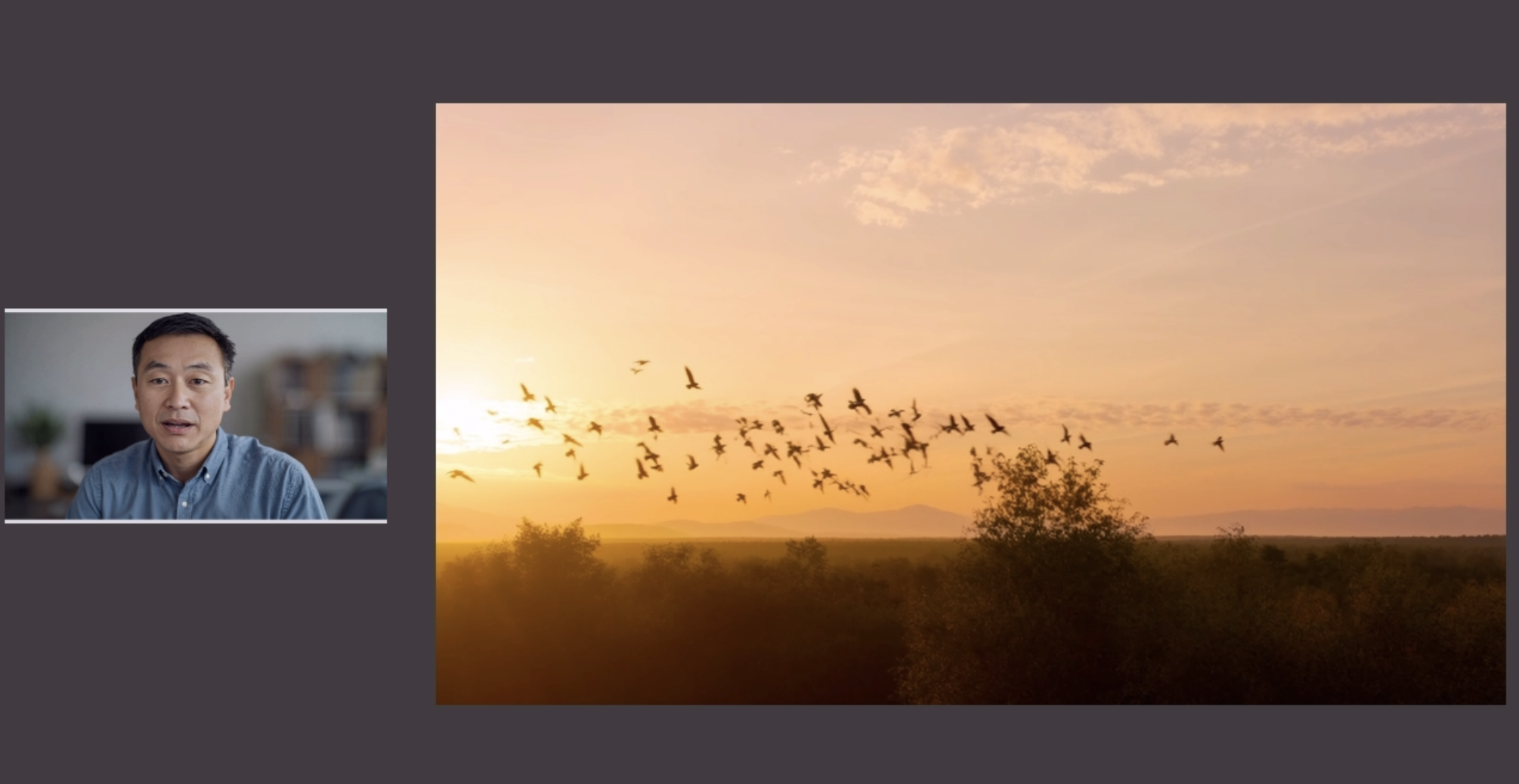
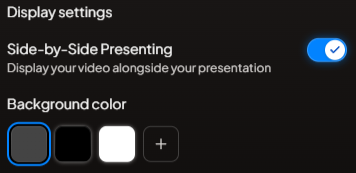
Selecting the Side-by-Side Presenting option, will display the presentation alongside your live video, ensuring that both the presentation and video feed are completely visible. When this option is enabled, a background color is available for selection.
Using the Waiting Room
The waiting room graphic covers the entire screen, displaying a logo and message. You can also choose to display the logo that was uploaded into the Logo section in the Waiting Room screen.
Tip: The Waiting Room graphic is a good placeholder to show prior to the commencement of the meeting or during intermissions.
How to use Social Feeds
Social Feeds allow you to display posts from X (formerly Twitter) or Instagram.
To use Social Feeds:
Connect your social media accounts, found inside the Settings tab.
For Instagram stories, connect an Instagram Business or Creator account to a Facebook page.
Choose keywords, hashtag or @handles to filter posts
After saving filters, posts will automatically appear when available. You can review, select and display them during your meeting.
Controlling graphics
You can control graphics yourself or allow someone you authorize to manage them remotely through a web browser.
To enable this:
Launch Vizrt InteractifAI
Turn on Remote graphics control
Share the control link
Note: The toggle switch changes made by the remote controller are not reflected in the presenter’s Vizrt InteractifAI app (or vice versa).
Resetting Graphics
You can reset all of the graphics to the default state in Settings.
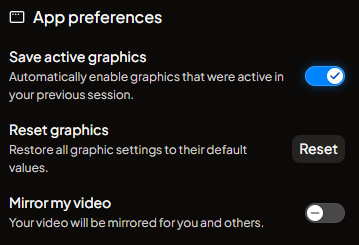
Go to Settings
Click on the Reset button next to Reset graphics
This will reset all graphics back to their default state, any setting you have configured will be lost.
Vizrt InteractifAI may update the based graphics for time to time. To use these new graphics, you will need to perform a Reset to make them become available.