Getting started takes just a few minutes:
Install Vizrt InteractifAI from the Zoom Marketplace
Open Zoom
Launch the app and start your meeting
No additional configuration or set up is required.
Vizrt InteractifAI works with the Zoom Workplace desktop client on Windows or Mac. For the best experience, we recommend using the latest version of Zoom.
Adding Vizrt InteractifAI graphics to a Zoom meeting
You can launch Vizrt InteractifAI either before or during your meeting:
Open Zoom, go to Apps, launch Vizrt InteractifAI, select your graphics, then start your meeting
or
Start your Zoom meeting, select Apps, launch Vizrt InteractifAI, then select the graphics you want to show.
Tip: To automatically open Vizrt InteractifAI whenever you join a Zoom meeting, open the three dots menu in the sidebar and select Auto-open in meetings. | 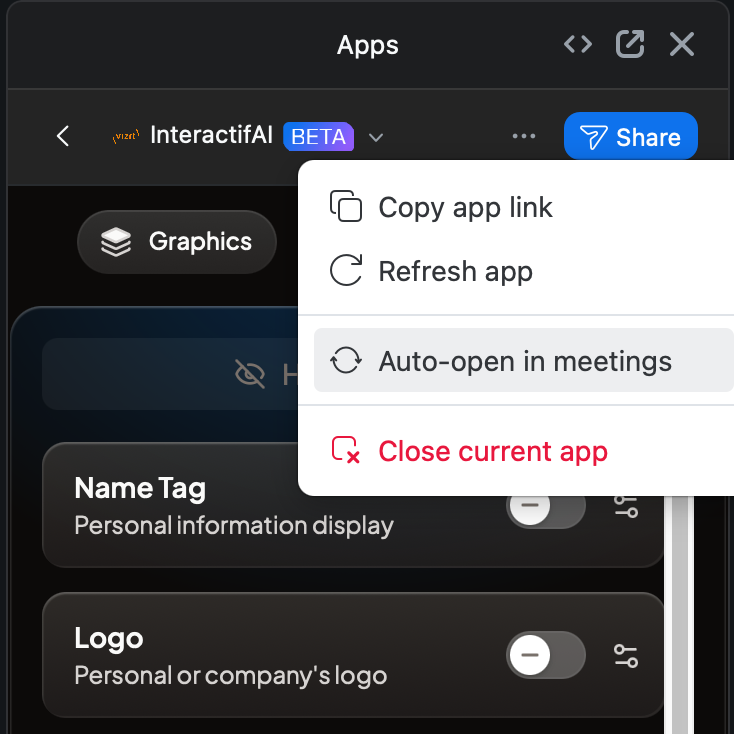 |
Optimizing the experience
To get the most from Vizrt InteractifAI:
Enable scroll bars in your device settings
Disable the Original ratio setting in the Zoom Workplace client app
Spend a few minutes before your first meeting choosing your preferred colors and fonts.
This ensures your graphics are clear, readable and aligned with your style or brand.
Tip: You can double-click any color swatch in the Theme settings to choose an exact color that fits your company’s brand.
Supported Graphics
Vizrt InteractifAI includes an assortment of graphics designed for clarity, branding and engagement.
Name Tag
Logo
Ticker
Timer
Agenda
Q&A
Polls
External Content (images, video, PDFs or Google Slides)
Waiting Room
Social feeds
By selecting the Theme tab at the top of the Vizrt InteractifAI Control Panel, you can choose how you want your graphics to appear. You can choose from three design styles and customize colors and fonts to reflect your personal or company brand.
Note: Vizrt InteractifAI will not display graphics before you start your Zoom meeting or if your camera is not turned on.